1. Introduction
This manual provides detailed instructions for the setup, operation, and maintenance of your SENORTIAN A3 L1800 DTF Printer. This high-quality DTF printer is designed for T-shirt printing and creating custom garments and hoodies, featuring a 13-inch maximum print width, white ink circulation, and versatile feeding systems. Please read this manual thoroughly before operating the device to ensure proper function and longevity.
2. Safety Information
Always adhere to the following safety guidelines to prevent injury or damage to the printer:
- Ensure the printer is placed on a stable, level surface away from direct sunlight and heat sources.
- Use only the specified power supply and ensure it is properly grounded.
- Keep ink and other consumables out of reach of children and pets.
- Avoid touching the printhead or internal components while the printer is operating.
- Do not attempt to disassemble or repair the printer yourself. Contact customer support for assistance.
- Ensure adequate ventilation in the work area when using the printer and oven.
3. What's in the Box
Your SENORTIAN A3 L1800 DTF Printer package includes the following components:
- SENORTIAN A3 L1800 DTF Printer (Cyan)
- A3 Oven
- 100M PET Roll Film
- 250ml x 6 DTF Ink bottles
- 500g DTF Transfer Powder
- RIP Software (on USB drive)
- USB Flash Drive (containing software key, teaching materials, and software)
- Printer Data Cable

Image: The SENORTIAN A3 L1800 DTF Printer shown with the accompanying A3 oven, roll film, ink bottles, and DTF powder, illustrating the complete package contents.
4. Setup
4.1 Physical Setup
Unpack all components and place the printer and oven on a stable, flat surface. Connect the printer to your computer using the provided USB data cable.
4.2 Software and Driver Installation
Follow these steps to install the necessary software and drivers for your printer. A detailed video tutorial is also provided for visual guidance.
Video: Official tutorial demonstrating the step-by-step process for installing the printer drivers and software on a Windows computer.
- Insert USB Flash Drives: Insert both the blue USB flash drive (software key) and the white USB flash drive (teaching materials and software) into your computer.
- Copy Files: Open the white USB drive. Copy the entire contents of the white USB drive to a newly created folder named 'DTF' on your computer's C drive.
- Decompress Software: Navigate to the 'DTF' folder on your C drive. Locate the compressed software package (e.g., 'Atusums Rip V2.13.2.11212024-x64.zip') and extract all its contents.
- Install Printing Software: Run the extracted setup file for the printing software (e.g., 'Atusums Rip V2.13.2.11212024-x64.exe'). Follow the on-screen prompts, clicking 'Next' and 'Install'. Ensure to check and click on any additional required installations (e.g., Microsoft Visual C++ Redistributable) and select 'Repair' if prompted. Close the setup upon completion.
- Install Printer Driver: Return to the 'DTF' folder on your C drive. Navigate to the 'A3 drive' folder, then 'A3 driver 64 bit'. Run the printer driver installation file (e.g., 'L1800_driver_64-bit.exe'). Follow the prompts, select 'English', agree to the license agreement, and click 'OK' to complete the installation.
- Configure Printer in Software: Open the Atusums Rip program. Switch to the next page of the software (usually indicated by a double arrow icon). Click on the 'Print terminal' icon (often represented by an IP address symbol) and select 'EPSON L1800 Series [USB004]' from the printer dropdown. Click 'OK'.
- Set Default Printer Curve: Click on the 'Printer management' icon (often represented by a printer with a gear). Select 'A3-DTF-1800 (Default)' and click 'Set as default option'.
- Perform Initial Cleaning Test: Right-click within the software interface and select 'Printer preferences'. Go to the 'Maintenance' tab. Click on 'Head Cleaning' and then 'Start'. Allow the cleaning process to complete. After cleaning, click on 'Nozzle Check' and then 'Print' to perform a print test. Verify that the nozzle check pattern is satisfactory. If there is no red light on the printer after printing, the test is completed successfully.
5. Operating Instructions
5.1 Feeding Options
The SENORTIAN A3 L1800 DTF Printer supports both single-sheet and roll feeding modes, offering flexibility for various printing needs.

Image: The printer configured for both roll film and sheet film feeding, highlighting its versatile media handling capabilities.
5.2 Printing Process
Follow these general steps for DTF printing:
- Print Your Design: Use the RIP software to prepare and print your design onto the DTF film. The printer supports simultaneous white and color printing at 1440 DPI for high resolution.
- Powder Application: Once printed, carefully flip the print film and evenly coat the wet ink with DTF transfer powder.
- Curing: Bake the powder-coated film in the A3 oven at 284°F (140°C) for approximately 180 seconds (3 minutes) until the powder melts and cures.
- Heat Pressing: Place the cured film onto your garment or fabric. Apply heat with a heat press at 300°F (149°C) for 20-30 seconds.
- Peeling: For a cold peel, wait 20-30 seconds after pressing before peeling the film. For a hot peel, peel off the film within 5 seconds.
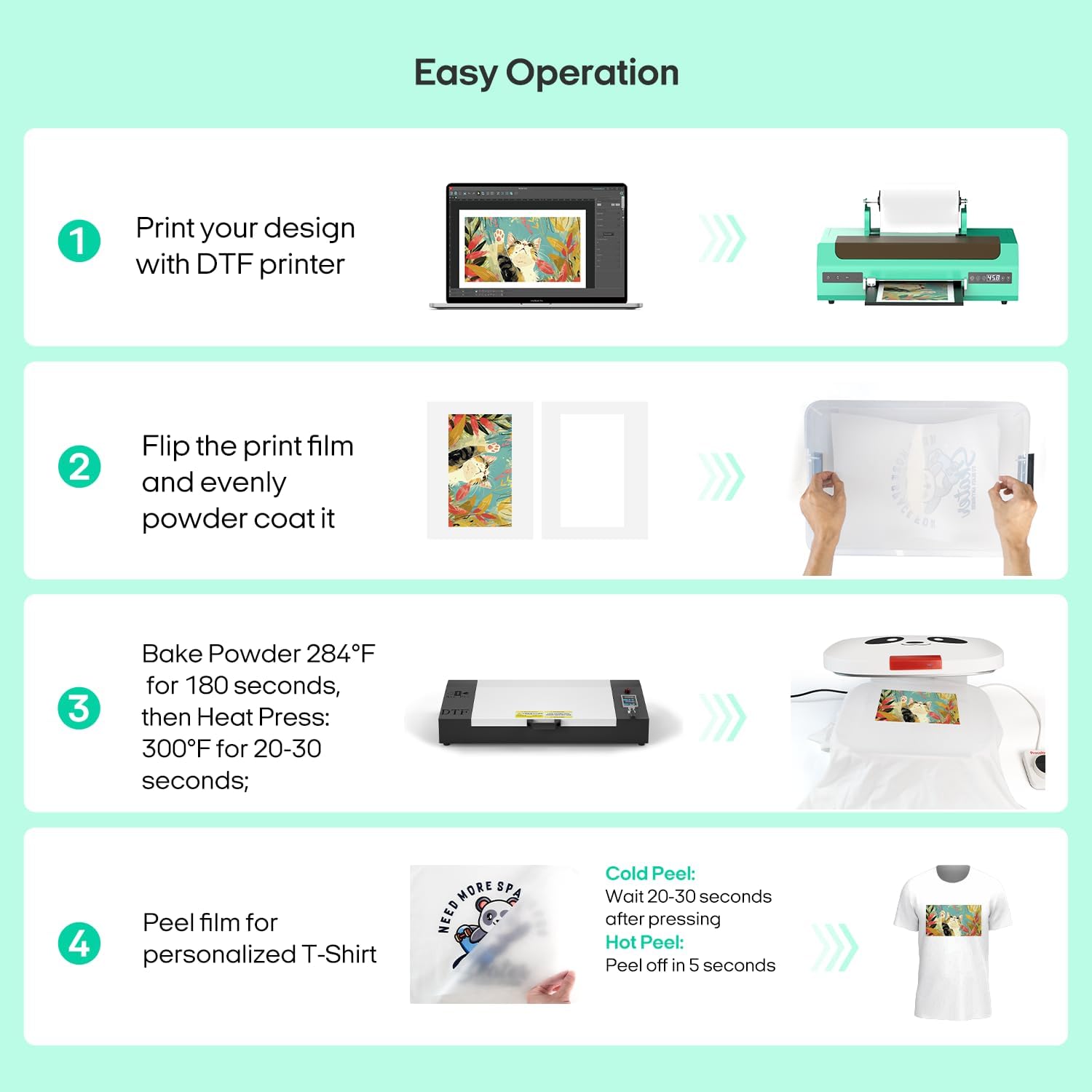
Image: A visual representation of the four-step DTF printing process: Print, Powder, Bake/Heat Press, and Peel.
5.3 Supported Applications
The SENORTIAN A3 L1800 DTF Printer is suitable for printing on a wide variety of fabrics and items, including:
- T-shirts
- Hoodies
- Canvas Bags
- Canvas Shoes
- Pillows
- Hats
- Plush Dolls

Image: Various customized products such as canvas bags, hoodies, canvas shoes, pillows, hats, plush dolls, and T-shirts, demonstrating the versatility of the DTF printer.
6. Maintenance
Regular maintenance is crucial for the optimal performance and longevity of your DTF printer. The printer is equipped with features to assist with this:
- White Ink Circulation: The white ink circulation system prevents pigment sedimentation, ensuring smooth ink flow and extending printhead life.
- Ink Stirring: An ink stirring mechanism helps maintain consistent ink viscosity and prevents clogging.
- Automatic Cleaning: The printer features automatic cleaning functions to reduce clogging and maintain printhead health.

Image: Detailed diagram illustrating the professional white ink print system, including the mixer, ink tubes, ink damper, printhead, and cycle, alongside visuals of white ink stirring and regular automatic cleaning.
6.1 Daily Maintenance
While the printer has automated features, daily manual maintenance is recommended to prevent issues and ensure consistent print quality. Refer to the teaching materials on the provided USB drive for specific daily maintenance routines.
7. Troubleshooting
For common issues, refer to the comprehensive machine operation and maintenance videos included on the USB drive. Many problems can be resolved by following the guided instructions. If you encounter persistent issues, professional after-sales support is available.
Common Issues & Solutions:
- Poor Print Quality: Perform head cleaning and nozzle checks as described in the setup section. Ensure ink levels are sufficient and ink circulation is active.
- Software Not Responding: Ensure the software key (blue USB drive) is inserted. Restart the software and/or computer. Verify that the printer data cable is securely connected.
- Paper Feeding Issues: Check for any obstructions in the paper path. Ensure the film is loaded correctly according to the chosen feeding mode (roll or sheet).
8. Specifications
| Feature | Specification |
|---|---|
| Model Series | A3-L1800 |
| Product Dimensions (L x W x H) | 30"D x 13"W x 9"H |
| Item Weight | 105.6 pounds (48 Kilograms) |
| Maximum Media Size | 13 inches |
| Print Media | Fabric |
| Printing Technology | Inkjet |
| Maximum Color Print Resolution | 1440 DPI |
| Maximum Black and White Print Resolution | 1440 DPI |
| Ink Color | White, Cyan (CMYKW 6-Color) |
| Hardware Interface | USB |
| Operation System | Windows (only) |
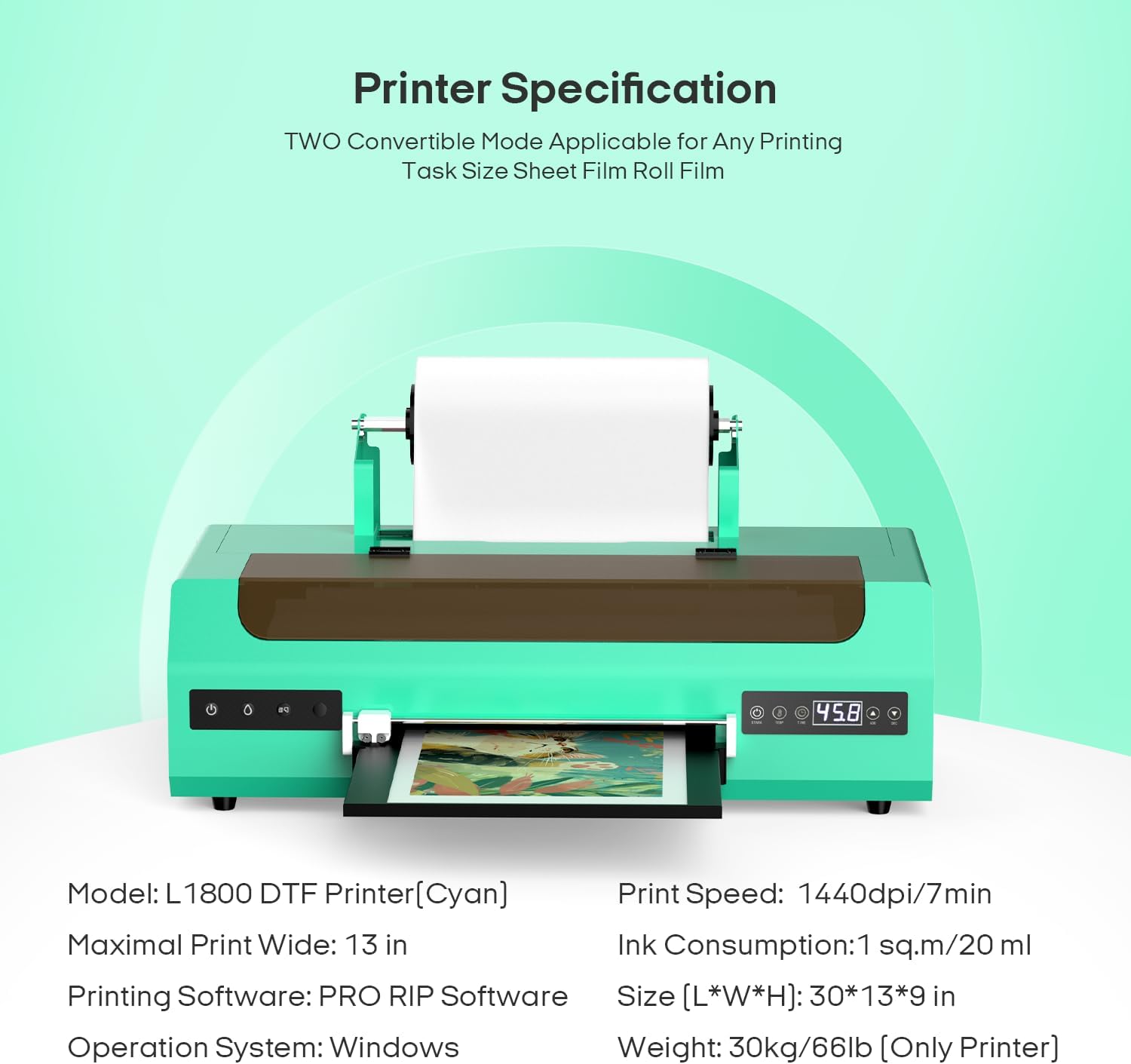
Image: A visual summary of the printer's key specifications, including model, print width, print speed, ink consumption, size, and weight.
9. Warranty & Support
Your SENORTIAN A3 L1800 DTF Printer comes with a limited warranty. SENORTIAN is committed to providing professional service and reliable quality.
9.1 Customer Support
SENORTIAN offers comprehensive customer support to assist with any questions or issues you may encounter:
- Remote Online Guidance: Professional after-sales support is available for easy setup and troubleshooting.
- Lifetime Help: Assistance with machine repairs is provided for the lifetime of the product.
- California Offline Repair Point: For certain issues, an offline repair point is available in California.
- Multi-Channel Service: Contact support via Email, Skype Online Chat, or Call.

Image: An illustration depicting the various channels for SENORTIAN customer support, including email, Skype online chat, and phone calls.


