
HAPPRUN E2
HAPPRUN Outdoor Movie Projector User Manual
Model: E2
Brand: HAPPRUN
1. Introduction
This manual provides essential information for setting up, operating, and maintaining your HAPPRUN E2 Outdoor Movie Projector. Designed for a superior viewing experience, this projector features native 1080P HD resolution, intelligent E-Focus, and versatile connectivity options, making it ideal for home theater, gaming, and outdoor entertainment.
2. What's in the Box
- HAPPRUN E2 Projector
- HDMI Cable
- User Manual
- Power Cord
- Remote Control
3. Setup
3.1. Placement Options
The HAPPRUN E2 projector offers flexible placement to suit your viewing environment:
- Desktop Mounting: Place the projector on a flat, stable surface.
- Tripod Mounting: Utilize the 1/4"x20 socket on the bottom to attach the projector to a standard camera tripod for adjustable height and angle.
- Ceiling Mounting: The projector can be mounted to the ceiling using a compatible mount (not included). Ensure proper orientation is selected in the projector settings.

Image: Various installation options for the HAPPRUN E2 projector, including desktop, tripod, and ceiling mounting.
3.2. Power Connection
Connect the provided power cord to the projector's power input and then to a standard electrical outlet.
3.3. Initial Power-On and Focus Adjustment
Press the power button on the projector or the remote control to turn on the device. The projector features intelligent E-Focus for quick and clear image adjustment.
- E-Focus: Use the 'F+' or 'F-' buttons on the remote control to automatically adjust the focus for a sharp image.
- Manual Focus: For fine-tuning, navigate to the settings menu and select "Manual Focus" to adjust precisely.

Image: The HAPPRUN E2 projector demonstrating its one-click electric focus feature, with remote control buttons highlighted for focus adjustment.
3.4. Auto Vertical Keystone Correction
The projector automatically corrects vertical image distortion. If further adjustment is needed, access the settings menu to fine-tune the keystone correction.
3.5. Digital Zoom
Adjust the screen size digitally from 50% to 100% via the settings menu, allowing you to fit the image perfectly to your screen without moving the projector.

Image: The HAPPRUN E2 projector's digital zoom capability, illustrating how the projected image size can be adjusted from 50% to 100%.
4. Operation
4.1. Remote Control Overview
The included remote control provides full functionality for navigating the projector's interface. Ensure 2x AAA batteries are inserted correctly.

Image: The HAPPRUN E2 projector shown alongside its remote control, highlighting the compact design of both units.
4.2. Menu Navigation
Use the arrow keys and 'OK' button on the remote to navigate through the projector's on-screen menu. The main menu provides access to various functions including Home, HDMI, iOS Wired, Movie, Music, Photos, and Help.
4.3. Picture and Sound Settings
Adjust picture modes (Standard, Dynamic, Mild, User) and sound modes (Standard, Music, Movie, Sports, User) to optimize your viewing and listening experience. You can also adjust brightness, contrast, and color temperature.
4.4. Bluetooth Audio Connection
Connect external Bluetooth speakers for enhanced audio. Navigate to the Bluetooth settings and pair your device. Note: Bluetooth only supports audio devices; phone connections are not supported for direct content streaming.

Image: The HAPPRUN E2 projector wirelessly connected to external speakers via Bluetooth, illustrating its audio connectivity feature.
5. Connectivity
The HAPPRUN E2 projector offers multiple input options for connecting various devices:
- HDMI: Connect TV sticks, gaming consoles (PS3/PS4), laptops, and other HDMI-enabled devices.
- USB: Plug in U disks or flash drives to play media directly.
- 3.5mm Audio Jack: Connect headphones or wired external speakers.
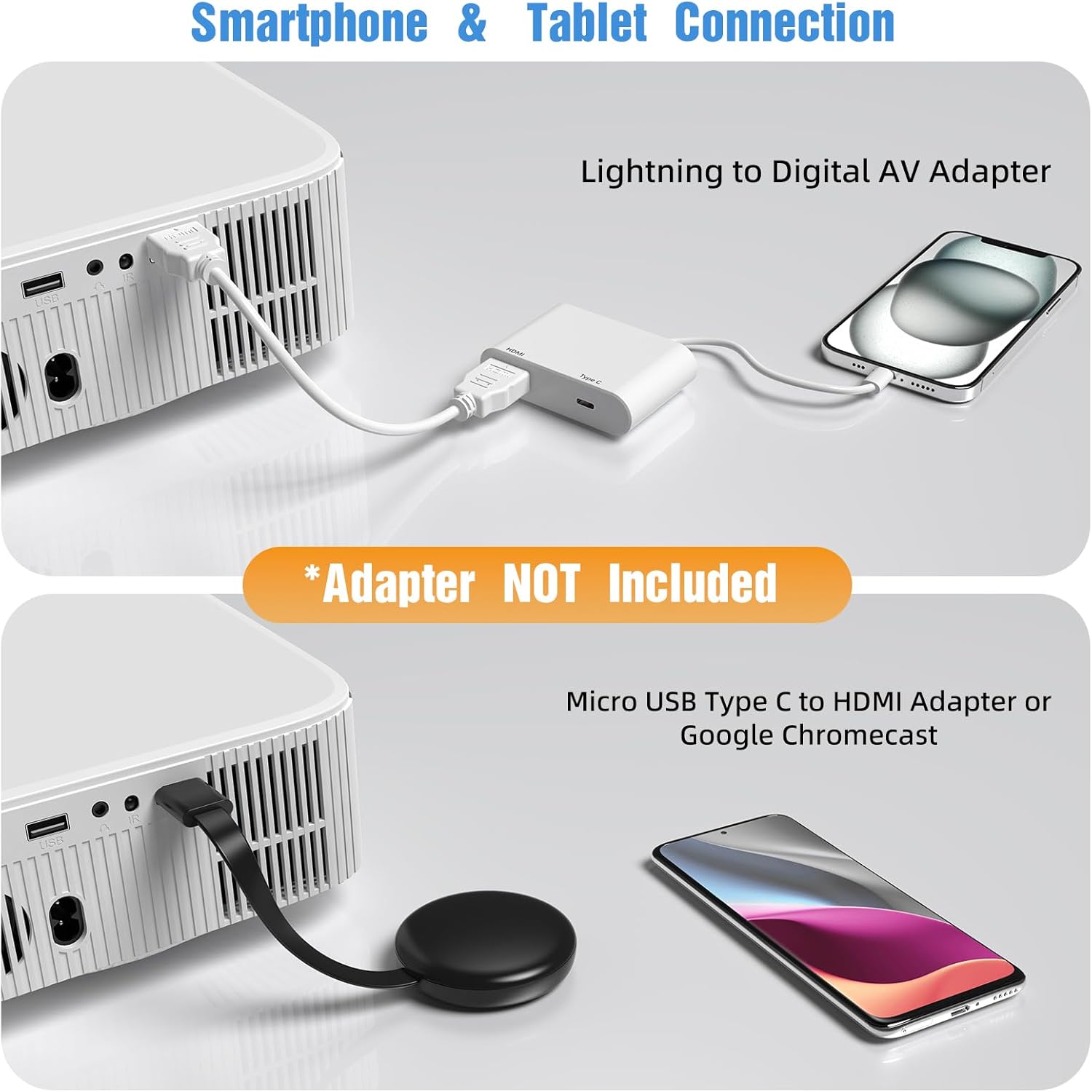
Image: A diagram illustrating the multi-device compatibility of the HAPPRUN E2 projector, showing connections for smartphones/tablets, TV sticks, laptops, gaming consoles, U disks, iPhones, and headphones.
5.1. Smartphone & Tablet Connection
To connect smartphones or tablets, a compatible adapter is required (e.g., Lightning to Digital AV Adapter for iOS, Micro USB/Type C to HDMI Adapter or Google Chromecast for Android). These adapters are not included with the projector.

Image: The HAPPRUN E2 projector demonstrating connections to a smartphone and a tablet using external adapters (not included).
6. Key Features
- Native 1080P HD Quality: Enjoy crystal-clear and detailed images for movies, TV shows, and gaming.
- Authentic 240 ANSI Lumens Brightness: Provides truthful brightness specifications for a clear picture, especially in low-light conditions.
- High Contrast Ratio: Features a 12000:1 contrast ratio for vibrant and rich colors.
- Max 200" Projection: Capable of projecting a large screen size up to 200 inches for an immersive cinematic experience.
- Extra Long Life Lamp: The projector lamp is designed for an extended lifespan of up to 12,000 hours.
- Lower Noise Operation: Engineered for quiet operation, with noise levels below 20dB, ensuring minimal distraction during use.
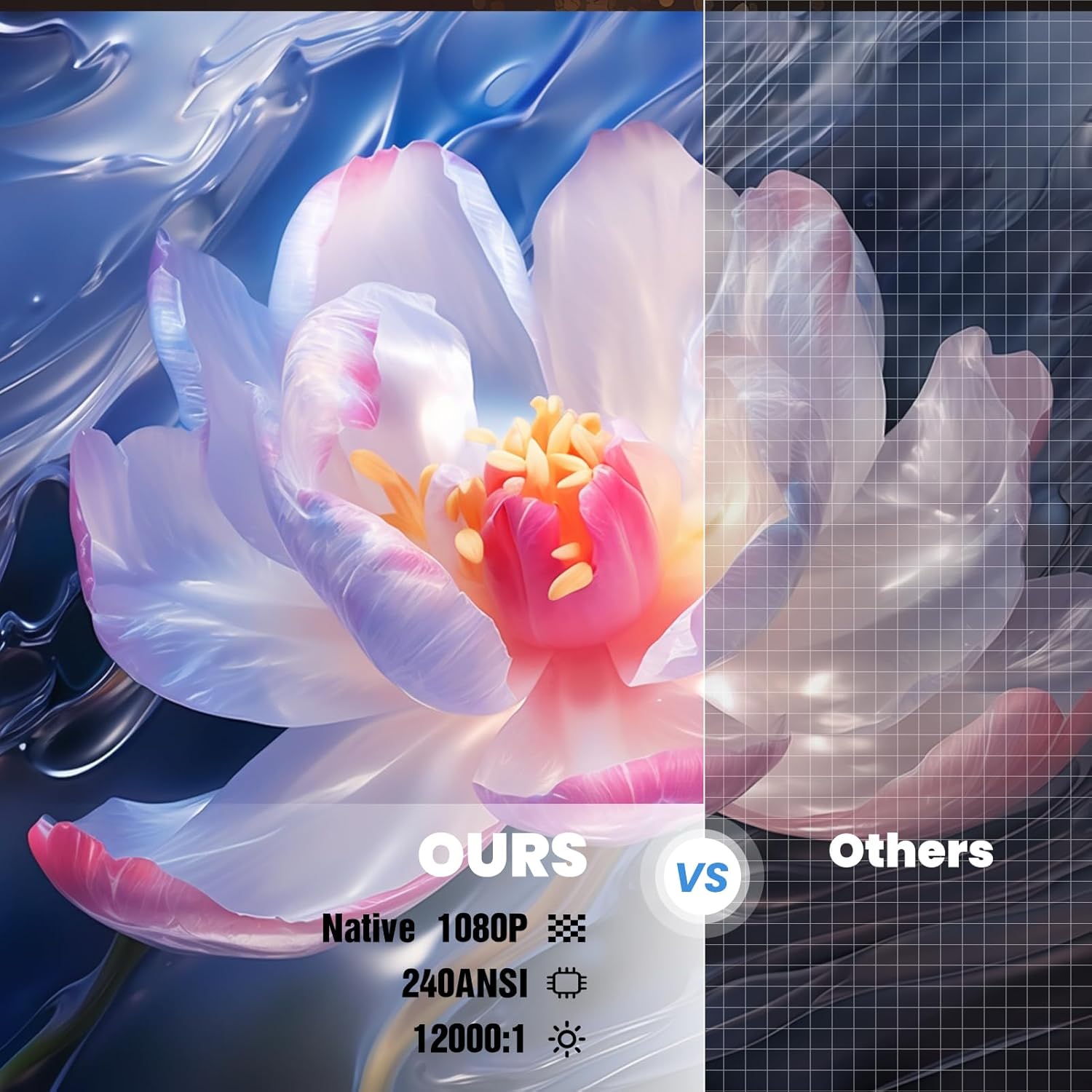
Image: A visual comparison highlighting the HAPPRUN projector's native 1080P resolution, 240 ANSI lumens, and 12000:1 contrast ratio against other projectors.

Image: The HAPPRUN E2 projector creating a large 200-inch display, illustrating its capability for a cinematic experience.
7. Maintenance
7.1. Cleaning the Lens
Regularly clean the projector lens using a soft, lint-free cloth or the provided cleaning materials. Avoid using abrasive cleaners or harsh chemicals that could damage the lens coating.
7.2. General Care
Keep the projector in a cool, dry environment. Ensure proper ventilation by not blocking the air vents. When not in use, store the projector in a protective cover to prevent dust accumulation.
8. Troubleshooting
8.1. No Picture / Blurry Image
- Check power connection and ensure the projector is turned on.
- Adjust focus using the E-Focus buttons on the remote or manual focus in settings.
- Verify the input source is correctly selected (HDMI, USB).
- Ensure the projection surface is flat and the projector is positioned correctly for keystone correction.
8.2. No Sound
- Check the volume level on the projector and the connected device.
- If using Bluetooth, ensure the external speaker is properly paired and charged.
- If using a wired connection, ensure the 3.5mm audio cable is fully inserted.
8.3. Remote Control Not Responding
- Check and replace the AAA batteries in the remote control.
- Ensure there are no obstructions between the remote and the projector's IR receiver.
9. Specifications
| Brand | HAPPRUN |
| Model | E2 |
| Display Resolution | Native 1920 x 1080P |
| Brightness | 240 ANSI Lumens |
| Contrast Ratio | 12000:1 |
| Connectivity Technology | HDMI, USB, 3.5mm Jack, Bluetooth |
| Lamp Life | 12,000 Hours |
| Product Dimensions | 4.33 x 1.97 x 4.33 inches |
| Item Weight | 2.42 pounds |
| Special Features | Built-In Cooling System, Built-In Speaker, Digital Keystone Correction, Lightweight, Portable, E-Focus |
10. Warranty and Support
HAPPRUN products come with a standard manufacturer's warranty. For detailed warranty information, technical support, or service inquiries, please refer to the contact information provided on the product packaging or visit the official HAPPRUN website.
Online Support: Visit the HAPPRUN Store on Amazon
Related documentsE2


Ask a question about this manual
Ask about setup, troubleshooting, compatibility, parts, safety, or missing instructions. Manuals+ will review the question and use this page’s manual context to help answer it.