
Lenovo 81W1
Lenovo IdeaPad 3 Laptop 2021 User Manual
Model: IdeaPad 3 15ADA05 (81W1)
Introduction
This manual provides comprehensive instructions for setting up, operating, maintaining, and troubleshooting your Lenovo IdeaPad 3 Laptop 2021. Designed for optimal performance and user convenience, this laptop features an AMD Ryzen 5 3500U processor, a 15.6-inch Full HD display, 8GB DDR4 RAM, and a 512GB SSD, running on Windows 10 Home. Please read this manual thoroughly to ensure proper use and longevity of your device.
1. Setup
1.1 Unboxing and Initial Power On
Carefully remove the laptop and all accessories from the packaging. Ensure all components are present: laptop, power adapter, and any included documentation. Connect the power adapter to the laptop's power port and then to a power outlet. Open the laptop lid; the system may power on automatically. If not, press the power button located on the top-right side of the keyboard.
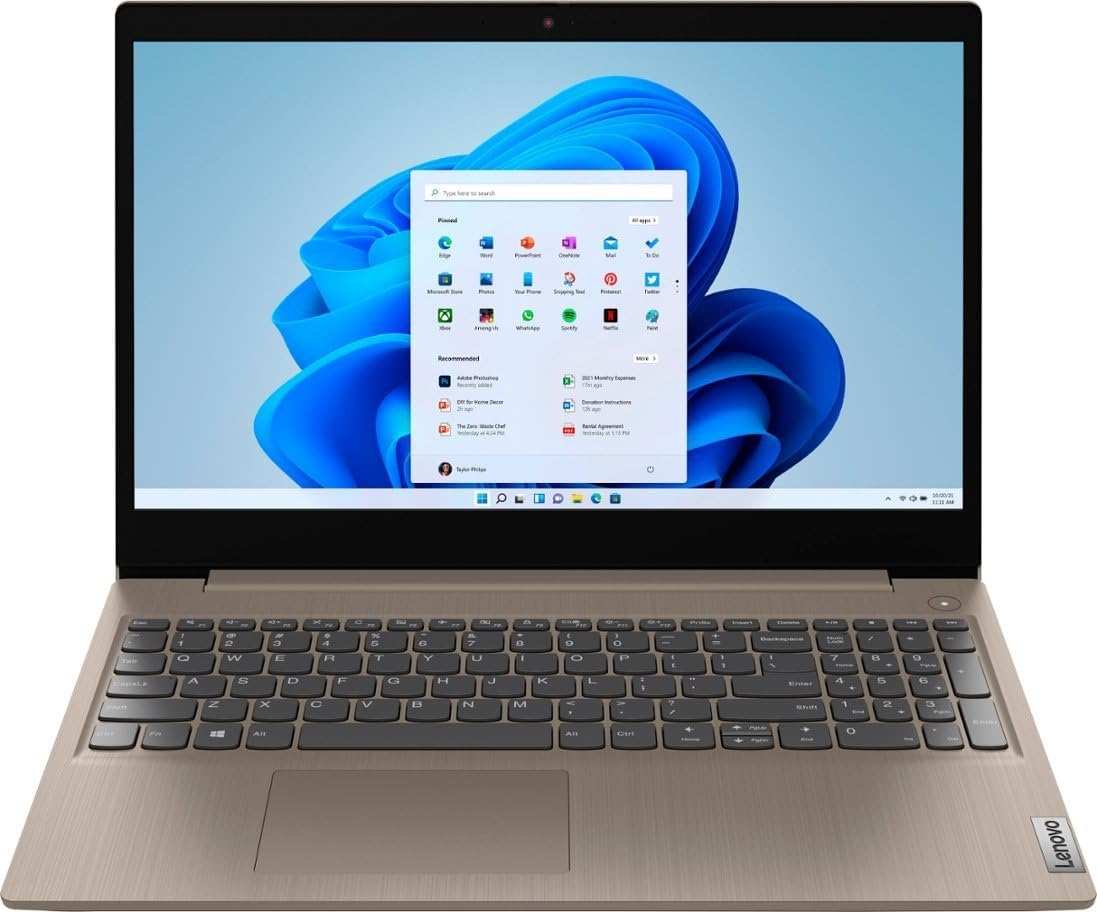
Figure 1.1: The Lenovo IdeaPad 3 Laptop with its screen displaying the Windows 10 desktop, illustrating the device in an operational state.
1.2 Initial Windows Setup
Follow the on-screen prompts to complete the Windows 10 Home setup. This includes selecting your region, keyboard layout, connecting to a Wi-Fi network, and creating a user account. It is recommended to connect to the internet during this process to download essential updates.
2. Operating Your Laptop
2.1 Power Management
- Power On: Press the power button.
- Sleep Mode: Close the lid or select "Sleep" from the Start Menu.
- Shut Down: Go to Start Menu > Power > Shut down.
- Restart: Go to Start Menu > Power > Restart.
2.2 Keyboard and Touchpad
The laptop features a full-size keyboard with a numeric keypad for efficient data entry. The touchpad supports multi-touch gestures for navigation. Refer to Windows settings for customizing touchpad sensitivity and gestures.
2.3 Ports and Connectivity
Your IdeaPad 3 is equipped with various ports for connecting external devices and accessories:
- USB 3.2 Gen 1 (5Gbps): Two ports for high-speed data transfer.
- USB 2.0: One port for standard USB devices.
- HDMI v1.4: For connecting to external displays or projectors.
- Headphone/Microphone Combo Jack: For audio input and output.
- Power Connector: For connecting the AC adapter.

Figure 2.1: Left side of the laptop, highlighting the power input, HDMI port, USB ports, and audio jack for external connections.

Figure 2.2: Right side of the laptop, showing an additional USB port and the SD card reader slot.
2.4 Wireless Connectivity
- Wi-Fi 5 (802.11ac): Connect to wireless networks for internet access. Navigate to Windows Settings > Network & Internet > Wi-Fi to manage connections.
- Bluetooth 5: Pair with Bluetooth-enabled devices such as headphones, mice, or keyboards. Navigate to Windows Settings > Devices > Bluetooth & other devices.
2.5 Webcam and Audio
The integrated 720p HD camera includes a privacy shutter for enhanced security. Slide the shutter to cover or uncover the camera lens. The laptop features integrated speakers and a microphone for audio communication.
3. Maintenance
3.1 Cleaning Your Laptop
To maintain your laptop's appearance and functionality, regularly clean the screen, keyboard, and chassis. Use a soft, lint-free cloth slightly dampened with water or a screen-specific cleaning solution for the display. For the keyboard and chassis, use a soft cloth. Avoid harsh chemicals or abrasive materials.
3.2 Battery Care
The laptop is equipped with a 35Wh Lithium-Ion battery. To prolong battery life, avoid extreme temperatures, do not fully discharge the battery frequently, and consider enabling battery-saving features in Windows settings. For long-term storage, ensure the battery is charged to about 50-60%.
3.3 Software Updates
Regularly check for and install Windows updates and driver updates from Lenovo's official support website. This ensures your system has the latest security patches, performance improvements, and compatibility fixes.
4. Troubleshooting
This section addresses common issues you might encounter with your laptop.
4.1 Laptop Not Powering On
- Ensure the power adapter is securely connected to both the laptop and a working power outlet.
- Verify the power outlet is functional by plugging in another device.
- If the battery is completely drained, allow it to charge for at least 15-30 minutes before attempting to power on.
- Perform a hard reset: Disconnect the power adapter, press and hold the power button for 15-20 seconds, then reconnect and try to power on.
4.2 Wi-Fi Connectivity Issues
- Check if Wi-Fi is enabled in Windows settings (Settings > Network & Internet > Wi-Fi).
- Restart your router and modem.
- Forget the network and reconnect.
- Update your Wi-Fi drivers from the Lenovo support website.
4.3 Display Problems
- If the screen is black, try pressing Fn + F2 (or the display toggle key) to ensure the display hasn't been turned off.
- Connect an external monitor via HDMI to check if the issue is with the laptop's internal display or the graphics card.
- Update your graphics drivers.
5. Specifications
| Feature | Specification |
|---|---|
| Processor | AMD Ryzen 5 3500U (Up to 3.7 GHz, 4 Cores, 8 Threads) |
| Display | 15.6" FHD (1920 x 1080) 60Hz LED-backlit Anti-glare 220 nits |
| Graphics | AMD Radeon Vega 8 Graphics |
| Memory (RAM) | 8GB DDR4 SDRAM 3200 MHz |
| Storage | 512GB SSD NVMe M.2 |
| Operating System | Windows 10 Home |
| Wireless Connectivity | Qualcomm Wi-Fi 5 (2x2), Bluetooth 5 |
| Ports | 2x USB 3.2 Gen 1, 1x USB 2.0, 1x HDMI v1.4, Headphone/Mic Combo Jack |
| Webcam | 720p HD Camera with Privacy Shutter |
| Battery | 35Wh Lithium-Ion (up to 6 hours) |
| Dimensions (LxWxH) | 14.26 x 9.98 x 0.78 inches |
| Weight | 4.08 lbs |
6. Warranty and Support
Your Lenovo IdeaPad 3 Laptop comes with a 12-month warranty. This warranty covers manufacturing defects and ensures your device functions as intended under normal use. For warranty claims or technical assistance, please contact the seller or Lenovo's official support channels. It is recommended to have your product's serial number (found on the bottom of the laptop or in system information) ready when contacting support.
For additional support resources, visit the official Lenovo support website: support.lenovo.com