
1. Introduction
This manual provides detailed instructions for the installation, operation, and maintenance of your XTRONS Android 14 Car Stereo. Please read this manual thoroughly before using the device to ensure proper functionality and to maximize your user experience. This unit is designed to integrate seamlessly into specific Cadillac models, offering advanced features and connectivity.
2. Product Overview
The XTRONS Android 14 Car Stereo is an advanced in-car entertainment and navigation system. It features an 8-inch HD IPS touchscreen, runs on the Android 14 operating system with an Octa-Core processor, 4GB RAM, and 64GB internal storage. Key functionalities include a motorized faceplate, global 4G LTE connectivity, GPS navigation, and support for wireless Apple CarPlay and Android Auto.

Image 2.1: Front view of the XTRONS Android 14 Car Stereo with its motorized faceplate in the open position, displaying the user interface.
3. Compatibility
This XTRONS car stereo is specifically designed for the following Cadillac models and years:
- Cadillac ATS: 2014-2017
- Cadillac SRX: 2013-2015
- Cadillac XTS: 2013-2018
- Cadillac CTS: 2014-2017

Image 3.1: Comparison of a Cadillac dashboard before and after the installation of the XTRONS car stereo, showing the integrated display.
Important Notes on Compatibility:
- If your vehicle lacks an AUX audio input or if the AUX port is not functioning, an additional AUX adapter (XTRONS AKUSBAUDIO compatible) may be required for proper audio output.
- For Cadillac ATS models equipped with a 4-inch screen or no screen, a specific installation strip kit (XTRONS AKATS compatible) may be necessary.
4. Features
4.1. 8-inch HD IPS Touch Screen
The unit features an 8-inch fully-laminated IPS display with a resolution of 1280x720. This screen provides wide viewing angles, vibrant colors, and a responsive G+G (Glass+Glass) capacitive touch experience.

Image 4.1: Visual representation of the 8-inch IPS screen highlighting its 1280x720 resolution, 2K video playback support, G+G touch screen, and IPS technology.
4.2. Motorized Faceplate Storage Compartment
The redesigned motorized faceplate offers a secure storage compartment. It can open up to a maximum angle of 95 degrees and remains securely in position at any desired angle, providing convenient access to the compartment.

Image 4.2: Demonstration of the motorized faceplate opening to reveal a storage compartment, with touch buttons and climate control functions retained.
4.3. Global 4G LTE Connectivity
The unit supports global 4G LTE connectivity. By inserting a Micro-SIM card (not included), you can access mobile broadband with download speeds up to 300Mbps, supporting 99% of worldwide carriers. This enables internet access and data usage directly from the device.
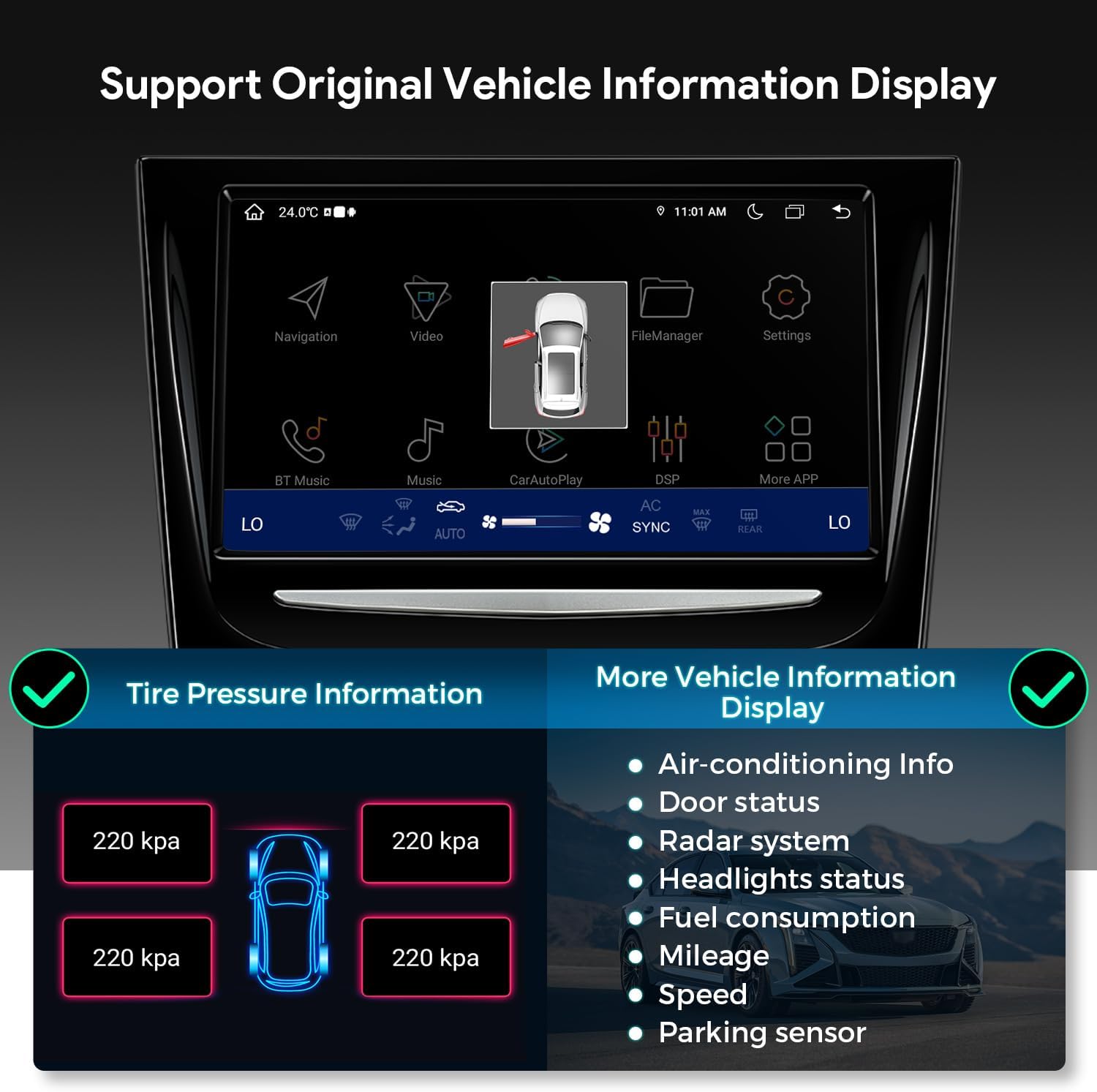
Image 4.3: Illustration of the global 4G LTE feature, showing the Micro-SIM card slot, supported bands, and download speed capabilities.
4.4. Android 14 Operating System
Powered by the latest Android 14 operating system and an Octa-Core processor, the stereo offers enhanced security features, efficient memory management, and advanced ultrafast storage for a smooth and responsive user experience.
4.5. Wireless Apple CarPlay & Android Auto
The device includes built-in support for wireless Apple CarPlay and wireless/wired Android Auto. Connect your iPhone via Bluetooth for CarPlay, or your Android phone via Bluetooth or USB for Android Auto. This allows access to navigation, calls, music, and voice assistants (Google Assistant, Siri) directly from the car stereo display.

Image 4.4: Overview of smartphone connectivity options including wireless CarAutoPlay, wireless/wired Android Auto, and screen mirroring.
4.6. Dual Band Wi-Fi
Integrated dual-band Wi-Fi supports both 2.4GHz and 5GHz frequencies, providing stable and fast wireless internet access for streaming, app downloads, and online services.
4.7. Built-in DSP (Digital Sound Processor)
A built-in DSP significantly reduces audio noise and offers extensive customization options for sound output. This includes a 16-band graphic equalizer, sound field adjustments, and bass filters, allowing for a personalized high-fidelity audio experience.
4.8. Bluetooth 5.0
Equipped with Bluetooth 5.0, the unit supports hands-free calling, phone book synchronization, and high-quality Bluetooth audio streaming from compatible devices.
4.9. Original Vehicle Information Display Support
The system integrates with your vehicle's existing systems to display various information directly on the screen, including:
- Tire Pressure Information
- Air-conditioning Info
- Door Status
- Radar System
- Headlights Status
- Fuel Consumption
- Mileage
- Speed
- Parking Sensor Data

Image 4.5: Example of vehicle information, such as tire pressure and other vehicle data, displayed on the XTRONS unit's screen.
4.10. Highly Accurate GPS Navigation
The unit supports highly accurate GPS navigation, utilizing multiple satellite systems (GPS, BDS, Galileo) simultaneously for faster and more precise location tracking. Compatible with various navigation applications.
4.11. Instant Reversing Mode & AHD Camera Support
When reversing, the system automatically switches to a real-time camera view. It supports AHD (Analog High Definition) cameras for wider angles and clear night vision. Note: The camera is not included. Compatible XTRONS camera models include CAM001F, CAM005, CAM018, CAM009S, CAM1080. For AHD cameras, the camera type setting must be adjusted in the unit's settings.
5. Accessories
The following accessories are typically included with your XTRONS Android 14 Car Stereo:
- 1 x 4G SIM Card Slot
- 1 x Steering Wheel Control Cable
- 1 x Camera Cable
- 1 x Audio Cable
- 1 x 4G Antenna
- 1 x GPS Antenna
- 1 x USB Cable
- 1 x Mini Microphone
- 1 x Speaker
- 1 x User Manual (this document)

Image 5.1: A visual display of all standard accessories included with the XTRONS car stereo unit.
6. Installation
Professional installation is highly recommended for this product. Incorrect installation can lead to damage to the unit or your vehicle. Refer to the wiring diagram and consult a qualified technician if you are unsure about any steps.
6.1. Wiring Diagram
The following diagram illustrates the connections for the XTRONS car stereo. Ensure all connections are made securely and correctly according to your vehicle's specifications.

Image 6.1: Detailed wiring diagram showing numbered connection points and their corresponding functions for the XTRONS car stereo.
- Wi-Fi Antenna
- Original Power Port
- For Original LVDS Port
- USB Port 1
- USB Port 2
- Original (Unspecified connection, refer to vehicle specific instructions)
- Original Steering Wheel Control Port
- CAMERA-IN, Camera Input
- 12V Output to the camera
- MIC, External microphone port
- REVERSE, Reverse control cable
- AUX-OUT, Audio Output
- B+ (Battery Positive)
- GND (Ground)
- ACC (Accessory Power)
- 12V-OUT
- 4G SIM Card Slot
- Mini Speaker
- GPS Antenna
- 4G Antenna
7. Setup
7.1. Initial Power-On
After installation, turn on your vehicle's ignition. The XTRONS unit should power on automatically. Follow any on-screen prompts for initial setup, such as language selection and time zone.
7.2. Network Connection (Wi-Fi / 4G)
- Wi-Fi: Navigate to Settings > Network & Internet > Wi-Fi. Select your desired network and enter the password.
- 4G LTE: Insert a Micro-SIM card into the designated slot. The unit should automatically detect the network. If not, check APN settings in Settings > Network & Internet > Mobile network.
7.3. Bluetooth Pairing
To pair your smartphone or other Bluetooth devices:
- Go to Settings > Connected devices > Pair new device.
- Enable Bluetooth on your smartphone and search for available devices.
- Select the XTRONS device from the list on your phone and confirm the pairing code.
7.4. Apple CarPlay / Android Auto Setup
- Wireless CarPlay: Ensure Bluetooth is enabled on both the unit and your iPhone. Follow the on-screen prompts on the unit to initiate CarPlay connection.
- Wireless Android Auto: Ensure Bluetooth is enabled on both the unit and your Android phone. Follow the on-screen prompts.
- Wired Android Auto: Connect your Android phone to the unit via a USB cable. Follow the on-screen prompts on both devices.
8. Operating Instructions
8.1. Basic Navigation
The touchscreen interface allows for intuitive navigation. Tap icons to open applications, swipe to scroll, and use pinch-to-zoom gestures where applicable (e.g., in navigation apps).
8.2. Using Applications
Access pre-installed applications from the home screen or app drawer. Download additional applications from the Google Play Store (requires internet connection).
8.3. Voice Control
Utilize voice commands through integrated Google Assistant or Siri (via CarPlay) for hands-free operation of navigation, calls, and music playback.
8.4. Motorized Faceplate Operation
To open the motorized faceplate, gently touch the designated area on the unit. It will open to a maximum of 95 degrees. To close, touch the area again or manually adjust it. The faceplate will hold its position.
8.5. Audio Settings (DSP)
Access the DSP settings through the dedicated application on the unit. Here you can adjust the 16-band graphic equalizer, modify sound field parameters, and apply bass filters to customize your audio output.
9. Maintenance
To ensure the longevity and optimal performance of your XTRONS car stereo:
- Cleaning: Use a soft, dry cloth to clean the screen and exterior. Avoid abrasive cleaners or solvents.
- Software Updates: Periodically check for software updates via the unit's settings menu (Settings > System > System update) to ensure you have the latest features and security patches.
- Temperature: Avoid exposing the unit to extreme temperatures for extended periods.
10. Troubleshooting
10.1. Enabling Seat Heating and Ventilation Function
For vehicles equipped with seat heating and ventilation buttons, locate the 'AC Seats' application on your unit's desktop. This app allows direct control of these functions from the XTRONS device screen.

Image 10.1: Screenshot showing the 'AC Seats' application icon on the unit's interface, used for controlling seat heating and ventilation.
If the 'AC Seats' app is not present on your XTRONS unit, a firmware upgrade may be required. Please contact XTRONS technical support for assistance with firmware updates.
10.2. Setting Up OEM Backup Camera
If your Cadillac is equipped with an OEM backup camera, adjust the settings within the 'Car Info' app to ensure proper functionality.
Steps to Set Up OEM Camera:
- Go to 'Car Info' app > General Settings > Rear Camera Type.
- Select "Original Rear Camera".

Image 10.2: Screenshot of the 'Car Info' app interface, showing the menu path to select 'Original Rear Camera' for OEM backup camera setup.
10.3. Configuring Sound Output
The XTRONS device outputs sound via AUX mode. To play audio from your device through your car's sound system, follow these steps:
Manual Sound Output Setup:
- Switch your car's original radio to AUX mode.
- If your car lacks an AUX input or if the port isn't working, an AUX adapter may be required to enable audio output. This adapter ensures the device's audio is transmitted through your car's audio system correctly.

Image 10.3: Text instructions detailing how to configure sound output by switching the car's original radio to AUX mode and the potential need for an AUX adapter.
11. Specifications
| Item Weight | 9.04 pounds |
| Package Dimensions | 14.76 x 12.79 x 9.84 inches |
| Display Size | 8 Inches |
| Voice Command | Touchscreen |
| Brand | XTRONS |
| Model Name | RM |
| Vehicle Service Type | Car |
| Special Feature | Bluetooth, Touchscreen |
| Connectivity Technology | Bluetooth, USB, Wi-Fi |
| Map Type | Worldwide |
| Mounting Type | Dashboard Mount |
| Memory Storage Capacity | 64 GB |
| Touch Screen Type | Capacitive |
12. Warranty and Support
For warranty information, technical support, or any questions regarding your XTRONS product, please contact XTRONS customer service directly. You can typically find contact information on the XTRONS official website or through the retailer where the product was purchased.

Image 12.1: Visual guide on how to locate and contact the seller (XTRONS) for product inquiries or support.


