1. Introduction
The Megadream Type C Mobile Gaming Controller is designed to enhance your mobile gaming experience by providing a direct, low-latency connection to your smartphone. This controller is compatible with a wide range of devices and gaming platforms, offering precise control through Hall Effect joysticks and triggers. This manual will guide you through the setup, operation, and maintenance of your controller.

Image: The Megadream Type C Mobile Gaming Controller with a smartphone, illustrating its compact and ergonomic design for mobile gaming.
2. Product Features
- Wired USB-C Connection: Provides a direct, low-latency connection for stable and uninterrupted gameplay, eliminating Bluetooth pairing issues.
- Hall Effect Joysticks: Offers seamless 360° precision control with zero deadzone, ensuring accuracy and durability.
- Hall Effect Triggers: Delivers smooth and responsive analog input for enhanced control in games.
- Pass-Through Charging: Equipped with a 36W PD fast charge Type C port, allowing you to charge your phone while playing. (Adapter and cable not included).
- Customizable Buttons: Features ABXY keys with backlight, a conjoined cross key, and programmable M1/M2 macro buttons for personalized control.
- Retractable Design: Adjustable pad accommodates phones of various thicknesses (up to 0.43 inches / 11mm) and lengths (5.04-7.09 inches / 128-180mm).
- TURBO Mode: Supports auto and manual TURBO functions for rapid input in battle games.

Image: A detailed diagram of the controller, labeling its key components and features such as the USB-C connection, Hall-Rocker, Hall-Trigger, and various buttons.
3. Setup and Connection
3.1 Device Compatibility
- Compatible with iPhone 15, iPhone 16, iPhone 17 series.
- Compatible with most Android phones featuring a Type-C port.
- Recommended for use without a phone case, or with a case no thicker than 1mm (0.43 inches).
- Supports phone lengths between 5.04-7.09 inches (128-180mm).

Image: Visual guide to phone compatibility, including a list of supported iPhone and Android models and a measurement for maximum phone thickness.
3.2 Inserting Your Phone
- Gently extend the controller to fit your smartphone.
- Insert your phone into the Type-C connector on the controller.
- Push both sides of the controller towards the center to secure your phone.
3.3 Connection Modes (Android)
The controller supports three main modes for Android devices, indicated by the color of the light:
- MFi Mode (Blue Light): For most controller-supported games, streaming remote play, and cloud gaming.
- V3 Mode (Red Light for PUBG, Purple Light for Call of Duty): Requires the ShootingPlus V3+ App for key mapping. To switch from Red to Purple light for Call of Duty, long-press the 'Home' key. If this doesn't work, update the firmware via the ShootingPlus V3+ App.
- X-input Mode (Green Light): For controller-supported games that cannot be played in MFi or V3 modes.
To switch between modes, use the 'Mode Switch Key' located on the controller.

Image: A visual guide detailing the V3, MFi, and X-input modes for Android, showing their respective light indicators and compatible games.
3.4 Connection Tutorials (Video)
Video: A step-by-step guide on connecting the controller to an Android device using the four available modes.
Video: Instructions for connecting the controller to an iPhone device.
4. Operating Instructions
4.1 ShootingPlus V3+ App (Android)
For certain games like PUBG on Android, the ShootingPlus V3+ App is required for key mapping and advanced settings. Ensure you have downloaded and installed the app from the Google Play Store.
- Turn the controller to 'V3' mode.
- Open the ShootingPlus V3+ App and grant 'Floating Window' permission.
- Tap 'Add game' to add your downloaded games.
- For games like PUBG, you must launch the game through the app to activate key mapping.
- In the game, tap the V3 App icon to access the setting page.
- Adjust reflection key positions by dragging them to match the in-game controls. Unwanted keys can be deleted by long-pressing and dragging to the trash icon.
- Save your configuration by tapping 'SaveAs' and entering a name.

Image: A visual guide demonstrating the steps to set up and customize controls using the Android ShootingPlus V3+ App.
Video: A tutorial on how to set up the ShootingPlus V3 App for PUBG Mobile, including key mapping and customization.
4.2 Hardware Settings (ShootingPlus V3+ App)
Within the ShootingPlus V3+ App, navigate to 'Hardware Setup' to adjust various controller parameters:
- Light Settings: Adjust controller lighting.
- Motor Settings: Configure vibration feedback.
- Rocker Deadband: Adjust the sensitivity and responsiveness of the joysticks.
- Rocker Calibration: Calibrate joysticks to ensure accurate input and prevent drift.
- Trigger Deadband: Adjust the sensitivity of the Hall Effect triggers.
Video: Demonstrates other functions of the ShootingPlus V3+ App, including hardware settings like rocker deadband and calibration.
4.3 TURBO Function
The controller features a TURBO mode for rapid, repeated button presses. This can be set to manual or auto mode. Refer to the controller's specific button layout for activating and customizing TURBO settings.

Image: A visual representation of the TURBO continuous sending setting and how to activate it.
4.4 Macro Buttons (M1/M2)
The M1 and M2 buttons on the back of the controller can be programmed to perform a combination of basic keys (A+B+X+Y+L+ZL+R+ZR+L3+R3+D-pad). This allows for complex actions with a single press, without requiring additional software.
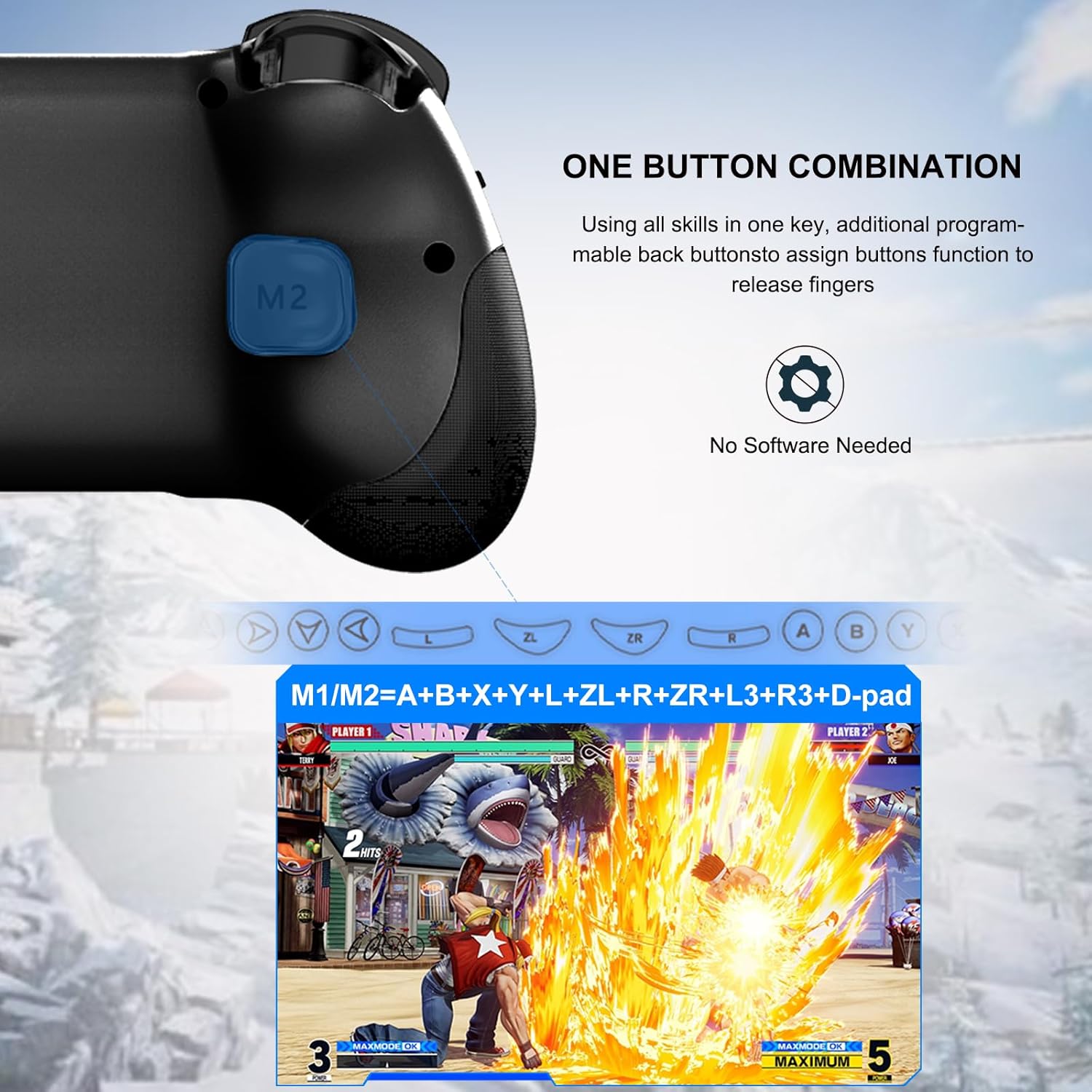
Image: Details on the one-button combination feature, highlighting the M1/M2 programmable back buttons for assigning multiple key functions.
5. Multi-Platform Gaming
The Megadream controller supports a wide array of gaming platforms and services:
- Mobile App Stores: Hundreds of controller-enabled games on iPhone/Android App stores, including Call of Duty, Roblox, Minecraft, Genshin Impact (iOS only), PUBG (Android only), and Diablo Immortal.
- Cloud Gaming: Compatible with services like Xbox Game Pass, GeForce Now, and Amazon Luna.
- Remote Play: Functions as a remote play controller for PS5/PS4/Xbox/PC games via dedicated Remote Play applications.
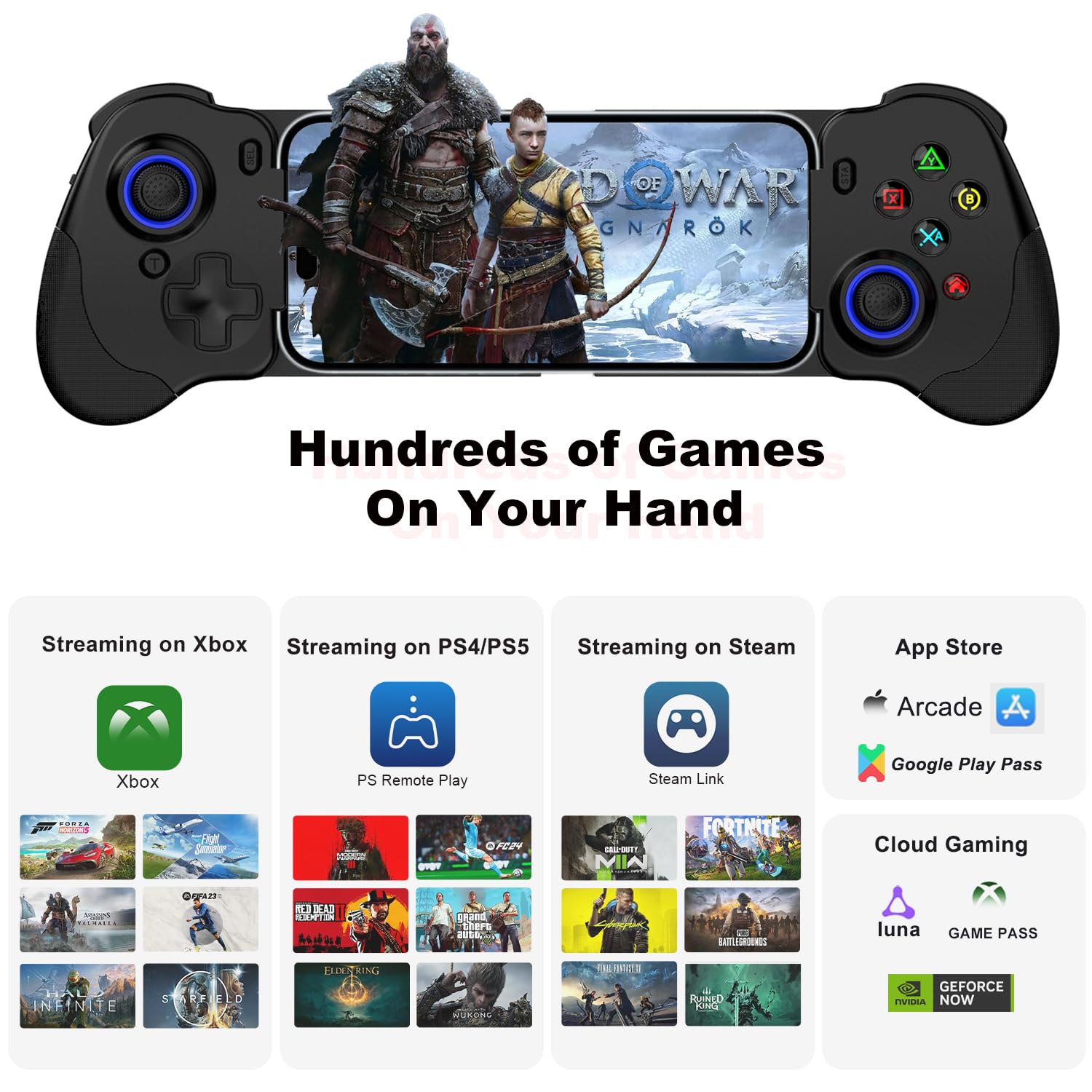
Image: An overview of the controller's multi-platform support, showcasing compatibility with various streaming services, app stores, and popular game titles.
6. Maintenance
To ensure the longevity and optimal performance of your Megadream controller, follow these maintenance guidelines:
- Cleaning: Use a soft, dry cloth to wipe down the controller. Avoid using harsh chemicals or abrasive materials.
- Storage: Store the controller in a cool, dry place away from direct sunlight and extreme temperatures.
- Handling: Avoid dropping the controller or subjecting it to excessive force, as this can damage internal components.
7. Troubleshooting
7.1 Connection Issues
- Incorrect Mode: Ensure the 'Mode Switch Key' is set to the appropriate mode (MFi, V3, or X-input) for your device and game.
- Firmware Update: If you experience issues with V3 mode (e.g., Red light not changing to Purple for Call of Duty), update the controller firmware via the ShootingPlus V3+ App.
Video: Instructions on how to update the firmware for V3 Mode if the purple light indicator is not functioning correctly.
7.2 Button Unresponsiveness
- App Testing Interface: Use the 'Testing interface' within the ShootingPlus V3+ App to check if individual buttons are responding correctly. If buttons do not respond, the controller may be defective.
- Key Mapping: For games requiring key mapping, ensure the reflection keys are correctly positioned and saved within the ShootingPlus V3+ App.
8. Specifications
- Model: B0DJQJ7GCY
- Dimensions: 8 x 3 x 2 inches
- Weight: 8.1 ounces
- Phone Length Support: 5.04-7.09 inches (128-180mm)
- Phone Thickness Support: Up to 0.43 inches (11mm)
- Charging Port: Type C, 36W PD Fast Charge (Pass-through)
- Connection Type: Wired USB-C
9. Warranty and Support
For warranty information, technical support, or further assistance, please refer to the manufacturer's official website or contact Megadream customer service directly. Keep your purchase receipt for warranty claims.

