
KINGULL G9
KINGULL G9 Drone User Manual
Model: G9 | Brand: KINGULL
Introduction
The KINGULL G9 GPS Drone is a foldable RC quadcopter designed for both beginners and experienced users. It features a 4K UHD camera, brushless motors, and intelligent flight modes such as Follow Me, Tap Fly, and Auto Return. Its lightweight design (under 249g) makes it highly portable and exempt from FAA registration requirements. This manual provides comprehensive instructions for safe operation, setup, maintenance, and troubleshooting to ensure an optimal flying experience.

Figure 1: KINGULL G9 Drone with remote control, batteries, and carrying case.
Safety Guidelines
Always prioritize safety when operating the drone. Failure to follow these guidelines may result in damage to the drone, property, or personal injury.
- Ensure the drone's batteries and remote control batteries are fully charged before each flight.
- Perform pre-flight checks, including propeller inspection and calibration.
- Fly in open areas, away from people, animals, buildings, and obstacles.
- Maintain a safe distance from power lines, trees, and water bodies.
- Do not fly in strong winds, rain, snow, or other adverse weather conditions.
- Keep the drone within your line of sight at all times.
- Understand and comply with local drone regulations and airspace restrictions.
- Avoid flying over private property without permission.
- Do not attempt to catch the drone while its propellers are spinning.
- In case of emergency, use the emergency stop function.
Package Contents
Verify that all items are present in your package:
- KINGULL G9 Drone (1)
- Remote Control (1)
- 2200mAh Intelligent Batteries (2)
- Carrying Case (1)
- Spare Propellers (Set)
- USB Charging Cable (1)
- User Manual (This document)
Setup
1. Unfolding the Drone
Gently unfold the drone arms until they lock into place. Ensure all four arms are fully extended and stable.
2. Battery Installation and Charging
Insert the fully charged intelligent battery into the drone's battery compartment until it clicks securely. For the remote control, open the battery cover and insert the required batteries (not specified in input, assuming standard AA/AAA, will omit specific type). Connect the drone batteries to the USB charging cable and plug into a compatible USB power source (e.g., computer, USB wall adapter). The charging indicator will show charging status and turn off when fully charged. Each 2200mAh battery provides approximately 20-22 minutes of flight time.

Figure 2: The KINGULL G9 drone includes two 2200mAh intelligent batteries for extended flight time.
3. Remote Control Setup
Attach your smartphone to the remote control's phone mount. Power on the remote control. The remote control display screen will show the drone's battery level, distance, speed, status, and enabled functions, providing clear control over the drone's situation.

Figure 3: The remote control features a display screen for real-time flight information and a mount for your smartphone.
4. App Installation and Connection
Download the official KINGULL drone application from your device's app store. Power on the drone and the remote control. Connect your smartphone to the drone's Wi-Fi network (SSID usually starts with "KINGULL-" or similar). Open the app and follow the on-screen prompts to establish a connection.
5. Calibration
Before each flight, perform compass and gyroscope calibration as instructed in the app. This ensures accurate GPS positioning and stable flight performance.
Operating Instructions
1. Basic Flight Controls
- One Key Start/Landing: Press the dedicated button on the remote control for automatic take-off or landing.
- Altitude Hold: The drone will maintain its current altitude automatically, allowing for stable hovering.
- Movement: Use the joysticks on the remote control to control the drone's ascent/descent, forward/backward, and left/right movements.
2. Intelligent GPS Functions
The G9 drone is equipped with advanced GPS features for enhanced flight experience:
- Auto Return Home (RTH): The drone will automatically return to its take-off point if the signal is lost, battery is low, or if manually activated. This feature minimizes the risk of losing the drone.
- Follow Me Mode: The drone will automatically follow your movements, capturing video or photos as you go. This is ideal for hands-free recording of activities.
- Tap Fly (Waypoint Flight): Draw a path on the app's map interface, and the drone will fly along the designated route.
- Point of Interest: Select a central point on the map, and the drone will circle around it at a specified radius and altitude, capturing panoramic views.

Figure 4: The drone's intelligent GPS functions ensure safe return in case of low power, signal loss, or manual activation.

Figure 5: Advanced GPS functions like Tap Fly, Point of Interest, and Follow Me enhance the drone's cinematic capabilities.
3. Camera Operation
The G9 drone is equipped with a 4K UHD camera with a 120° wide-angle and 90° adjustable lens. Photos and videos can be stored on an SD card (up to 64GB, not included) or directly streamed to your connected smartphone via 5G FPV transmission.
- Taking Photos: Press the camera icon in the app or on the remote control to capture still images.
- Recording Videos: Press the video icon to start/stop recording.
- Adjusting Camera Angle: Use the dedicated button/dial on the remote control or in the app to adjust the camera's vertical angle during flight.
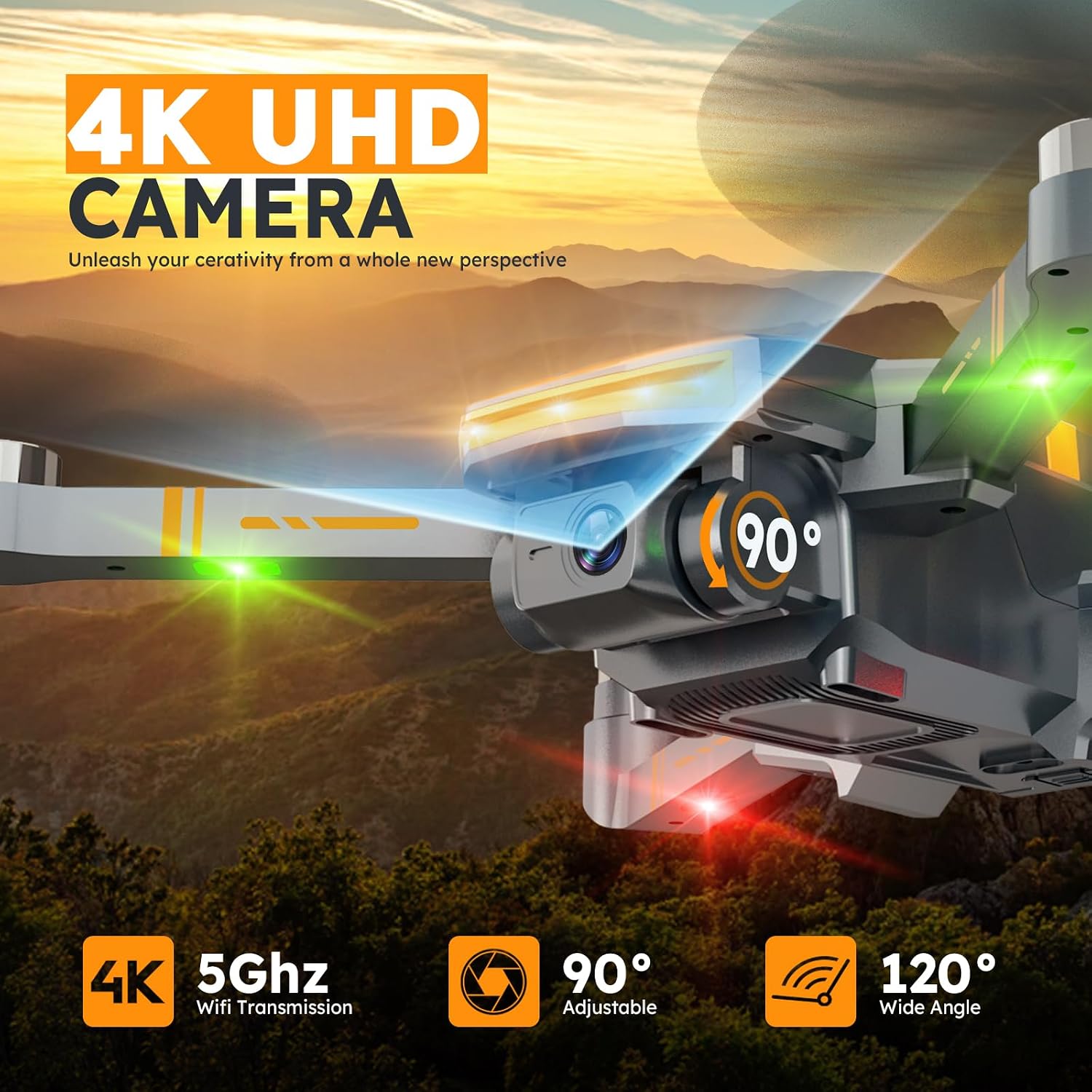
Figure 6: The 4K UHD camera offers a 120° wide-angle view and a 90° adjustable lens for versatile aerial photography.
4. Speed Adjustment
The drone offers multiple speed modes (e.g., two-speed mode) to accommodate different skill levels and flying conditions. Adjust the speed via the remote control or app.
5. Headless Mode
In Headless Mode, the drone's orientation is relative to the pilot, making it easier for beginners to control without worrying about the drone's front direction.
6. Emergency Stop
In an emergency, press the emergency stop button on the remote control to immediately cut power to the motors and land the drone. Use this function only when necessary to prevent damage or injury.
7. Official Product Video
Watch this official video from the seller for a demonstration of the G9 Drone's 4K camera and GPS features.
Video 1: G9 Drone with 4K Camera and GPS. This video demonstrates the drone's camera capabilities and GPS functionalities.
Maintenance
- Cleaning: Regularly wipe the drone and remote control with a soft, dry cloth. Avoid using harsh chemicals or solvents.
- Propeller Replacement: If propellers are damaged or bent, replace them immediately using the provided spare parts and tools. Ensure correct propeller orientation (A and B types).
- Battery Care: Store batteries in a cool, dry place. Do not overcharge or over-discharge. If storing for extended periods, charge them to about 50% capacity.
- Storage: When not in use, fold the drone and store it in its carrying case to protect it from dust and physical damage.
Troubleshooting
| Problem | Possible Cause | Solution |
|---|---|---|
| Drone does not power on. | Battery not installed correctly or not charged. | Ensure battery is fully charged and securely inserted. |
| Remote control does not power on or connect. | Remote batteries low/dead or incorrect contact. | Replace remote batteries. Check battery contacts for proper connection. |
| Unstable flight or drifting. | Improper calibration; strong winds. | Perform compass and gyroscope calibration. Avoid flying in strong winds. |
| Poor video transmission or lag. | Weak Wi-Fi signal; interference. | Ensure drone and phone are close. Avoid areas with high Wi-Fi interference. |
| Drone does not respond to controls. | Not paired with remote; out of range. | Re-pair drone and remote. Fly within operational range. |
| Battery overheating or unusual smell during charging. | Battery fault or improper charging. | Immediately disconnect from power. Do not use the battery. Contact customer support. |
Specifications
- Brand: KINGULL
- Model Name: G9
- Color: Dark grey
- Item Weight: 480 Grams (approx. 1.06 pounds)
- Product Dimensions: 1"L x 0.99"W x 1"H (folded, approximate)
- Video Capture Resolution: 4K (3840x2160)
- Camera Features: 4K UHD Camera, 120° wide-angle, 90° adjustable lens
- Connectivity Technology: Wi-Fi (5G FPV Transmission)
- Control Type: Remote Control
- Motor Type: Brushless Motor
- Battery Capacity: 2200 mAh (per battery)
- Batteries Included: Yes (2 Lithium Ion batteries)
- Flight Time: Up to 45 minutes (with 2 batteries)
- Special Features: GPS Follow Me, Auto Return, Time-lapse Photography, Lightweight (Under 249g, No FAA/Remote ID required), Optical Flow Positioning, Headless Mode, One Key Start, Speed Adjustment
- Supported Media: SD Card (up to 64GB)
- Material: Plastic
- Skill Level: All
- Country of Origin: China
Warranty and Support
For warranty information, technical support, or service inquiries, please refer to the contact details provided on the product packaging or the official KINGULL website. Keep your purchase receipt as proof of purchase for any warranty claims.
Related documentsG9

Ask a question about this manual
Ask about setup, troubleshooting, compatibility, parts, safety, or missing instructions. Manuals+ will review the question and use this page’s manual context to help answer it.