1. Introduction
This manual provides detailed instructions for the installation, configuration, and maintenance of your ASRock Z890 Pro RS WiFi 6E ATX Motherboard. Designed for Intel Core Ultra Processors (Series 2) with LGA1851 socket, this motherboard supports DDR5 memory up to 8666 MHz and offers robust features for stable and reliable performance.
Key features include a 16+1+1+1+1 Power Phase design with Dr.MOS for VCore+GT, support for BIOS Flashback, Memory OC Shield, and M.2 Bottom Heatsink. It also provides versatile graphics output options including HDMI, DisplayPort, and two Thunderbolt 4 Type-C ports.

Figure 1: ASRock Z890 Pro RS WiFi Motherboard Overview
2. Setup and Installation
2.1 Motherboard Layout and Dimensions
The ASRock Z890 Pro RS WiFi motherboard is an ATX form factor board. Understanding its layout is crucial for proper component installation.

Figure 2: Motherboard dimensions (12 inches x 9.6 inches)
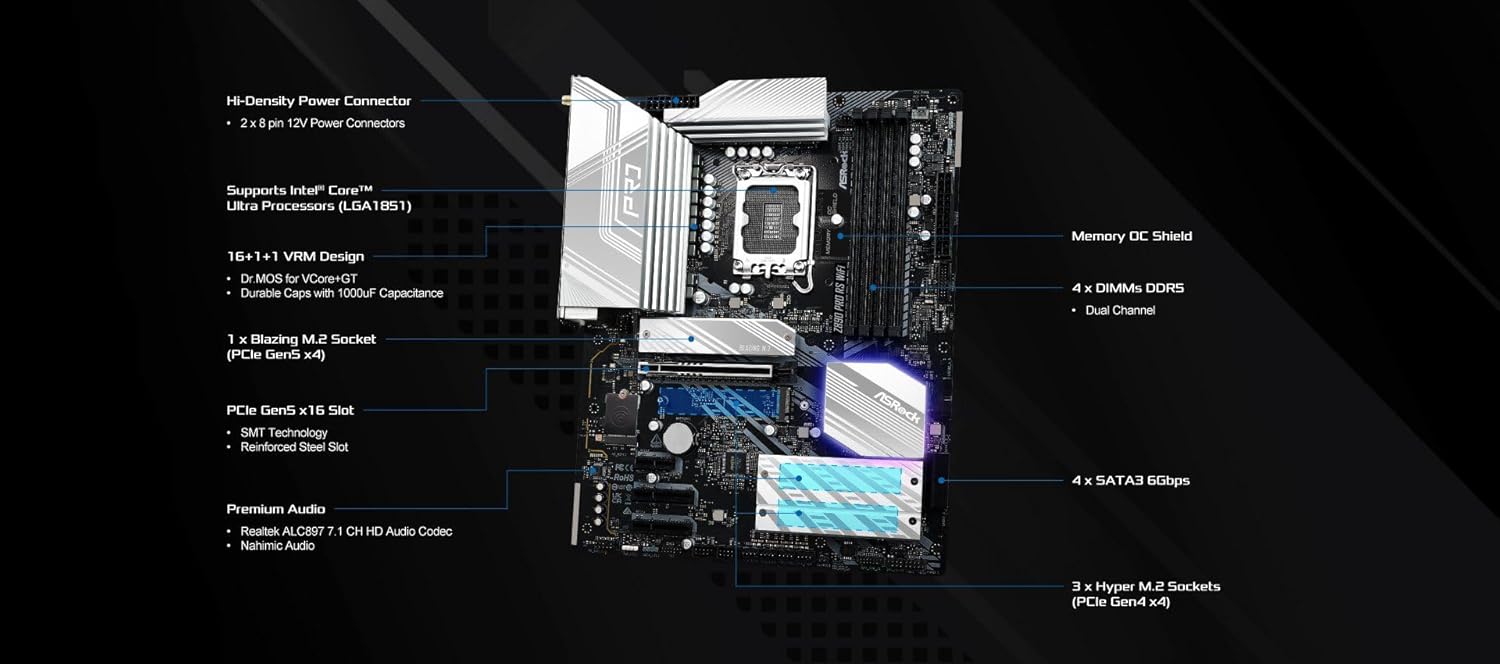
Figure 3: Key components and connectors on the motherboard, including CPU socket, DDR5 DIMM slots, PCIe slots, and SATA ports.

Figure 4: Heatsink placement for VRM, chipset, and M.2 slots, ensuring optimal thermal performance.
2.2 Rear I/O Panel
The rear I/O panel provides various connectivity options for peripherals and displays.
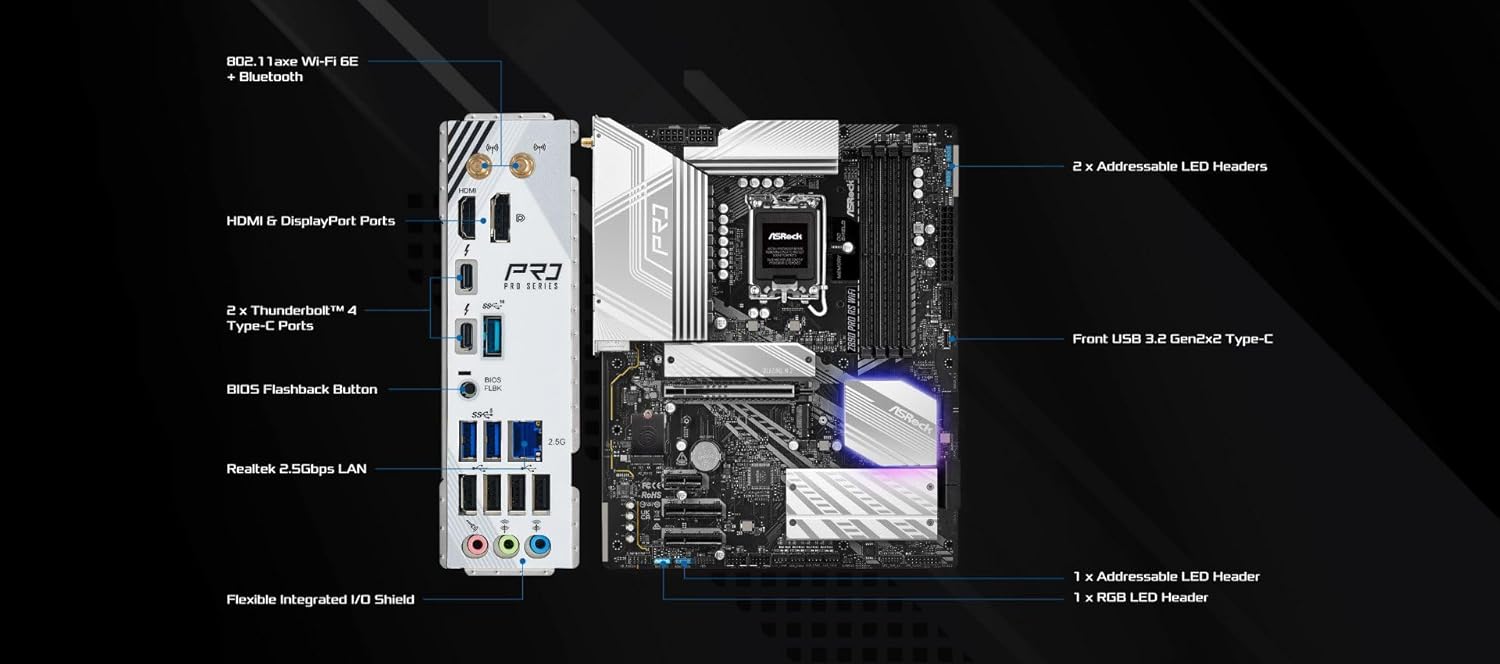
Figure 5: Rear I/O panel with HDMI, DisplayPort, Thunderbolt 4 Type-C, USB ports, LAN, and audio jacks.
2.3 CPU and Cooler Installation
Ensure compatibility with Intel Core Ultra Processors (Series 2) for the LGA1851 socket. Follow the CPU manufacturer's guidelines for proper installation. For optimal cooling, a top-down CPU cooler is recommended.
2.4 Memory Installation
The motherboard features four DDR5 DIMM slots supporting dual-channel memory up to 8666+ (OC). Refer to the motherboard's QVL (Qualified Vendor List) for compatible memory modules.
2.5 Storage Devices
Install M.2 NVMe SSDs into the available M.2 slots, utilizing the M.2 Bottom Heatsink for thermal management. Connect SATA storage devices to the SATA3 6Gbps ports.
2.6 Power Connections
Connect the main 24-pin ATX power connector and the 8-pin + 4-pin CPU power connectors from your power supply to the motherboard.
2.7 Peripheral Connections
Connect USB devices, front panel headers, and other peripherals as needed. Utilize the integrated Wi-Fi 6E and Bluetooth for wireless connectivity.

Figure 6: Motherboard packaging and included accessories, such as Wi-Fi antennas and documentation.
3. Operating Instructions
3.1 Initial Boot and BIOS Access
Upon first power-on, the system will perform a Power-On Self-Test (POST). To enter the BIOS setup menu, press the F2 or Delete key during POST. The BIOS allows configuration of system settings, boot order, and hardware parameters.
3.2 BIOS Settings and Features
The ASRock Z890 Pro RS WiFi BIOS offers various settings:
- CPU Configuration: Adjust CPU-related settings.
- Memory Configuration: Enable XMP profiles for optimized DDR5 performance.
- Storage Configuration: Manage SATA and M.2 drive settings.
- Fan Control: Utilize FAN-Tastic Tuning for customized fan curves.
- UEFI Update Utility: Access Instant Flash for BIOS updates.
3.3 Operating System Installation
Install your preferred operating system (e.g., Windows 11) from a bootable USB drive or optical media. Ensure all necessary drivers are installed after OS setup for full functionality.
4. Maintenance
4.1 BIOS Updates
Keeping your BIOS updated ensures optimal compatibility, security, and access to new features. ASRock provides two primary methods for BIOS updates: USB BIOS Flashback and Instant Flash.
Video 1: ASRock Motherboard BIOS Update Tutorial. This video demonstrates how to update your ASRock motherboard's BIOS using USB BIOS Flashback and Instant Flash methods.
4.1.1 USB BIOS Flashback
This method allows you to update the BIOS without a CPU, RAM, or graphics card installed. You will need a USB drive formatted to FAT32 with the BIOS file renamed to 'CREATIVE.ROM'. Insert the USB drive into the designated USB BIOS Flashback port on the rear I/O panel and press the Flashback button for approximately three seconds until the LED light blinks. The update process will take a few minutes.
4.1.2 Instant Flash
Instant Flash is a utility within the BIOS that allows you to update the firmware from a USB drive. After downloading the BIOS file from the ASRock website and placing it on a FAT32 formatted USB drive, boot into the BIOS, navigate to the 'Tool' menu, and select 'Instant Flash'. The utility will detect compatible BIOS files for update.
4.2 System Cleaning
Regularly clean dust from the motherboard, heatsinks, and fan components using compressed air. Ensure the system is powered off and unplugged before cleaning.
5. Troubleshooting
If you encounter issues with your ASRock Z890 Pro RS WiFi motherboard, consider the following:
- No Power/No Display: Double-check all power connections, ensure CPU and RAM are correctly seated, and test with a single RAM stick. Verify monitor connection and input source.
- System Instability: This can often be resolved by updating the BIOS to the latest version (refer to Section 4.1). Check memory compatibility and run memory diagnostic tools. Ensure proper cooling for all components.
- Peripheral Detection Issues: Verify that drivers are installed correctly. Test peripherals in different USB ports.
- BIOS Update Failure: If the BIOS Flashback LED turns solid green and does not blink, the update may not be operating properly. Re-verify the USB drive format, BIOS file name, and port usage.
For persistent issues, consult the ASRock support website or contact technical support.
6. Specifications
| Feature | Specification |
|---|---|
| Brand | ASRock |
| Model Name | Z890 PRO RS WIFI |
| CPU Socket | LGA 1851 |
| Compatible Processors | Intel Core Ultra (Series 2) |
| Chipset Type | Intel Z890 |
| RAM Memory Technology | DDR5 |
| Memory Clock Speed | 8666 MHz (OC) |
| Memory Storage Capacity | Up to 256 GB |
| Graphics Output Options | 1 HDMI, 1 DisplayPort, 2 Thunderbolt 4 Type-C |
| Power Phase | 16+1+1+1+1 Power Phase, Dr.MOS for VCore+GT |
| Wireless Connectivity | WiFi 6E, Bluetooth |
| Product Dimensions | 14 x 11 x 3 inches (ATX Form Factor) |
| Item Weight | 4.1 pounds |
| Platform | Windows 11 |

Figure 7: Example of a CPU Support List, showing compatible processors and BIOS versions.
7. Warranty and Support
For warranty information, please refer to the documentation included with your product or visit the official ASRock website. Technical support and additional resources can be found on the ASRock support page. Ensure you have your product model number (Z890 PRO RS WIFI) and serial number ready when contacting support.


