
1. Product Overview
The Sengled Dual Mode Smart A19 Light Bulbs offer versatile lighting control through both a dedicated remote and a smartphone application. These RGBW LED bulbs provide a wide range of color temperatures (2700K-6500K) and dimmable brightness, allowing for personalized ambiance in any room. The local mesh networking system ensures stable and secure control without relying on Wi-Fi.

Image: Overview of Sengled Dual Mode Smart Light Bulbs, showcasing both remote and app control options.
Key Features:
- Dual Control Modes: Operate via remote control or the Sengled Home App.
- Color Changing: RGBW spectrum with tunable white light from 2700K (warm) to 6500K (cool).
- Dimmable: Adjust brightness from 1% to 100%.
- Local Group Control: Connect up to 150 bulbs and manage them in up to 3 groups using a single remote.
- Stable & Secure: Utilizes a local mesh system, eliminating the need for Wi-Fi and enhancing data security.
- Scheduling: Set timers and schedules, including sunrise/sunset simulations.
2. Setup and Installation
2.1 Initial Bulb Installation
- Ensure the power to the light fixture is turned off before installation.
- Carefully screw the Sengled Smart A19 Light Bulb into a standard E26 socket.
- Turn on the power to the light fixture. The bulb should illuminate.
2.2 Sengled Home App Connection
The Sengled Home App allows for advanced control and customization of your smart bulbs.
- Download the Sengled Home App from the Apple App Store or Google Play Store.
- Open the app and create an account or log in.
- Tap the "+" button in the top right corner of the app's home screen.
- Select "Bluetooth LEDs and Accessories" from the device list.
- The app will search for nearby smart bulbs.
- Select the detected smart bulb(s) to connect.
- Once connected, you can rename your device and assign it to a room.

Image: Step-by-step guide on connecting Sengled Smart Bulbs using the Sengled Home App.
2.3 Pairing with Remote Control
If you have a Sengled remote control (sold separately or included in certain packs), you can pair it directly with your bulbs for convenient control.
- Ensure the smart bulb is powered on.
- On the remote, press the "Pair" button.
- Select the desired group (G1, G2, or G3) on the remote to assign the bulb.
- The bulb will flash to indicate successful pairing to the selected group.

Image: Visual instructions for pairing a Sengled Smart Bulb with a remote control.
2.4 Sharing Devices to Remote (from App)
You can also synchronize bulbs connected to the app with a remote control.
- In the Sengled Home App, navigate to "Add Devices" and tap "Share Devices to Remote".
- On the remote control, press and hold the color button for at least 5 seconds, then tap "Search Remote" in the app.
- Select the remote you wish to synchronize with from the app.
- The devices will be shared successfully.
2.5 Pairing with Wall Switch (Sengled Smart Wall Switch)
If you have a Sengled Smart Wall Switch, you can pair your bulbs with it for physical control.
- Download the Sengled Home App.
- Tap the "+" button in the top right corner.
- Select "Bluetooth LEDs and Accessories".
- Search for your wall switch. If not found, press and hold the reset button on the switch for 5 seconds to make it discoverable.
- Once detected, add the device.

Image: Instructions for pairing Sengled Smart Bulbs with a Sengled Smart Wall Switch via the app.
3. Operating Instructions
3.1 Remote Control Operation
The remote control provides quick access to essential functions:
- ON/OFF: Turn bulbs on or off.
- Brightness Adjustment: Increase or decrease light intensity.
- Color Selection: Choose from preset colors or cycle through the RGB spectrum.
- Color Temperature: Adjust white light from warm to cool.
- Group Selection (G1, G2, G3, ALL): Control individual groups of bulbs or all paired bulbs simultaneously.
- Pair/Unpair: Initiate pairing or unpairing processes for bulbs.
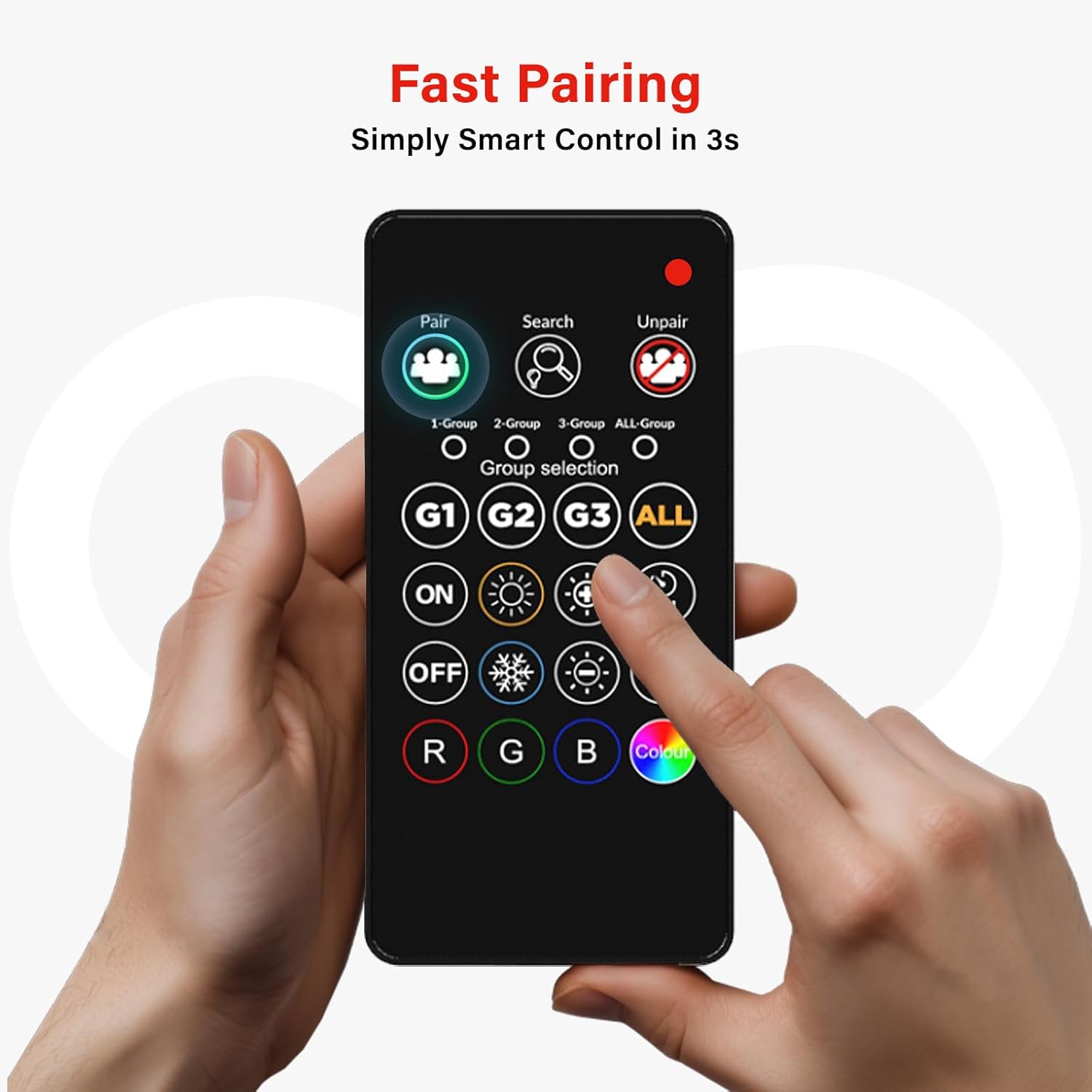
Image: Close-up view of the Sengled remote control, highlighting its various buttons and functions.
3.2 App Control Operation
The Sengled Home App offers comprehensive control and advanced features:
- Color & Brightness: Precisely adjust color (16 million options) and brightness (1-100%).
- Color Temperature: Fine-tune white light from 2700K to 6500K.
- Scheduling: Create custom schedules for turning lights on/off at specific times.
- Sunrise/Sunset Mode: Simulate natural light cycles for waking up or falling asleep.
- Group Management: Create and manage groups of bulbs for synchronized control.
- Scene Creation: Save custom light settings as scenes for quick activation.

Image: Screenshot of the Sengled Home App interface, showing color and brightness controls for a smart bulb.
3.3 Group Control
Manage multiple bulbs efficiently by grouping them. A single remote can control up to 150 bulbs across 3 distinct groups.
- Creating Groups: Assign bulbs to Group 1, Group 2, or Group 3 during the pairing process or through the app.
- Controlling Groups: Use the G1, G2, G3 buttons on the remote to control specific groups. The "ALL" button controls all paired bulbs.
- Unpairing from Groups: To unpair a bulb from a group, press the "Unpair" button on the remote, then select the group you wish to unpair from.

Image: Diagram illustrating how Sengled Smart Bulbs can be organized and controlled in groups across different rooms.
4. Maintenance
Sengled Smart Light Bulbs are designed for long-lasting performance with minimal maintenance.
- Cleaning: Ensure the bulb is off and cool before cleaning. Wipe with a soft, dry cloth. Do not use liquid cleaners or abrasive materials.
- Storage: If storing bulbs for an extended period, keep them in their original packaging in a cool, dry place.
- Firmware Updates: Periodically check the Sengled Home App for available firmware updates to ensure optimal performance and access to new features.
5. Troubleshooting
If you encounter issues with your Sengled Smart Light Bulbs, refer to the following common solutions:
| Problem | Possible Solution |
|---|---|
| Bulb does not turn on. |
|
| Bulb is unresponsive to remote/app. |
|
| Cannot change color or brightness. |
|
| Bulb disconnects frequently. |
|
6. Specifications
| Feature | Detail |
|---|---|
| Brand | Sengled |
| Model Name | A19 Light Bulbs |
| Model Number | B21-N1E+B2E-G7F |
| Light Type | LED |
| Bulb Shape Size | A19 |
| Bulb Base | E26 |
| Wattage | 8.7 watts |
| Incandescent Equivalent Wattage | 60 watts |
| Voltage | 120 volts |
| Accepted Voltage Frequency | 100 to 120 Volts and 60 Hertz |
| Light Color | Multicolor (RGBW) |
| Color Temperature | 2700K - 6500K |
| Dimmable | 1% to 100% |
| Control Method | App / Remote controlled |
| Indoor Outdoor Usage | Indoor |
| Material Type | Synthetic Polymer (PMMA) |
| Item Weight | 1.92 ounces |
| UPC | 840696186752 |
7. Warranty Information
Sengled provides a 2-year manufacturer's warranty for this product. This warranty covers defects in materials and workmanship under normal use. Please retain your proof of purchase for warranty claims. For detailed terms and conditions, refer to the official Sengled website or contact customer support.
8. Customer Support
For further assistance, technical support, or warranty inquiries, please visit the official Sengled website or contact their customer service department. You can usually find contact information within the Sengled Home App or on the product packaging.
Official Product Video:
Video: An official overview of Sengled Dual Mode Smart Light Bulbs, demonstrating features and usage.