
Introduction
This manual provides detailed instructions for the installation, operation, and maintenance of your Ineo 5.25-inch Front Panel USB Hub, Model 3570II. This device is designed to expand the connectivity of your desktop computer by providing convenient front-facing USB 3.2 Gen 2 Type-C and Type-A ports, a USB 3.0 Type-A port, and audio input/output jacks. Please read this manual thoroughly before installation and use to ensure proper functionality and safety.

Image: The Ineo 5.25-inch Front Panel USB Hub, showcasing its front ports and the included connection cables (SATA power, USB 3.0, USB 3.2 Gen 2 Key-A).
Safety Information
- Always turn off and unplug your computer from the power outlet before installing or removing any internal components.
- Ensure proper grounding to prevent electrostatic discharge (ESD) which can damage electronic components.
- Handle the device and cables carefully. Do not force connectors into ports.
- Keep the device away from moisture, extreme temperatures, and direct sunlight.
Package Contents
Verify that all items are present in the package:
- Ineo 5.25-inch Front Panel USB Hub (Model C3570-II)
- 5 x Mounting Screws
- User Manual
- Service Card / Guarantee Card

Image: The package contents, including the Ineo front panel, mounting screws, user manual, and service card.
Setup and Installation
Follow these steps to install the Ineo 5.25-inch Front Panel USB Hub into your desktop computer.
Video Guide: Ineo 5.25 inch Front Panel USB 3.2 Gen2 Hub Introduction
Video: An introductory video demonstrating the features and installation process of the Ineo 5.25-inch Front Panel USB Hub.
Step-by-Step Installation
- Prepare Your PC: Power off your computer and unplug the power cable from the wall outlet. Open your computer case to access the internal components.
- Insert the Front Panel: Locate an available 5.25-inch drive bay on the front of your computer case. Slide the Ineo Front Panel Hub into the bay until it is flush with the front of the case.
- Secure the Panel: Use the provided mounting screws to secure the front panel to the drive bay on both sides.
- Connect SATA Power: Connect the SATA power cable from your PC's power supply to the 15-pin SATA power port on the Ineo hub. This provides power to the unit.
- Connect USB 3.2 Gen 2 (Key-A): Locate the USB 3.2 Gen 2 Key-A (20-pin) header on your motherboard. Connect the corresponding cable from the Ineo hub to this header. This enables the 10Gbps USB-C and USB-A ports.
- Connect USB 3.0: Locate the USB 3.0 (19-pin) header on your motherboard. Connect the corresponding cable from the Ineo hub to this header. This enables the 5Gbps USB 3.0 Type-A port.
- Connect HD-Audio: Connect the HD-AUDIO cable from the Ineo hub to the HD-AUDIO header on your motherboard. This enables the front microphone and earphone jacks.
- Final Steps: Close your computer case, plug in the power cable, and power on your PC. The hub should be automatically recognized by your operating system without requiring additional drivers.

Image: The Ineo front panel neatly installed into a standard 5.25-inch drive bay of a desktop PC case.

Image: A close-up of the SATA Power 15-pin connector, which connects the hub to the power supply.

Image: A close-up of the USB 3.2 Gen 2 Key-A header and its corresponding cable for motherboard connection.

Image: A close-up of the USB 3.0 19-pin header and its corresponding cable for motherboard connection.
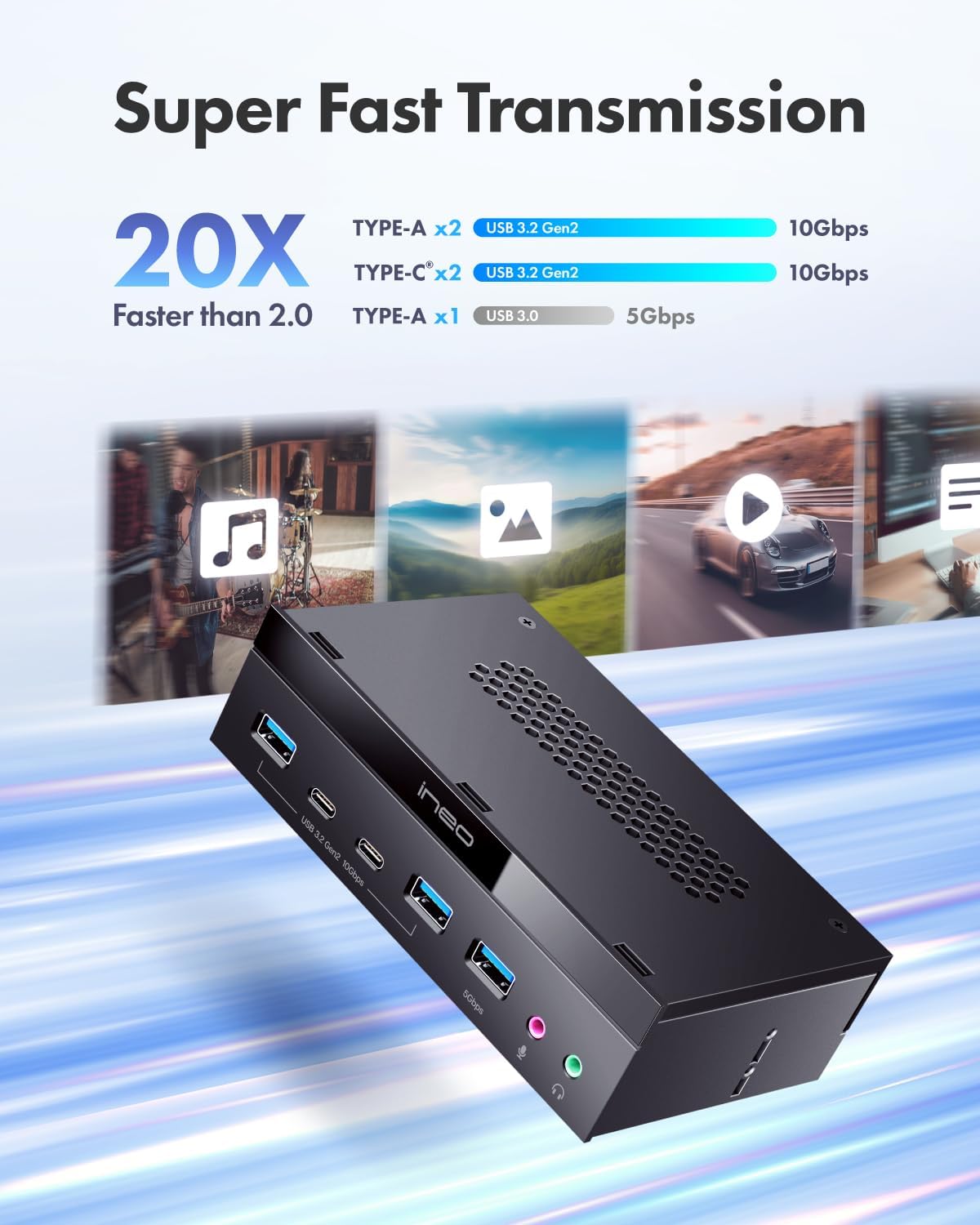
Image: A comprehensive diagram illustrating all cable connections from the Ineo front panel hub to the PC's motherboard and power supply.
Operating Instructions
Once installed, the Ineo Front Panel USB Hub operates as a plug-and-play device.
- USB Ports: Simply plug your USB devices (e.g., flash drives, external hard drives, keyboards, mice, cameras) into the available USB 3.2 Gen 2 Type-C, USB 3.2 Gen 2 Type-A, or USB 3.0 Type-A ports. The ports support data transfer speeds up to 10Gbps (USB 3.2 Gen 2) and 5Gbps (USB 3.0).
- Audio Jacks: Connect your headphones or speakers to the earphone jack (green) and your microphone to the microphone jack (pink). Ensure your operating system's audio settings are configured to use the front panel audio output/input if not automatically detected.
- Compatibility: The hub is compatible with Windows (7/8/10/XP), Mac OS X, and Linux operating systems.

Image: Demonstrates high-speed data transfer with various USB devices connected to the Ineo front panel's USB 3.2 Gen 2 and USB 3.0 ports.

Image: A close-up view of the microphone and earphone jacks on the Ineo front panel.

Image: Illustrates the universal compatibility of the Ineo front panel with various devices such as mice, mobile phones, earphones, microphones, and hard drives.
Maintenance
To ensure the longevity and optimal performance of your Ineo Front Panel USB Hub:
- Cleaning: Use a soft, dry cloth to clean the exterior of the hub. Avoid using liquid cleaners or abrasive materials.
- Dust Prevention: Regularly clean the interior of your PC case to prevent dust buildup, which can affect component performance and lifespan.
- Cable Management: Ensure internal cables are neatly routed and not obstructing airflow or putting strain on connectors.
Troubleshooting
If you encounter issues with your Ineo Front Panel USB Hub, refer to the following common solutions:
- No Power/Device Not Detected:
- Ensure the SATA power cable is securely connected to both the hub and the PC power supply.
- Verify that the USB 3.0 (19-pin) and USB 3.2 Gen 2 (Key-A 20-pin) cables are correctly and firmly seated in their respective motherboard headers.
- Check your motherboard's BIOS/UEFI settings to ensure USB ports are enabled.
- USB Ports Not Functioning at Expected Speed:
- Confirm that your motherboard supports USB 3.2 Gen 2 and USB 3.0.
- Ensure you are using high-quality USB 3.2 Gen 2 or USB 3.0 cables for your devices.
- Update your motherboard's chipset drivers to the latest version.
- Audio Jacks Not Working:
- Verify the HD-AUDIO cable is correctly connected to the motherboard's HD-AUDIO header.
- Check your operating system's sound settings to ensure the front panel audio device is selected as the default output/input.
- Ensure your audio drivers are up to date.
- Some motherboards may require a BIOS setting change to enable front panel audio. Consult your motherboard manual.
- Loose Fit in 5.25" Bay:
- Ensure all mounting screws are tightened. If the bay is unusually wide, you may need to use additional shims or a drive bay adapter (not included) for a more secure fit.
Specifications
| Model Number | 3570II |
| Brand | ineo |
| Form Factor | 5.25-inch Drive Bay |
| USB 3.2 Gen 2 Type-C Ports | 2 (10Gbps) |
| USB 3.2 Gen 2 Type-A Ports | 2 (10Gbps) |
| USB 3.0 Type-A Ports | 1 (5Gbps) |
| Audio Interface | 1x Microphone Jack, 1x Earphone Jack |
| Hardware Interface | USB |
| Special Feature | Plug and Play |
| Compatible Devices | Desktops, Keyboards, Mouse, Scanners, USB Flash Drives |
| Operating System Compatibility | Windows (7/8/10/XP), Mac OS X, Linux |
| Cable Length | 650 mm (approx. 25.59 inches) |
| Dimensions (Front Panel) | 148mm (L) x 41mm (W) (approx. 5.82 x 1.61 inches) |
| Dimensions (Main Unit) | 86mm (D) (approx. 3.38 inches) |
| Item Weight | 10.5 ounces |

Image: A diagram showing the physical dimensions of the Ineo front panel and the lengths of its connection cables, along with a summary of its specifications.
Warranty and Support
Your Ineo 5.25-inch Front Panel USB Hub (Model 3570II) comes with a guarantee card. Please refer to the information provided on the card for specific warranty terms and conditions.
For technical support, product inquiries, or warranty claims, please contact Ineo customer service through their official website or the contact information provided on your guarantee card. You may also visit the seller's page on Amazon for additional support resources.
Online Resources:
- Ineo Official Website: www.ineo-usa.com
- Seller Support (ineousa on Amazon): Amazon Seller Page