1. Introduction
This user manual provides detailed instructions for the installation, operation, and maintenance of your Generic JST-M6 HD Video Doorbell. Please read this manual thoroughly before using the product to ensure proper functionality and safety. Keep this manual for future reference.
The JST-M6 HD Video Doorbell offers enhanced security and convenience, allowing you to monitor your entryway, communicate with visitors, and receive alerts directly on your smartphone.
2. Package Contents
Verify that all items are present in your package:
- 1 x HD Video Doorbell Unit
- 1 x Wireless Chime (Small Bell)
- 1 x USB Charging Cable
- 1 x User Manual (This Document)
- Mounting Screws and Anchors

Image 2.1: Contents of the JST-M6 Video Doorbell package, showing the doorbell unit and the wireless chime.
3. Product Features
- HD Video: Capture clear video footage of your entryway.
- Night Vision: Enhanced visibility in low-light conditions.
- Two-Way Talk: Communicate with visitors remotely via your smartphone.
- Mobile Notifications: Receive alerts when the doorbell is pressed or motion is detected.
- Rechargeable Battery: Built-in battery provides extended usage.
- Wi-Fi Connectivity: Connects to your home Wi-Fi network for remote access.
- Voice Changer Intercom: Feature to modify your voice during two-way communication for privacy.
- Cloud Storage: Supports cloud storage for captured images and video playback.
4. Setup and Installation
4.1 Charging the Doorbell
Before initial use, fully charge the doorbell unit. Connect the provided USB charging cable to the doorbell's charging port and to a standard USB power adapter (not included). A full charge typically takes approximately 1.5 hours and can provide up to three months of standby time.

Image 4.1: The doorbell unit connected to a USB charging cable, indicating battery status and charging time.
4.2 App Installation
To operate the doorbell and access its features, you need to download the companion mobile application. Search for "Kement App" in your smartphone's app store (Google Play Store for Android or Apple App Store for iOS) and install it.
- Download the "Kement App" from your device's app store.
- Open the app and follow the on-screen instructions to create an account or log in.
- Add your new doorbell device within the app by following the pairing instructions.
4.3 Pairing the Doorbell and Chime
To ensure the wireless chime rings when the doorbell button is pressed, you must pair the two devices:
- Connect the wireless chime (small bell) to a power supply, such as a USB wall adapter.
- Press and hold the pairing key on the chime for 3 seconds until its indicator light flashes.
- Press the doorbell button on the main unit. The chime will ring, indicating successful pairing.

Image 4.3: Visual guide for pairing the doorbell unit with the wireless chime.
4.4 Mounting the Doorbell
Choose a suitable location near your door, ensuring a clear view of the entryway. Use the provided mounting screws and anchors to securely attach the doorbell unit to the wall or door frame. Ensure the doorbell is within range of your Wi-Fi network.
5. Operating Instructions
5.1 Receiving Notifications
When a visitor presses the doorbell button or motion is detected, you will receive a mobile notification on your smartphone via the Kement App. Tap the notification to view the live video feed and interact with the visitor.
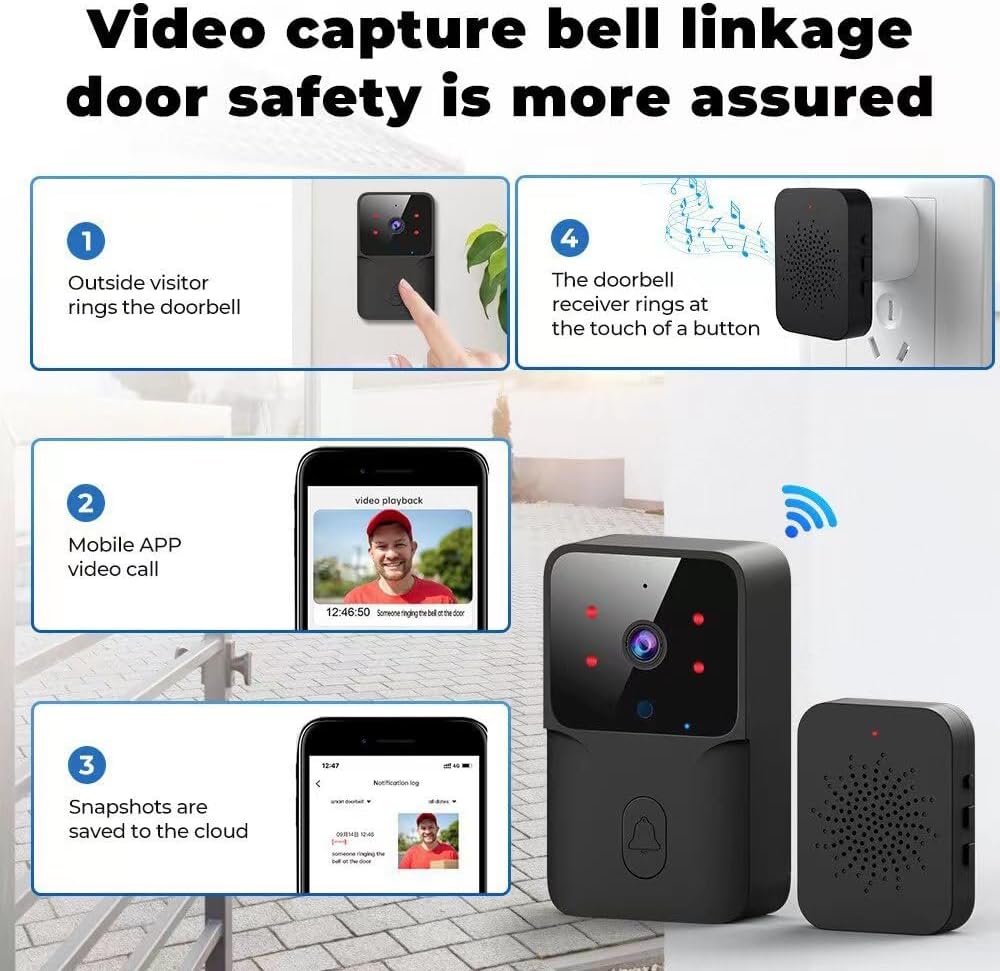
Image 5.1: Illustration of a visitor pressing the doorbell, triggering a mobile app video call and saving snapshots to the cloud.
5.2 Two-Way Talk and Voice Changer
The doorbell supports two-way audio communication. From the Kement App, you can speak directly to visitors at your door. The integrated voice changer feature allows you to modify your voice for added privacy, making your voice sound different to the person at the door.

Image 5.2: A user interacting with a delivery person via the doorbell's two-way talk and voice changer function.
5.3 Night Vision
The doorbell is equipped with infrared (IR) night vision, enabling clear video capture even in complete darkness. This feature automatically activates in low-light conditions to ensure continuous monitoring of your entryway.

Image 5.3: Depiction of the doorbell's night vision feature, showing a wide field of view in darkness.
5.4 Family Sharing Control
The Kement App allows you to share access to your doorbell with family members. The main account holder can grant permissions to other users, enabling multiple individuals to receive notifications, view live feeds, and communicate with visitors.

Image 5.4: A family on a couch, each with a smartphone, illustrating the family sharing control feature of the doorbell.
6. Maintenance
- Cleaning: Use a soft, dry cloth to clean the doorbell unit. Avoid abrasive cleaners or solvents.
- Battery Life: Monitor the battery level through the Kement App and recharge the doorbell when prompted by low battery reminders.
- Firmware Updates: Regularly check the Kement App for available firmware updates to ensure optimal performance and security.
- Water Resistance: The doorbell is water-resistant, but avoid submerging it in water or exposing it to heavy, direct water jets.
7. Specifications
| Feature | Specification |
|---|---|
| Model Name | JST-M6 |
| Brand | Generic |
| Video Capture Resolution | 720p |
| Power Source | Battery Powered (400mAh Lithium Polymer) |
| Connectivity Protocol | Wi-Fi (2.4GHz 802.11b/g) |
| Compatible Devices | Smartphone |
| Recommended Use | Outdoor Security |
| Water Resistance Level | Water Resistant |
| Product Dimensions | 1.3 x 0.48 x 3.54 inches |
| Item Weight | 1.92 ounces |
| Manufacturer | Topvision(Shenzhen)Technology Co., LTD |

Image 7.1: Visual representation of the doorbell and chime dimensions, along with technical parameters.
8. Troubleshooting
| Problem | Possible Cause | Solution |
|---|---|---|
| Doorbell not turning on | Low battery | Charge the doorbell fully using the USB cable. |
| Chime not ringing | Not paired with doorbell; Chime not powered | Ensure chime is plugged in. Re-pair the doorbell and chime as per Section 4.3. |
| No mobile notifications | App permissions denied; Wi-Fi connectivity issue; App not running in background | Check app notification settings on your phone. Verify doorbell is connected to Wi-Fi. Ensure Kement App is allowed to run in the background. |
| Poor video quality | Weak Wi-Fi signal; Lens obstruction | Ensure doorbell is within strong Wi-Fi range. Clean the camera lens. |
| Two-way talk not working | Microphone/speaker blocked; App audio permissions | Ensure nothing is covering the microphone or speaker. Check app permissions for microphone access. |
9. Warranty and Support
This product comes with a standard manufacturer's warranty. For specific warranty details, please refer to the documentation included with your purchase or contact the seller directly. For technical support or further assistance, please reach out to the manufacturer or seller through your purchase platform.
Manufacturer: Topvision(Shenzhen)Technology Co., LTD


