
1. Introduction
This manual provides detailed instructions for the M-VAVE 25 Keys Mini Keyboard. It covers essential information regarding product setup, operation, maintenance, troubleshooting, and technical specifications to ensure optimal performance and user experience. Please read this manual thoroughly before using the device.

Image 1: Top view of the M-VAVE 25 Keys Mini Keyboard, showing the keys and control panel.
2. Product Overview
The M-VAVE 25 Keys Mini Keyboard is a compact MIDI controller designed for music production. It features 25 velocity-sensitive keys, an assignable rotary encoder, pitch bend and modulation controls, and various function buttons for enhanced musical expression and control.
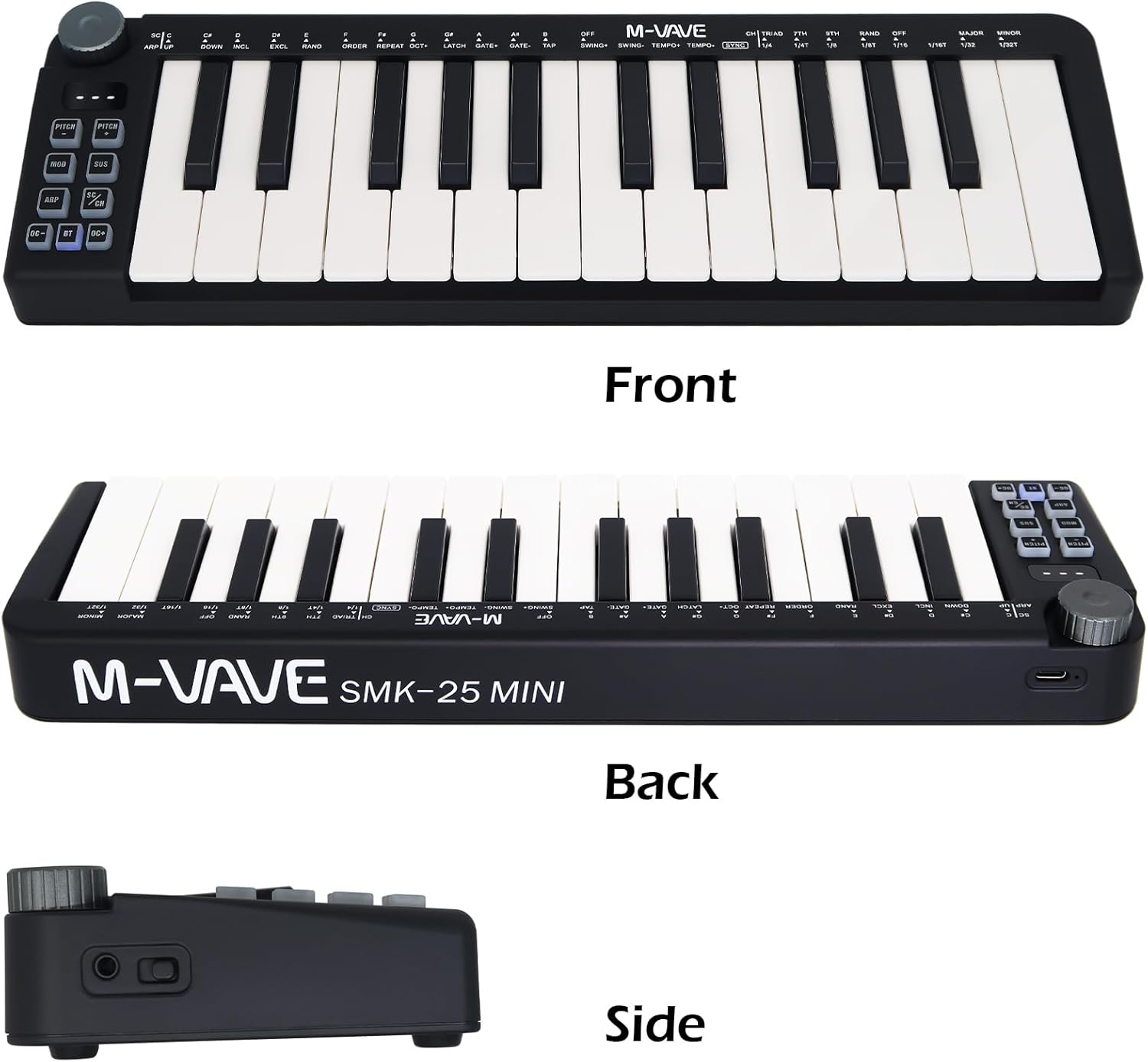
Image 2: Front view of the M-VAVE 25 Keys Mini Keyboard.
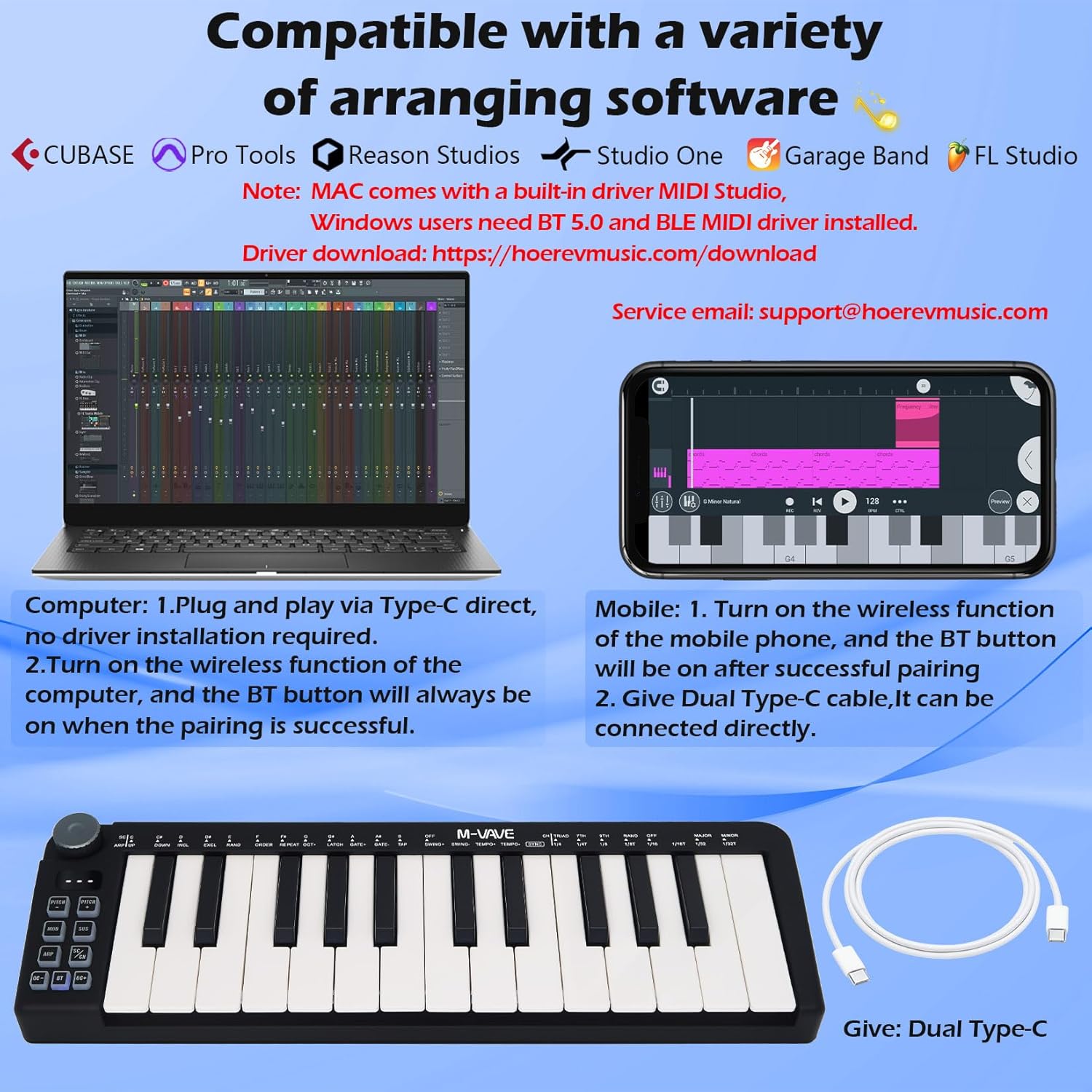
Image 3: Back view of the M-VAVE 25 Keys Mini Keyboard, showing the M-VAVE SMK-25 MINI branding.

Image 4: Side view of the M-VAVE 25 Keys Mini Keyboard, highlighting the USB-C port and sustain pedal input.
3. Setup Instructions
3.1 Powering the Device
The M-VAVE 25 Keys Mini Keyboard is powered by a built-in 780mAh Lithium Polymer battery or via USB-C. To charge the device, connect a USB-C cable to the port on the side of the keyboard and to a power source. The back indicator light will be red while charging and turn green when fully charged.

Image 5: Illustration of the M-VAVE 25 Keys Mini Keyboard being charged via its USB-C port.
3.2 Connecting to Devices
The keyboard supports both wired (USB Type-C) and wireless (Bluetooth) connections.
3.2.1 USB Type-C Connection
For computers (Windows, Mac OS) and mobile devices (Android, iOS), connect the keyboard directly using a Type-C to Type-C cable. This is a plug-and-play connection, and typically no additional drivers are required for Mac OS. Windows users may need to install BT 5.0 and BLE MIDI drivers. Drivers can be downloaded from the manufacturer's website: hoerevmusic.com/download.

Image 6: Diagram showing the M-VAVE 25 Keys Mini Keyboard connecting to a laptop via USB-C and a mobile device wirelessly.
3.2.2 Bluetooth Wireless Connection
- Long press the Bluetooth (BT) button on the keyboard. The blue light will flash, indicating it is not connected.
- On your mobile device or computer, turn on the wireless function and search for the M-VAVE keyboard.
- Once successfully paired, the blue light on the keyboard will turn solid.

Image 7: Close-up of the M-VAVE 25 Keys Mini Keyboard showing the Bluetooth button and its pairing process.
3.3 Software Compatibility
The M-VAVE 25 Keys Mini Keyboard is compatible with various Digital Audio Workstations (DAWs) and music production software, including FL Studio, Ableton Live, Cubase, Logic Pro X, Bitwig, Reason, Studio One, and GarageBand (iOS).

Image 8: Screenshot of a control software interface on a laptop, demonstrating compatibility with the M-VAVE keyboard.
4. Operating Instructions
4.1 Keys and Velocity Sensitivity
The keyboard features 25 velocity-sensitive keys, allowing for dynamic and expressive playing. There are four adjustable velocity curves. Short press the BT button to cycle through these curves.

Image 9: Close-up of the keyboard keys and the assignable rotary encoder, highlighting velocity sensitivity.
4.2 Assignable Rotary Encoder
The rotary encoder can be customized through supporting control software to adjust various parameters, such as volume, effects, or filters. It offers 360-degree rotation for precise control.

Image 10: Detail of the assignable rotary encoder on the M-VAVE 25 Keys Mini Keyboard, illustrating its 360-degree rotation.
4.3 Pitch Bend and Modulation Controls
The keyboard includes push-button controls for pitch bend and modulation:
- Pitch+: Hold this button to bend the pitch upwards.
- Pitch-: Hold this button to bend the pitch downwards.
- Mod: Hold this button to control modulation, sending continuous MIDI CC messages.

Image 11: Close-up of the pitch bend and modulation control buttons on the M-VAVE 25 Keys Mini Keyboard.
4.4 Function Buttons
The control panel includes several function buttons:
- SUS (Sustain): Press to toggle sustain mode on or off.
- ARP (Arpeggiator): Press to enable arpeggiator mode.
- SC/CH (Smart Scale/Chord): Press to enable smart scale or chord mode.
- OCT+/OCT-: These buttons adjust the octave range of the keyboard.

Image 12: Detail of the function buttons (SUS, ARP, SC/CH, OCT+/OCT-) on the M-VAVE 25 Keys Mini Keyboard.
5. Maintenance
To ensure the longevity and optimal performance of your M-VAVE 25 Keys Mini Keyboard, follow these maintenance guidelines:
- Cleaning: Use a soft, dry cloth to wipe the surface of the keyboard. Avoid using abrasive cleaners or solvents, as they may damage the finish.
- Storage: Store the keyboard in a cool, dry place away from direct sunlight, extreme temperatures, and high humidity.
- Handling: Avoid dropping the device or subjecting it to strong impacts. Do not place heavy objects on top of the keyboard.
- Battery Care: If storing for an extended period, ensure the battery is partially charged (around 50%) to preserve its health. Recharge periodically if not in use.
6. Troubleshooting
If you encounter issues with your M-VAVE 25 Keys Mini Keyboard, refer to the following common solutions:
- Device Not Responding: Ensure the keyboard is properly charged or connected via USB-C. Try restarting the keyboard and your connected device.
- Bluetooth Disconnections/Skipping Notes: If experiencing frequent Bluetooth disconnections or skipped notes, try disconnecting and re-connecting the device. For more stable performance, consider using a direct USB-C connection.
- No Sound Output: Verify that the keyboard is correctly connected to your computer or mobile device and that your music software (DAW) is configured to receive MIDI input from the M-VAVE keyboard. Check the volume levels in your software and on your audio output device.
- Keys Not Responding: Ensure the keyboard is powered on. If individual keys are not responding, check for any physical obstructions.
- Control Software Issues: If you are having trouble with the control software, ensure you have downloaded the correct version for your operating system from hoerevmusic.com/download and that it is properly installed.
7. Specifications
| Feature | Detail |
|---|---|
| Keys | 25 velocity-sensitive keys |
| Encoders | 1 assignable endless 360-degree encoder |
| Sustain | Toggle sustain mode on or off |
| Pitch/Mod | Push-button pitch bend and bar modulation controls |
| Power | 780mAh battery supplied or USB-by-powered |
| Sustain Pedal Port | 3.5 mm connection port |
| Output | Wireless connection with Windows/Mac/iOS/Android |
| Product Dimensions (L x W x H) | 348mm x 105mm x 38mm (13.7 x 4.1 x 1.49 inches) |
| Product Weight | 460g (12.3 ounces) |
| Battery Type | Lithium Polymer (included) |
| Connectivity Technology | USB Type C, Bluetooth |
| Compatible Devices | Laptop, PC, Tablet, Smartphone, Music Production Software |
| Hardware Platform | PC/Mac/iOS/Android |
| Special Features | Wireless, Built-in Battery, Velocity Sensitive Keys |

Image 13: Diagram illustrating the technical parameters and dimensions of the M-VAVE 25 Keys Mini Keyboard.
8. Warranty Information
Warranty information for the M-VAVE 25 Keys Mini Keyboard is typically provided at the point of purchase or within the product packaging. Please retain your proof of purchase for warranty claims. For specific details regarding warranty coverage and duration, please contact the seller or refer to the official M-VAVE website.
9. Support
For further assistance, technical support, or inquiries, please refer to the following resources:
- Manufacturer Website: Visit the official M-VAVE website for product updates, FAQs, and additional support resources.
- Driver Downloads: For the latest drivers and software, visit hoerevmusic.com/download.
- Seller Support: Contact the seller directly through your purchase platform for product-specific questions or issues.


