
Ourlife AT-M41TR
Ourlife 5K Action Camera User Manual
Model: AT-M41TR
1. Introduction
This user manual provides comprehensive instructions for the Ourlife 5K Action Camera. It covers product features, setup, operation, maintenance, and troubleshooting. Please read this manual thoroughly before using your camera to ensure proper operation and to maximize its capabilities.
2. Safety Information
- Do not expose the camera to extreme temperatures or direct sunlight for extended periods.
- Keep the camera and accessories out of reach of children.
- Use only original or certified compatible accessories.
- Ensure the waterproof case is properly sealed before submerging the camera in water.
- Avoid dropping or subjecting the camera to severe impacts.
- Do not attempt to disassemble or modify the camera.
3. What's in the Box
The Ourlife 5K Action Camera package includes the following items:
- Ourlife 5K Action Camera
- 32GB SD Card
- 2 x 1050mAh Rechargeable Batteries
- Waterproof Case
- Remote Control
- External Microphone
- Dual Slot Charging Dock
- Various Multifunctional Mounting Kits
- USB Cable
- Cleaning Cloth
- User Manual

Image: All accessories included with the Ourlife 5K Action Camera.
4. Product Overview
The Ourlife 5K Action Camera is designed for capturing high-quality video and photos in various environments. It features dual screens for versatile framing, a wide-angle lens, and robust waterproofing.

Image: The Ourlife 5K Action Camera and its primary components.
Key Features:
- High-Resolution Capture: Records video at 5K/30FPS, 4K/30FPS, 4K/60FPS, 1080P, and captures photos from 8MP to 50MP.
- Dual Screen Design: Front and rear screens for easy framing, especially for selfies or vlogging.
- Adjustable View Angle: Selectable angles including 170°, 140°, 110°, and 70°.
- Wireless Remote Control: Conveniently control recording and photo capture from a distance.
- Built-in Wi-Fi: Connects to the XDV App for wireless photo/video sharing and remote control.
- External Microphone Support: Improves audio quality by reducing ambient noise.
- Waterproof Capability: Submersible up to 140ft (40m) with the included waterproof case.
- Advanced Shooting Modes: Includes time-lapse, loop recording, slow motion, and 5x zoom.
- Anti-Shake Stabilization: Built-in template performs vibration correction for smoother footage.

Image: Overview of the camera's features and touch screen usage.
5. Setup
5.1. Battery Installation
- Open the battery compartment cover on the bottom of the camera.
- Insert one of the two included 1050mAh batteries, ensuring the correct orientation.
- Close the battery compartment cover securely.
5.2. SD Card Installation
- Locate the SD card slot on the side of the camera.
- Insert the included 32GB SD card with the metal contacts facing the front of the camera until it clicks into place.
- To remove, gently push the card in until it springs out.
5.3. Charging the Batteries
Use the provided dual slot charging dock and USB cable to charge the batteries. Connect the USB cable to a power source (e.g., computer USB port or USB wall adapter). The indicator lights on the dock will show charging status.
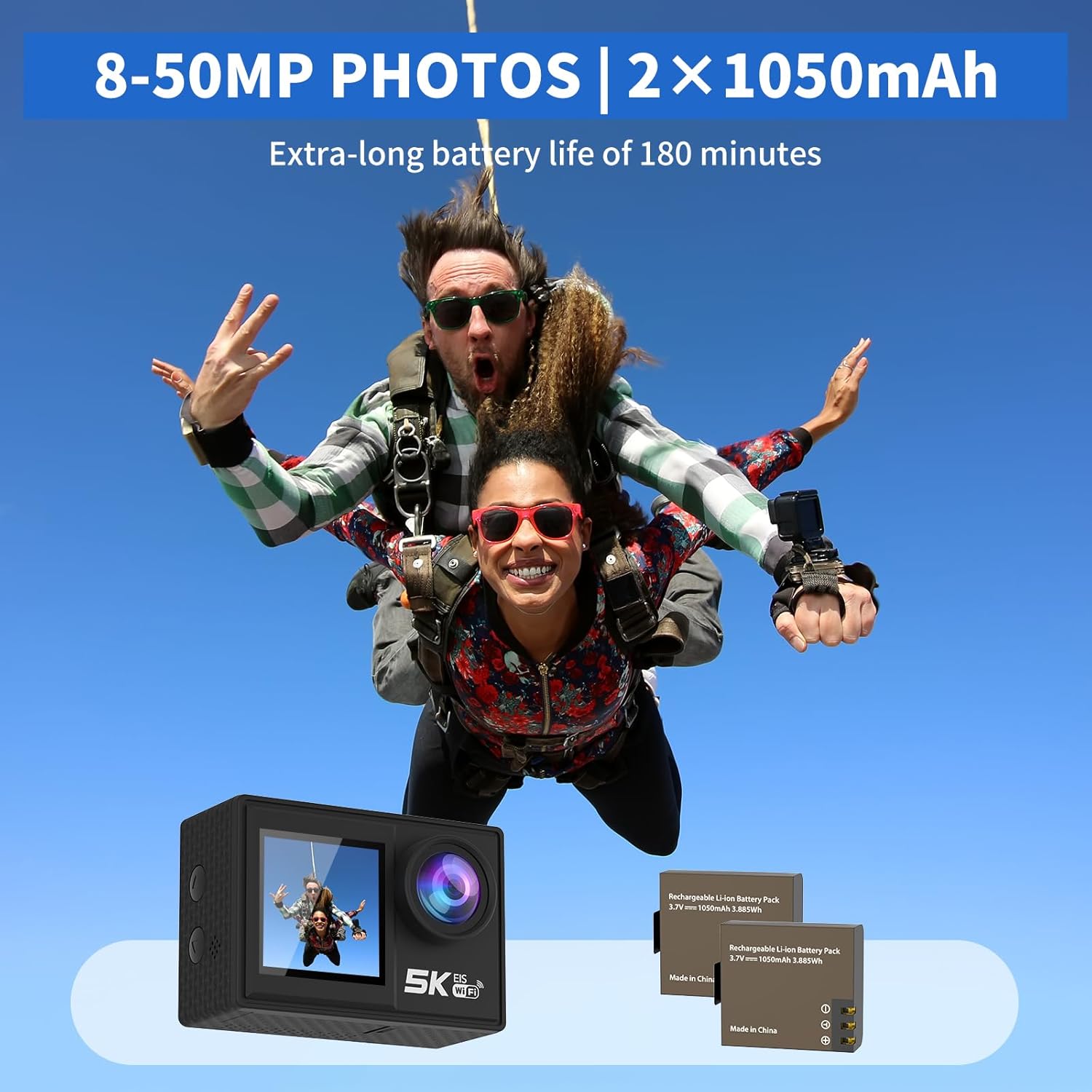
Image: The camera and its two rechargeable batteries.
5.4. Using the Waterproof Case
The waterproof case allows the camera to be used underwater up to a depth of 140 feet (40 meters). Ensure the camera is dry before placing it inside the case. Close the latch securely and perform a dry test before submerging with the camera inside.
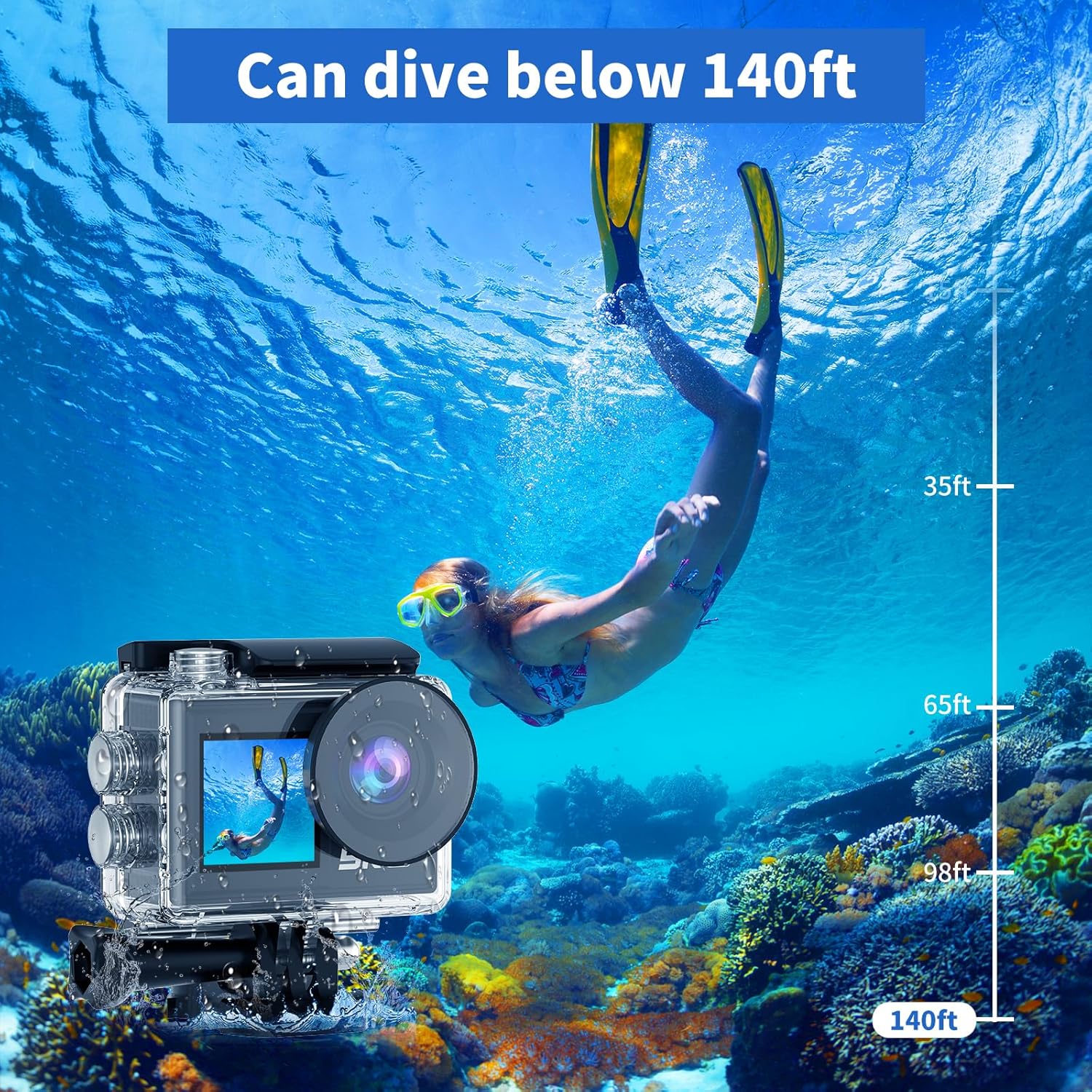
Image: The camera in its waterproof housing, suitable for diving.
6. Operating the Camera
6.1. Power On/Off
- To power on, press and hold the Power/Mode button until the screen lights up.
- To power off, press and hold the Power/Mode button until the screen turns off.
6.2. Mode Selection
Press the Power/Mode button repeatedly to cycle through different modes: Video Recording, Photo Capture, Playback, and Settings.
6.3. Video Recording
- In Video Recording mode, press the Shutter/OK button to start recording.
- Press the Shutter/OK button again to stop recording.
- Supported resolutions include 5K/30FPS, 4K/30FPS, 4K/60FPS, 2.7K/30FPS, and 1080P/30FPS.
6.4. Photo Capture
- In Photo Capture mode, press the Shutter/OK button to take a photo.
- Photo resolutions range from 8MP to 50MP.
6.5. Dual Screen Usage
The camera features both a rear main screen and a front screen. You can switch between screens by pressing a dedicated button (refer to camera diagram for exact button location) or through the settings menu. The front screen is ideal for framing self-portraits or vlogs.
6.6. Adjusting View Angle
Navigate to the settings menu to adjust the camera's view angle. Options include 170°, 140°, 110°, and 70°, allowing you to choose between a wide field of view or a narrower perspective.
6.7. Using the Remote Control
The included wireless wrist remote control allows for convenient operation from a distance. Pair the remote with the camera via the settings menu. Once paired, you can start/stop recording or take photos without touching the camera.
6.8. Wi-Fi Connectivity and XDV App
The camera supports Wi-Fi connectivity with a range of up to 10 meters. Download the "XDV" app on your smartphone or tablet. Enable Wi-Fi on the camera and connect your device to the camera's Wi-Fi network. Through the app, you can view live footage, control the camera, and transfer photos/videos wirelessly.

Image: Wireless sharing of content via the XDV app.
6.9. External Microphone Usage
Connect the external microphone to the camera's designated port to enhance audio recording quality, especially in noisy environments. The external microphone helps to eliminate unwanted background noise.
6.10. Special Shooting Modes
- Time-Lapse: Captures a series of photos at set intervals and combines them into a video.
- Loop Recording: Records video continuously, overwriting the oldest footage when the memory card is full.
- Slow Motion: Records video at a higher frame rate to allow for slow-motion playback.
- 5x Zoom: Digitally zoom in on your subject during recording or photo capture.
- Anti-Shake: Activates electronic image stabilization to reduce blur from camera movement.

Image: Demonstration of the camera's anti-shake feature.
7. Maintenance
7.1. Cleaning the Camera
- Use a soft, lint-free cloth to clean the camera body and lens.
- For stubborn dirt, slightly dampen the cloth with water. Do not use harsh chemicals.
- Ensure the camera is dry before storing or using the waterproof case.
7.2. Battery Care
- Store batteries in a cool, dry place when not in use.
- Avoid fully discharging batteries before recharging them.
- If storing for extended periods, charge batteries to about 50% capacity.
7.3. Storage
When not in use, store the camera in a protective case or bag to prevent scratches and damage. Remove the battery if storing for a long duration.
8. Troubleshooting
| Problem | Possible Cause | Solution |
|---|---|---|
| Camera does not power on. | Battery is dead or not inserted correctly. | Charge the battery or reinsert it correctly. |
| Cannot record video/take photos. | SD card is full, corrupted, or not inserted. | Insert SD card, format it, or delete old files. |
| Wi-Fi connection issues. | Incorrect password, too far from camera, or app issue. | Ensure correct password, stay within 10m range, restart camera/app. |
| Poor audio quality. | External microphone not connected, or high ambient noise. | Ensure external microphone is connected properly. Use in quieter environments if possible. |
| Camera freezes or becomes unresponsive. | Software glitch or low battery. | Remove and reinsert the battery to reset. Ensure battery is charged. |
9. Specifications
| Feature | Detail |
|---|---|
| Model Number | AT-M41TR |
| Video Resolution | 5K/30FPS, 4K/30FPS, 4K/60FPS, 2.7K/30FPS, 1080P/30FPS |
| Photo Resolution | 8MP - 50MP |
| Photo Sensor Technology | CMOS |
| Screen Size | 2 Inches (Dual Screen) |
| Connectivity | Wi-Fi |
| Waterproof Depth | Up to 140ft (40m) with waterproof case |
| Battery Type | Lithium Ion (2 x 1050mAh included) |
| Storage | Supports SD card (32GB included) |
| Item Weight | 2.82 ounces |
| Product Dimensions | 0.96 x 2.31 x 1.57 inches |
| Maximum Focal Length | 16 Millimeters |
| Maximum Aperture | 3.5 f |
| Video Capture Format | MP4 |
| Supported Audio Format | MP4 |
10. Warranty and Support
Ourlife products are manufactured to high quality standards. For warranty information, technical support, or service inquiries, please refer to the contact information provided on the product packaging or visit the official Ourlife website. Please retain your proof of purchase for warranty claims.
For further assistance, you may also refer to the Ourlife Store on Amazon.
Related documentsAT-M41TR


Ask a question about this manual
Ask about setup, troubleshooting, compatibility, parts, safety, or missing instructions. Manuals+ will review the question and use this page’s manual context to help answer it.