
Jinvocloud ZigBee Bluetooth
User Manual: Tuya Smart Multi-Mode Gateway
Model: ZigBee Bluetooth | Brand: Jinvocloud
1. Introduction
Thank you for choosing the Jinvocloud Tuya Smart Multi-Mode Gateway. This device serves as the central hub for your smart home system, supporting Zigbee 3.0, Bluetooth Low Energy (BLE), and Bluetooth Mesh protocols. It enables seamless communication and control of various smart devices through the Smart Life app, and offers compatibility with popular voice assistants like Alexa and Google Assistant. This manual provides detailed instructions for setup, operation, and troubleshooting to ensure optimal performance of your gateway.
2. Safety Information
- Do not expose the device to extreme temperatures, humidity, or direct sunlight.
- Keep the device away from water and other liquids.
- Do not attempt to disassemble or repair the device yourself. Refer all servicing to qualified personnel.
- Use only the provided USB power supply line or a compatible Type-C power adapter that complies with local regulations.
- Ensure proper ventilation around the device to prevent overheating.
3. Package Contents
Please check the box for the following items:
- 1 x Smart Gateway
- 1 x USB Power Supply Line
- 1 x User Manual (this document)
4. Product Overview
The Tuya Smart Multi-Mode Gateway is a compact device designed for efficient smart home management.
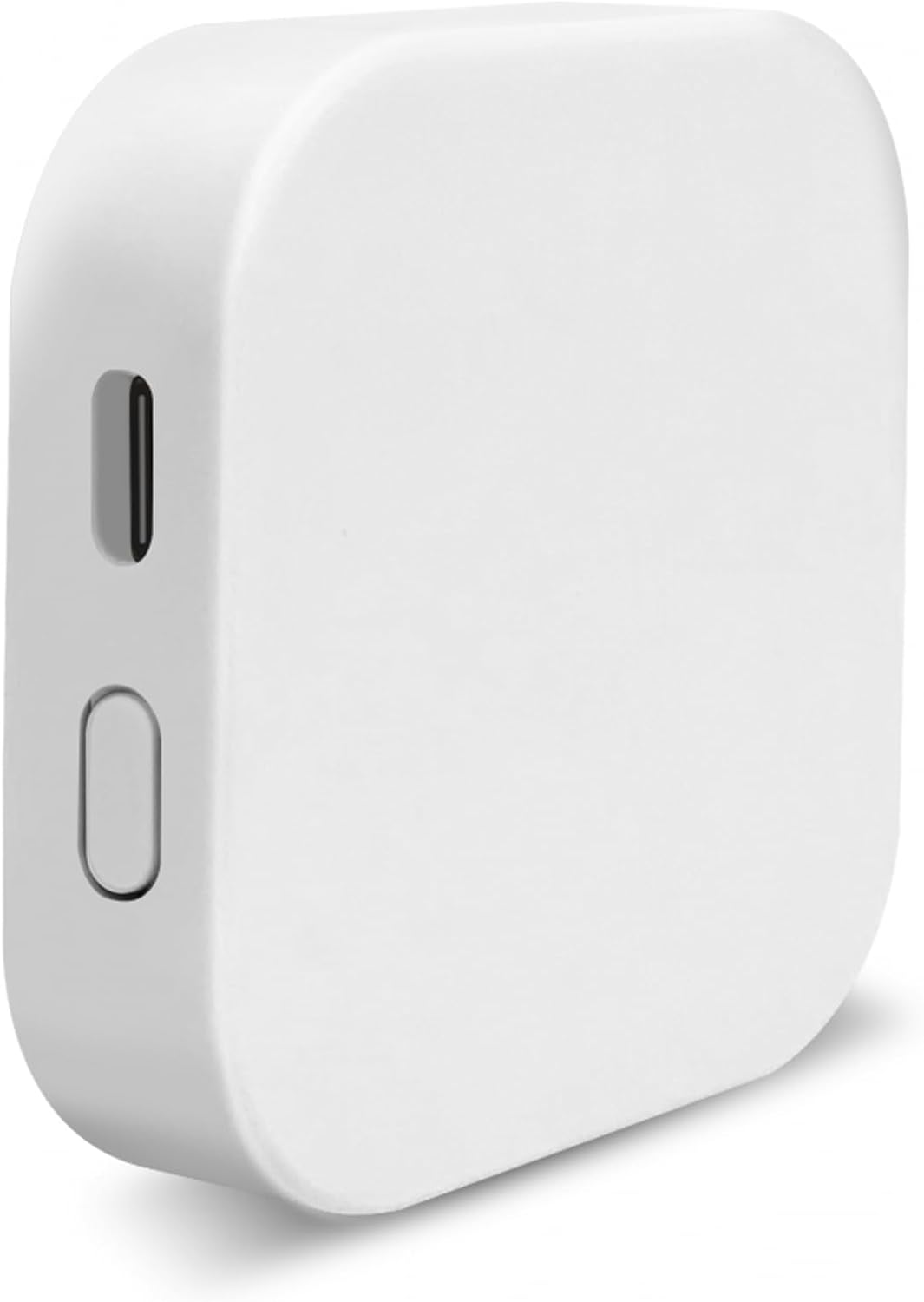
Figure 4.1: Front view of the Tuya Smart Multi-Mode Gateway, showing the USB-C port and reset button.
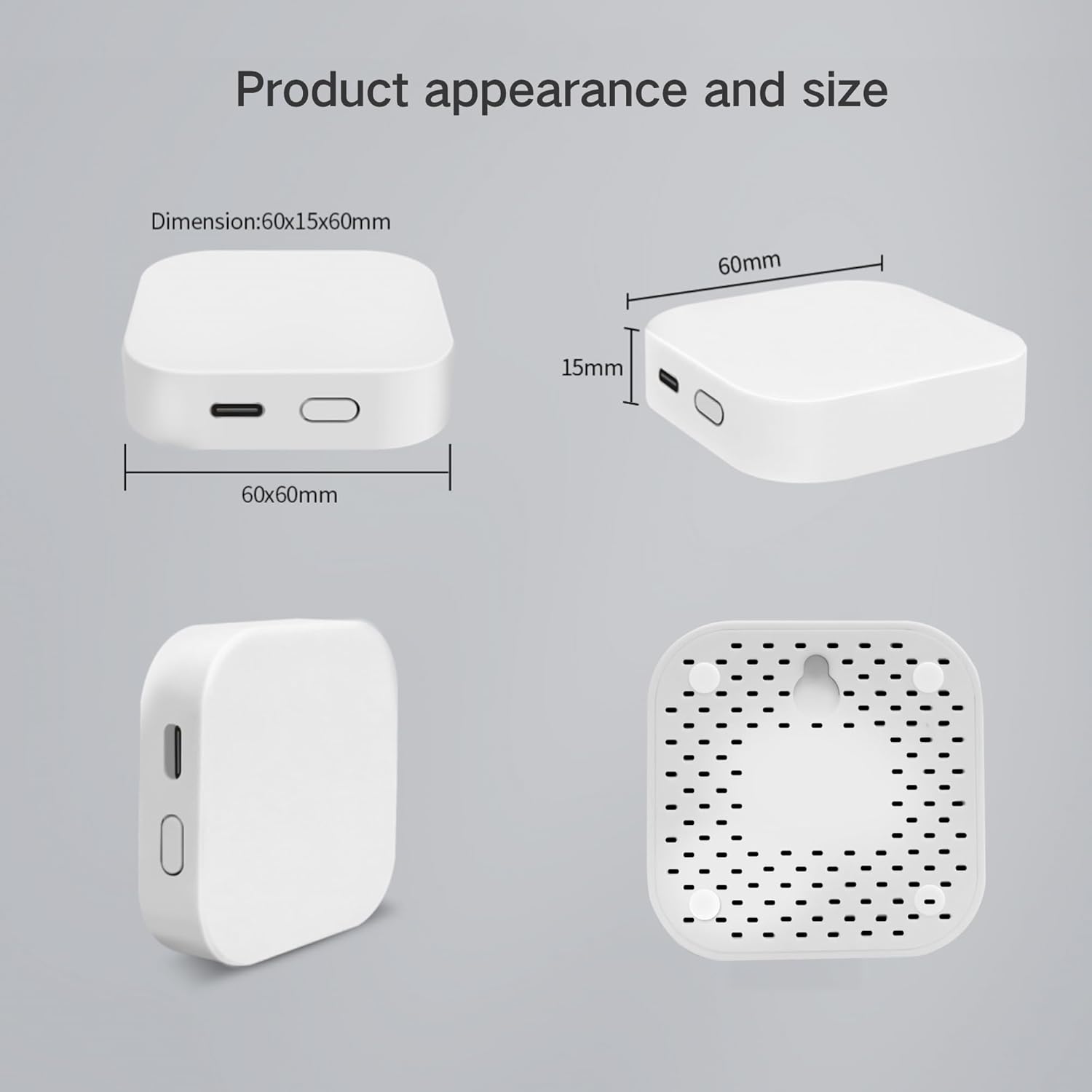
Figure 4.2: Product dimensions and back view of the gateway, highlighting the Type-C power input, hangable mount, and heat dissipation holes.
Key Features:
- Multi-Protocol Support: Integrates Zigbee 3.0, BLE, and Bluetooth Mesh devices.
- Wide Compatibility: Works with Smart Life app, Alexa, Google Assistant, and IFTTT.
- High Capacity: Supports up to 128 Zigbee/Bluetooth Mesh devices and 2 concurrent BLE devices.
- Stable Connection: Designed for reliable indoor smart home system networking.
- Remote Control: Manage devices from anywhere via the Smart Life app.
- Voice Control: Control devices using voice commands through compatible smart speakers.
- Efficient Design: Features Type-C power input and improved heat dissipation with a hangable mount option.
5. Setup
5.1 Powering On the Gateway
- Connect the provided USB Power Supply Line to the Type-C port on the gateway.
- Plug the other end of the USB cable into a compatible USB power adapter (not included) or a USB port.
- The gateway's indicator light will turn on, indicating it is powered.
5.2 Connecting to Wi-Fi and App Pairing
Before proceeding, ensure your phone is connected to a 2.4GHz Wi-Fi network. The gateway does not support 5GHz Wi-Fi.
- Download the Smart Life app from your mobile app store (App Store for iOS, Google Play Store for Android).
- Register or log in to your Smart Life account.
- Open the Smart Life app and tap the "+" icon in the top right corner to add a device.
- Select "Gateway & Other" or search for "Multi-Mode Gateway".
- Follow the on-screen instructions in the app to put the gateway into pairing mode. Typically, the indicator light will blink rapidly. If not, press and hold the reset button on the gateway for 5-10 seconds until it blinks.
- Confirm the indicator light is blinking rapidly in the app.
- Enter your 2.4GHz Wi-Fi network password when prompted.
- The app will begin searching for and connecting to the gateway. Once connected, you can rename the gateway and assign it to a room.
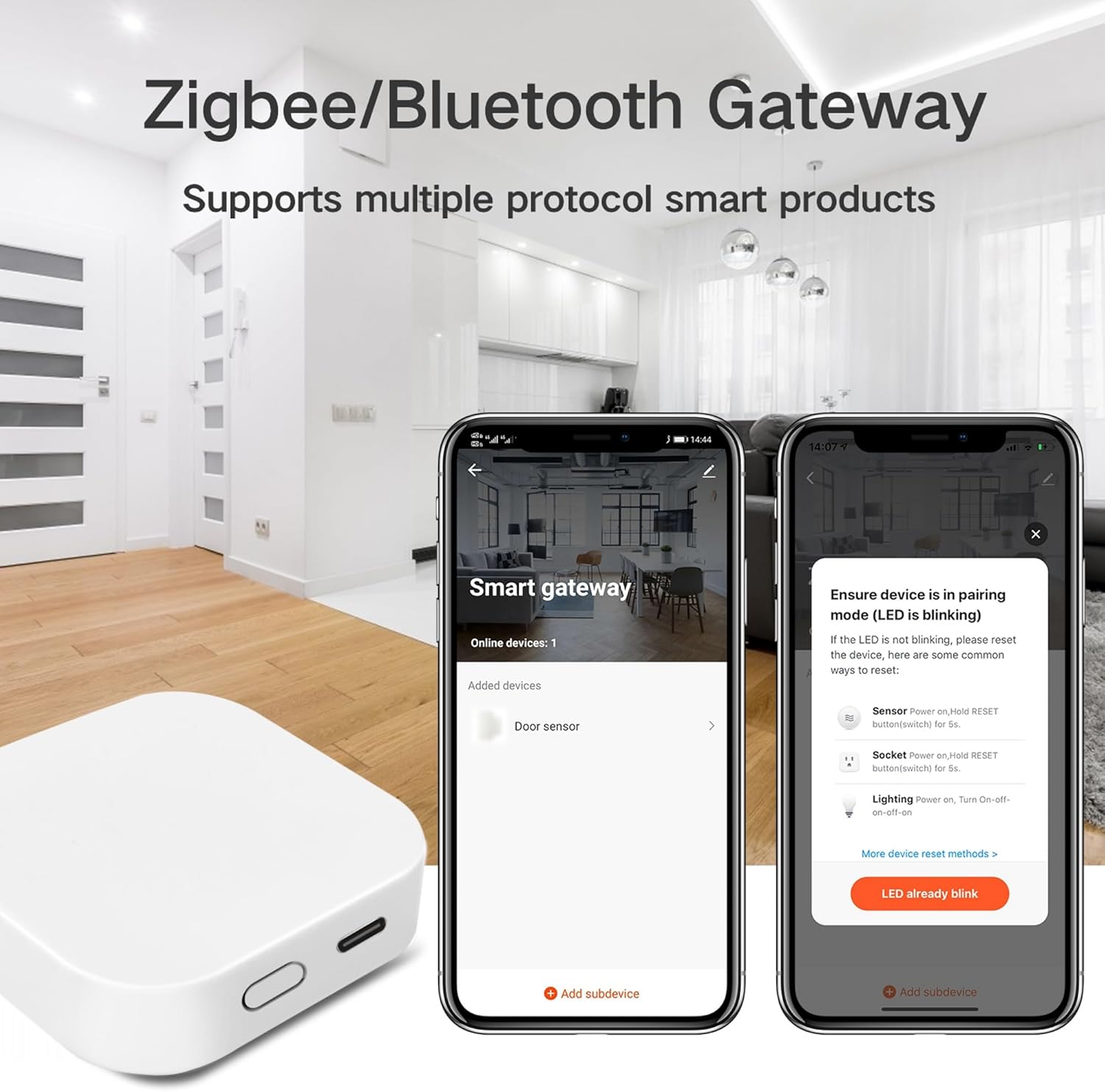
Figure 5.1: Smart Life app interface showing the process of adding a smart gateway and pairing devices.
6. Operating the Gateway
6.1 Adding Sub-Devices
Once the gateway is connected, you can add Zigbee, BLE, and Bluetooth Mesh sub-devices to it.
- In the Smart Life app, tap on your Multi-Mode Gateway.
- Tap "Add subdevice" or "Add device".
- Follow the app's instructions to put your sub-device into pairing mode (this usually involves pressing a button on the sub-device).
- The gateway will automatically detect and add the sub-device.

Figure 6.1: Illustration of a smart home system with various devices connected through the gateway.
6.2 Remote Control via App
The Smart Life app allows you to control all connected devices remotely.
- Open the Smart Life app.
- Select the device you wish to control from the device list.
- Adjust settings, turn devices on/off, or view real-time data.

Figure 6.2: Remote control of smart devices using the Smart Life app.
6.3 Creating Smart Scenarios
Automate your home by setting up smart scenarios (routines) within the Smart Life app.
- Navigate to the "Smart" or "Scenario" section in the Smart Life app.
- Create new automations based on conditions (e.g., time of day, sensor triggers) and actions (e.g., turn on lights, adjust temperature).
- Example: Automatically turn off the air conditioner when a window sensor detects the window is open.

Figure 6.3: Example of a smart scenario: turning off the air conditioner when a window is opened.
6.4 Voice Control Integration
The gateway supports voice control through Alexa and Google Assistant.
- Link your Smart Life account to Alexa or Google Home app.
- Discover devices.
- Use voice commands such as:
- "Alexa, turn on the living room light."
- "Hey Google, set the bedroom temperature to 72 degrees."

Figure 6.4: Voice control integration with smart speakers.
7. Maintenance
- Keep the gateway clean by wiping it with a soft, dry cloth.
- Avoid using abrasive cleaners or solvents.
- Ensure the gateway is placed in an area with good air circulation to prevent overheating.
- Periodically check the Smart Life app for firmware updates for the gateway and connected devices to ensure optimal performance and security.
8. Troubleshooting
| Problem | Possible Cause | Solution |
|---|---|---|
| Gateway not powering on. | No power, faulty cable/adapter. | Check power connection. Try a different USB-C cable or power adapter. |
| Gateway not connecting to Wi-Fi. | Incorrect Wi-Fi band (5GHz), wrong password, weak signal. | Ensure your phone and gateway are on a 2.4GHz Wi-Fi network. Verify Wi-Fi password. Move gateway closer to router. |
| Cannot add sub-devices. | Sub-device not in pairing mode, out of range, incompatible protocol. | Ensure sub-device is in pairing mode. Move sub-device closer to gateway. Verify sub-device uses Zigbee, BLE, or Bluetooth Mesh. |
| Voice control not working. | Smart Life account not linked, device not discovered, incorrect command. | Ensure Smart Life account is linked in Alexa/Google Home app. Redo device discovery. Use correct voice commands. |
| Gateway frequently disconnects. | Weak Wi-Fi signal, network interference. | Relocate gateway closer to Wi-Fi router. Minimize interference from other 2.4GHz devices. |
9. Specifications
| Attribute | Detail |
|---|---|
| Model Number | ZigBee Bluetooth |
| Dimensions | 2.36 x 2.36 x 0.6 inches (60 x 60 x 15 mm) |
| Item Weight | 3.2 ounces |
| Color | White |
| Wireless Protocols | Zigbee 3.0, BLE, Bluetooth Mesh |
| Wi-Fi Support | 2.4GHz only (5GHz not supported) |
| Max Sub-Devices | Up to 128 Zigbee/Bluetooth Mesh devices, 2 concurrent BLE devices |
| Power Supply | Type-C USB |
| Manufacturer | Tuya Cloud Smart |
| Country of Origin | China |
10. Warranty and Support
For warranty information and technical support, please refer to the purchase platform or contact Jinvocloud customer service directly. Specific warranty terms may vary by region and retailer. Please retain your proof of purchase for any warranty claims.
For further assistance, you may also visit the Jinvocloud Store on Amazon.
Related documentsZigBee Bluetooth


Ask a question about this manual
Ask about setup, troubleshooting, compatibility, parts, safety, or missing instructions. Manuals+ will review the question and use this page’s manual context to help answer it.