
1. Introduction
Thank you for choosing the ORGSTA S001 Portable Bluetooth Thermal Label Maker. This compact and efficient device is designed to simplify your labeling needs for home, office, and school organization. Utilizing direct thermal printing technology, it offers high-resolution labels without the need for ink or toner. Its portable design and user-friendly app make it an ideal tool for creating custom labels on the go.
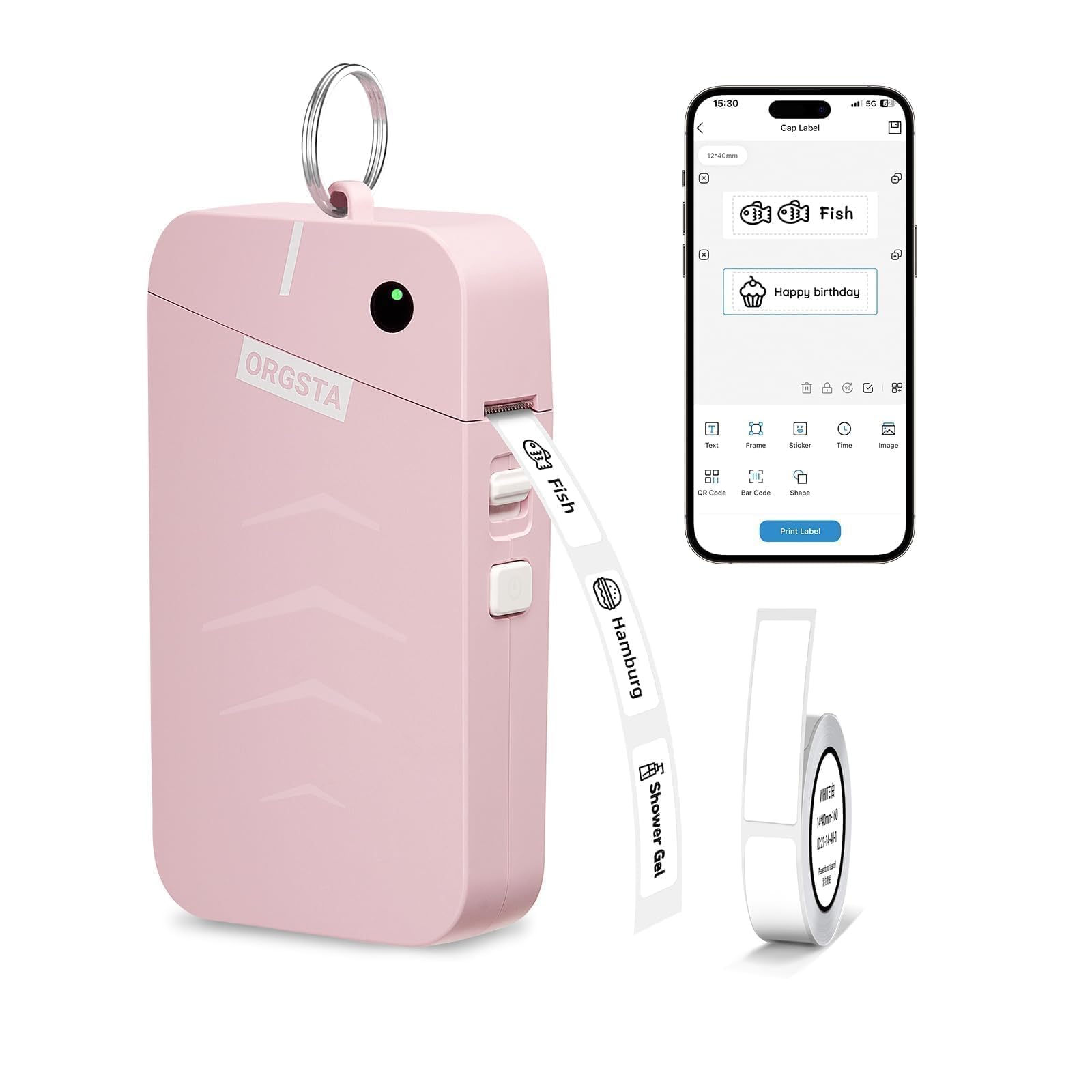
Image: The ORGSTA S001 Portable Bluetooth Thermal Label Maker in pink, showcasing its compact design.
2. What's in the Box
Upon unboxing your ORGSTA S001 Label Maker, please ensure all the following items are included:
- S001 Label Maker
- 1 x Roll Label Tape
- 1 x Keyring
- 1 x Type-C Cable
- 1 x User Manual

Image: A visual representation of all items included in the ORGSTA S001 Label Maker package.
3. Product Overview
The ORGSTA S001 features a minimalist design with essential controls for ease of use.
Buttons & Indicator Light
- Power Button: Press and hold for 1.5 seconds to power on/off. Double-press to print the device's QR code for Bluetooth connection. Triple-press to print the device SN.
- Cover Button: Slide down to open the label compartment.
- LED Indicator:
- Green (Steady): Standby mode.
- Green (Blinking): Printing in progress.
- Red (Steady): Out of paper.
- Red (Blinking): Low battery (less than 5%).
- Charging Port: Type-C USB port for charging.
- Reset Key: Insert a pin into the reset hole and press firmly for a few seconds to reset the device if it's functioning abnormally.
4. Setup
4.1. App Download
To utilize the full functionality of your ORGSTA S001 Label Maker, download the "Snap & Tag" app on your smartphone. You can find the app by:
- Scanning the QR code provided in the user manual or on the device packaging.
- Searching for "Snap & Tag" in your phone's app store (available for Android and iOS).
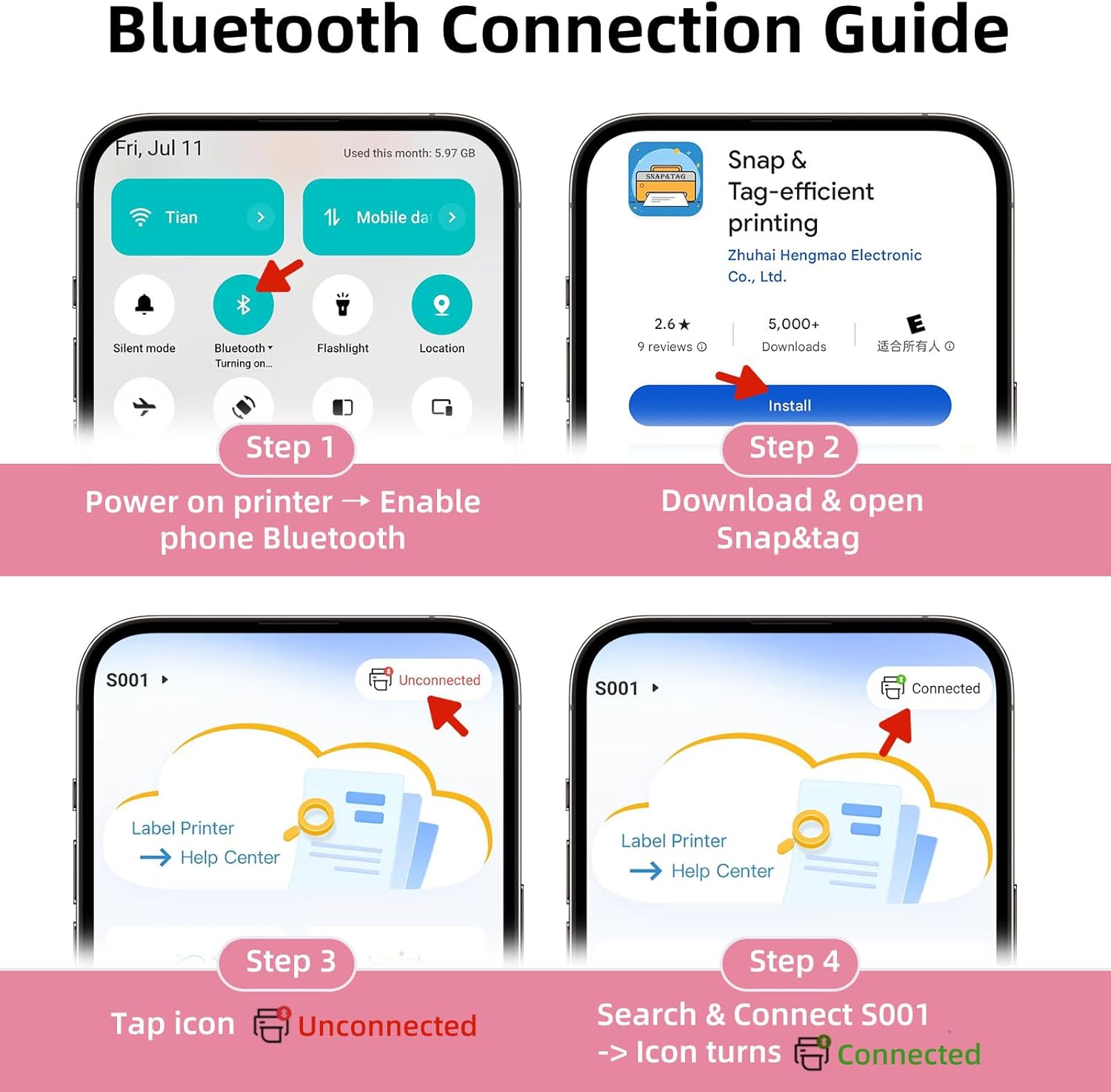
Image: A visual guide to downloading and opening the Snap & Tag app.
4.2. App Connection (Bluetooth)
Connect your label maker to your smartphone via Bluetooth:
- Power on the device by pressing and holding the power button until the indicator light is on.
- Open the "Snap & Tag" app and enable Bluetooth on your phone.
- In the top left corner of the app, tap "Unconnected". Select your device from the list that appears. The app will then pair with your device. Once connected, you're ready to print!

Image: Steps for connecting the label maker to the app via Bluetooth.
4.3. Consumable Installation (Loading Label Tape)
Properly loading the label tape ensures optimal printing quality:
- Slide down the cover button to open the cover of the label maker.
- Load the paper roll with the printed side facing up. Ensure it is inserted correctly.
- Unroll the label paper so that it slightly extends beyond the print slot.
- Close the cover, then press and hold the power button to power on.

Image: Detailed steps for installing the label tape.
5. Operating Instructions
The "Snap & Tag" app offers multiple creative functions to design and print your labels.
5.1. Creating a Label
From the app's home screen, select "Create a New Label" to begin designing. You can add:
- Text: Customize fonts, sizes, and styles.
- Frames: Choose from over 100 decorative frames.
- Stickers: Select from over 550 stickers to enhance your labels.
- Time/Date: Automatically insert current time or date.
- Images: Upload your own images.
- QR Codes/Barcodes: Generate and print QR codes or barcodes.
- Shapes: Add various shapes to your design.
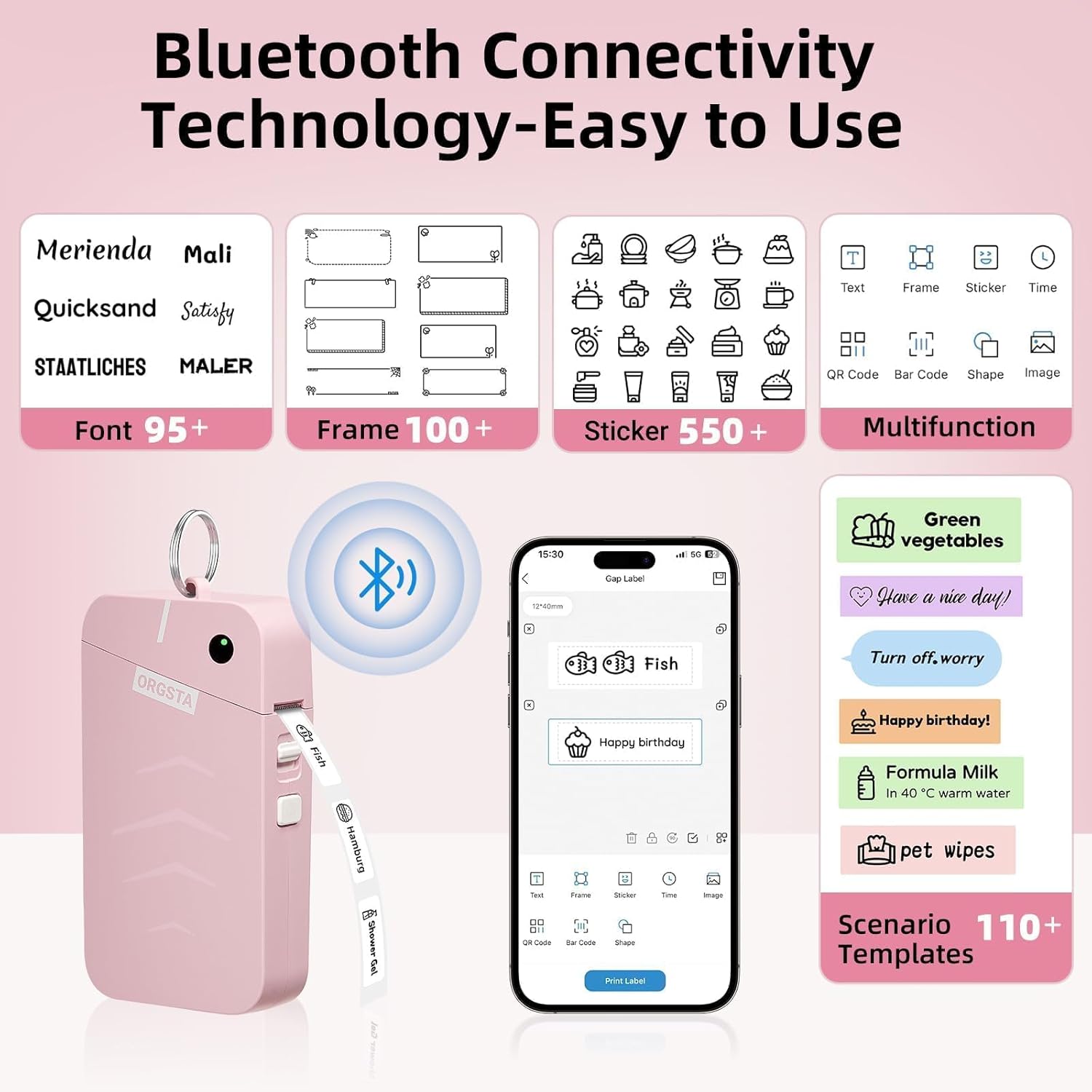
Image: The Snap & Tag app interface highlighting various customization features.
5.2. Printing a Label
Once your label design is complete:
- Tap the "Print Label" button in the app.
- Adjust the quantity if you need multiple copies of the same label.
- You can also adjust the print density for darker or lighter prints.
- Confirm your settings and tap "Print Label" again to send the job to the printer.
5.3. Label Types and Sizes
The ORGSTA S001 supports various label types and sizes, including gap labels and continuous length tape. You can customize label lengths with continuous tape or use fixed-size labels for batch printing.

Image: Examples of different label types and sizes, including gap labels and continuous tape.
5.4. Wide Application
The ORGSTA S001 is versatile for various organizational tasks:
- Home: Organize clothes, food storage, cosmetics, and mail.
- Office: Manage notebook tags, price tags, reminder tags, and other supplies.
- School: Label classroom items, personal belongings, and name tags.

Image: Examples of the label maker's wide application in home and office settings.
6. Maintenance
To ensure the longevity and optimal performance of your ORGSTA S001 Label Maker:
- Cleaning: Regularly clean the print head with a soft, lint-free cloth. Do not use harsh chemicals or abrasive materials.
- Storage: Store the device in a cool, dry place away from direct sunlight and extreme temperatures.
- Battery Care: For optimal battery health, we recommend charging your lithium battery every three months, even if it's not fully drained.
- Label Rolls: Use only genuine ORGSTA label rolls to prevent damage to the print head and ensure print quality.
7. Troubleshooting
If you encounter issues with your ORGSTA S001 Label Maker, please refer to the following common solutions:
- No Power: Ensure the device is fully charged. Connect it to a power source using the provided Type-C cable.
- Printing Issues (Faint/Blank): Check if the label roll is inserted correctly with the printed side facing up. Ensure the label tape is not exhausted. Clean the print head.
- Bluetooth Connection Failure: Ensure Bluetooth is enabled on your phone and within the "Snap & Tag" app settings. Try restarting both the label maker and your phone. If the device is not listed, double-press the power button on your device; it will print a QR code. Use the scanner button at the bottom of the device list screen to scan the QR code to connect.
- Paper Jam: Open the cover, carefully remove any jammed paper, and re-insert the label roll correctly.
- Device Malfunction: If the device is functioning abnormally, insert a pin into the reset hole and press firmly for a few seconds to reset it.
8. Specifications
| Feature | Specification |
|---|---|
| Brand | ORGSTA |
| Model | S001 |
| Connectivity Technology | Bluetooth |
| Printing Technology | Thermal |
| Maximum Print Resolution | 203 dpi |
| Maximum Print Speed (Monochrome) | 15 mm/s (35 inches per minute) |
| Battery Capacity | 2000 mAh Lithium Ion (included) |
| Charging Input | 5V - 1A |
| Charging Port | Type-C |
| Product Dimensions | 1.1"D x 2.9"W x 5.3"H (29 x 72.5 x 135.5 mm) |
| Compatible Devices | Smartphones (Android/iOS) |
| Print Media | Labels (Gap / Continuous) |
| Item Weight | 0.32 ounces |
9. Warranty and Support
ORGSTA is committed to providing quality products and customer satisfaction. Your ORGSTA S001 Label Maker comes with a limited warranty.
- Warranty Period: Please refer to the warranty card included in your package for specific details regarding the warranty period and terms.
- Customer Support: If you have any quality problems or suggestions, please contact us promptly through the after-sales service email provided in the warranty card or user manual.
- Email: orgsta_service@outlook.com
Please note that returns and exchanges require that the goods are intact and do not affect the sale. We will provide you with service as soon as possible after receiving the product.
10. Official Product Videos
Watch these official videos for more information and usage tips:
ORGSTA S001 Label Maker: Your Secret Weapon for a Neat Home
Video: This video demonstrates how the ORGSTA S001 Label Maker can help organize your home efficiently.
The Story of S001 Label Maker
Video: A short video highlighting the features and benefits of the S001 Label Maker.

