
Introduction
This manual provides detailed instructions for the Fanvace M32 MP3 Player. Please read this manual thoroughly before using the device to ensure proper operation and to maximize its features. Keep this manual for future reference.
Package Contents
Verify that all items are present in the package:
- 1 x Fanvace M32 MP3 Player
- 1 x 128GB Micro SD Card
- 1 x USB-C Cable
- 1 x Wired Headset
- 1 x Screen Protector
- 1 x Protective Case
- 1 x User Manual
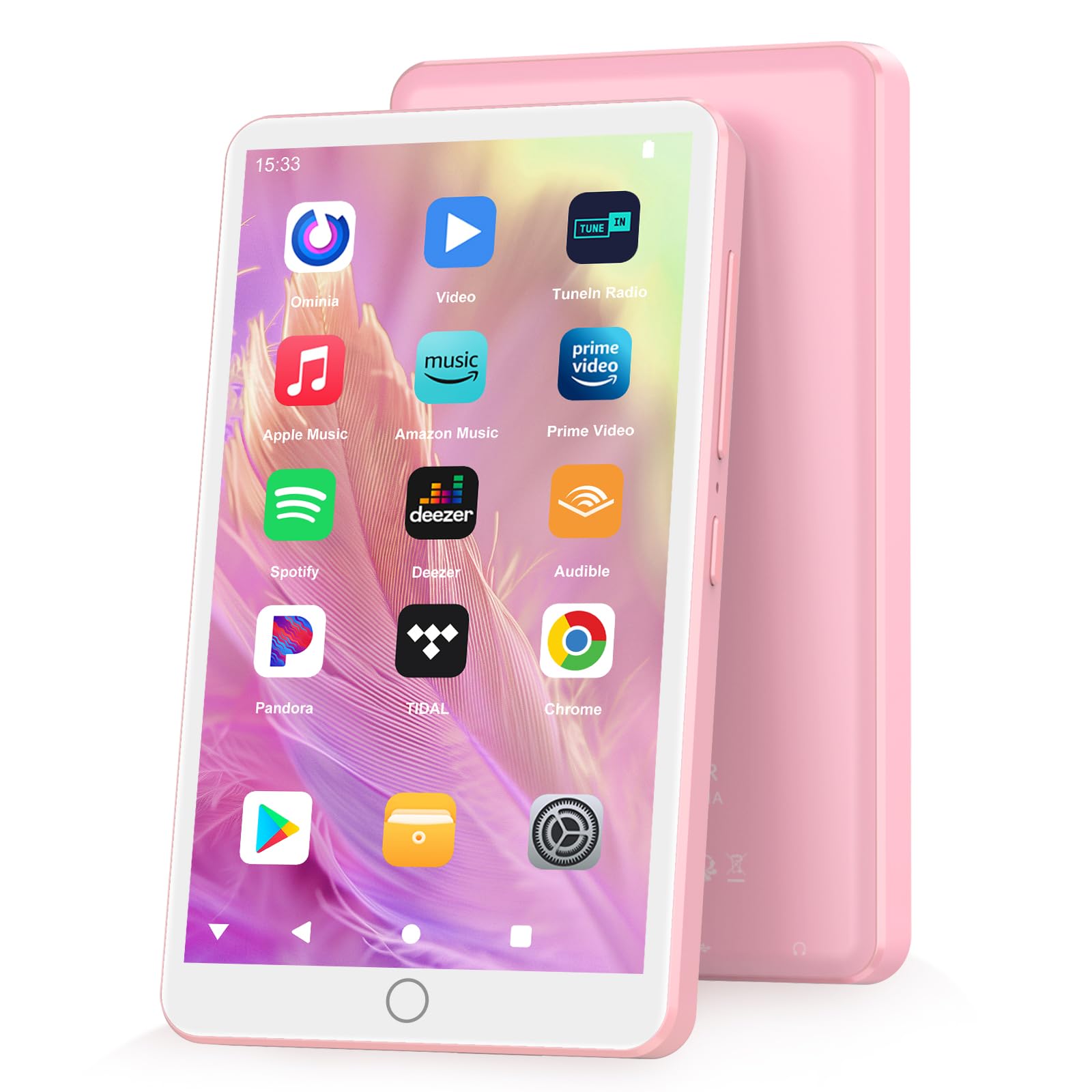
Image: Fanvace M32 MP3 Player and its accessories. The player is a rectangular device with a screen, shown alongside a USB-C cable, wired headphones, a Micro SD card, a screen protector, and a protective case.
Device Overview
The Fanvace M32 features a 4-inch full touchscreen and runs on Android 13 OS. It is equipped with an MTK 8-core processor for smooth performance.
Key Features:
- Operating System: Android 13
- Processor: MTK 8-core
- Display: 4-inch Full Touchscreen (LCD)
- Storage: 16GB internal ROM + 128GB Micro SD card (included), expandable up to 1TB
- Battery: 2000 mAh Lithium-ion
- Connectivity: Bluetooth, Wi-Fi
- Audio Formats: MP3, WAV, FLAC, APE, OGG, M4A, AAC, WMA
- Video Formats: RM, RMVB, FLV, MP4, DAT, MKV, MPG, MOV, TS
- Additional Functions: FM Radio, Voice Recorder, E-book Reader, Calculator, Web Browser
Setup
1. Charging the Device
- Connect the small end of the USB-C cable to the charging port on the MP3 player.
- Connect the standard USB end of the cable to a compatible USB power adapter (not included) or a computer's USB port.
- The battery indicator on the screen will show charging status. Ensure the device is fully charged before first use.
2. Inserting the Micro SD Card
The device comes with a 128GB Micro SD card. It supports FAT32 format only.
- Locate the Micro SD card slot on the side of the player.
- Gently insert the Micro SD card into the slot with the gold contacts facing down until it clicks into place.
- To remove, gently push the card inward until it springs out.
3. Initial Power On
- Press and hold the Power button (usually on the side) for a few seconds until the screen lights up.
- Follow the on-screen prompts to complete the initial setup, including language selection and time zone.
4. Connecting to Wi-Fi
- From the home screen, swipe down from the top to access the Quick Settings panel, or navigate to Settings > Network & Internet > Wi-Fi.
- Toggle Wi-Fi On.
- Select your desired Wi-Fi network from the list.
- Enter the network password if prompted, then tap Connect.
5. Connecting Bluetooth Devices
- Navigate to Settings > Connected devices > Bluetooth.
- Toggle Bluetooth On.
- Ensure your Bluetooth device (e.g., headphones, speaker) is in pairing mode.
- The MP3 player will scan for available devices. Select your device from the list to pair.
Operating Instructions
1. Basic Navigation
- Touchscreen: Tap to select, swipe to scroll, pinch to zoom.
- Home Button: Returns to the home screen.
- Back Button: Returns to the previous screen.
- Volume Buttons: Adjust audio output level.
2. Music Playback
- Open the Music app or a pre-installed streaming app like Spotify or Amazon Music.
- Browse your local music library or stream content from online services.
- Tap on a song or album to begin playback.
- Use the on-screen controls for play/pause, skip, repeat, and shuffle.
3. Video Playback
- Open the Video app or a compatible media player.
- Select a video file from your storage.
- The device supports various video formats including RM, RMVB, FLV, MP4, DAT, MKV, MPG, MOV, TS.
4. Using Pre-installed Apps
The device comes with popular apps such as Spotify, Omnia, Deezer, Amazon Music, and Play Store. Ensure you are connected to Wi-Fi to use online streaming services or download new applications.
- Play Store: Access the Google Play Store to download additional apps, games, and content. A Google account is required.
- Streaming Apps: Log in with your existing accounts for Spotify, Amazon Music, or Deezer to access your music libraries.
5. FM Radio
- Connect the wired headset to the 3.5mm audio jack. The headset acts as an antenna.
- Open the FM Radio app.
- Use the on-screen controls to scan for stations or manually tune to a frequency.
6. Voice Recorder
- Open the Recorder app.
- Tap the Record button to start recording.
- Tap Stop to end the recording. Recordings are saved to the device's internal storage or Micro SD card.
7. E-book Reader
- Transfer e-book files (e.g., EPUB, PDF, TXT) to the device's storage.
- Open the E-book app.
- Select an e-book to read.
Maintenance
1. Cleaning
- Use a soft, lint-free cloth to clean the screen and body of the device.
- Avoid using harsh chemicals, abrasive cleaners, or aerosol sprays.
- Do not expose the device to excessive moisture.
2. Battery Care
- To prolong battery life, avoid fully discharging the battery frequently.
- Charge the device using the provided USB-C cable and a compatible power source.
- Avoid exposing the device to extreme temperatures.
3. Software Updates
Periodically check for software updates to ensure optimal performance and security.
- Connect the device to Wi-Fi.
- Go to Settings > System > System update.
- Follow the on-screen instructions to download and install any available updates.
Troubleshooting
Device not turning on:
- Ensure the battery is charged. Connect the device to a charger for at least 30 minutes.
- Try pressing and holding the Power button for 10-15 seconds to force a restart.
Cannot connect to Wi-Fi:
- Verify that Wi-Fi is enabled on the device and your router is working correctly.
- Double-check the Wi-Fi password.
- Restart the MP3 player and your Wi-Fi router.
Bluetooth device not pairing:
- Ensure Bluetooth is enabled on both the MP3 player and the accessory.
- Place the devices close to each other.
- Put the Bluetooth accessory into pairing mode.
- Restart both devices and try pairing again.
Device freezing or unresponsive:
- Press and hold the Power button for 10-15 seconds to force a restart.
- If the issue persists, consider performing a factory reset (Note: This will erase all data on the device. Back up important files first). Go to Settings > System > Reset options > Erase all data (factory reset).
Specifications
| Model Number | M32 |
| Brand | Fanvace |
| Operating System | Android 13 |
| Processor | MTK 8-core |
| Display Size | 4.02 inches |
| Display Type | LCD |
| Internal Storage | 16GB ROM |
| Expandable Storage | 128GB Micro SD card included (supports up to 1TB, FAT32 format only) |
| RAM | 3GB |
| Battery Capacity | 2000 mAh Lithium-ion |
| Music Playback Time | Up to 50 hours |
| Video Playback Time | Up to 8 hours |
| Connectivity | Bluetooth, Wi-Fi |
| Supported Audio Formats | MP3, WAV, FLAC, APE, OGG, M4A, AAC, WMA |
| Supported Video Formats | RM, RMVB, FLV, MP4, DAT, MKV, MPG, MOV, TS |
| Special Features | FM Radio, Voice Recorder, E-book, Calculator, Browser |
| Compatible Devices | Headphones, Speaker, Personal Computer, Smartphone |
Warranty and Support
Fanvace provides 12 hours of customer service. If you encounter any issues during the use of this product, please contact us. We are committed to resolving your concerns within 12 hours.
For support, please refer to the contact information provided with your purchase or visit the official Fanvace website.


