1. Product Overview
The surmen Wireless Keyboard and Mouse Combo offers a full-size, retro typewriter-style design with silent, low-noise operation, ideal for home and office environments. This combo utilizes 2.4GHz wireless technology for a stable and reliable connection, ensuring a comfortable and efficient user experience. The set includes a keyboard with rounded keycaps and a silent mouse, both designed for ergonomic comfort and reduced noise.

Image 1.1: The surmen Cute Green Wireless Keyboard and Mouse Combo, showcasing its full-size layout and included USB receiver.

Image 1.2: Overview of the colorful keyboard and mouse highlighting 2.4G wireless, 33ft transmission, low noise, power-saving, and USB connectivity.
2. Package Contents
Please verify that all items are present in the package:
- 1 x surmen Wireless Keyboard
- 1 x surmen Wireless Mouse
- 1 x USB 2.4GHz Receiver (stored inside the mouse battery compartment)
- 1 x AAA Battery (for mouse, included)
3. Setup Guide
Follow these steps to set up your surmen Wireless Keyboard and Mouse Combo:
- Locate the USB Receiver: The compact USB 2.4GHz receiver is conveniently stored in the battery compartment of the wireless mouse. Open the battery cover on the underside of the mouse to retrieve it.
- Install Batteries: Ensure the included AAA battery is correctly installed in the mouse. The keyboard is typically powered by its own internal battery or may require separate batteries (not specified in input, assuming mouse battery is the primary concern for setup).
- Connect the Receiver: Plug the USB receiver into an available USB port on your computer (desktop, laptop, etc.).
- Power On Devices: Turn on the power switch for both the keyboard and the mouse. The devices are plug-and-play and should connect automatically within a few seconds. No additional drivers are required.
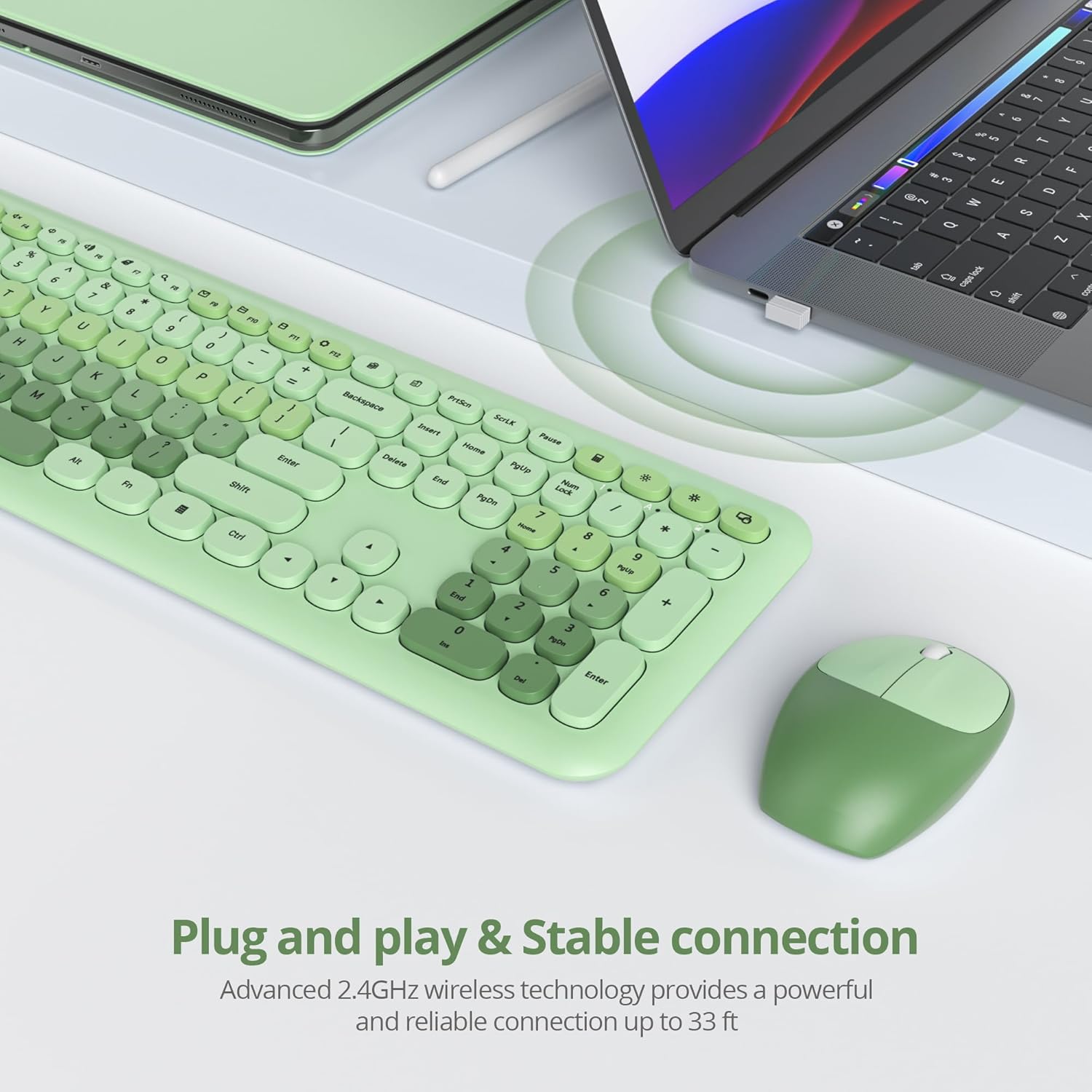
Image 3.1: Illustration of the plug-and-play setup, showing the USB receiver connected to a laptop and the wireless keyboard and mouse in use.
4. Operating Instructions
4.1 Wireless Connectivity
The keyboard and mouse utilize advanced 2.4GHz wireless technology, providing a stable and reliable connection up to 33 feet (approximately 10 meters). This ensures a strong signal without latency for seamless operation.
4.2 Silent Operation
Both the keyboard and mouse are designed for low-noise operation. The keyboard's rounded keycaps are silent, light, and fast, while the mouse reduces clicking noise by up to 98%, making it suitable for quiet environments like offices or libraries.

Image 4.1: Depiction of the mouse's silent clicking mechanism and ergonomic design for comfortable hand posture.
4.3 Power Saving Features
To conserve battery life, both the keyboard and mouse feature an automatic sleep mode. If idle for 15 minutes, they will enter sleep mode. Simply press any key on the keyboard or click a mouse button to wake them up instantly.

Image 4.2: Diagram illustrating the energy-saving design with automatic sleep mode after 8 minutes of inactivity.

Image 4.3: Visual guide to the mouse's automatic power saving states: Working, Stand-by, Auto-sleep, and Press to Activate.
4.4 Multimedia Hotkeys
The keyboard features 15 multi-functional hotkeys to enhance productivity and convenience. Press the Fn key simultaneously with the Esc key to switch between standard function keys (F1-F12) and multimedia functions.
Common hotkey functions include:
- Fn + F1-F12: Various multimedia controls (e.g., volume, media playback, email, browser).
- Numeric Keypad: Full numeric keypad for data entry.
Image 4.4: The keyboard layout showing the function keys and their potential multimedia assignments when used with the Fn key.
4.5 Indicator Lights
The keyboard includes indicator lights for:
- Number Lock: Indicates when the numeric keypad is active.
- Caps Lock: Indicates when Caps Lock is active.
- Low Power: Illuminates when the battery level is low, signaling that the battery needs replacement.
Image 4.5: A view of the keyboard, showing the location of the indicator lights for Num Lock, Caps Lock, and Low Power.
4.6 Mouse DPI
The mouse operates at 1200 DPI, providing precise and responsive cursor control for various tasks.
4.7 Compatibility
This wireless keyboard and mouse combo is compatible with a wide range of operating systems, including Windows XP/Vista/7/8/10/X, Mac, and other systems. It is suitable for use with desktops, Chromebooks, PCs, laptops, and other computers.
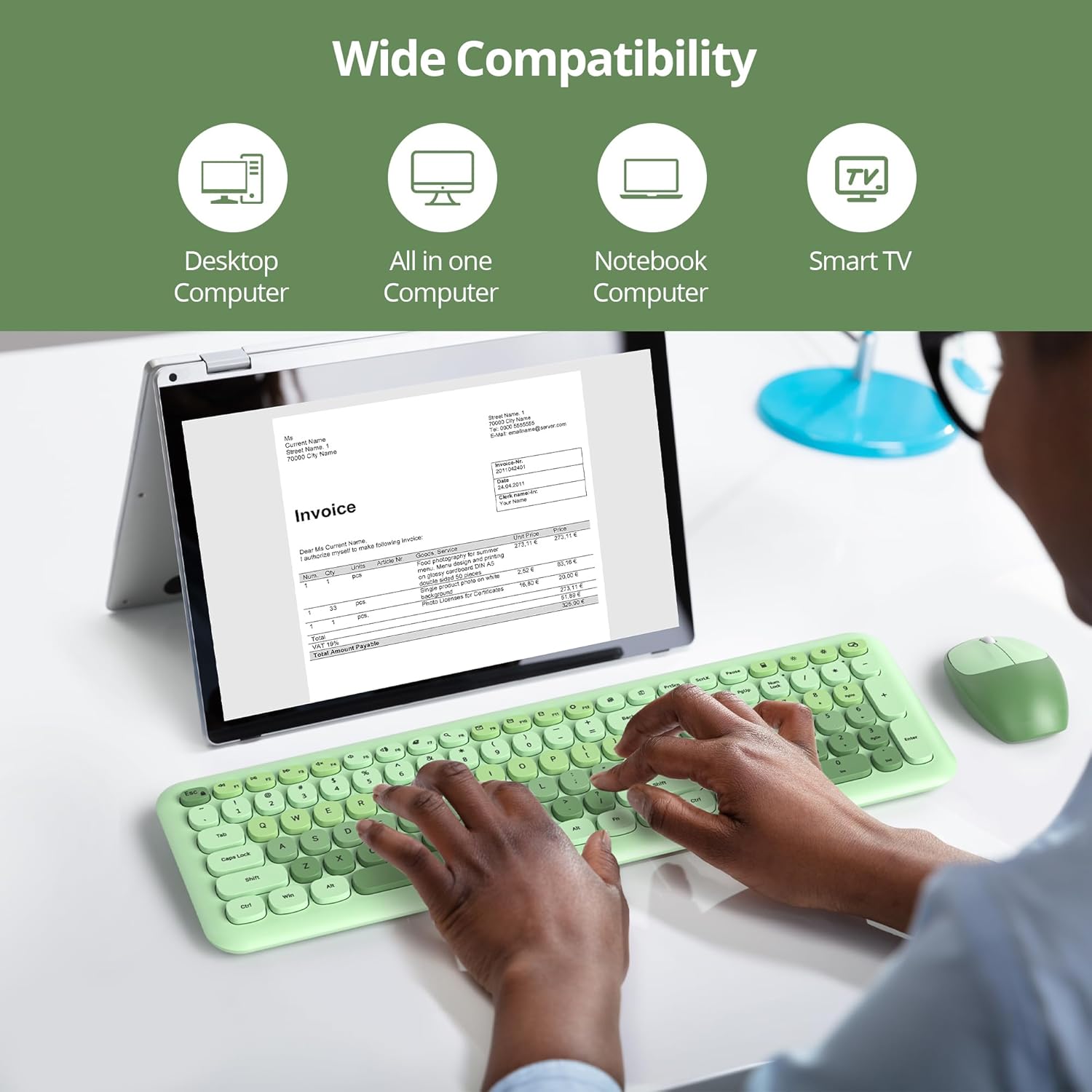
Image 4.6: Visual representation of the combo's wide compatibility with various devices such as desktop computers, all-in-one computers, notebooks, and smart TVs.
5. Maintenance
5.1 Cleaning
To maintain the performance and appearance of your keyboard and mouse:
- Use a soft, dry cloth to wipe down the surfaces.
- For stubborn dirt, slightly dampen the cloth with water or a mild, non-abrasive cleaner.
- Avoid using harsh chemicals or abrasive materials that could damage the finish.
- For the keyboard, you may use compressed air to clear debris from between the keys.
5.2 Battery Replacement
When the low power indicator on the keyboard illuminates, or if the mouse becomes unresponsive, it's time to replace the battery. The mouse uses 1 AAA battery. Ensure correct polarity when inserting new batteries.
6. Troubleshooting
If you encounter issues with your surmen Wireless Keyboard and Mouse Combo, please refer to the following common solutions:
- No Connection/Unresponsive Devices:
- Ensure the USB receiver is securely plugged into a working USB port on your computer.
- Check if the keyboard and mouse are powered on.
- Replace the batteries in the mouse with fresh ones.
- Try plugging the USB receiver into a different USB port.
- Move the keyboard and mouse closer to the USB receiver to rule out range issues.
- Lagging or Delayed Input:
- This can often be caused by low battery. Replace the battery in the mouse.
- Ensure there are no strong wireless interference sources nearby (e.g., other 2.4GHz devices, Wi-Fi routers).
- Try restarting your computer.
- Sticky or Unresponsive Keys:
- Clean the keyboard thoroughly, especially around the affected keys, to remove any debris or spills.
- Ensure the keycaps are properly seated.
- Mouse Not Tracking Smoothly:
- Clean the optical sensor on the underside of the mouse.
- Use the mouse on a clean, non-reflective surface or a mouse pad.
7. Specifications
| Feature | Detail |
|---|---|
| Brand | surmen |
| Model (ASIN) | B0DJNF6FJ5 |
| Color | Colorful Light Green |
| Connectivity Technology | 2.4GHz Radio Frequency Wireless |
| Special Features | Ergonomic, Lightweight, Silent Operation, Power Saving |
| Compatible Devices | Personal Computer (Windows XP/Vista/7/8/10/X, Mac, Chromebook, PC, Laptop) |
| Mouse DPI | 1200 |
| Keyboard Dimensions | 17.52 x 5.42 x 1.11 inches |
| Mouse Dimensions | 4.12 x 2.72 x 1.41 inches |
| Item Weight | 1.94 pounds (total combo) |
| Batteries | 1 AAA battery required for mouse (included) |
| Manufacturer | GTSP |
| Date First Available | October 8, 2024 |

Image 7.1: Detailed dimensions of the full-size ultra-slim keyboard and the wireless mouse.
8. Warranty and Support
For product support, inquiries, or warranty claims, please contact the manufacturer, surmen (manufactured by GTSP). Refer to your purchase documentation for specific warranty terms and contact information.
Return Policy: This product typically comes with a 30-day refund/replacement return policy from the date of purchase. Please check with your retailer for exact return conditions.


