
1. Product Overview
The surmen Cute Wireless Keyboard and Mouse Combo offers a full-size, slim, and low-noise input solution designed for comfort and efficiency. Featuring soft-touch round keys and a silent mouse, this combo is suitable for various environments including home and office use. Its wireless 2.4G technology ensures a stable connection.
Key Features:
- Plug and Play: Requires only one receiver for both keyboard and mouse, no additional drivers needed.
- Silent Operation: Designed for noise reduction, with quiet key presses and mouse clicks.
- Ergonomic Design: Ultra-thin keyboard with an optimum typing angle and a curved mouse for correct posture.
- Power Saving: Automatic sleep mode after 15 minutes of inactivity to conserve battery life.
- Multi-functional Hotkeys: 15 hotkeys and a numeric keypad for enhanced productivity.
- Wide Compatibility: Compatible with Windows XP/Vista/7/8/10/X, Mac, and other operating systems.

Image: The surmen wireless keyboard and mouse combo, showcasing its 2.4G wireless, 33ft transmission, low noise, power-saving, and USB connectivity features.

Image: Detailed view of the keyboard's round, water-drop concave, anti-grease, and aesthetic key design.
2. Setup Guide
2.1 Battery Installation
- Mouse: Open the battery compartment on the underside of the mouse. Insert one AAA battery (included), ensuring correct polarity. Close the compartment.
- Keyboard: Open the battery compartment on the underside of the keyboard. Insert two AAA batteries (not included), ensuring correct polarity. Close the compartment.

Image: The underside of the mouse, illustrating the battery compartment and the slot for the USB receiver.
2.2 Connecting the Combo
- Locate the USB receiver, which is conveniently stored inside the mouse's battery compartment.
- Plug the USB receiver into an available USB port on your computer or laptop.
- Turn on the mouse using the power switch located on its underside.
- Turn on the keyboard using the power switch, usually located on the side or back.
- Your computer should automatically detect and connect to both the keyboard and mouse. No additional drivers are required.
Video: A demonstration of unboxing the Surmen Wireless Keyboard and Mouse, showing the USB receiver and initial setup steps.
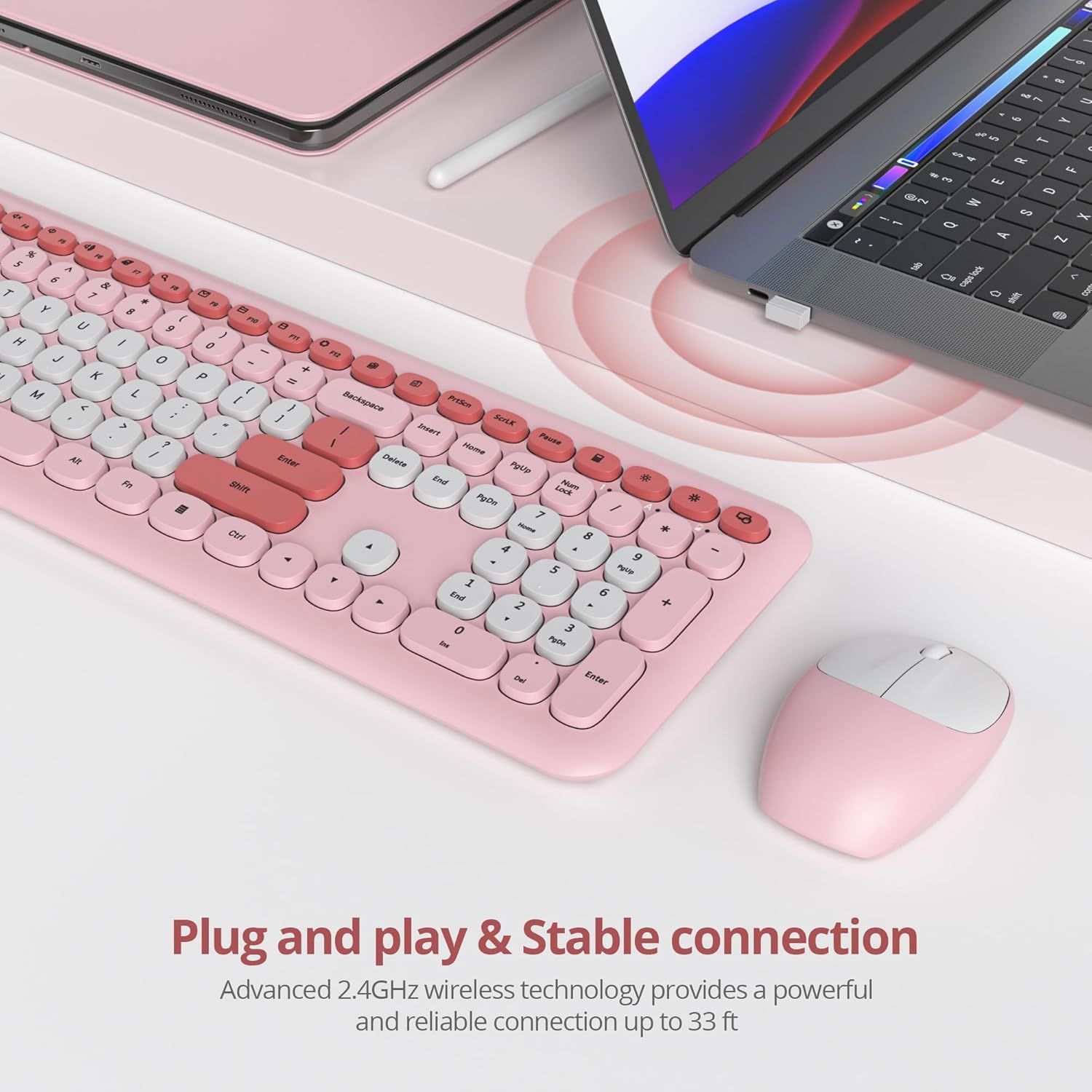
Image: The wireless keyboard and mouse connected to a laptop, demonstrating the simple plug-and-play setup with a single USB receiver.
3. Operating Instructions
3.1 General Usage
- The keyboard features a full QWERTY layout with a numeric keypad for comprehensive input.
- The mouse is designed for silent clicking, reducing noise by 98% for a quiet working environment.

Image: The silent mouse in operation, highlighting its low-noise design suitable for quiet environments.
3.2 Multi-functional Hotkeys
The keyboard includes 15 hotkeys for quick access to common functions. These keys are typically located along the top row (F1-F12) and may require pressing the 'Fn' key simultaneously for certain functions.
- Media Controls: Play/Pause, Volume Up/Down, Mute.
- Browser/Email: Open browser, open email client.
- System Functions: Lock screen, search, calculator.

Image: The keyboard with arrows pointing to various hotkeys, illustrating their functions such as media control and system shortcuts.
3.3 Power Saving Mode
To extend battery life, both the keyboard and mouse will automatically enter sleep mode after 15 minutes of inactivity. To wake them up, simply press any key on the keyboard or click a mouse button.

Image: A graphic illustrating the energy-saving design with a battery icon and text indicating automatic sleep mode after inactivity.
3.4 Indicator Lights
The keyboard features indicator lights for:
- Number Lock: Indicates when the numeric keypad is active.
- Caps Lock: Indicates when Caps Lock is active.
- Low Power: Illuminates when batteries are low and need replacement.

Image: A close-up of the keyboard's top right corner, showing the indicator lights for Number Lock, Caps Lock, and Low Power.
4. Maintenance
To ensure the longevity and optimal performance of your keyboard and mouse combo, follow these maintenance tips:
- Cleaning: Use a soft, dry cloth to wipe down the surfaces of the keyboard and mouse. For deeper cleaning, the floating keycaps can be carefully removed to clean dust and debris underneath.
- Battery Replacement: Replace batteries promptly when the low power indicator light illuminates to avoid interruption in use.
- Storage: When not in use for extended periods, turn off both devices to conserve battery life. Store the USB receiver inside the mouse to prevent loss.
5. Troubleshooting
- No Connection:
- Ensure the USB receiver is securely plugged into a working USB port on your computer.
- Check if both the keyboard and mouse are powered on.
- Replace batteries in both devices if the low power indicator is on or if they haven't been replaced recently.
- Try plugging the USB receiver into a different USB port.
- Mouse Lag/Unresponsive:
- Ensure the mouse is on a clean, flat surface.
- Check battery levels and replace if necessary.
- Move the mouse closer to the USB receiver to rule out interference.
- Keys Not Responding:
- Check keyboard battery levels.
- Ensure the keyboard is powered on.
- Clean around and under the affected keys.
6. Specifications
| Feature | Detail |
|---|---|
| Brand | surmen |
| Color | Colorful Pink |
| Connectivity Technology | Radio Frequency (2.4G Wireless) |
| Special Features | Ergonomic, Round Key, Silent Click, Power Saving |
| Compatible Devices | Personal Computer (Windows XP/Vista/7/8/10/X, Mac, etc.) |
| Keyboard Dimensions | 17.52 x 5.42 x 1.11 inches (approximate) |
| Mouse Dimensions | 4.12 x 2.72 x 1.41 inches (approximate) |
| Item Weight | 1.76 pounds |
| Batteries Required | 1 AAA for mouse (included), 2 AAA for keyboard (not included) |

Image: Visual representation of the keyboard and mouse with their respective dimensions, highlighting the full-size ultra-slim design.
7. Warranty and Support
For any concerns regarding your surmen Cute Wireless Keyboard and Mouse Combo, please do not hesitate to contact our support team. We are committed to ensuring your satisfaction.
Contact Information:
Email: sumimall@163.com
Please refer to your purchase documentation for specific warranty details and terms.