
SAMVIX UCamera S10
Samvix UCamera S10 Kosher Digital Camera User Manual
Model: UCamera S10
Introduction
This manual provides instructions for the proper use and care of your Samvix UCamera S10 Kosher Digital Camera. Please read this manual thoroughly before operating the camera to ensure optimal performance and longevity.
The Samvix UCamera S10 is designed for capturing high-quality photos and videos. It features a 44-megapixel CMOS sensor and 16x digital zoom. This model is specifically designed without Wi-Fi or Bluetooth connectivity, aligning with Kosher-friendly specifications.
Product Overview
The UCamera S10 is a compact digital camera equipped with a built-in flash and an advanced full-color LCD IPS display for image review and editing.
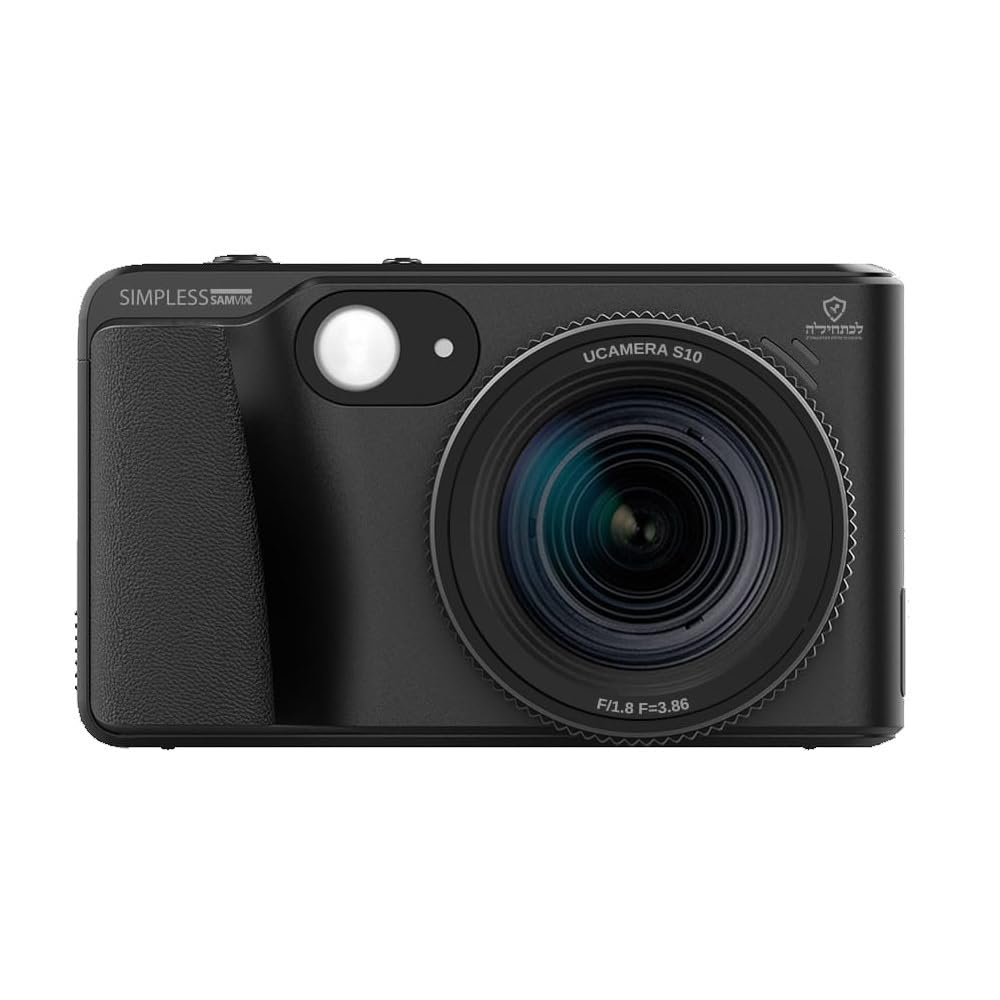
Figure 1: Front view of the Samvix UCamera S10 Digital Camera. This image shows the camera's lens, flash, and overall compact design.

Figure 2: Samvix UCamera S10 highlighting key features such as 4K video capability, auto-focus range (0.04m to infinity), and 16x digital zoom.
Setup
1. Battery Installation
Locate the battery compartment cover on the bottom of the camera. Slide the cover open, insert the battery according to the polarity indicators, and close the cover securely.
2. Memory Card Insertion
The camera requires a compatible memory card (not included) for storing photos and videos. Open the memory card slot cover, insert the card in the correct orientation until it clicks into place, and close the cover.
3. Initial Power On
Press and hold the power button until the LCD screen illuminates. Follow any on-screen prompts for initial setup, such as setting the date and time.
Operating Instructions
Taking Photos
- Power On: Press the power button to turn on the camera.
- Select Mode: Use the mode dial or menu to select photo mode.
- Frame Your Shot: Use the LCD screen to compose your image.
- Focus: Press the shutter button halfway down to allow the camera to focus.
- Capture: Press the shutter button fully to take the picture.
- Zoom: Use the zoom lever to adjust the 16x digital zoom.
- Flash: Activate the built-in flash for low-light conditions via the menu or dedicated button.
Recording Videos
- Select Mode: Switch the camera to video recording mode.
- Start Recording: Press the record button to begin capturing video. The recording indicator will appear on the screen.
- Stop Recording: Press the record button again to stop recording.
- 4K Video: The camera supports 4K video recording. Ensure sufficient memory card space.
Reviewing and Organizing Content
- Playback Mode: Enter playback mode to view your photos and videos.
- Navigation: Use the directional buttons to scroll through your media.
- Zoom In/Out: Use the zoom controls in playback mode to magnify photos.
- Photo Album: Utilize the built-in photo album function to create and organize folders for your images and videos.
- Editing: The advanced full-color LCD IPS display allows for basic on-camera editing of captured photos.
Maintenance
Cleaning the Camera
- Lens: Use a soft, lint-free cloth specifically designed for camera lenses to gently wipe the lens surface. Avoid touching the lens with fingers.
- LCD Screen: Wipe the LCD screen with a soft, dry cloth. Do not use liquid cleaners.
- Camera Body: Use a soft, dry cloth to clean the camera body. For stubborn dirt, slightly dampen the cloth with water and wipe gently, then dry thoroughly.
Battery Care
- Charge the battery fully before first use.
- Remove the battery if the camera will not be used for an extended period.
- Store batteries in a cool, dry place.
Storage
When not in use, store the camera in a protective case in a dry, dust-free environment away from direct sunlight and extreme temperatures.
Troubleshooting
| Problem | Possible Cause | Solution |
|---|---|---|
| Camera does not power on. | Battery is depleted or incorrectly inserted. | Charge the battery. Reinsert the battery correctly. |
| Cannot take pictures. | Memory card is full, locked, or not inserted. | Delete unnecessary files. Unlock the memory card. Insert the memory card correctly. |
| Images are blurry. | Lens is dirty. Camera shake. Incorrect focus. | Clean the lens. Hold the camera steady. Ensure the camera focuses before fully pressing the shutter. |
| Flash does not fire. | Flash is disabled. Battery is low. | Enable flash in settings. Charge the battery. |
Specifications
- Model: UCamera S10
- Sensor: 44-megapixel CMOS sensor
- Digital Zoom: 16x
- Video Resolution: Up to 4K
- Display: Full-color LCD IPS
- Connectivity: No Wi-Fi, No Bluetooth
- Dimensions: 9.1 x 9.1 x 9.1 inches
- Weight: 1 pound
- Supported File Format: JPEG, RAW, MP4
- Aspect Ratio: 4:3
- Min Shutter Speed: 0.00025 seconds
- Exposure Control Type: Manual
- Photo Sensor Size: 1/1.7-inch
Warranty and Support
Samvix provides a 12-month warranty for the purchase of a new UCamera S10 Digital Camera. For warranty claims or technical support, please contact Samvix customer service.
Please retain your proof of purchase for warranty validation.
Ask a question about this manual
Ask about setup, troubleshooting, compatibility, parts, safety, or missing instructions. Manuals+ will review the question and use this page’s manual context to help answer it.