
1. Setup and Installation
This section guides you through the initial setup of your Xiaomi 65" S Mini TV, including unpacking, stand installation, and connecting essential components.
1.1 Unpacking the TV
Carefully remove the TV and all accessories from the packaging. Retain the packaging materials for future transport or service needs.

Image: Front view of the Xiaomi 65" S Mini TV. This image shows the television's sleek, borderless design and the display quality.
1.2 Stand Installation
If you are not wall-mounting the TV, attach the two included brackets to the bottom of the television using the provided screws. Ensure the stand is securely fastened before placing the TV on a stable, flat surface.
1.3 Wall Mounting
For wall mounting, use a VESA compatible bracket (not included) that supports a 300 x 300 mm pattern. Consult a professional for wall mounting to ensure safety and proper installation.
1.4 Connecting Peripherals
Connect your devices such as gaming consoles, sound systems, or set-top boxes to the available ports. The TV features multiple connectivity options including HDMI, USB, Ethernet, and wireless Bluetooth and Wi-Fi.

Image: Side view of the Xiaomi 65" S Mini TV, highlighting the various input and output ports for connecting external devices.
1.5 Remote Control Setup
Insert two AAA batteries into the 360° Bluetooth Remote Control. The remote will automatically pair with the TV upon initial power-on. If pairing issues occur, refer to the troubleshooting section.
1.6 Initial Power On and Google TV Setup
Connect the power cable to the TV and a power outlet. Press the power button on the remote control. Follow the on-screen instructions to complete the initial Google TV setup, including network connection, Google account login, and channel scanning.
2. Operating Instructions
This section details how to navigate and utilize the features of your Xiaomi 65" S Mini TV.
2.1 Google TV Interface Navigation
Use the directional pad and select button on your remote control to navigate the Google TV home screen. Access apps, settings, and content recommendations.
2.2 Smart Features
- Built-in Google Assistant: Use voice commands via the remote control for search, control, and information.
- Chromecast built-in & AirPlay 2: Cast content directly from your compatible smartphone, tablet, or computer to the TV.
- Pre-installed Apps: Access popular streaming services like Netflix, Prime Video, and YouTube directly from the home screen.
- Smart Home Control: Manage compatible smart home devices through the TV interface.
2.3 Picture Settings
Access the picture settings menu to customize your viewing experience. Key features include:
- Display Technology: QD-Mini LED for enhanced contrast and brightness.
- Resolution: Native 4K (3840 x 2160 pixels) for sharp images.
- Refresh Rate: Up to 144Hz for smooth motion, especially beneficial for gaming.
- Brightness: Maximum 1200 Nits for vivid highlights.
- HDR Support: Dolby Vision IQ for dynamic and accurate HDR content.
- Local Dimming: Advanced backlight control for deeper blacks and improved contrast.
- Viewing Angle: 178 degrees for consistent picture quality from various positions.
2.4 Sound Settings
Adjust audio output and sound modes through the sound settings menu.
- Dolby Atmos: Immersive surround sound experience.
- 5.1 Surround Sound: Integrated audio system for rich sound.
2.5 Gaming Features
The TV is optimized for gaming with:
- 144Hz High Refresh Rate: Reduces motion blur for fluid gameplay.
- MEMC 4K at 120Hz: Motion enhancement technology for smoother fast-paced scenes.

Image: A close-up of the A73 processor and memory (32GB storage, 3GB RAM) that powers the TV's smart features and performance.
3. Maintenance
Proper maintenance ensures the longevity and optimal performance of your TV.
3.1 Cleaning the TV
- Screen: Gently wipe the screen with a soft, dry, lint-free cloth. For stubborn marks, slightly dampen the cloth with water or a screen-specific cleaning solution. Do not spray liquid directly onto the screen.
- Body: Wipe the TV frame and stand with a soft, dry cloth. Avoid abrasive cleaners or solvents.
3.2 Software Updates
The Google TV operating system will periodically receive software updates. Ensure your TV is connected to the internet to receive these updates, which can improve performance and add new features. You can check for updates manually in the TV's settings menu.
4. Troubleshooting
This section addresses common issues you might encounter with your TV.
4.1 No Power / TV Does Not Turn On
- Check if the power cable is securely connected to both the TV and the power outlet.
- Ensure the power outlet is functioning by testing it with another device.
- Try pressing the power button on the TV itself, if available, or on the remote control.
- Verify that the remote control batteries are not depleted.
4.2 No Picture or Poor Picture Quality
- Ensure the correct input source is selected (e.g., HDMI 1, HDMI 2).
- Check all cable connections between the TV and external devices.
- Adjust picture settings such as brightness, contrast, and color.
- If using an antenna, check its connection and position.
4.3 No Sound or Poor Sound Quality
- Check the volume level and ensure the TV is not muted.
- Verify audio cable connections to external sound systems.
- Adjust sound settings in the TV menu.
- If using external speakers, ensure they are powered on and correctly configured.
4.4 Remote Control Not Responding
- Replace the batteries in the remote control.
- Ensure there are no obstructions between the remote and the TV.
- If the remote is Bluetooth, try re-pairing it through the TV's settings menu.
4.5 TV Takes Time to Initiate
Some users may experience a slight delay during TV startup. This is often normal as the Google TV operating system loads. Ensure the TV's software is up to date, as updates can sometimes optimize startup times.
5. Specifications
Detailed technical specifications for the Xiaomi 65" S Mini TV (Model L65MA-SPLEU).
| Feature | Specification |
|---|---|
| Model Name | Xiaomi TV S Mini 65 2025 |
| Model Number | L65MA-SPLEU |
| Screen Size | 65 Inches (165 cm) |
| Display Technology | Mini LED, QLED |
| Resolution | 4K (3840 x 2160 pixels) |
| Refresh Rate | 144 Hz |
| Maximum Brightness | 1200 Nits |
| HDR Format Supported | Dolby Vision IQ |
| Viewing Angle | 178 Degrees |
| Operating System | Google TV |
| Memory Storage Capacity | 32 GB |
| Integrated Surround Sound | Dolby Atmos, 5.1 surround sound |
| HDMI Ports | 3 |
| USB Ports | 1 (Total USB 3.0 Ports: 1) |
| Connectivity Technology | Bluetooth 5.2, Ethernet, Wi-Fi |
| Screen Mirroring | AirPlay 2, Google Cast |
| Product Dimensions (D x W x H) | 39.1D x 144.6W x 90.4H centimetres |
| Item Weight | 18 Kilograms (18.3 Kilograms without stand) |
| Power Consumption | 75 Watts |
| VESA Mount Standard | 300 x 300 mm |
| Included Components | Television, 360° Bluetooth Remote Control, Power Cable, 2 brackets + bag of screws, User manual and warranty cards |
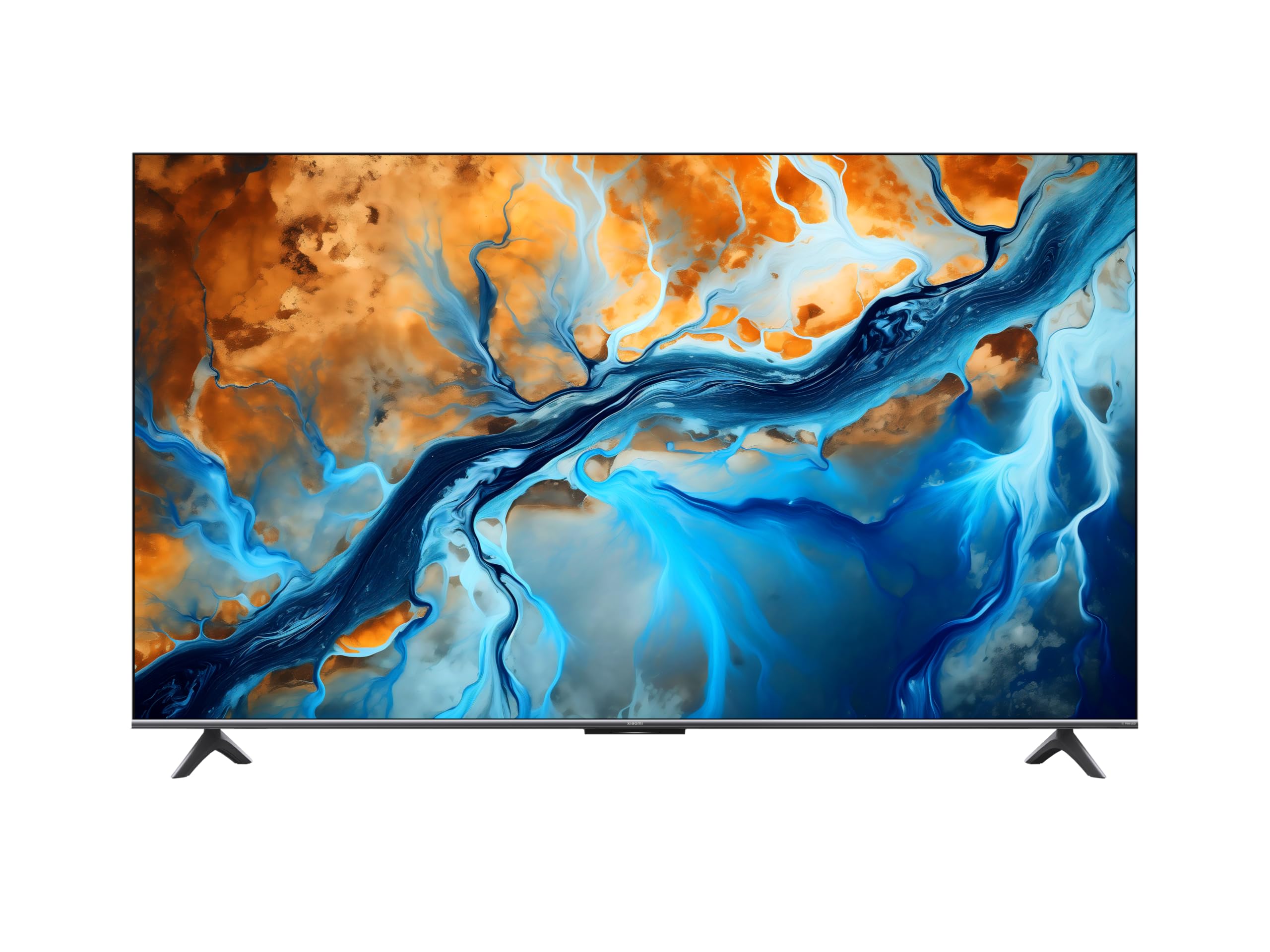
Image: Energy efficiency label for the Xiaomi TV S Mini 65, indicating its energy class and consumption.
For more detailed product information, refer to the EPREL database: https://eprel.ec.europa.eu/qr/2082807
Image: Detailed product information sheet, providing a comprehensive list of technical parameters and specifications.
For more detailed product information, refer to the EPREL database: https://eprel.ec.europa.eu/qr/2082807
6. Warranty and Support
Information regarding your product's warranty and how to obtain customer support.
6.1 Limited Warranty
Your Xiaomi 65" S Mini TV comes with a limited warranty. Please refer to the 'User manual and warranty cards' included in the box for specific terms, conditions, and duration of the warranty in your region.
6.2 Customer Support
For technical assistance, troubleshooting beyond this manual, or warranty claims, please contact Xiaomi's specialized customer support. Contact details can typically be found on the official Xiaomi website or within the warranty documentation provided with your TV.
You can also visit the official Xiaomi store on Amazon for additional resources and support: Xiaomi Store


