
1. Introduction
Thank you for choosing the AG Neovo N1651 15.6 Inch 4K OLED Portable Monitor. This manual provides essential information for setting up, operating, and maintaining your device. Please read it thoroughly before use and retain it for future reference.
Safety Information
- Do not expose the monitor to rain or moisture to prevent fire or shock hazards.
- Do not open the monitor casing. Refer all servicing to qualified personnel.
- Place the monitor on a stable, flat surface.
- Avoid placing the monitor near heat sources or in direct sunlight.
- Use only the power adapter and cables provided or recommended by the manufacturer.
- Unplug the monitor during lightning storms or when unused for extended periods.
2. Package Contents
Please check the package for the following items:
- AG Neovo N1651 Portable Monitor
- AC Adapter
- USB-C to USB-C Cable
- Mini HDMI to HDMI Cable
- Carrying Bag
- User Manual (this document)
3. Product Overview
The AG Neovo N1651 is a 15.6-inch 4K OLED portable monitor designed for high-quality visual output on the go. It features a slim and lightweight design, versatile connectivity, and an integrated stand.
Monitor Features
- 15.6-inch 4K UHD (3840x2160) OLED Display
- 1ms Response Time
- 100% DCI-P3 and 100% sRGB Color Gamut
- HDR True Black 400 Support
- Dual USB-C Ports (Video, Power, Data)
- Mini HDMI Port
- Integrated Foldable Stand
Port and Button Layout
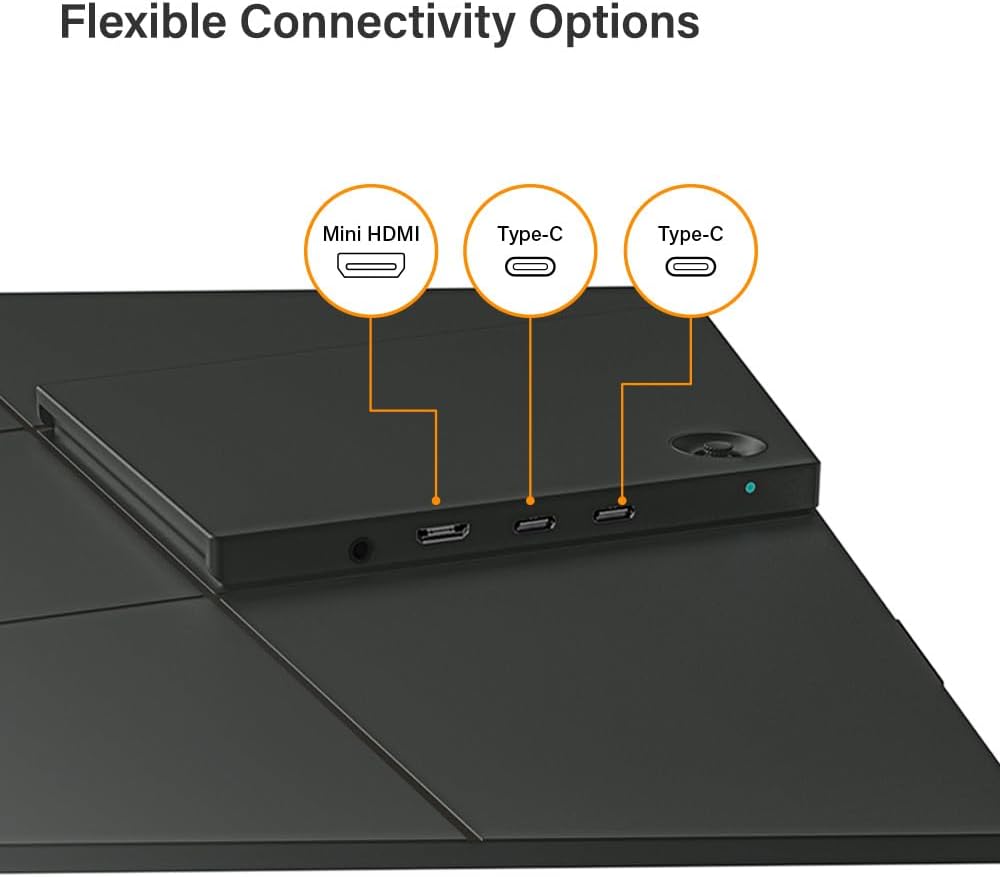
Image: Close-up view of the AG Neovo N1651 monitor's side, showing the Mini HDMI port, two USB-C ports, and the power button/OSD joystick.
The monitor features a Mini HDMI input, two USB-C ports for power and video input, and a multi-function button (often a joystick) for power and OSD menu navigation. Specific locations may vary slightly but are typically found on one side of the monitor.

Image: The AG Neovo N1651 portable monitor shown with its integrated foldable stand extended, providing a stable viewing angle.
The integrated stand allows for flexible positioning and viewing angles, making it suitable for various work environments.
4. Setup
4.1 Powering the Monitor
The N1651 monitor can be powered via USB-C. For stable operation and optimal brightness, it is highly recommended to use the included AC adapter connected to one of the USB-C ports, especially when connecting to devices that may not supply sufficient power (e.g., some smartphones, older laptops).
- Connect the AC adapter to a power outlet.
- Connect the USB-C end of the AC adapter to either USB-C port on the monitor.

Image: Diagram illustrating how to connect the USB-C power adapter to the AG Neovo N1651 monitor for stable power delivery.
4.2 Connecting to Devices
The N1651 supports video input via USB-C (DisplayPort Alternate Mode) and Mini HDMI.
Connecting to a Laptop/PC (USB-C)
- Ensure the monitor is powered (see 4.1).
- Connect one end of the USB-C to USB-C cable to a USB-C port on your laptop/PC that supports DisplayPort Alternate Mode.
- Connect the other end of the USB-C cable to one of the USB-C ports on the monitor.
- Your laptop should automatically detect the monitor. You may need to adjust display settings in your operating system (e.g., Extend, Duplicate).

Image: The AG Neovo N1651 monitor displaying content from a laptop connected via a single USB-C cable.
Connecting to a Laptop/PC (Mini HDMI)
- Ensure the monitor is powered (see 4.1).
- Connect one end of the Mini HDMI to HDMI cable to the Mini HDMI port on the monitor.
- Connect the standard HDMI end of the cable to the HDMI port on your laptop/PC.
- Your laptop should automatically detect the monitor. Adjust display settings as needed.
Connecting to a Smartphone/Tablet (USB-C)
Note: Your smartphone/tablet must support DisplayPort Alternate Mode via its USB-C port. External power for the monitor is highly recommended.
- Ensure the monitor is powered (see 4.1).
- Connect one end of the USB-C to USB-C cable to your smartphone/tablet.
- Connect the other end of the USB-C cable to one of the USB-C ports on the monitor.
- The monitor will display your device's screen.

Image: A tablet connected to the AG Neovo N1651 portable monitor, extending the display for enhanced productivity.
Connecting to a Gaming Console (Mini HDMI)
Note: External power for the monitor is required when connecting to gaming consoles.
- Ensure the monitor is powered (see 4.1).
- Connect one end of the Mini HDMI to HDMI cable to the Mini HDMI port on the monitor.
- Connect the standard HDMI end of the cable to the HDMI output port on your gaming console (e.g., Nintendo Switch dock, PlayStation, Xbox).
- The monitor will display the console's output.

Image: The AG Neovo N1651 monitor displaying a game from a Nintendo Switch console, highlighting its use for portable gaming.

Image: The AG Neovo N1651 monitor displaying a game from a PlayStation console, showcasing its 4K capabilities for console gaming.
4.3 Adjusting the Stand
The integrated foldable stand allows you to adjust the monitor's viewing angle. Gently unfold the stand from the back of the monitor and position it to achieve your desired tilt. The stand is designed to provide stable support across a range of angles.

Image: Side view of the AG Neovo N1651 monitor demonstrating the range of adjustable viewing angles provided by its integrated stand.
5. Operating the Monitor
5.1 Power On/Off
To power on the monitor, press and hold the multi-function button (usually a joystick or a dedicated power button) for a few seconds until the screen illuminates. To power off, press and hold the same button until the screen turns off.
5.2 On-Screen Display (OSD) Menu
The OSD menu allows you to adjust various display settings. To access the OSD menu, briefly press the multi-function button. Use the joystick (if applicable) to navigate through the menu options and confirm selections.
Common OSD Settings:
- Brightness/Contrast: Adjust the overall luminance and contrast ratio.
- Color Settings: Modify color temperature, gamma, and color modes (e.g., sRGB, DCI-P3, User).
- Input Source: Manually select between USB-C and Mini HDMI inputs.
- Aspect Ratio: Change the display aspect ratio (e.g., 16:9, 4:3).
- HDR Mode: Enable or disable HDR functionality.
- Language: Select the OSD menu language.
- Reset: Restore all settings to factory defaults.

Image: The AG Neovo N1651 monitor showcasing its wide color gamut and accurate color reproduction, ideal for creative professionals.

Image: The AG Neovo N1651 monitor demonstrating its deep contrast capabilities, highlighting fine details in both dark and bright areas.
Video: An official product video showcasing the key features of the AG Neovo N1651 4K OLED Portable Monitor, including its deep contrast, fast response time, and versatile connectivity options.
6. Maintenance
6.1 Cleaning the Monitor
- Always power off the monitor and unplug it before cleaning.
- Use a soft, lint-free cloth slightly dampened with water or a non-abrasive screen cleaner.
- Do not spray cleaner directly onto the screen. Apply it to the cloth first.
- Avoid using alcohol, ammonia, or abrasive cleaners, as they can damage the screen surface.
- Gently wipe the screen and casing.
6.2 Storage
- When not in use, store the monitor in its carrying bag to protect it from dust and scratches.
- Store in a cool, dry place away from direct sunlight and extreme temperatures.
7. Troubleshooting
If you encounter issues with your monitor, please refer to the following common solutions:
No Power / Screen is Blank
- Ensure the AC adapter is securely connected to both the monitor and a working power outlet.
- If powering via USB-C from a device, ensure the device is powered on and its USB-C port supports power delivery to external devices.
- Try a different USB-C cable or power adapter if available.
- Press the power button to ensure the monitor is turned on.
No Signal / "No Input" Message
- Verify that the video cable (USB-C or Mini HDMI) is securely connected to both the monitor and the source device.
- Ensure the source device (laptop, smartphone, console) is powered on and outputting video.
- Check the input source setting in the monitor's OSD menu to ensure the correct input (USB-C or Mini HDMI) is selected.
- Try a different video cable.
- If connecting via USB-C, ensure your device's USB-C port supports DisplayPort Alternate Mode.
Display Flickering or Unstable Image
- Ensure the monitor is receiving sufficient power, preferably from the AC adapter.
- Check the video cable for damage or loose connections.
- Reduce the display resolution or refresh rate on your source device to see if the issue persists.
- Update graphics drivers on your computer.
Image is Too Dark or Too Bright
- Adjust the brightness and contrast settings in the monitor's OSD menu.
- Check the display settings on your source device.
8. Specifications
| Feature | Specification |
|---|---|
| Brand | AG Neovo |
| Model Name | N1651 |
| Screen Size | 15.6 inches |
| Display Type | OLED |
| Resolution | 4K UHD (3840 x 2160) |
| Aspect Ratio | 16:9 |
| Refresh Rate | 60 Hz |
| Response Time | 1 ms |
| Brightness | 400 cd/m² |
| Contrast Ratio | 100,000:1 |
| Color Gamut | 100% DCI-P3, 100% sRGB |
| HDR Support | HDR True Black 400 Ready |
| Connectivity | 2x USB Type-C (DP Alt Mode, Power Delivery), 1x Mini HDMI |
| Power Consumption | 22 watts (max) |
| Item Dimensions (DxWxH) | 0.6"D x 13.9"W x 8.8"H |
| Item Weight | 1.5 pounds |
| Additional Features | Lightweight, Portable, Ultra-Slim, FreeSync |
9. Warranty and Support
Warranty Information
The AG Neovo N1651 Portable Monitor comes with a 3-Year Manufacturer Warranty. This warranty covers defects in materials and workmanship under normal use. Please retain your proof of purchase for warranty claims. The warranty does not cover damage caused by misuse, accidents, unauthorized modifications, or natural disasters.
Customer Support
For technical support, warranty inquiries, or further assistance, please visit the official AG Neovo website or contact their customer service department. You can typically find contact information on the AG Neovo website or in the product packaging.
Official AG Neovo Website: www.agneovo.com