
1. Introduction
Thank you for choosing the Vixic M950 Label Maker. This portable, rechargeable label maker is designed for ease of use, offering both direct keyboard input and Bluetooth connectivity for advanced label creation via a mobile application. It is ideal for organizing your home, office, or school supplies with clear, durable labels.
2. Package Contents
Please verify that all items are present in your package:
- Vixic M950 Label Maker (x1)
- 12mm 0.47 inch White Label Tape (12mm*4m) (x1)
- Type-C Data Cable (x1)
- User's Guide (x1)
3. Product Overview
The Vixic M950 features a backlit screen for visibility in various lighting conditions and a responsive QWERTY keyboard for efficient text input. It utilizes inkless thermal printing technology and includes a built-in cutter for convenience. The device is powered by a 1200mAh rechargeable battery, providing extended use on a single charge.

Image: The Vixic M950 Label Maker, showcasing its keyboard, backlit screen, and connectivity to a smartphone app for label design.

Image: Key features of the Vixic M950, including its rechargeable battery, backlit screen, and dual printing options (keyboard or Bluetooth).
4. Setup
4.1 Charging the Device
Before first use, fully charge the label maker using the provided Type-C data cable. Connect the cable to the device's charging port and a compatible USB power adapter (not included). The charging indicator will show the charging status.

Image: The Vixic M950 Label Maker being charged via its USB-C port, emphasizing its rechargeable battery for extended use.
4.2 Installing Label Tape
- Open the back cover of the label maker.
- Insert the label tape cassette into the compartment, ensuring it clicks into place. The tape should feed smoothly through the output slot.
- Close the back cover securely.

Image: Illustration of the label tape installation process, showing the open back cover and proper placement of the tape cassette.
4.3 Powering On/Off
Press and hold the power button located on the device to turn it on or off.
4.4 App Download and Bluetooth Connection
To access advanced features, download the Vixic app from your smartphone's app store. Enable Bluetooth on your phone and open the app. The app will guide you through connecting to your M950 label maker.
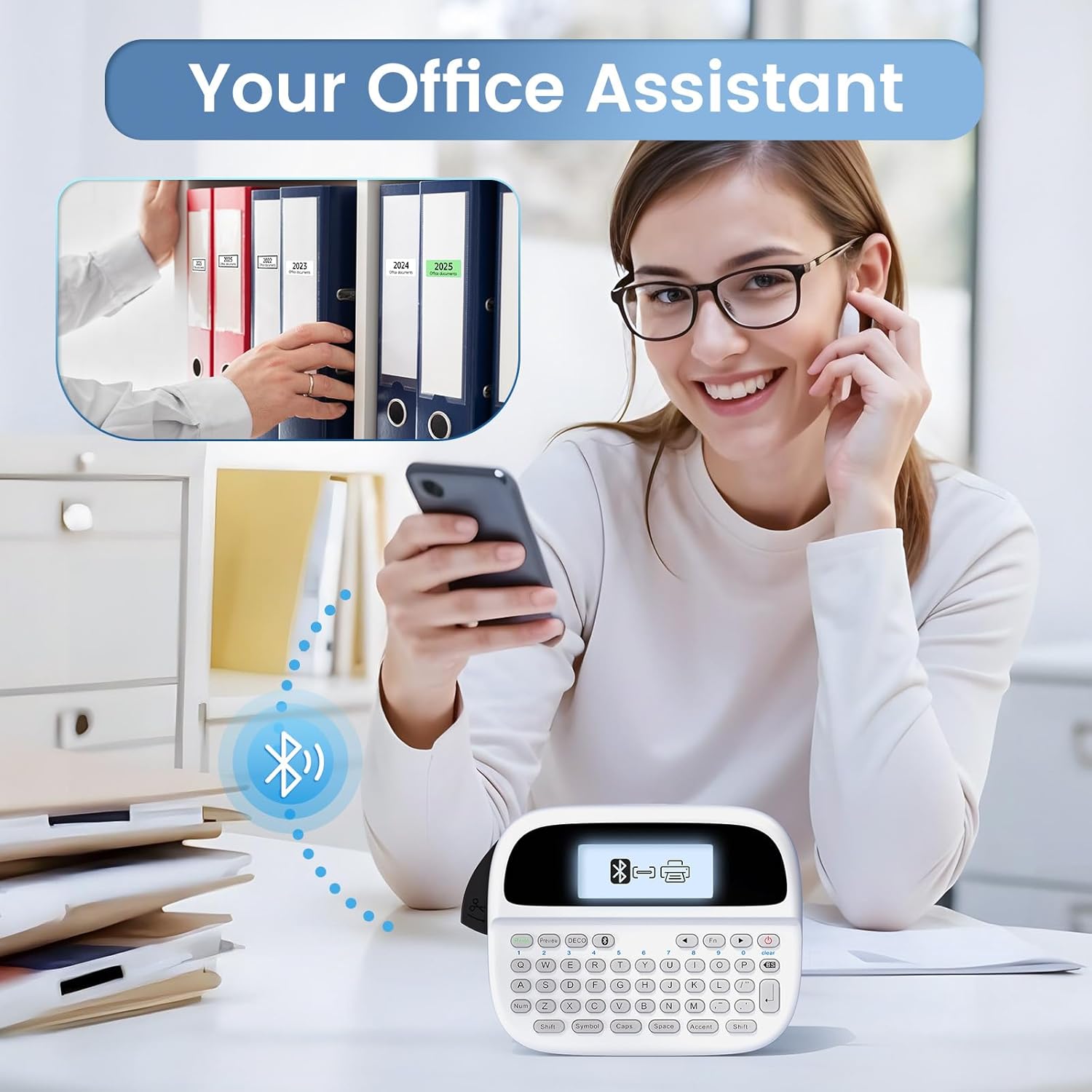
Image: A user interacting with the Vixic M950 via a smartphone app, highlighting the Bluetooth connectivity feature.
5. Operating Instructions
5.1 Basic Label Creation (Keyboard)
- Turn on the label maker.
- Use the QWERTY keyboard to type your desired text. The text will appear on the backlit screen.
- Adjust font size, style, and other settings using the function keys.
- Press the 'Print' button to print the label.
- Use the built-in cutter to cut the label once printed.
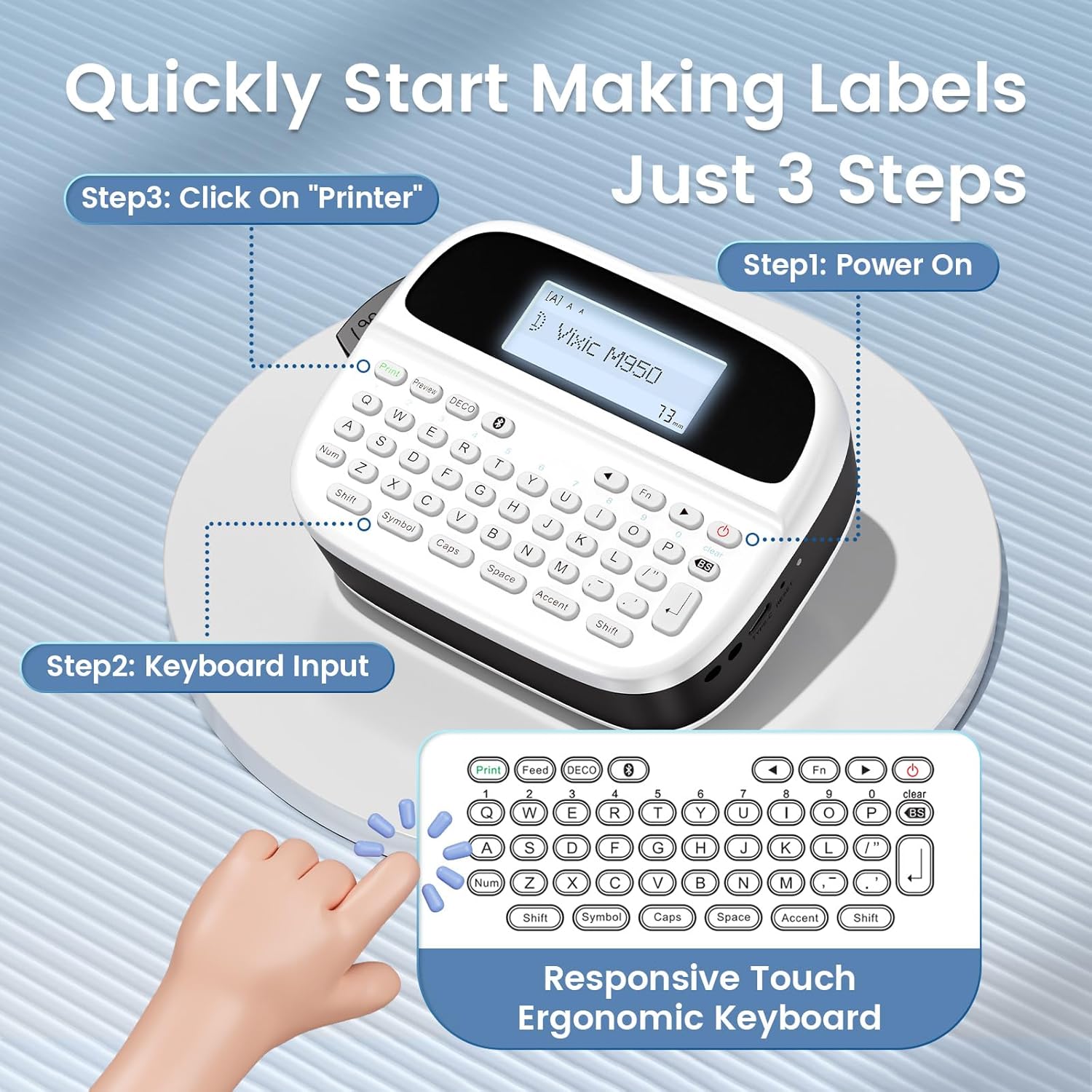
Image: A visual guide demonstrating the three-step process for creating labels using the M950's keyboard.
5.2 Advanced Label Creation (App)
Connect your M950 to the Vixic app via Bluetooth. The app provides access to a wide range of creative templates, fonts, patterns, and borders. You can design complex labels, include images, and print directly from your smartphone.
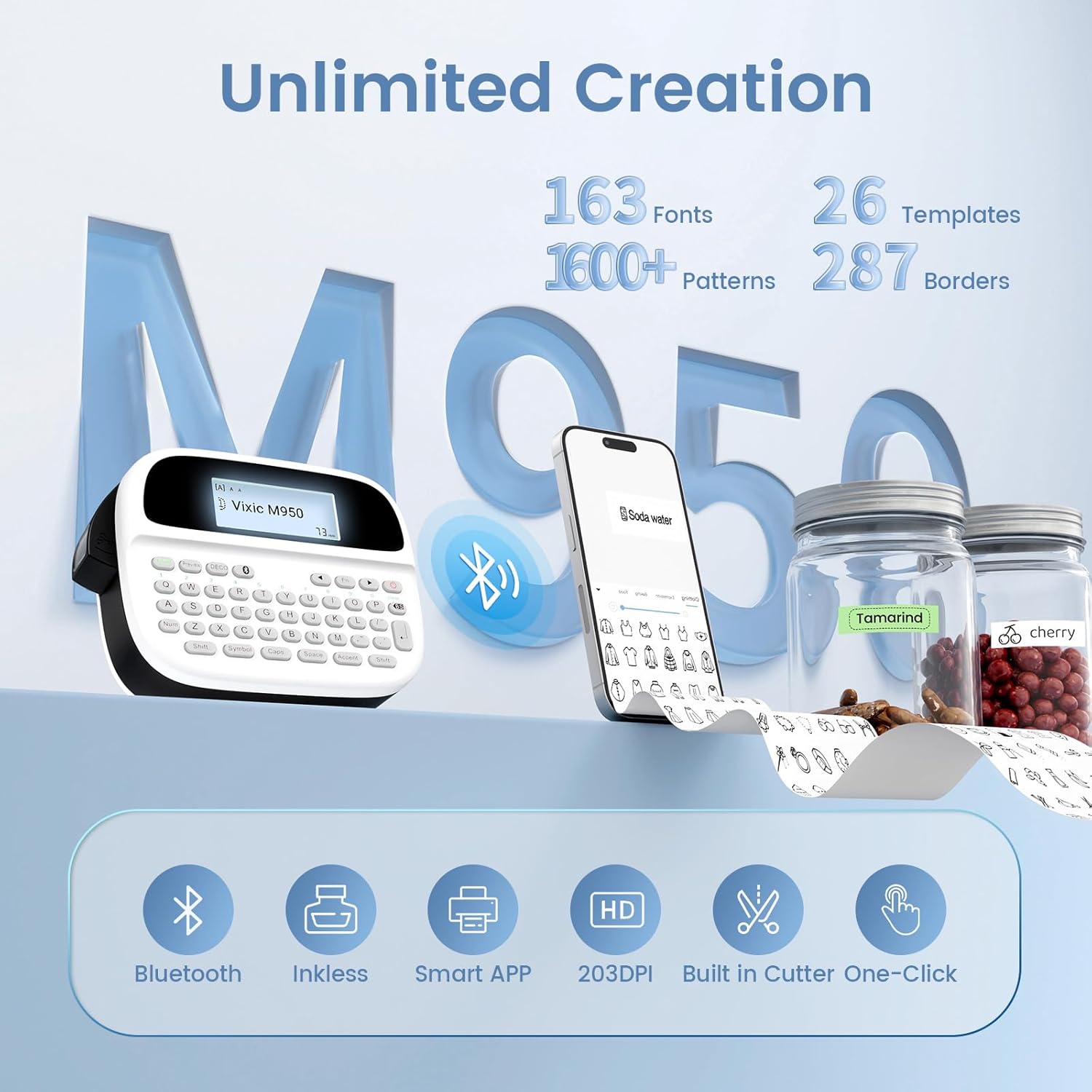
Image: The Vixic M950 and a smartphone showing the app's interface, highlighting the extensive customization options available for label design.
5.3 Printing Quality
The M950 uses thermal printing to produce clear, monochrome labels. Ensure the label tape is correctly installed for optimal print quality.

Image: A detailed view of the M950 in operation, demonstrating the reliable and clear printing quality of the labels.
6. Maintenance
6.1 Cleaning
To maintain optimal performance, periodically clean the print head and the tape path with a soft, lint-free cloth. Ensure the device is powered off before cleaning.
6.2 Battery Care
The built-in lithium-ion battery should be charged regularly. If the device will not be used for an extended period, charge it to approximately 50% before storage and recharge every few months to prolong battery life.
7. Troubleshooting
| Problem | Possible Cause | Solution |
|---|---|---|
| Device does not power on | Low battery; Device malfunction | Charge the device; Contact customer support |
| Poor print quality | Print head dirty; Incorrect tape installation; Low battery | Clean print head; Reinstall tape; Charge device |
| Labels not printing | No label tape; Tape jammed; Bluetooth not connected (if using app) | Install tape; Clear jam; Reconnect Bluetooth |
| Cannot connect via Bluetooth | Bluetooth off on phone/device; App not open; Device out of range | Ensure Bluetooth is on; Open app; Move device closer |
| Font size issues (e.g., too small) | Incorrect font size setting; App display issue | Adjust font size in device settings or app; Ensure app is updated |
| Labels not waterproof as expected | Specific label tape type; Extreme conditions | Ensure you are using Vixic waterproof label tape; Labels are water-resistant under normal conditions, but prolonged exposure to water or harsh environments may affect adhesion/durability. |
8. Specifications
| Feature | Detail |
|---|---|
| Brand | Vixic |
| Model Name | PTM950 Label Maker |
| Connectivity Technology | Bluetooth |
| Printing Technology | Thermal and thermal transfer |
| Printer Output | Monochrome |
| Maximum Print Resolution | 203 DPI |
| Maximum Media Size | 0.47 inch (12mm) |
| Battery | 1 Lithium Ion battery (included) |
| Product Dimensions | 6.61 x 4.64 x 2.83 inches |
| Item Weight | 1.06 pounds |
9. Warranty Information
The Vixic M950 Label Maker comes with a limited warranty. For specific details regarding warranty coverage and duration, please refer to the warranty card included in your product packaging or contact Vixic customer support.
10. Customer Support
Should you encounter any issues or have questions regarding your Vixic M950 Label Maker, please do not hesitate to contact our customer support team. We are available via email and live chat to provide professional assistance.

Image: Vixic customer service and technical support options, including email and live chat.
For the latest contact information, please visit the official Vixic website or refer to the contact details provided in your product documentation.


