
J-Tech Digital V638W
Contents
J-Tech Digital V638W Vertical Ergonomic Wireless Mouse User Manual
Model: V638W | Brand: J-Tech Digital
Product Overview
The J-Tech Digital V638W is a vertical ergonomic wireless mouse designed to provide comfort and efficiency for extended computer use. It features dual connectivity modes (2.4GHz wireless and Bluetooth), adjustable DPI settings, and a rechargeable battery, making it suitable for various computing environments and user preferences.

Image: The J-Tech Digital V638W Vertical Ergonomic Wireless Mouse, showcasing its unique vertical design and sleek white and black finish with blue accents. A small USB dongle is visible next to it.
Video: An official overview of the J-Tech Digital Wireless Ergonomic Mouse, demonstrating its features and ergonomic benefits. This video provides a comprehensive look at the product's design and functionality.
Package Contents
Before you begin, please ensure all items are present in your package:
- J-Tech Digital V638W Vertical Ergonomic Wireless Mouse (x1)
- USB Receiver (stored inside the mouse) (x1)
- USB-C Charging Cable (x1)
- Removable Palm Rest (x1)
- User Manual (this document) (x1)

Image: A visual representation of the J-Tech Digital V638W mouse and its included accessories: the mouse itself, the USB receiver, the USB charging cable, the removable palm rest, and the user manual.
Setup and Connectivity
The V638W mouse offers two primary connection methods: 2.4GHz wireless via USB dongle and Bluetooth. Ensure the mouse is powered on using the switch on the bottom before attempting to connect.
2.4GHz Wireless Connection
- Locate the USB receiver: Flip the mouse over. The USB dongle is stored in a dedicated slot on the underside of the mouse.
- Remove the USB receiver: Gently pull out the USB dongle from its storage slot.
- Insert the USB receiver: Plug the USB dongle into an available USB port on your laptop or PC.
- Switch to 2.4G mode: Ensure the mode switch on the bottom of the mouse is set to the 2.4G (green light) position.
- The mouse should now be ready for use.

Image: A close-up view of the underside of the J-Tech Digital V638W mouse, highlighting the storage compartment for the USB dongle. A hand is shown inserting or removing the dongle.
Bluetooth Connection
The mouse supports two Bluetooth modes: BT 5.1 and BT 3.1, allowing connection to up to two Bluetooth-enabled devices simultaneously.
- Switch to Bluetooth mode: On the bottom of the mouse, press the mode switch button. The indicator light will change from green (2.4G) to blue (Bluetooth).
- Enter pairing mode: Press and hold the Bluetooth button (located near the mode switch) for approximately 3 seconds until the blue light starts blinking. This indicates the mouse is in pairing mode.
- On your device (computer, tablet, etc.):
- Navigate to your device's Bluetooth settings.
- Search for new devices.
- Select "BT 5.1 mouse" or "BT 3.1 mouse" from the list of available devices to connect.
- For a second Bluetooth device: Press the Bluetooth button on the mouse one more time to switch to the other Bluetooth slot (e.g., from BT 5.1 to BT 3.1). Repeat step 2 and 3 to pair the second device.

Image: A diagram illustrating the dual connectivity options of the J-Tech Digital V638W mouse, showing how to connect via USB 2.4G dongle to a laptop and via Bluetooth 5.1 to a smartphone/tablet.

Image: A detailed diagram of the J-Tech Digital V638W mouse interface, labeling the DPI Cycle button, Scroll Wheel, Backward/Forward buttons, Back to Desktop button, Power Switch, Bluetooth Mode Switch, and USB Dongle compartment.
Operating Instructions
Ergonomic Design
The V638W mouse features a vertical, ergonomic "handshake" design that promotes a natural wrist and arm position, reducing strain during prolonged use. It is designed for right-handed users with medium to large hand sizes.

Image: A hand holding the J-Tech Digital V638W mouse, demonstrating the ergonomic "handshake" grip that helps reduce wrist pain and discomfort.

Image: A user's hand comfortably resting on the J-Tech Digital V638W mouse, illustrating its design for right-handed comfort and natural hand positioning.
Adjustable DPI Settings
The mouse offers four adjustable DPI (Dots Per Inch) levels to customize cursor sensitivity:
- 800 DPI
- 1200 DPI
- 1600 DPI
- 3200 DPI
To cycle through the DPI settings, press the "DPI Cycle" button located near the scroll wheel. Each press will switch to the next DPI level.

Image: A visual guide demonstrating the four adjustable DPI levels (800, 1200, 1600, 3200) of the J-Tech Digital V638W mouse, indicating how to change sensitivity with the DPI cycle button.
Button Functions
- Forward/Backward Buttons: Located on the side, these buttons allow for quick navigation in web browsers or file explorers.
- Scroll Wheel: For vertical scrolling through documents and web pages.
- "Back to Desktop" Button: This button triggers the "Windows + D" command on Windows and "Command + D" on Mac, minimizing all open windows to show the desktop. This function can be remapped using third-party software like Karabiner-Elements for Mac or X-Mouse Button Control for Windows.
- Power Switch: Located on the bottom, used to turn the mouse ON or OFF.
Removable Palm Rest
The V638W includes a non-skid, anti-sweat removable palm rest. This accessory helps reduce drag and allows the mouse to glide more effectively across various surfaces, enhancing comfort and control.
Maintenance and Charging
The J-Tech Digital V638W mouse is equipped with a built-in 800mAh rechargeable lithium battery.
- Charging: Connect the provided USB-C charging cable to the Type-C charging port on the front of the mouse and plug the other end into a USB power source (e.g., computer USB port, wall adapter).
- Battery Life: A full charge can provide up to 15 to 20 days of use, depending on usage patterns.
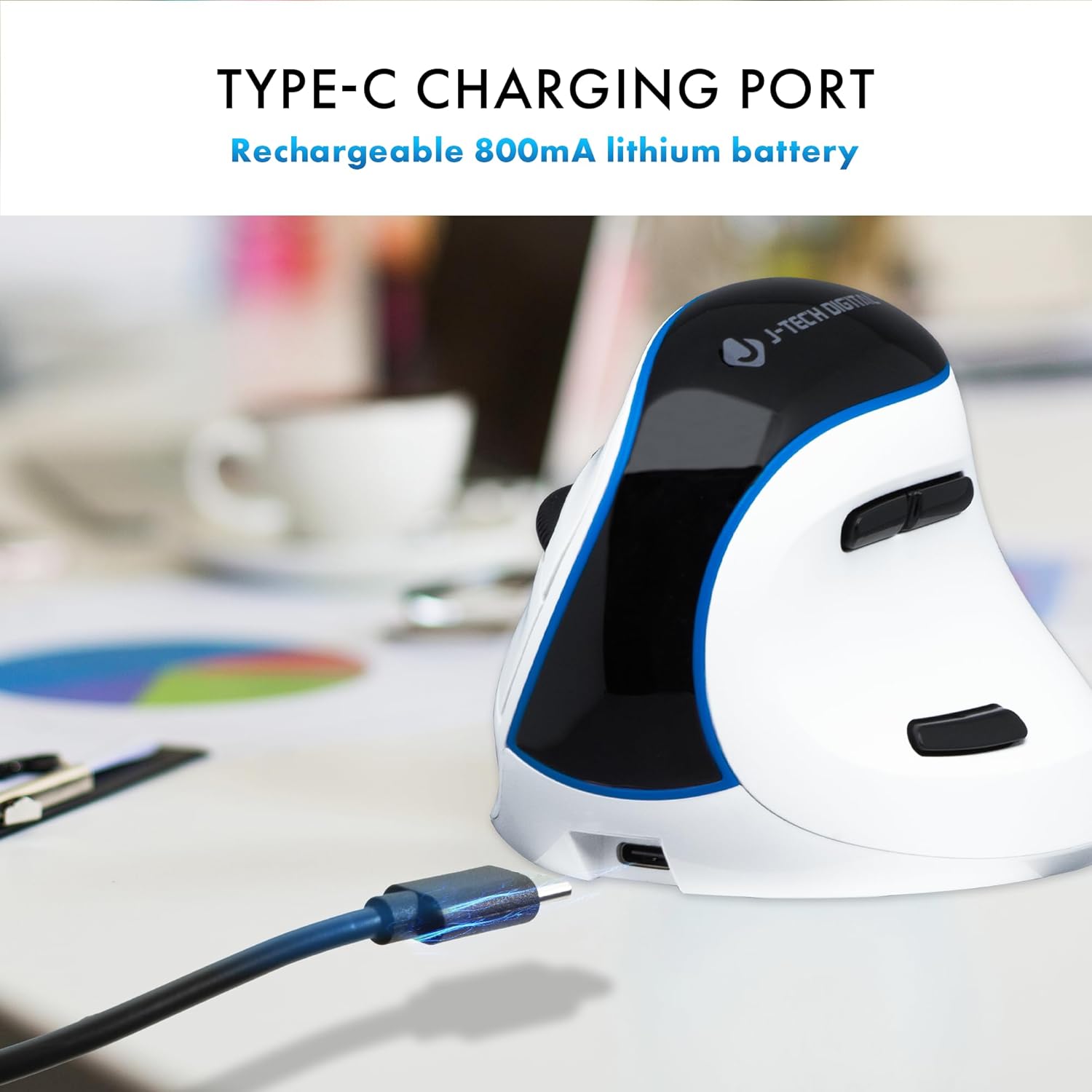
Image: A close-up of the J-Tech Digital V638W mouse showing the USB-C charging port on its front, with a charging cable connected, indicating its rechargeable battery feature.
Troubleshooting
- Mouse not responding:
- Ensure the mouse is powered ON using the switch on the bottom.
- Check battery level and charge if necessary.
- For 2.4GHz connection, ensure the USB dongle is securely plugged into a working USB port.
- For Bluetooth connection, ensure Bluetooth is enabled on your device and the mouse is correctly paired. Try re-pairing if issues persist.
- Verify the mode switch on the bottom of the mouse is set to the correct connection type (green for 2.4G, blue for Bluetooth).
- Cursor movement is erratic or slow:
- Adjust the DPI setting using the DPI Cycle button to increase or decrease sensitivity.
- Ensure the mouse is used on a suitable surface. While compatible with many surfaces, a mouse pad may improve tracking.
- Buttons not functioning as expected:
- For the "Back to Desktop" button, remember its default function. If you wish to remap it, use third-party software like Karabiner-Elements for Mac or X-Mouse Button Control for Windows.
Specifications
| Feature | Detail |
|---|---|
| Model Number | V638W |
| Connectivity Technology | Bluetooth, USB (2.4GHz Wireless) |
| Movement Detection Technology | Optical |
| DPI Levels | 800, 1200, 1600, 3200 |
| Battery Type | 1 Lithium Ion battery (included) |
| Battery Capacity | 800 mAh (rechargeable) |
| Item Weight | 4.8 ounces |
| Package Dimensions | 5.55 x 3.94 x 3.7 inches |
| Color | White |
Warranty and Support
J-Tech Digital is committed to providing high-quality audio-video solutions and excellent customer support. While specific warranty details are not provided in this manual, our knowledgeable employees and experienced AV industry professionals are ready to assist you with any questions or issues you may encounter.
For support, please visit the official J-Tech Digital website or contact their customer service team directly. Refer to the product packaging or the brand's official channels for the most up-to-date contact information.
Ask a question about this manual
Ask about setup, troubleshooting, compatibility, parts, safety, or missing instructions. Manuals+ will review the question and use this page’s manual context to help answer it.