
ASUS G22CH-DH564
Contents
ASUS ROG G22CH-DH564 Gaming Desktop PC User Manual
Model: G22CH-DH564
1. Introduction
This manual provides essential information for setting up, operating, maintaining, and troubleshooting your ASUS ROG G22CH-DH564 Gaming Desktop PC. Please read this guide thoroughly before using your new system.
The ASUS ROG G22CH-DH564 is a compact gaming desktop featuring a 14th Gen Intel Core i5-14400F processor and an NVIDIA GeForce RTX 4060 Dual graphics card. Designed for performance in a small form factor, it is suitable for gaming and multimedia applications.

Image: Front-side view of the ASUS ROG G22CH-DH564 Gaming Desktop PC.
2. What's in the Box
Verify that all the following items are included in your product packaging:
- ASUS ROG G22CH-DH564 Gaming Desktop PC
- Wired optical mouse (USB)
- Wired keyboard (USB)
- Power Cable
- Documentation (Quick Start Guide, Warranty Card)
3. Initial Setup
3.1 Connecting Peripherals
- Connect Monitor: Connect your monitor to the graphics card's DisplayPort or HDMI output ports on the rear of the PC.
- Connect Keyboard and Mouse: Plug the wired USB keyboard and mouse into the available USB ports on the rear or front of the PC.
- Connect Network (Optional): For a wired internet connection, connect an Ethernet cable from your router or modem to the RJ45 port on the rear of the PC.
- Connect Audio (Optional): If using external speakers or a headset, connect them to the appropriate audio jacks.

Image: Rear and top view of the ASUS ROG G22CH-DH564, illustrating the available ports for connecting peripherals. This includes HDMI, DisplayPort, USB 2.0, USB 3.2 Gen 1 Type-A, USB 3.2 Gen 2 Type-A, USB 3.2 Gen 2x1 Type-C, RJ45, and audio jacks.
3.2 Powering On
- Connect Power: Plug the power cable into the power input on the rear of the PC, then connect the other end to a power outlet.
- Power On: Press the power button located on the front or top of the PC.
- Initial Windows Setup: Follow the on-screen instructions to complete the Windows 11 operating system setup. This includes selecting your region, connecting to a network, and creating a user account.
4. Operating Your ROG G22CH
4.1 Key Features
- Compact Design: The G22CH features a small form factor, measuring 4.53 inches wide and 11.3 inches tall, allowing it to fit into various spaces.
- High Performance: Equipped with an Intel Core i5-14400F Processor and an NVIDIA GeForce RTX 4060 Dual graphics card, providing capabilities for demanding applications and gaming.
- Windows 11: Pre-installed with Windows 11 Home operating system.
- Aura Sync RGB Lighting: Customizable RGB lighting for personalization.
- Advanced Audio: Supports Dolby Atmos audio and features Two-Way AI Noise-Cancellation technology for clear communication.
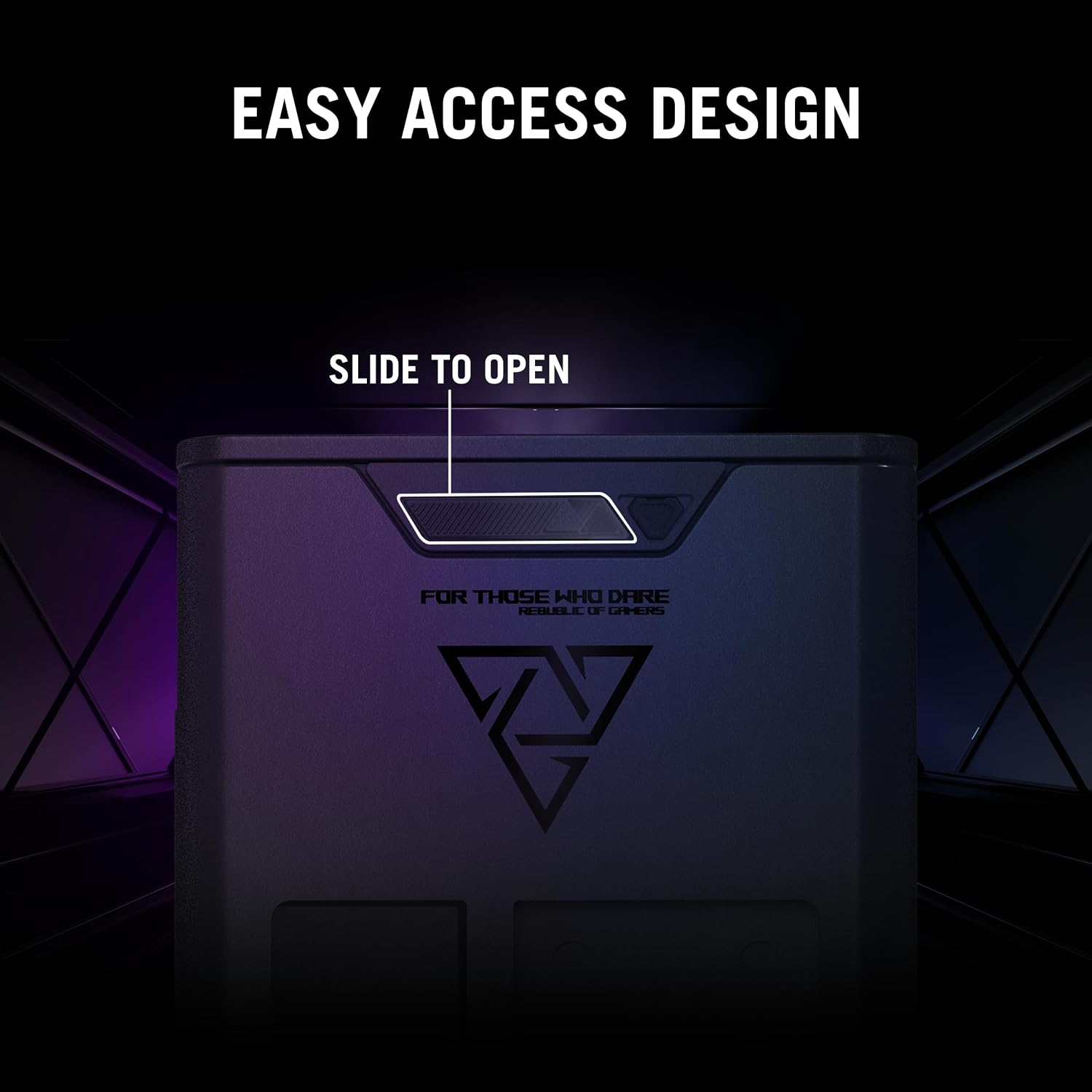
Image: The ASUS ROG G22CH-DH564 desktop PC showcasing its customizable Aura Sync RGB lighting, integrated into a gaming setup with a monitor, keyboard, mouse, and headset.

Image: The ASUS ROG G22CH-DH564 desktop PC highlighting its audio capabilities, including Dolby Atmos and Two-Way AI Noise Cancellation, shown in a multimedia environment.
4.2 Basic Operation
- Shut Down: To properly shut down the PC, click the Start button, then Power, and select "Shut down".
- Restart: To restart the PC, click the Start button, then Power, and select "Restart".
- Sleep Mode: To put the PC into sleep mode, click the Start button, then Power, and select "Sleep".
5. Maintenance
5.1 Cleaning
- Exterior: Use a soft, damp cloth to clean the exterior surfaces. Avoid abrasive cleaners.
- Dust Removal: Periodically clean dust from the ventilation grilles using compressed air. Ensure the PC is powered off and unplugged before cleaning.
5.2 Software Updates
- Windows Updates: Regularly check for and install Windows updates to ensure system stability and security. Go to Settings > Windows Update.
- Driver Updates: Keep graphics drivers (NVIDIA) and other component drivers updated for optimal performance. Visit the ASUS support website or NVIDIA's website for the latest drivers.
5.3 Internal Access and Upgrades
The G22CH features an easy-access design, allowing for swift and effortless component upgrades or maintenance.

Image: The ASUS ROG G22CH-DH564 with its side panel removed, illustrating the internal layout and components, emphasizing the easy access design for maintenance and upgrades.
- To access internal components, slide the side panel open. Refer to the detailed instructions in the full user manual for specific procedures.
- Ensure the PC is powered off and unplugged before opening the chassis.
6. Troubleshooting
6.1 Common Issues and Solutions
- No Power:
- Ensure the power cable is securely connected to both the PC and the power outlet.
- Verify the power outlet is functional.
- No Display:
- Check that the monitor is powered on and connected to the correct video output port on the graphics card.
- Ensure the monitor's input source is correctly selected.
- System Slowdown:
- Close unnecessary applications running in the background.
- Check for and install any pending Windows or driver updates.
- Ensure adequate ventilation and clean dust from the system.
- No Audio:
- Verify speakers or headphones are correctly connected.
- Check audio settings in Windows and ensure volume is not muted.
- Update audio drivers.
For more detailed troubleshooting, refer to the comprehensive user manual available on the ASUS support website.
7. Technical Specifications
| Feature | Specification |
|---|---|
| Model | G22CH-DH564 |
| Operating System | Windows 11 Home |
| Processor | Intel Core i5-14400F |
| Graphics Card | NVIDIA GeForce RTX 4060 Dual (8 GB GDDR6) |
| RAM | 16 GB DDR5 RAM |
| Storage | 1 TB SSD (Gen 4) |
| Max Screen Resolution | 3840 x 2160 |
| USB 2.0 Ports | 2 |
| USB 3.0 Ports | 2 |
| Dimensions (LxWxH) | 4.53 x 12.72 x 11.3 inches |
| Item Weight | 26.6 pounds |
| Color | Gray |
8. Warranty and Support
8.1 Product Warranty
Your ASUS ROG G22CH-DH564 Gaming Desktop PC comes with a limited manufacturer's warranty. Please refer to the warranty card included in your product packaging for detailed terms, conditions, and registration information. Keep your proof of purchase for warranty claims.
8.2 Technical Support
For technical assistance, driver downloads, or further product information, please visit the official ASUS support website:
You may also contact ASUS customer service directly using the contact information provided on their support portal.
Ask a question about this manual
Ask about setup, troubleshooting, compatibility, parts, safety, or missing instructions. Manuals+ will review the question and use this page’s manual context to help answer it.