
1. Introduction
This user manual provides comprehensive instructions for the Lenovo E310 True Wireless Stereo Earbuds. It covers product features, setup, operation, maintenance, and troubleshooting to ensure optimal performance and user experience. Please read this manual thoroughly before using your earbuds.
The Lenovo E310 earbuds are designed for seamless audio connectivity, featuring Bluetooth 5.3 technology for stable connections and power efficiency. They incorporate Environmental Noise Cancellation (ENC) for clear calls and 13mm hyperdynamic speakers for rich sound quality. The compact design and long battery life, extended by the charging case, make them suitable for daily use, music, and calls.
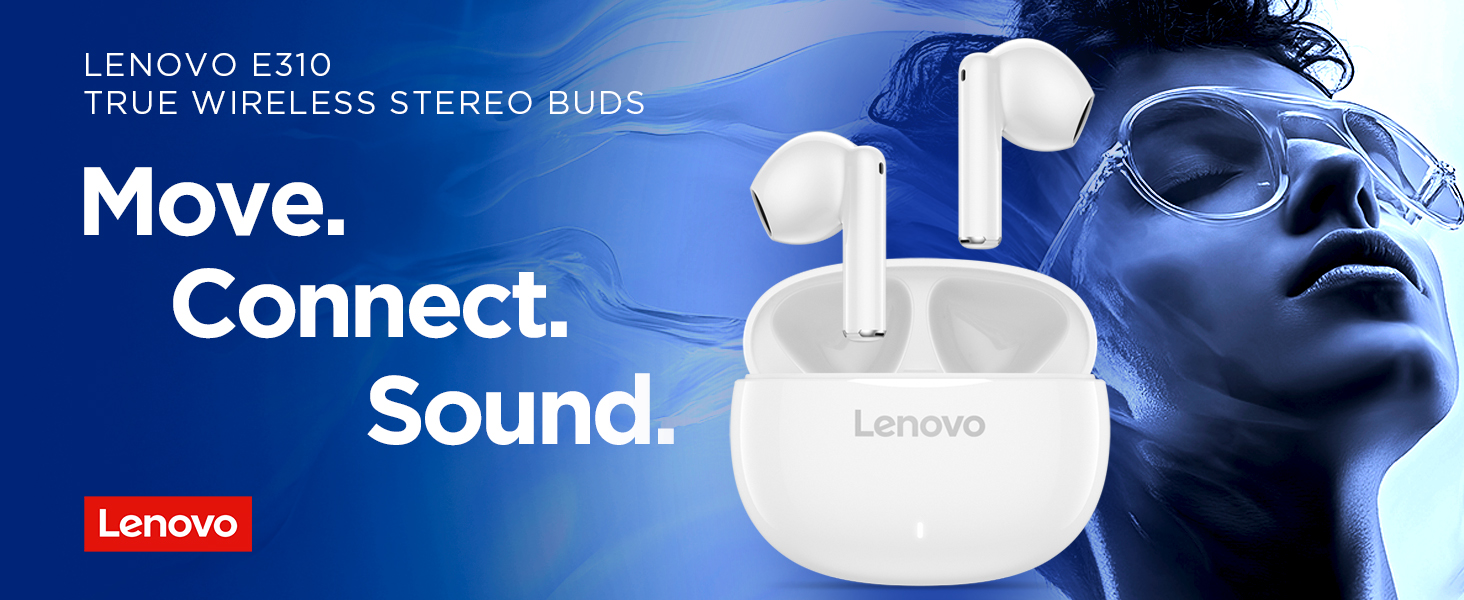
Image: Lenovo E310 True Wireless Stereo Earbuds and charging case. These earbuds offer true wireless stereo sound for an immersive audio experience.
2. What's in the Box
Upon opening the package, verify that all components are present:
- Lenovo E310 True Wireless Stereo Earbuds (Left and Right)
- Charging Case
- USB Type-C Charging Cable
- User Manual (this document)

Image: The complete retail package for the Lenovo E310 earbuds, showing the earbuds, charging case, and USB-C cable.
3. Product Overview
Familiarize yourself with the various parts of your Lenovo E310 earbuds and charging case.

Image: The Lenovo E310 earbuds resting in their white charging case, ready for use or charging.

Image: A detailed diagram highlighting key features of the Lenovo E310 earbuds, including touch sensors, the 13mm hyperdynamic speaker, Bluetooth 5.3 connectivity, and the Type-C charging port on the case.
Earbud Components:
- Touch Sensors: Located on the outer surface of each earbud for control functions.
- 13mm Hyperdynamic Speaker: Delivers audio output.
- Microphone: For calls and voice assistant.
Charging Case Components:
- Charging Port: USB Type-C port for charging the case.
- LED Indicator: Shows charging status and battery level.
- Earbud Charging Slots: Securely hold and charge the earbuds.
4. Setup
4.1 Initial Charging
Before first use, fully charge the earbuds and the charging case.
- Place both earbuds into the charging case. Ensure they are correctly seated.
- Connect the provided USB Type-C cable to the charging port on the case and the other end to a USB power source (e.g., wall adapter, computer USB port).
- The LED indicator on the charging case will illuminate to show charging status. A full charge typically takes approximately 1.5 to 2 hours.
- Once fully charged, the LED indicator may change color or turn off, depending on the model. Disconnect the charging cable.
4.2 Pairing with a Device
The earbuds will automatically enter pairing mode when taken out of the case for the first time.
- Ensure the earbuds are charged. Open the charging case lid. The earbuds will automatically power on and enter pairing mode.
- On your device (smartphone, tablet, laptop), enable Bluetooth.
- Search for available Bluetooth devices.
- Select "Lenovo E310" from the list of found devices.
- Once connected, a voice prompt will confirm successful pairing. The earbuds are now ready for use.
Note: If pairing fails, place the earbuds back into the case, close the lid, wait a few seconds, then open the lid and try again.
5. Operating Your Earbuds
5.1 Power On/Off
- Power On: Open the charging case lid, and the earbuds will automatically power on.
- Power Off: Place the earbuds back into the charging case and close the lid. They will automatically power off and begin charging.
5.2 Touch Controls
The Lenovo E310 earbuds feature intuitive touch controls on each earbud. The specific functions may vary slightly, but common controls include:
| Action | Function |
|---|---|
| Single Tap (Left/Right Earbud) | Play/Pause Music, Answer/End Call |
| Double Tap (Right Earbud) | Next Track |
| Double Tap (Left Earbud) | Previous Track |
| Triple Tap (Left/Right Earbud) | Activate Voice Assistant (Siri, Google Assistant, etc.) |
| Long Press (Left/Right Earbud) | Reject Call |
Note: Volume control is typically managed via your connected device.
5.3 Environmental Noise Cancellation (ENC)
The ENC feature is automatically active during calls to minimize background noise, ensuring clearer conversations for both you and the person on the other end. This feature is primarily for call clarity and does not provide active noise cancellation for music listening.
6. Maintenance
Proper care and maintenance will extend the lifespan of your Lenovo E310 earbuds.
6.1 Cleaning
- Regularly clean the earbuds and charging case with a soft, dry, lint-free cloth.
- Do not use abrasive cleaners, alcohol, or chemical solvents.
- Gently remove any earwax or debris from the speaker mesh using a small, soft brush or cotton swab.
- Ensure the charging contacts on both the earbuds and the case are clean and free of dust to maintain proper charging.
6.2 Storage
- When not in use, always store the earbuds in their charging case to protect them and keep them charged.
- Store the device in a cool, dry place, away from extreme temperatures, humidity, and direct sunlight.
6.3 Battery Care
- To preserve battery health, avoid fully discharging the earbuds and case frequently.
- If storing for an extended period, charge the case and earbuds to at least 50% every few months.
7. Troubleshooting
If you encounter issues with your Lenovo E310 earbuds, try the following solutions:
| Problem | Possible Solution |
|---|---|
| Earbuds not pairing with device |
|
| Only one earbud working |
|
| No sound or low volume |
|
| Charging case not charging |
|
| Poor call quality (ENC issue) |
|
8. Specifications
Detailed technical specifications for the Lenovo E310 True Wireless Stereo Earbuds:
| Feature | Detail |
|---|---|
| Model Name | E310 |
| Connectivity Technology | Wireless (Bluetooth) |
| Wireless Communication Technology | Bluetooth 5.3 |
| Audio Driver Type | Dynamic Driver |
| Audio Driver Size | 13 Millimeters |
| Noise Control | Adaptive Noise Cancellation (ENC for calls) |
| Battery Life (Earbuds) | Up to 5 Hours (Music Playtime) |
| Battery Life (with Charging Case) | Up to 20 Hours total |
| Charging Port | USB Type-C |
| Control Type | Media Control (Touch) |
| Ear Placement | In Ear (Bud shape) |
| Material | Plastic |
| Item Weight | 33.6 Grams (1.19 ounces) |
| Product Dimensions | 2.17 x 1.06 x 1.77 inches |
| Included Components | Cable, Protective Case |
| Water Resistance Level | Not Water Resistant |
| Manufacturer | Lenovo |
| Item Model Number | GXD1Q65145 |
| UPC | 195892109273 |

Image: A diagram illustrating the physical dimensions (height, width, depth) and total weight of the Lenovo E310 charging case.
9. Support & Warranty
For further assistance, product support, or warranty information, please contact Lenovo customer service or visit their official support channels.
- Official Lenovo Support Website: support.lenovo.com
- Lenovo Store on Amazon: Lenovo Brand Store
- Product ID: GXD1Q65145
- UPC: 195892109273
Please retain your proof of purchase for warranty claims. Warranty terms and conditions may vary by region and are subject to Lenovo's official warranty policy.