
1. Introduction
This manual provides comprehensive instructions for the setup, operation, and maintenance of your Lenovo WL310 Bluetooth Silent Mouse. Designed for comfort and quiet operation, this mouse offers reliable wireless connectivity and adjustable sensitivity for various computing tasks.

Image: The Lenovo WL310 Bluetooth Silent Mouse, showcasing its ergonomic design and grey finish.
2. Package Contents
Verify that all items are present in your package:
- Lenovo WL310 Bluetooth Silent Mouse
- 1 x AA Battery (included)
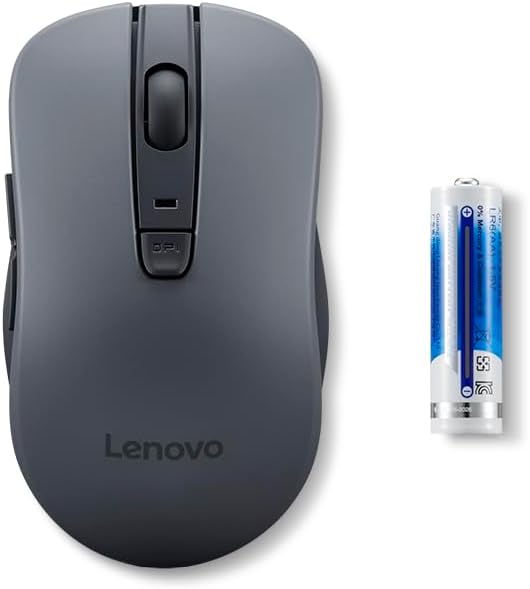
Image: The Lenovo WL310 Bluetooth Silent Mouse shown alongside a single AA battery, indicating included components.
3. Setup Guide
Follow these steps to set up your Lenovo WL310 Bluetooth Silent Mouse:
- Install Battery: Locate the battery compartment on the underside of the mouse. Slide the cover open. Insert the AA battery, ensuring correct polarity (+/-). Close the battery cover.
- Power On: Slide the ON/OFF switch on the underside of the mouse to the "ON" position.
- Enter Pairing Mode: Press and hold the Bluetooth pairing button (often located near the ON/OFF switch or within the battery compartment) for 3 to 5 seconds until the indicator light begins to flash, signifying it is in pairing mode.
- Pair with Device:
- For Windows: Go to "Settings" > "Devices" > "Bluetooth & other devices". Ensure Bluetooth is enabled. Click "Add Bluetooth or other device" and select "Bluetooth". Choose "Lenovo WL310" from the list of available devices.
- For macOS: Go to "System Preferences" > "Bluetooth". Ensure Bluetooth is enabled. Select "Lenovo WL310" from the list of devices and click "Connect".
- For Chromebook: Go to "Settings" > "Bluetooth". Ensure Bluetooth is enabled. Select "Lenovo WL310" from the list of available devices.
- Confirmation: Once successfully paired, the indicator light on the mouse will stop flashing and remain solid or turn off, and your device will confirm the connection.

Image: A visual four-step guide illustrating battery installation, powering on, entering Bluetooth pairing mode, and connecting the Lenovo WL310 mouse to a computer.
4. Operating Instructions
The Lenovo WL310 mouse is designed for intuitive use. Familiarize yourself with its functions:
- Left Click: Primary selection and activation button.
- Right Click: Accesses contextual menus.
- Scroll Wheel (3D Scroll Wheel): Scrolls documents and web pages vertically. Can also be pressed for middle-click functionality.
- Side Buttons: Typically used for forward and backward navigation in web browsers or file explorers. Functionality may vary depending on the operating system or application.
- DPI Adjustment Button: Located below the scroll wheel. Press this button to cycle through different DPI (Dots Per Inch) sensitivity settings.

Image: An annotated diagram highlighting the Left Click, Right Click, 3D Scroll Wheel, Side Buttons, and DPI button on the Lenovo WL310 mouse, along with its dimensions and weight.
5. DPI Adjustment
The Lenovo WL310 mouse features adjustable DPI settings, allowing you to customize cursor sensitivity. Press the DPI button (located below the scroll wheel) to cycle through the available settings:
- 1000 DPI: Standard sensitivity, suitable for general use.
- 1200 DPI: Increased sensitivity for faster cursor movement.
- 1600 DPI: High sensitivity for quick navigation or specific tasks.
Adjust the DPI to match your preference and task requirements.

Image: The Lenovo WL310 mouse with visual indicators for on-the-fly DPI adjustment and compatibility with Windows 8+ and Mac 10.10+ operating systems.
6. Maintenance
- Cleaning: Use a soft, dry cloth to clean the mouse surface. For stubborn dirt, slightly dampen the cloth with water. Avoid harsh chemicals or abrasive materials.
- Sensor Cleaning: Occasionally, clean the optical sensor on the underside of the mouse with a cotton swab to ensure optimal tracking performance.
- Battery Replacement: When the mouse performance degrades or the connection becomes unstable, replace the AA battery. Follow the battery installation steps in the Setup Guide.
- Storage: When not in use for extended periods, turn off the mouse to conserve battery life. Store in a cool, dry place.
7. Troubleshooting
| Problem | Solution |
|---|---|
| Mouse not connecting via Bluetooth. |
|
| Cursor movement is erratic or unresponsive. |
|
| Silent clicks are not working. | The WL310 mouse is designed with silent click technology. If you hear loud clicks, ensure the mouse is indeed the WL310 model. If the issue persists, contact support. |
8. Specifications
| Feature | Detail |
|---|---|
| Brand | Lenovo |
| Model Number | GY51Q65621 |
| Connectivity Technology | Bluetooth 5.0 |
| Movement Detection Technology | Optical |
| DPI Settings | 1000, 1200, 1600 (Adjustable) |
| Operating System Compatibility | Windows (8 and above), macOS (10.10 and above), Chromebook |
| Power Source | 1 x AA Battery |
| Item Weight | 2.4 ounces (approx. 67 grams) |
| Product Dimensions (LxWxH) | 4.2 x 2.5 x 0.1 inches (106.8 x 62.7 x 41 mm) |
| Color | Grey |
9. Warranty and Support
For warranty information and technical support, please refer to the documentation included with your purchase or visit the official Lenovo support website. Keep your proof of purchase for warranty claims.
Lenovo Support Website: support.lenovo.com