1. Introduction
This manual provides detailed instructions for the Tenveo VHD20H 20X AI Humanoid & Face Auto-Tracking PTZ Camera and the KB200PRO NDI PTZ Joystick Controller. This bundle is designed for professional video production, live streaming, and conferencing applications, offering high-quality video, precise control, and advanced tracking capabilities. Please read this manual thoroughly before operating the devices to ensure optimal performance and safety.
2. Package Contents
Verify that all items listed below are included in your package. If any items are missing or damaged, please contact Tenveo customer service.
- Tenveo FHD 20X AI Tracking PTZ Live Streaming Camera (VHD20H)
- Tenveo NDI PTZ Camera Joystick Controller (KB200PRO)
- IR Remote Control
- DC12V Power Adapter
- USB3.0 Cable
- Wall mount
- Mounting screws
- User Manual

The image above displays the typical contents you will find upon unboxing your Tenveo PTZ Camera and Controller bundle. This includes the main camera unit, the joystick controller, an infrared remote for basic camera functions, a power adapter for the camera, a USB 3.0 cable for data transfer, a wall mount with screws for installation flexibility, and the user manual.
Unboxing Video
Video: An unboxing demonstration of the smart PTZ joystick controller, showing how components are packaged and presented.
3. Product Features
- High-Definition Video: FHD 1080P 60FPS with 20X optical zoom for sharp and crystal-clear video quality.
- Advanced AI Tracking: Features dual human body + face auto-tracking powered by deep learning algorithms for millisecond-level response portrait tracking and autoframing.
- Multiple Video Outputs: HDMI, USB3.0, and LAN (PoE) interfaces for versatile connectivity.
- NDI PTZ Joystick Controller: 5-inch LCD screen for real-time preview, 4D joystick for precise control (pan, tilt, zoom, focus, backlight, presets, speed).
- PoE Support: Power over Ethernet for simplified installation and reduced cabling.
- Broad Compatibility: Compatible with Tenveo Video Mixer Switcher, Blackmagic Design ATEM, Zoom, Teams, vMix, OBS, and other live streaming software.
- Smooth & Silent Movement: The camera offers smooth and silent pan/tilt movements for professional-grade operation.
- Built-in OSD Menu: Easily adjust picture settings directly from the camera.
The image above illustrates the advanced AI auto-tracking capabilities of the Tenveo PTZ camera. It shows how the camera can precisely recognize and track human figures and faces, dynamically adjusting the frame to keep subjects centered, even in multi-target scenarios. This feature ensures that the presenter or key individuals remain in focus and within the shot without manual intervention.
AI Auto-Tracking Demonstration
Video: A demonstration of Tenveo's AI Humanoid & Face Auto-Tracking PTZ Cameras, showcasing its ability to follow subjects smoothly and accurately.
4. Setup
Follow these steps to set up your Tenveo PTZ Camera and Controller for optimal performance.
4.1 Physical Connections
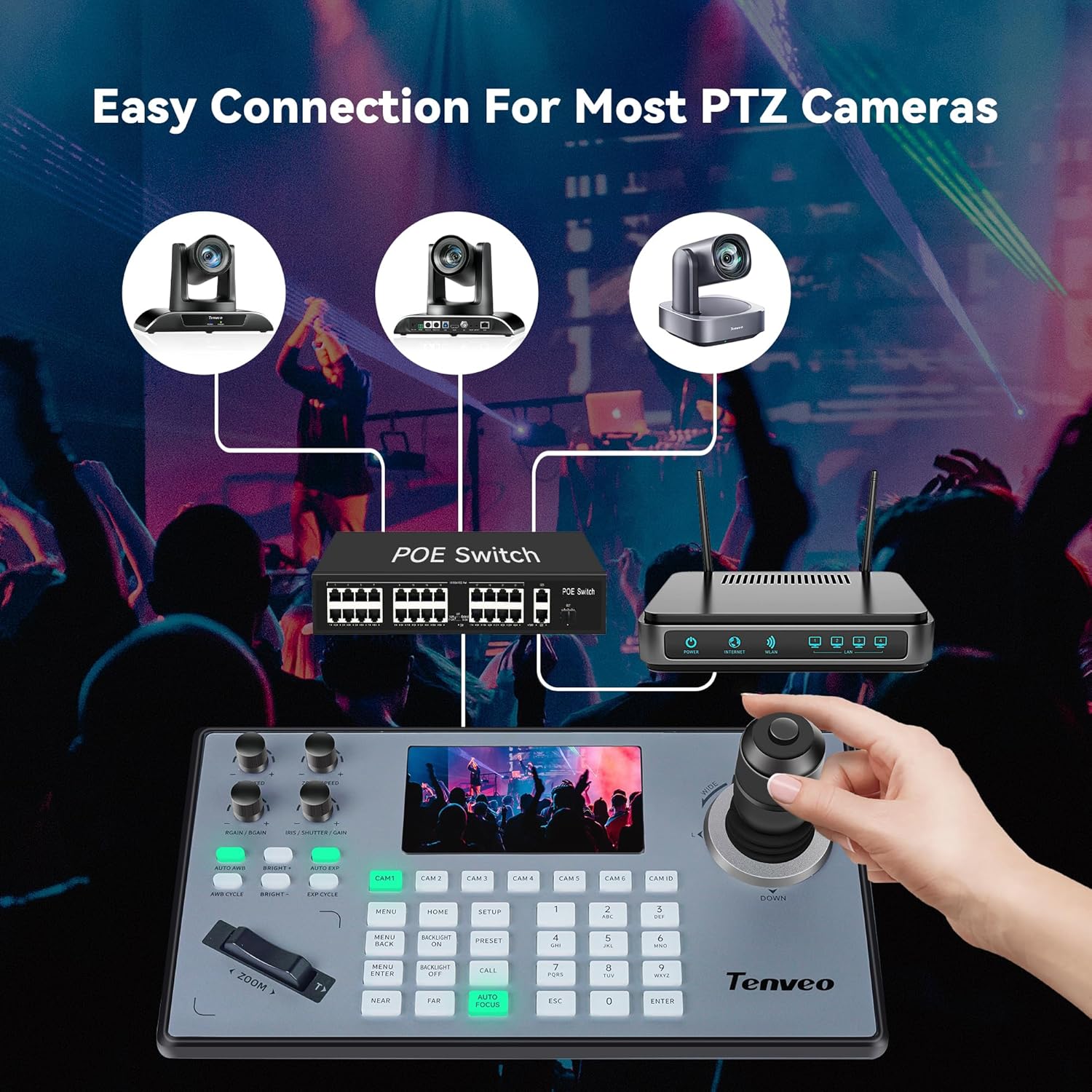
- Connect Network Cables: Connect all devices (camera(s), controller, PoE switch/router) using network cables. Ensure the camera and controller are connected to the same network.
- Connect Controller to PoE Switch: If using PoE, connect the controller to a PoE-enabled switch via an Ethernet cable.
- Connect Power Supply: Connect the DC12V power adapter to the camera and controller if not using PoE.
- Video Output: Connect the camera's HDMI or USB3.0 output to your display device or computer.

The diagram above illustrates the various connection possibilities for the Tenveo PTZ camera and controller. It highlights how the camera can be connected to a PoE switch for power and network, and how video output can be routed via USB 3.0 to a PC or HDMI to a display. The joystick controller is also shown connected to the network for control.

This image provides a detailed view of the rear panel of the Tenveo PTZ Joystick Controller, indicating the various ports available for connection. These include RS232 and RS422 for serial control, an Ethernet port for network connectivity (supporting PoE), a USB port for firmware upgrades, a DC12V power input, and a power switch.
4.2 Network Configuration
For network control, ensure both the camera(s) and controller are properly configured on your network.
- Enable ONVIF/DHCP on Camera: Access the camera's web interface (usually via its IP address) and ensure ONVIF is enabled. For automatic IP assignment, set the IP Obtain Mode to DHCP.
- Configure Controller Network Settings: On the controller's LCD screen, navigate to Network Settings. Change the network type from STATIC to DHCP to allow the controller to obtain an IP address automatically.
- Add Cameras to Controller: After network configuration, use the controller's menu to search for devices. Select the cameras you wish to control and add them, providing the camera's username and password (default is usually 'admin' for both).
Setup and Connection Guide Video
Video: A detailed guide on how to connect a joystick controller to manage multiple PTZ cameras, covering physical connections and network setup.
5. Operating Instructions
The KB200PRO joystick controller provides comprehensive control over your Tenveo PTZ cameras.
5.1 Basic Camera Control
- Pan/Tilt: Use the 4D joystick to move the camera horizontally (pan) and vertically (tilt).
- Zoom: Use the zoom rocker switch (W/T) to zoom in (T) or zoom out (W).
- Focus: Press the AUTO FOCUS button for automatic focusing, or use NEAR/FAR buttons for manual adjustment.
- Exposure & White Balance: Use the dedicated buttons (AUTO AWB, BRIGHT+, BRIGHT-, AUTO EXP, EXP CYCLE) to adjust image brightness and color balance.
5.2 Advanced Features
- Preset Positions: Set and recall up to 255 preset camera positions using the PRESET and numerical buttons.
- AI Auto-Tracking: Activate AI tracking modes (Presenter or Autoframing) via the camera's web interface or remote control to automatically follow subjects.
- Multi-Camera Switching: Use the CAM 1-6 buttons to quickly switch control between different connected cameras.
Camera Operation and Features Video
Video: Overview of the Tenveo 20X Optical Zoom PTZ Camera, demonstrating its features for conference and streaming applications.
6. Maintenance
Proper maintenance ensures the longevity and optimal performance of your Tenveo PTZ Camera and Controller.
- Cleaning: Use a soft, dry cloth to clean the camera lens and body. Avoid harsh chemicals or abrasive materials.
- Firmware Updates: Periodically check the Tenveo website for firmware updates to ensure you have the latest features and bug fixes. Firmware can typically be updated via the USB port on the controller or the camera's web interface.
- Storage: When not in use for extended periods, store the devices in a cool, dry place away from direct sunlight and extreme temperatures.
7. Troubleshooting
If you encounter issues with your Tenveo PTZ Camera and Controller, refer to the following common troubleshooting tips:
- No Power: Ensure the power adapter is securely connected to both the device and a working power outlet. Check if the power indicator light is on.
- No Video Output: Verify all video cables (HDMI, USB3.0, Ethernet) are correctly connected. Check the input source on your display device or software.
- No Control from Joystick: Confirm the network connection is active and the camera(s) are properly added to the controller with correct IP addresses and protocols (ONVIF, VISCA). Ensure ONVIF/DHCP is enabled on the camera.
- Lag in Control: If experiencing lag, ensure you are using a stable network connection and consider using a direct connection or a higher-quality network cable. For PoE, ensure the injector/switch provides sufficient power.
- AI Tracking Not Working: Check the camera's web interface to ensure AI tracking is enabled and the correct mode (Presenter/Autoframing) is selected. Ensure sufficient lighting and clear view of the subject.
If the problem persists after trying these steps, please contact Tenveo customer support for further assistance.
8. Specifications
| Feature | Description |
|---|---|
| Brand | Tenveo |
| Model Name | VHD20H+KB200PRO |
| Video Capture Resolution | 1080p |
| Optical Zoom | 20 x |
| Photo Sensor Technology | CMOS (1/2.8-inch) |
| Connectivity Technology | Ethernet, HDMI, Infrared, USB |
| Features | AI Humanoid & Face Auto-Tracking, PoE, 5'' LCD Screen Real-time Preview, 4D Joystick Operation, Multi-Cameras Production, Universal Compatibility |
| Item Weight | 5 Kilograms |
| Operating System Support | Android, Linux, Mac, Windows |
| Viewing Angle | 61 Degrees |
| Focus Type | Auto/Far/Near/Manual Focus |
9. Warranty and Support
Tenveo is committed to providing excellent customer service and support for its products.
- Warranty: The product comes with a 3-Year Standard Parts & Labor Warranty.
- Money-Back Guarantee: Enjoy a 30-Day No-Questions-Asked Money-Back Guarantee for risk-free purchase.
- Technical Support: Tenveo offers LIFETIME technical support, including firmware upgrade services. Remote assistance for setup is available if needed.
- Contact: For any questions or support, please contact Tenveo customer service. Responses are typically provided within 12 hours.


