
1. Introduction
The Amazon Fire TV Stick HD is a high-definition streaming device designed to transform your television into a smart entertainment hub. It offers a streamlined navigation experience, providing quick access to movies, TV shows, and live TV. With its ultra-portable design and support for Full HD and Wi-Fi 6, it delivers a crisp and responsive viewing experience.
This device features the latest Fire TV experience, offering a modern interface that prioritizes quick access to content. Users can browse dedicated content categories, pin favorite applications, and receive personalized recommendations powered by Alexa+.
Access a vast library of content from popular streaming services such as Prime Video, Netflix, YouTube, Disney+, Apple TV, HBO Max, Hulu, Peacock, Paramount+, and many more. The Fire TV Stick HD also supports free, ad-supported content, expanding your entertainment options. Please note that subscription fees may apply for certain services.
Its compact and portable design allows it to connect directly to your TV's HDMI port without obstructing other ports, making it an ideal solution for home or travel.
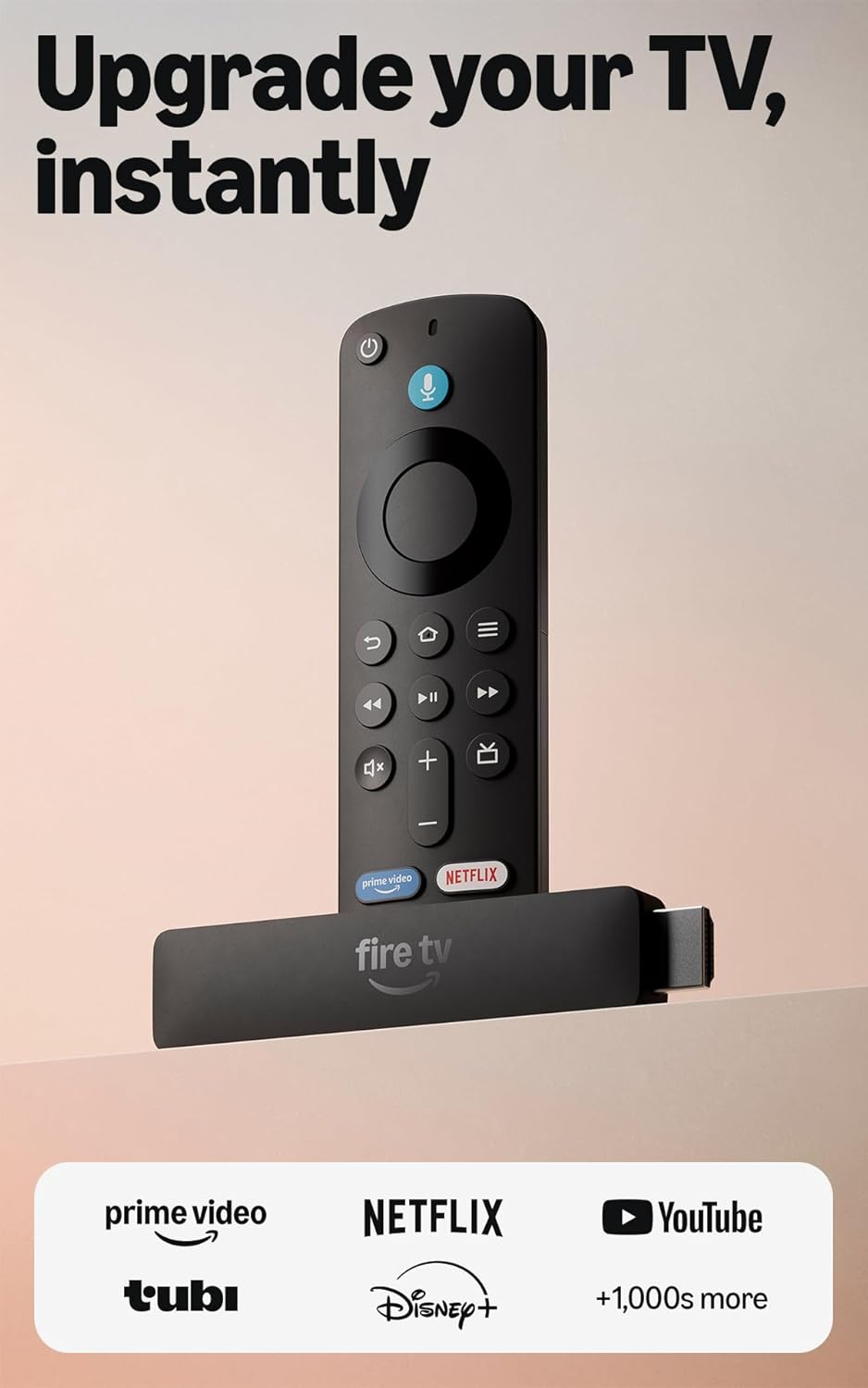
Image 1.1: The Amazon Fire TV Stick HD and its accompanying Alexa Voice Remote.
2. Setup
Setting up your Fire TV Stick HD is designed to be straightforward. The device supports Direct Power, allowing it to be powered directly by your TV using the included USB-C cable, eliminating the need for a separate wall adapter in many cases.
2.1 What's in the Box
- Amazon Fire TV Stick HD
- Alexa Voice Remote
- USB-C Cable (for power)
- HDMI Extender (optional, for tight spaces)
- AAA Batteries (for remote)
2.2 Connecting Your Fire TV Stick HD
- Plug in the Fire TV Stick HD: Insert the Fire TV Stick HD directly into an available HDMI port on your television. If space is limited, use the included HDMI extender.
- Connect Power: Connect one end of the included USB-C cable to the Fire TV Stick HD and the other end to an available USB port on your TV. This provides power to the device. If your TV's USB port does not provide sufficient power, or if you prefer, you can use a wall adapter (sold separately) with the USB-C cable and plug it into a power outlet.
- Insert Batteries into Remote: Open the back of the Alexa Voice Remote and insert the included AAA batteries, ensuring correct polarity.
- Select HDMI Input: Turn on your TV and use your TV remote to select the HDMI input where your Fire TV Stick HD is connected.
- Follow On-Screen Instructions: The Fire TV Stick HD will guide you through connecting to your Wi-Fi network, registering your Amazon account, and setting up your preferences.

Image 2.1: The Fire TV Stick HD connected to a TV, powered directly via the TV's USB port.

Image 2.2: Illustration of power options: direct from TV (short cable included) or from a wall outlet (long cable and adapter sold separately).
3. Operating Your Fire TV Stick HD
Once set up, your Fire TV Stick HD provides an intuitive interface for accessing a wide range of entertainment and smart home features.
3.1 Navigating the Fire TV Interface
The Fire TV interface is designed for quick content discovery. Use the Alexa Voice Remote's directional pad to navigate through categories, applications, and content recommendations. The home screen provides personalized suggestions and easy access to your pinned apps.

Image 3.1: The modern Fire TV interface displaying various streaming content options.
3.2 Using the Alexa Voice Remote
The Alexa Voice Remote is your primary tool for controlling the Fire TV Stick HD. It features dedicated buttons for power, volume, and app shortcuts, allowing you to control your compatible TV, soundbar, and receiver.
- Voice Control: Press and hold the voice button (microphone icon) and speak naturally to Alexa. You can search for content, launch apps, get information, or control smart home devices.
- Navigation: Use the circular directional pad to move through menus and select items.
- Playback Controls: Dedicated buttons for play/pause, fast forward, and rewind.
- App Shortcuts: Quickly launch popular streaming services with preset buttons.

Image 3.2: A close-up view of the Alexa Voice Remote, highlighting the voice command button.
3.3 Alexa+ for Personalized Recommendations
Alexa+ enhances your viewing experience by providing smarter content recommendations. By understanding your viewing habits and preferences, Alexa+ can suggest what to watch next, helping you discover new content efficiently.

Image 3.3: The Fire TV interface displaying personalized content recommendations from Alexa+.
3.4 Smart Home Integration
The Fire TV Stick HD allows you to control compatible smart home devices using Alexa. You can check security cameras, adjust lighting, and manage other smart devices directly from your TV screen or via voice commands.

Image 3.4: A television displaying a Ring camera feed and smart home control options through the Fire TV interface.
3.5 Bluetooth Listening
For private viewing, you can connect Bluetooth headphones to your Fire TV Stick HD. This allows you to enjoy your entertainment without disturbing others.

Image 3.5: The portable Fire TV Stick HD and remote, suitable for easy setup anywhere.
4. Maintenance
To ensure the longevity and optimal performance of your Amazon Fire TV Stick HD, follow these simple maintenance guidelines:
- Cleaning: Gently wipe the device and remote with a soft, dry, lint-free cloth. Avoid using liquid cleaners, aerosols, or abrasive materials.
- Storage: Store the device in a cool, dry place away from direct sunlight and extreme temperatures.
- Ventilation: Ensure the Fire TV Stick HD has adequate ventilation and is not covered or placed in an enclosed space that could lead to overheating.
- Software Updates: Keep your device's software updated. Fire TV Stick HD typically updates automatically, but you can manually check for updates in the settings menu.
5. Troubleshooting
If you encounter issues with your Fire TV Stick HD, try the following troubleshooting steps:
- No Power/No Display:
- Ensure the Fire TV Stick HD is securely plugged into the HDMI port.
- Verify the USB-C power cable is connected to a working power source (TV USB port or wall adapter).
- Confirm your TV is on the correct HDMI input.
- Try a different HDMI port on your TV.
- Remote Not Responding:
- Replace the batteries in the Alexa Voice Remote.
- Pair the remote again: Press and hold the Home button on the remote for 10 seconds until it pairs.
- Ensure there are no obstructions between the remote and the Fire TV Stick HD.
- Wi-Fi Connection Issues:
- Restart your Wi-Fi router and modem.
- Go to Fire TV settings > Network and try reconnecting to your Wi-Fi network.
- Ensure your Fire TV Stick HD is within range of your Wi-Fi router.
- App Crashing or Freezing:
- Restart the app: Go to Fire TV settings > Applications > Manage Installed Applications, select the app, and choose 'Force Stop'.
- Clear app cache: From the same menu, select 'Clear Cache'.
- Restart the Fire TV Stick HD: Go to Fire TV settings > My Fire TV > Restart.
6. Specifications
Key technical specifications for the Amazon Fire TV Stick HD:
| Feature | Detail |
|---|---|
| Model Name | Fire TV Stick HD |
| Resolution | Full HD (1080p) |
| Connectivity | HDMI, Wi-Fi 6 (802.11ax), Bluetooth |
| Audio Support | Dolby Atmos, Dolby Digital Plus, Dolby Digital |
| Processor | Quad-core |
| Storage | 8 GB internal |
| Power | USB-C (Direct Power from TV or optional wall adapter) |
| Remote | Alexa Voice Remote (with TV controls) |

Image 6.1: A comparison highlighting the Fire TV HD Stick's optimization for HD TVs, typically less than 50 inches, with crisp, standard clarity.
7. Warranty Information
Your Amazon Fire TV Stick HD is covered by a limited warranty. For detailed information regarding the warranty period, coverage, and terms, please refer to the official Amazon Device Warranty page or the documentation included with your product. Typically, Amazon devices come with a 1-year limited warranty.
For warranty claims or service, please contact Amazon Customer Service.
8. Support
For further assistance, technical support, or to access additional resources, please visit the official Amazon Fire TV support website. You can find FAQs, troubleshooting guides, and contact options for customer service.
- Online Support: Visit amazon.com/devicesupport
- Contact Customer Service: Available through the support website for chat, email, or phone assistance.