1. Introduction
This manual provides essential information for the safe and efficient use of your Canon Satera LBP171 Laser Beam Printer. Please read this manual thoroughly before using the printer and keep it for future reference. The Canon Satera LBP171 is an A4 compatible monochrome laser printer featuring double-sided printing, wired LAN connectivity, and USB2.0. It supports standard CRG-072 and high-capacity CRG-072H toner cartridges.
2. Safety Information
Always observe the following safety precautions to prevent injury or damage to the printer:
- Do not place the printer in unstable locations.
- Ensure the power cord is securely plugged into a grounded outlet.
- Do not block ventilation openings on the printer.
- Keep liquids away from the printer to prevent electric shock or fire.
- Avoid touching internal components immediately after printing, as they may be hot.
- Use only recommended toner cartridges.
3. Package Contents
Verify that all items are included in the box:
- Canon Satera LBP171 Laser Beam Printer
- Toner Cartridges (Starter or Standard)
- Power Cord
- Setup Guide / Documentation
- Driver CD-ROM (or download instructions)
4. Product Overview
Familiarize yourself with the main components of your Canon Satera LBP171 printer.
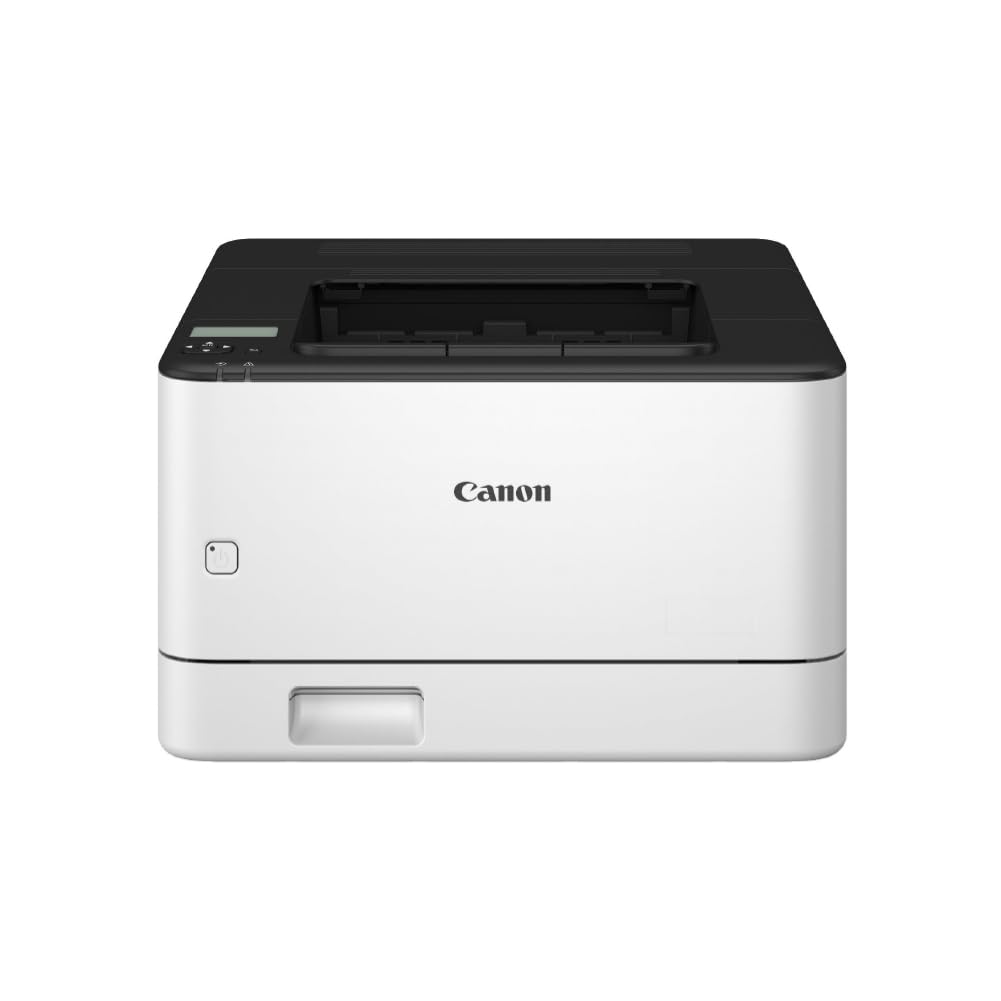
Figure 4.1: Front view of the Canon Satera LBP171 Laser Beam Printer, showing the paper tray and output area.

Figure 4.2: Side view of the Canon Satera LBP171 Laser Beam Printer, highlighting its compact design.

Figure 4.3: Diagram illustrating the printer's high-speed printing capability, achieving 33 pages per minute for single-sided A4 documents and 20 pages per minute for double-sided A4 documents.
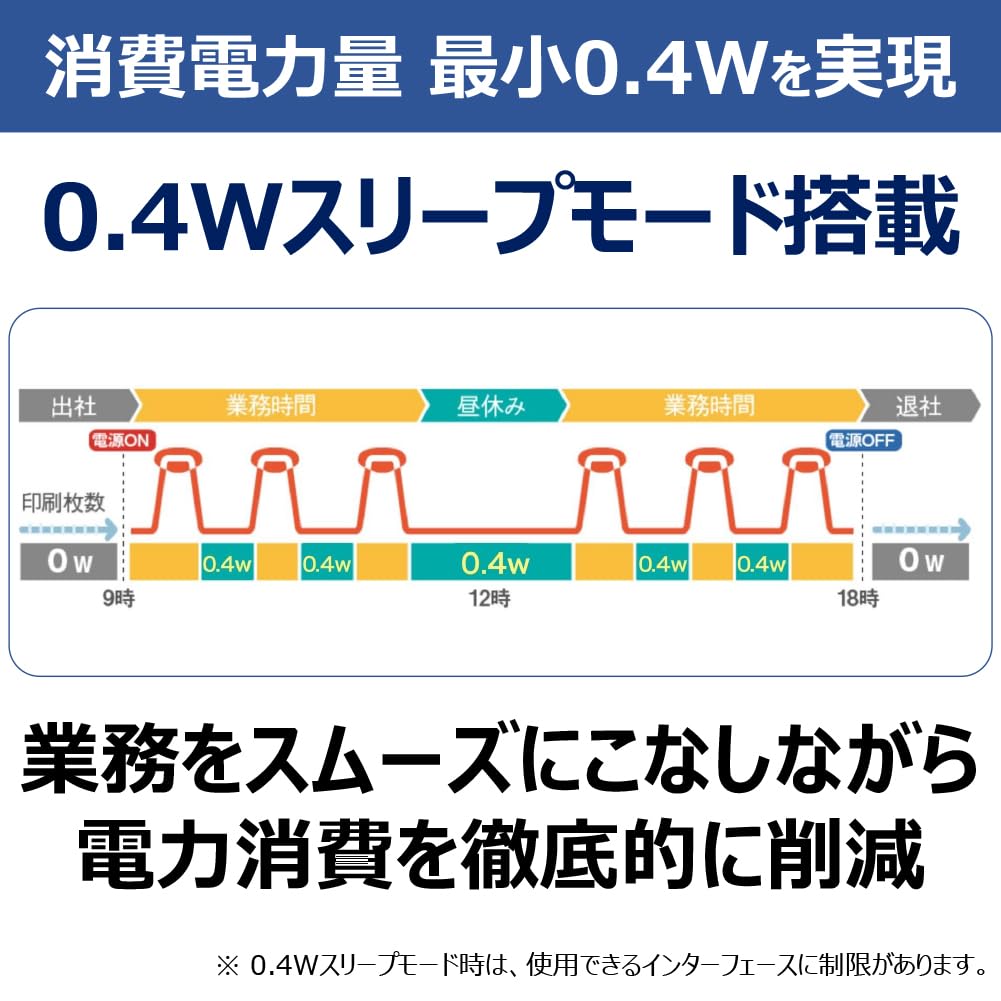
Figure 4.4: Diagram showing the printer's energy-saving 0.4W sleep mode, which helps reduce power consumption during idle periods.

Figure 4.5: Diagram explaining the CARPS2 (Canon Advanced Raster Printing System 2) driver, which utilizes the PC's CPU for optimal print processing, enabling faster handling of large data.

Figure 4.6: Diagram illustrating the printer's wide paper compatibility, supporting paper weights from 60 to 163 g/m² and various types including thin paper, plain paper, recycled paper, colored paper, thick paper, labels, letterheads, bond paper, envelopes, and postcards.
Product Features Overview
Video 4.1: This video highlights key features of the Canon Satera LBP171 printer, including its wired LAN connectivity, two-sided (duplex) printing capability, and USB 2.0 interface. It demonstrates the printer's efficiency and ease of integration into various office environments.
5. Setup
5.1 Unpacking and Placement
- Remove all packing materials and protective tapes from the printer.
- Place the printer on a stable, level surface with adequate ventilation.
5.2 Installing the Toner Cartridge
- Open the front cover of the printer.
- Gently shake the toner cartridge (CRG-072 or CRG-072H) horizontally to distribute the toner evenly.
- Insert the toner cartridge into the printer until it clicks into place.
- Close the front cover.
5.3 Loading Paper
- Pull out the paper cassette.
- Adjust the paper guides to the size of the paper you are loading (e.g., A4).
- Load the paper stack into the cassette, ensuring it is flat and below the maximum fill line.
- Slide the paper cassette back into the printer.
5.4 Connecting the Printer
- Power Connection: Connect the power cord to the printer and then to a wall outlet.
- USB Connection: Connect a USB 2.0 cable from the printer to your computer.
- Wired LAN Connection: Connect an Ethernet cable from the printer to your network router or switch.
5.5 Driver Installation
- Insert the driver CD-ROM into your computer or download the latest drivers from the official Canon website.
- Follow the on-screen instructions to install the printer drivers and utility software.
6. Operating Instructions
6.1 Basic Printing
- Ensure the printer is powered on and connected to your computer or network.
- Open the document you wish to print on your computer.
- Select Print from the application's menu (e.g., File > Print).
- Choose the Canon Satera LBP171 from the list of available printers.
- Adjust print settings as needed (e.g., number of copies, paper size).
- Click Print.
6.2 Duplex (Double-Sided) Printing
The LBP171 supports automatic double-sided printing:
- In the print dialog box, navigate to the printer properties or preferences.
- Look for an option related to 2-sided printing or Duplex printing.
- Select the desired binding edge (e.g., Long Edge, Short Edge).
- Confirm the settings and proceed with printing.
6.3 Print Speed
The printer offers a maximum print speed of 33 pages per minute (ppm) for monochrome A4 documents. Actual speed may vary based on document complexity and system configuration.
7. Maintenance
7.1 Replacing the Toner Cartridge
When the toner is low or depleted, replace the cartridge:
- Open the front cover.
- Remove the old toner cartridge by pulling it out.
- Unpack a new Canon CRG-072 or CRG-072H toner cartridge.
- Gently shake the new cartridge to distribute toner.
- Insert the new cartridge firmly until it locks into place.
- Close the front cover.
7.2 Cleaning the Printer
- Exterior: Wipe the exterior of the printer with a soft, damp, lint-free cloth. Do not use abrasive cleaners.
- Interior: Periodically clean the paper path and toner area using a dry, lint-free cloth to remove any paper dust or toner residue. Refer to the on-screen manual for detailed cleaning instructions.
8. Troubleshooting
If you encounter issues with your printer, try the following solutions:
8.1 Printer Not Responding
- Check if the printer is powered on.
- Verify that the power cord is securely connected.
- Ensure the USB or Ethernet cable is properly connected to both the printer and the computer/network.
- Restart both the printer and your computer.
8.2 Paper Jams
- Turn off the printer and unplug it.
- Carefully open all covers and remove any jammed paper, pulling in the direction of the paper path.
- Ensure no small pieces of paper remain inside.
- Close all covers, plug in the printer, and turn it on.
8.3 Poor Print Quality
- Check the toner cartridge level and replace if low.
- Ensure you are using appropriate paper for laser printing.
- Clean the printer's interior as described in the maintenance section.
- Update printer drivers to the latest version.
9. Specifications
| Feature | Specification |
|---|---|
| Brand | Canon |
| Model Name | Satera LBP171 |
| Printing Technology | Laser |
| Printer Output | Monochrome |
| Max Print Speed Monochrome | 33 ppm |
| Resolution | 600 x 600 dpi |
| Duplex Printing | Automatic |
| Connectivity Technology | Ethernet, USB 2.0 |
| Maximum Media Size | A4 |
| Product Dimensions (D x W x H) | 39.9D x 36.5W x 22.2H Centimeters |
| Paper Weight Compatibility | 60-163 g/m² |
| Number of Trays | 1 |
| Output Sheet Capacity | 150 sheets |
| Compatible Toner Cartridges | CRG-072 / CRG-072H |
10. Warranty and Support
For warranty information, please refer to the warranty card included with your product or visit the official Canon website. If you require technical assistance or have questions not covered in this manual, please contact Canon customer support. Keep your purchase receipt and product serial number handy when contacting support.
Canon Support Website: www.canon.com/support


