
TRIMUI Smart Pro Handheld Game Console
TRIMUI Smart Pro Handheld Game Console User Manual
Model: Smart Pro (Grey-64G)
1. Introduction
Welcome to the user manual for your new TRIMUI Smart Pro Handheld Game Console. This manual provides essential information on setting up, operating, and maintaining your device. The TRIMUI Smart Pro is a versatile portable gaming device designed to support over 20 game formats, offering a rich retro gaming experience with its 5-inch IPS high-definition screen.
Please read this manual thoroughly before using your console to ensure optimal performance and longevity.
2. Product Overview
Familiarize yourself with the components and controls of your TRIMUI Smart Pro console.

Figure 2.1: Front view of the TRIMUI Smart Pro Handheld Game Console. This image displays the 5-inch IPS screen, the directional pad (D-pad) on the left, two analog joysticks, and the A, B, X, Y action buttons on the right. Below the D-pad are 'MENU' and 'OK' buttons, and below the action buttons are 'SELECT' and 'START' buttons. The console has a light grey finish with purple accents on the buttons and joystick rings.

Figure 2.2: Back view of the TRIMUI Smart Pro Handheld Game Console. The back features ergonomic grips for comfortable holding. Engraved text includes "TRIMUI SMART PRO", regulatory marks (CE, FC), and "MODEL: TG5040 TRIMUI SMART PRO DESIGN BY TRIMUI MADE IN CHINA".
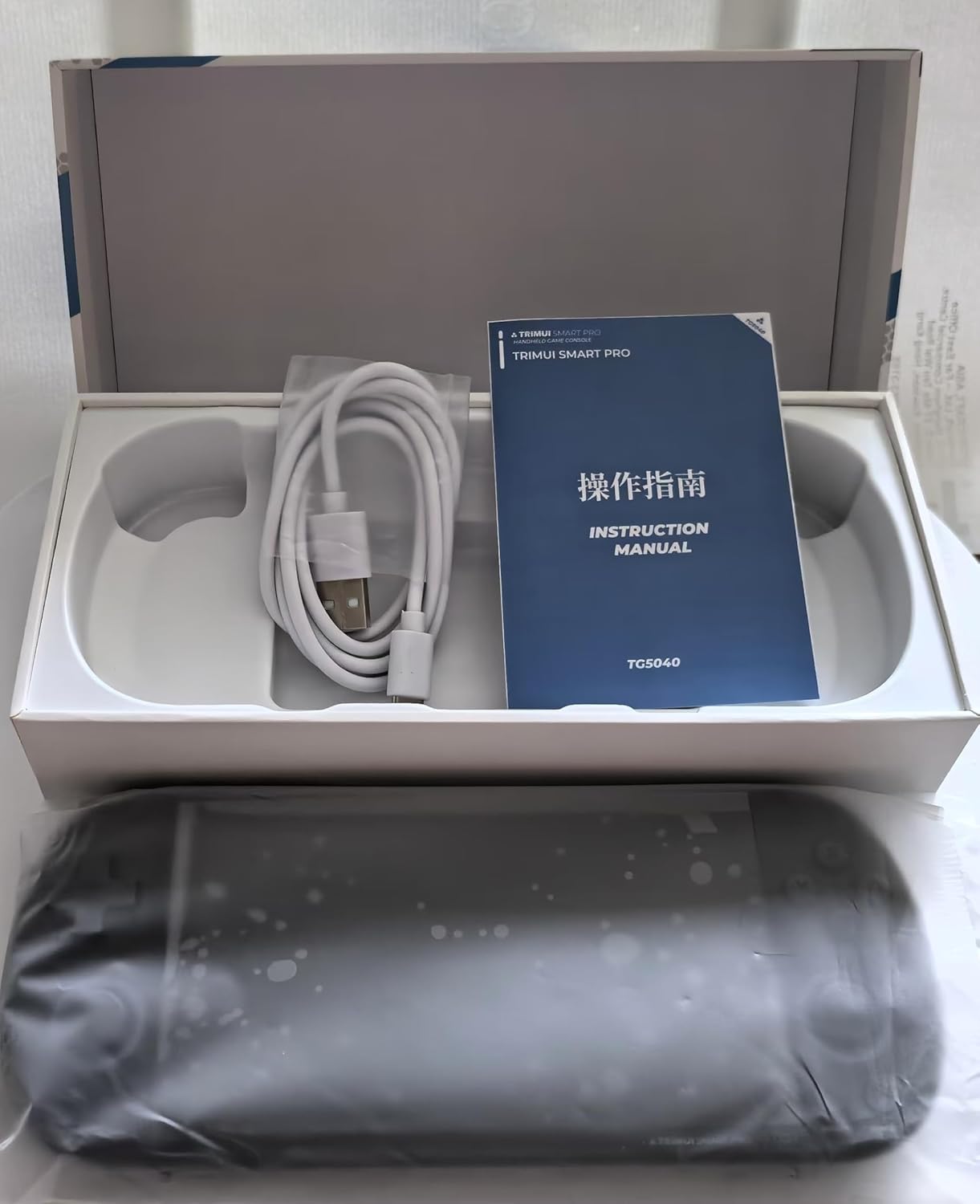
Figure 2.3: Packaging contents of the TRIMUI Smart Pro Handheld Game Console. The image shows the console itself, an instruction manual, and a USB charging cable, all neatly arranged within the product box.
2.1. Controls and Ports
- 5-inch IPS High-Definition Screen: Main display for games and menus (1280x720 resolution).
- Directional Pad (D-pad): For directional input in games and menu navigation.
- Analog Joysticks: Two joysticks for precise movement control.
- Action Buttons (A, B, X, Y): Primary game input buttons.
- MENU Button: Accesses system menu options.
- OK Button: Confirms selections.
- SELECT Button: Used for various in-game functions or menu selections.
- START Button: Used to start games or pause.
- Shoulder Buttons (L1, L2, R1, R2): Located on the top edge for additional game controls.
- Type-C USB Port: For charging and data transfer.
- TF Card Slot: For inserting the microSD card (64GB included, supports up to 256GB).
- Speaker: Audio output.
- Headphone Jack: For private audio listening.
3. Setup
3.1. Initial Charging
Before first use, fully charge your TRIMUI Smart Pro console. Use the included Type-C USB cable and connect it to a 5V/1.5A power adapter (not included) or a compatible USB port. The charging indicator light will show the charging status. A full charge provides approximately 5 hours of battery life.
- Connect the Type-C USB cable to the console's charging port.
- Connect the other end of the cable to a power source.
- Allow the device to charge until the indicator shows a full charge.
3.2. Inserting the TF Card
Your console comes with a 64GB TF card pre-loaded with games. You can also use an external TF card up to 256GB.
- Locate the TF card slot on the console.
- Gently insert the TF card into the slot until it clicks into place. Ensure the card is oriented correctly.
- To remove, gently push the card in again until it springs out.
4. Operating Instructions
4.1. Power On/Off
- To Power On: Press and hold the Power button (usually located on the top edge) for a few seconds until the screen lights up.
- To Power Off: Press and hold the Power button until a power-off menu appears on the screen. Select "Power Off" or "Shut Down". A quick press of the power button usually puts the device into sleep mode.
4.2. Navigation and Game Selection
Use the D-pad or analog joysticks to navigate through the console's interface. The 'OK' button confirms selections, and the 'MENU' button typically brings up context-sensitive options or returns to the main menu.
- The main interface allows you to browse different game categories or emulators.
- Use the D-pad or joystick to highlight a game or category.
- Press the 'OK' button to enter a category or launch a game.
- The console supports searching for games and checking recently played games.
- You can collect your favorite games for quick access.
4.3. Game Play and Features
The TRIMUI Smart Pro supports multiple simulators and over 20 game formats, including the open-source RetroArch system.
- Loading Games: Select a game from the menu and press 'OK' to start.
- Saving/Loading Progress: Most emulators support in-game saving and loading of save states. Refer to the specific emulator's controls, often accessible via the 'MENU' button during gameplay.
- Display Modes: The 5-inch IPS screen supports full screen or original resolution display options.
- External Controllers: The console supports dual controllers for two-player battles. Connect compatible controllers via the appropriate ports (if available) or wirelessly if supported.
- Wi-Fi Connectivity: Utilize Wi-Fi for online two-player battles or to download games in relevant formats. Access Wi-Fi settings through the system menu.
5. Maintenance
Proper care will extend the life of your TRIMUI Smart Pro console.
- Cleaning: Use a soft, dry, lint-free cloth to clean the screen and console body. Do not use liquid cleaners or abrasive materials.
- Battery Care: To maintain battery health, avoid fully discharging the battery frequently. If storing the device for a long period, charge it to about 50% and store in a cool, dry place.
- Storage: Store the console in a clean, dry environment away from direct sunlight, extreme temperatures, and excessive dust.
- Avoid Drops and Impacts: The console is a delicate electronic device. Handle with care to prevent damage from drops or impacts.
6. Troubleshooting
If you encounter issues with your TRIMUI Smart Pro, refer to the following common solutions:
| Problem | Possible Cause / Solution |
|---|---|
| Console does not power on. |
|
| Games are not loading or crashing. |
|
| Screen is unresponsive or frozen. |
|
| Wi-Fi connection issues. |
|
If the problem persists, please contact customer support for further assistance.
7. Specifications
Key technical specifications for the TRIMUI Smart Pro Handheld Game Console:
- Screen Size: 5 Inches IPS High-Definition
- Display Resolution: 1280x720
- Power Source: Battery Powered
- Battery Type: Built-in 5000mAh Lithium battery
- Charging: Type-C USB 5V/1.5A
- Battery Life: Approximately 5 Hours
- Memory Storage Capacity: 64 GB (TF card included), supports external 256GB TF Card max.
- Dimensions (L x W x H): 7.4 x 3.1 x 0.7 inches (18.7 x 8 x 1.7 cm)
- Item Weight: 14.2 ounces
- Material: Plastic
- Supported Game Formats: More than 20 formats, including open-source RetroArch system.
- Connectivity: Wi-Fi, USB Type-C
- UPC: 788567730669
- ASIN: B0DJF8N9XY
8. Warranty and Support
For warranty information and customer support, please refer to the documentation provided at the point of purchase or contact the retailer/manufacturer directly. Keep your proof of purchase for any warranty claims.
Manufacturer: Huizhou Rongyejia Electronics Co., Ltd.
For technical assistance or inquiries, please visit the official TRIMUI website or contact their customer service channels.
Related documentsSmart Pro Handheld Game Console


Ask a question about this manual
Ask about setup, troubleshooting, compatibility, parts, safety, or missing instructions. Manuals+ will review the question and use this page’s manual context to help answer it.