Introduction
This manual provides essential information for the safe and efficient operation of your Panasonic TV-65Z80AEZ 65-inch 4K Ultra HD OLED Smart TV. Please read these instructions thoroughly before using your television and retain them for future reference. This 4K OLED television from the Z80 series features integrated Fire TV, offering a comprehensive entertainment experience.
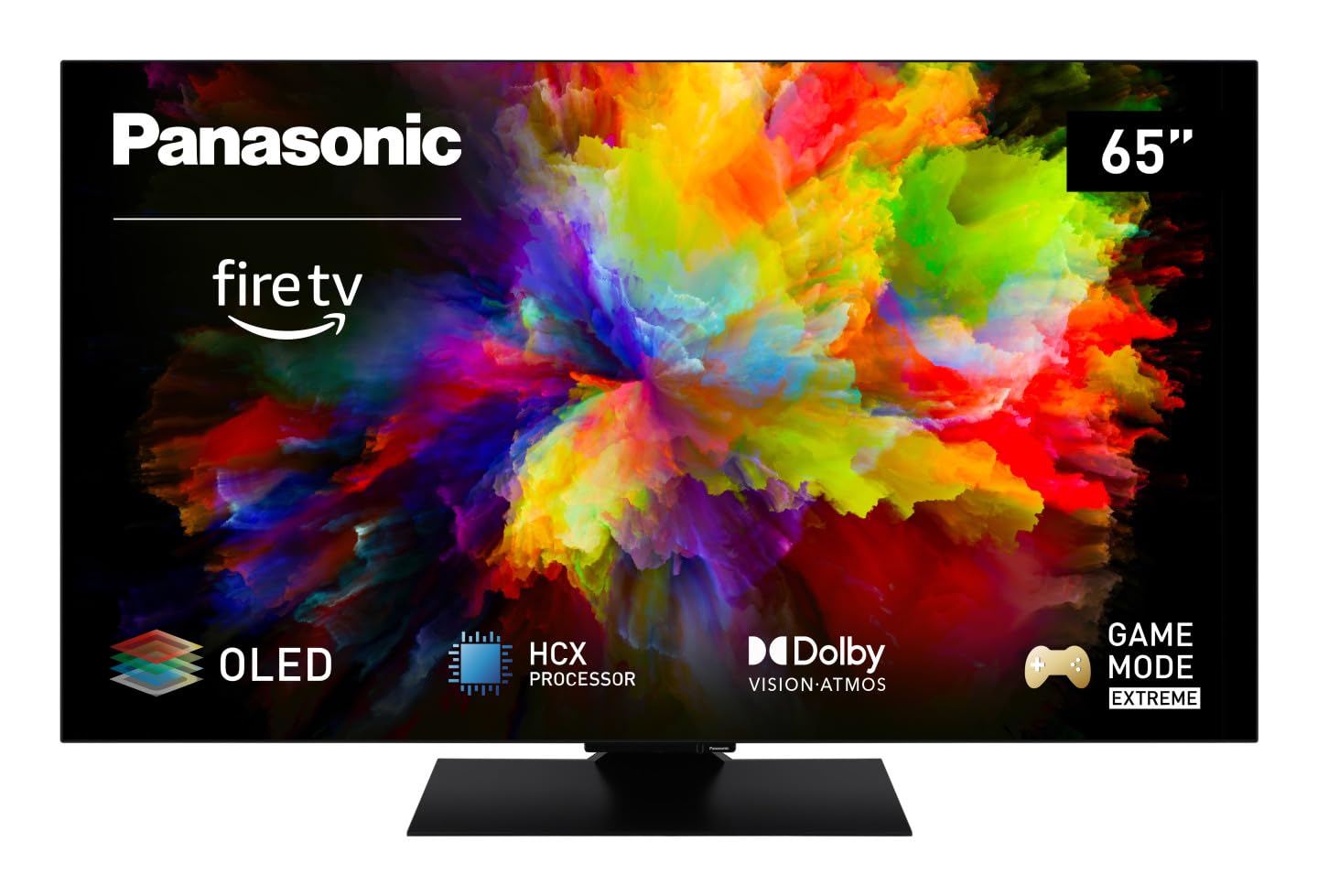
Image: Front view of the Panasonic TV-65Z80AEZ 65-inch 4K OLED Smart TV.
Safety Information
Always follow basic safety precautions when using this television to reduce the risk of fire, electric shock, and injury. Keep the television away from water and moisture. Do not block ventilation openings. Use only attachments/accessories specified by the manufacturer. Refer all servicing to qualified service personnel.
- Power Supply: Ensure the power supply voltage matches the rating label on the TV.
- Ventilation: Do not cover or block any ventilation openings. Allow adequate space around the TV for proper airflow.
- Cleaning: Unplug the TV before cleaning. Use a soft, dry cloth. Do not use liquid cleaners or aerosol cleaners.
- Mounting: If wall-mounting, ensure the wall mount is compatible with the TV's VESA standards and can support its weight. Follow the wall mount manufacturer's instructions carefully.
Package Contents
Verify that all items are present in the packaging:
- Panasonic TV-65Z80AEZ 65-inch 4K OLED Smart TV
- Remote Control
- AAA Batteries (2x) for Remote Control
- Power Cord
- TV Stand Components (if applicable)
- Quick Start Guide (this document serves as a comprehensive guide)
Setup
1. Physical Installation
Stand Installation: If using the included stand, carefully attach it to the television according to the diagrams in the quick start guide. Ensure all screws are securely fastened. Place the TV on a stable, level surface.
Wall Mounting: If wall-mounting, consult a professional installer. Ensure the wall mount is rated for the TV's weight and size. Do not attempt to wall-mount the TV without proper tools and expertise.
2. Connecting Devices
Connect your external devices such as cable boxes, Blu-ray players, gaming consoles, and sound systems to the appropriate ports on the back of the TV.

Image: Side view of the Panasonic TV-65Z80AEZ, illustrating the slim profile and connectivity ports.
- HDMI: For high-definition video and audio. This TV supports HDMI 2.1 for advanced gaming features.
- USB: For connecting USB storage devices or other peripherals. This TV has 2 USB ports.
- Ethernet: For a wired internet connection.
- Antenna/Cable: For connecting an antenna or cable TV feed.
3. Initial Power-On and Network Setup
- Insert the included AAA batteries into the remote control.
- Connect the power cord to the TV and then to a power outlet.
- Press the power button on the remote control or on the TV.
- Follow the on-screen instructions to select your language, region, and connect to your Wi-Fi network. You can also use a wired Ethernet connection.
4. Fire TV Setup
Your Panasonic TV-65Z80AEZ comes with Fire TV built-in. During the initial setup, you will be prompted to sign in with your Amazon account or create a new one. This enables access to streaming services, apps, and personalized recommendations.
Operating the TV
1. Basic Controls
Use the remote control to navigate the TV's interface. The remote includes standard buttons for power, volume, channel, input selection, and navigation within the Fire TV interface.
2. Smart TV Features
- Fire TV: The intuitive 4K Fire TV home screen provides instant access to live TV, streaming apps, and personalized recommendations for up to 6 user profiles.
- Alexa Voice Control: Control your Smart TV using voice commands through the integrated Alexa. Press the microphone button on your remote and speak your command.
- AirPlay: Easily share content from your Apple devices (iPhone, iPad, Mac) to your TV for a seamless viewing experience.
3. Picture Quality
- OLED & HCX Processor: Experience deep blacks and natural colors. The HCX processor ensures a cinematic experience with stunning image quality.
- Multi HDR Support: Enjoy optimized brightness, contrast, and colors scene by scene with support for Dolby Vision, HLG, HDR10, and HDR10+, ensuring exceptional images.
4. Audio Features
- Surround Sound Pro & Dolby Atmos: Elevate your viewing experience with immersive Dolby Atmos and Surround Sound Pro technology, including an integrated subwoofer, for a cinema-worthy audio experience.
5. Extreme Game Mode
This mode is designed for gamers, offering ultra-low latency, Variable Refresh Rate (VRR), 120 Hz refresh rate, and Auto Low Latency Mode (ALLM) via HDMI 2.1. It also supports AMD FreeSync Premium and NVIDIA G-SYNC for fluid and responsive gameplay.
Maintenance
Proper maintenance ensures the longevity and performance of your television.
- Screen Cleaning: Gently wipe the screen with a soft, lint-free cloth. For stubborn marks, slightly dampen the cloth with water or a specialized screen cleaner. Never spray liquid directly onto the screen.
- Cabinet Cleaning: Use a soft, dry cloth to clean the TV's cabinet.
- Dusting: Regularly dust the ventilation openings to prevent overheating.
- Power Cord: Periodically check the power cord for any damage. If damaged, replace it immediately with an authorized part.
Troubleshooting
If you encounter issues with your TV, refer to the following common solutions:
| Problem | Possible Solution |
|---|---|
| No Power | Ensure the power cord is securely plugged into both the TV and the wall outlet. Check if the outlet is working by plugging in another device. |
| No Picture, but Sound is Present | Check the input source. Press the 'Input' or 'Source' button on your remote to cycle through inputs. Ensure connected devices are powered on. |
| No Sound, but Picture is Present | Check the volume level. Ensure 'Mute' is not activated. Check audio cables if using external speakers. Verify audio output settings in the TV menu. |
| Remote Control Not Working | Replace the batteries. Ensure there are no obstructions between the remote and the TV's IR sensor. |
| Cannot Connect to Wi-Fi | Ensure your Wi-Fi router is on and working. Re-enter the Wi-Fi password. Try restarting both the TV and the router. |
If the problem persists after trying these solutions, please contact customer support.
Specifications
| Feature | Detail |
|---|---|
| Brand | Panasonic |
| Model Number | TV-65Z80AEZ |
| Screen Size | 65 Inches |
| Display Technology | OLED |
| Resolution | 4K Ultra HD |
| Refresh Rate | 120 Hz |
| Operating System | FireOS |
| Connectivity Technology | Bluetooth, HDMI, Wi-Fi |
| Connectivity Ports | Ethernet, HDMI, USB |
| Total USB Ports | 2 |
| Special Features | OLED, Dolby Vision, Dolby Atmos, Fire TV, Extreme Game Mode |
| Compatible Devices | Laptop, Gaming Console, Smartphone, Tablet, Speakers |
| Aspect Ratio | 16:9 |
| Product Dimensions (DxWxH) | 4.7D x 144.4W x 82.4H centimeters |
| Included Components | Television, Remote Control, Batteries |
Warranty and Support
Your Panasonic TV-65Z80AEZ is covered by a manufacturer's warranty. Please refer to the warranty card included with your product for specific terms and conditions, including the warranty period and coverage details. For technical support, service, or further assistance, please visit the official Panasonic support website or contact their customer service helpline. Keep your purchase receipt as proof of purchase for warranty claims.


