
Introduction
This manual provides comprehensive instructions for the installation, operation, and maintenance of your FalconEye Electronics 2nd Generation Wireless Backup Camera System. This system is designed to enhance safety and visibility for trucks and fleets, featuring a long wireless range, clear display, and robust construction.

Image: The FalconEye Wireless Backup Camera System, showing the 7-inch LCD monitor and the wireless camera unit. The monitor displays a view of a red semi-truck on a road.

Image: A close-up view of the FalconEye wireless camera, highlighting its 720p HD resolution capability and the array of infrared (IR) lights for enhanced night vision.
What's in the Box
Verify that all components listed below are included in your package:
- Digital Wireless IP68 Heavy Duty Bracket CCD Camera
- Digital 7” TFT-LCD Monitor with built-in digital receiver & sun shield
- Cigarette Lighter power adapter for monitor
- 12V Additional monitor power cable for monitor (for hardwiring)
- Dash Mount Holder for LCD
- Video cable
- Screws
- Wire connectors
- User manual (this document)

Image: All components included in the FalconEye Wireless Backup Camera System package, laid out for inspection. This includes the monitor, camera, power cables, and mounting hardware.
Setup and Installation
Follow these steps for proper installation of your wireless backup camera system.
1. Camera Installation
- Mounting the Camera: Choose a suitable location at the rear of your vehicle, ensuring a clear view and protection from physical damage. The camera features a heavy-duty bracket for secure mounting.
- Powering the Camera: The camera requires a 12-24V DC power supply. Connect the camera's power cable to a reliable power source on your vehicle, such as reverse lights for automatic activation when backing up, or a constant power source for continuous monitoring. Use the provided wire connectors for a secure connection.

Image: A diagram illustrating the power connections for both the monitor (via cigarette lighter adapter) and the camera (via camera conversion cable to vehicle's 12-24V DC power source).
2. Monitor Installation
- Mounting the Monitor: Use the provided Dash Mount Holder to securely place the 7-inch LCD monitor on your dashboard or another convenient location within the cabin. Ensure the monitor does not obstruct your view while driving.
- Powering the Monitor: Connect the monitor using the cigarette lighter power adapter. Alternatively, you can use the 12V additional monitor power cable to hardwire the monitor directly to your vehicle's electrical system for a cleaner installation.
3. Wireless Pairing and Signal
The camera and monitor are designed to pair automatically. Ensure both devices are powered on. The system boasts a long wireless range of 200-300 feet, ideal for large vehicles and trailers.
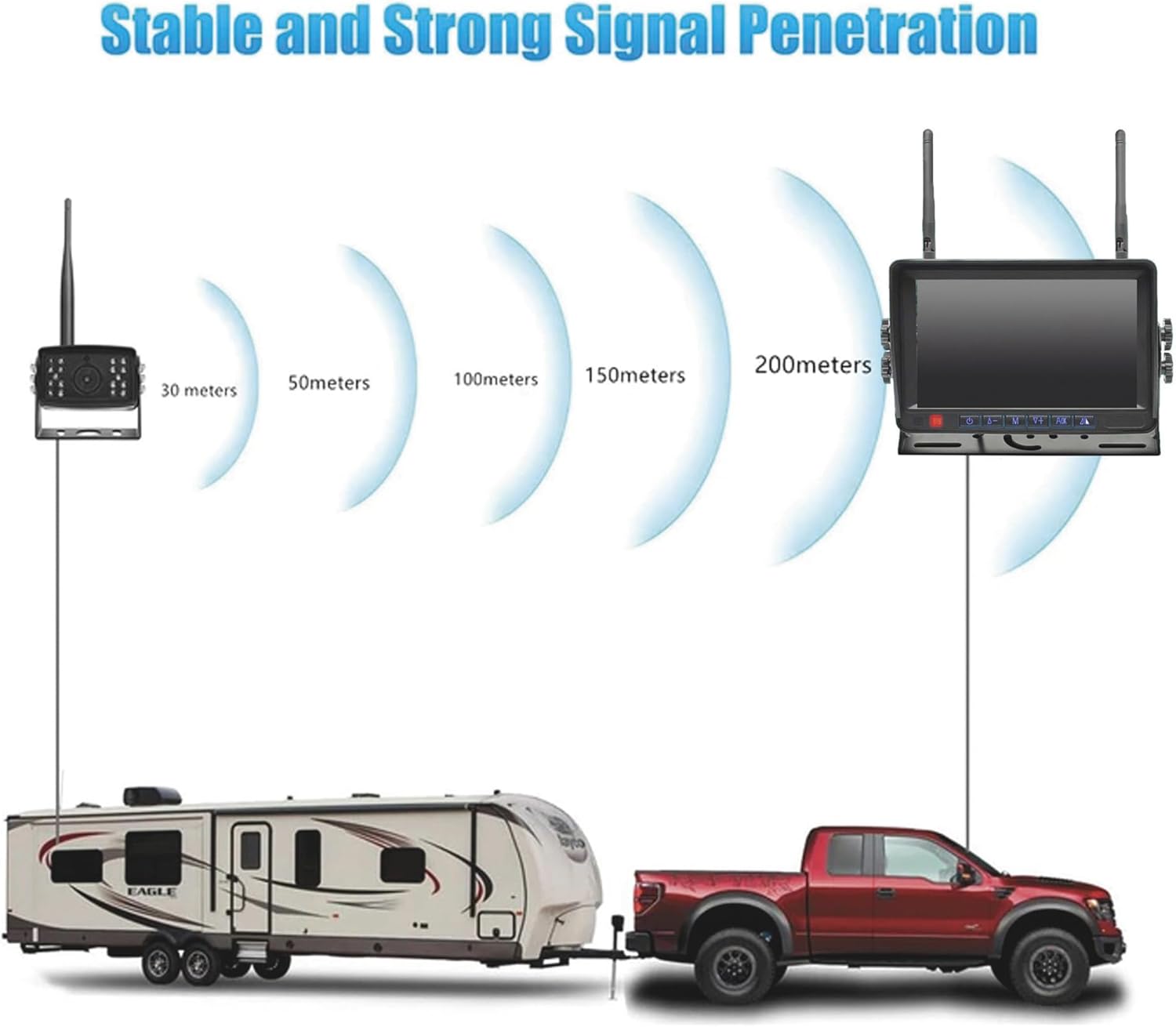
Image: A visual representation of the wireless signal penetration and range of the FalconEye system, showing effective distances up to 200 meters (approximately 650 feet) between the camera and monitor, suitable for long vehicles like trucks with trailers.

Image: An illustration demonstrating the wireless range of the FalconEye system, showing the camera and monitor communicating wirelessly over a distance of 250 feet or more, suitable for large trucks and trailers.
Operating Instructions
Familiarize yourself with the monitor's functions for optimal use.
Monitor Controls
The 7-inch LCD monitor features intuitive controls for adjusting display settings and camera views.

Image: The FalconEye monitor displaying options to turn backup lines on or off, and to flip the image between mirror (rear view) and facing (front view) modes.
- Backup Lines: The monitor allows you to toggle backup guidelines on or off, assisting with parking and maneuvering.
- Image Flip: You can flip the image horizontally to switch between mirror view (for rear camera use) and facing view (for front camera or specific applications).
- Brightness: Adjust the display brightness for optimal visibility in various lighting conditions. The monitor features 500 CD brightness for clear viewing.

Image: The FalconEye monitor highlighting its 500 CD brightness and IPS screen technology, with a comparison showing the superior clarity and color of the IPS screen compared to ordinary screens.
Night Vision
The camera is equipped with 20 IR lights, providing high-resolution night vision for up to 35-40 feet visibility in low-light or dark conditions.
Expandable System (Multi-Camera Support)
While this is a 1-cam system, the monitor is capable of connecting up to four cameras. You can view them individually or in split-screen mode if additional cameras are purchased separately.
Maintenance
Proper maintenance ensures the longevity and optimal performance of your system.
- Cleaning: Regularly clean the camera lens and monitor screen with a soft, damp cloth. Avoid abrasive cleaners that could scratch surfaces.
- Weather Protection: The camera is IP68 weatherproof and waterproof. However, ensure all connections are secure and protected from excessive moisture or extreme temperatures.
- Cable Inspection: Periodically check all cables and connections for signs of wear, fraying, or corrosion. Replace any damaged components immediately.
Troubleshooting
If you encounter issues, refer to the following common problems and solutions:
| Problem | Possible Cause | Solution |
|---|---|---|
| No image on monitor |
|
|
| Flickering or distorted image |
|
|
| Night vision not working |
|
|
Specifications
Key technical specifications for the FalconEye Electronics Wireless Backup Camera System:
| Feature | Detail |
|---|---|
| Product Dimensions | 7 x 7.5 x 9.15 inches (overall package) |
| Item Weight | 3.14 pounds |
| Monitor Screen Size | 7 Inches |
| Display Technology | LCD (TFT-LCD) |
| Camera Resolution | 720p HD |
| Camera Sensor Type | CMOS |
| Camera View Angle | 120 Degrees (Wide Angle) |
| Night Vision Range | Up to 35-40 feet (with 20 IR lights) |
| Wireless Range | 200-300 feet (effective) |
| Power Input | 12-24V DC (for camera and monitor) |
| Weather Resistance | IP68 (Camera) |
| Installation Type | Surface Mount |
| Compatible Devices | Trucks, equipment, and vehicles of any type |

Image: A visual representation of the 7-inch LCD monitor's dimensions, showing its width of 7.5 inches and height of 5.4 inches, with the screen itself measuring 7 inches diagonally.
Warranty and Support
For warranty information or technical support, please refer to the manufacturer's official website or contact FalconEye Electronics directly. Specific warranty terms and support contact details are not provided in this manual.


