
1. Introduction
This manual provides essential instructions for the setup, operation, and maintenance of your Xiaomi Outdoor Camera Base Station, Model BHR8618GL. This device serves as a central hub for compatible Xiaomi outdoor cameras, enabling network connectivity and enhanced functionality. Please read this manual thoroughly before using the product.
2. Product Overview
The Xiaomi Outdoor Camera Base Station is designed to connect and manage compatible Xiaomi outdoor security cameras. It provides network access for the cameras and may offer local storage options (depending on the specific camera system configuration).
2.1 Package Contents
- Xiaomi Outdoor Camera Base Station (Model BHR8618GL)
- Power Adapter (not explicitly listed but implied for operation)
- Ethernet Cable (optional, for wired network connection)
- User Manual (this document)
2.2 Device Layout
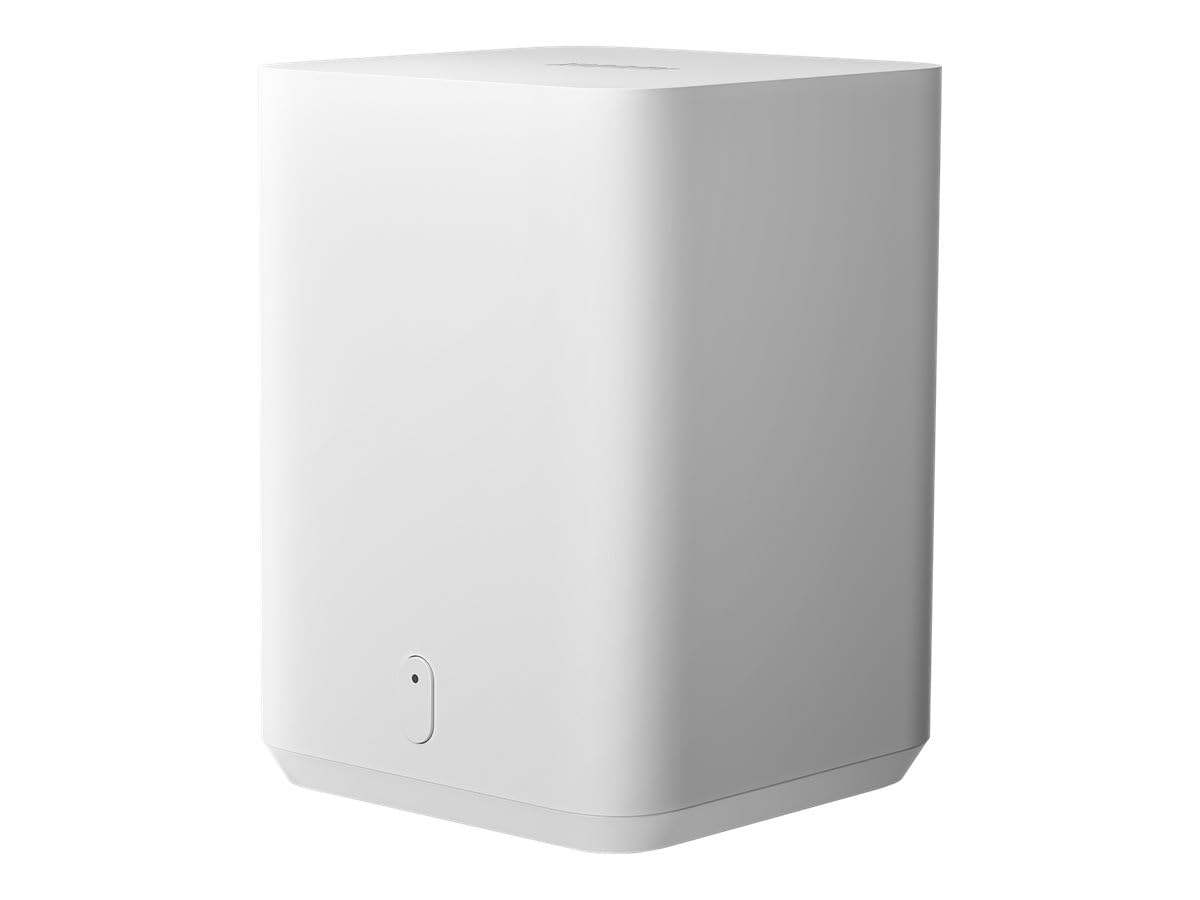
Figure 1: Front-side view of the Xiaomi Outdoor Camera Base Station. This image shows the compact, white rectangular unit with a subtle indicator light on the front panel.

Figure 2: Front view of the Xiaomi Outdoor Camera Base Station. A small, oval-shaped indicator light is visible at the bottom center of the front panel.
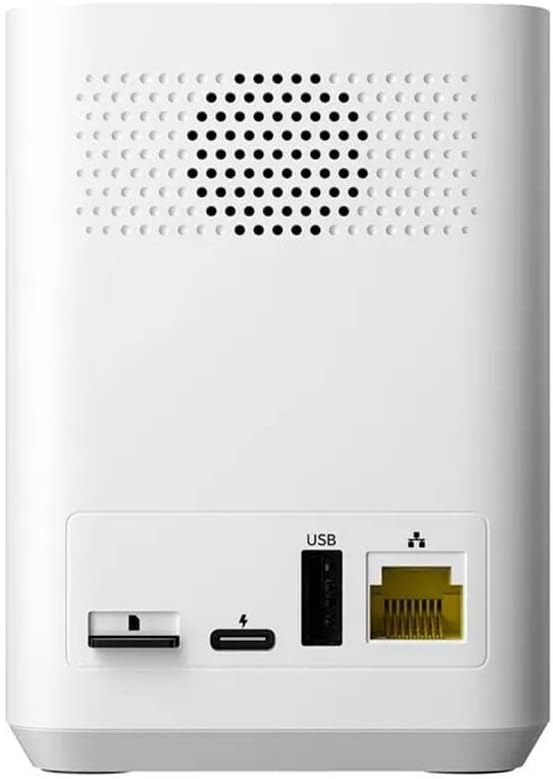
Figure 3: Rear view of the Xiaomi Outdoor Camera Base Station, showing various ports. From left to right, these include a microSD card slot, a USB-C power input, a standard USB-A port, and an Ethernet port for wired network connection.
3. Setup Instructions
3.1 Powering On the Base Station
- Connect the power adapter to the USB-C power input port on the rear of the base station.
- Plug the power adapter into a standard electrical outlet.
- The indicator light on the front of the base station will illuminate, indicating it is powering on.
3.2 Network Connection
The base station supports Wi-Fi connectivity. For initial setup or a more stable connection, an Ethernet cable can be used.
3.2.1 Wired Connection (Recommended for initial setup)
- Connect one end of an Ethernet cable to the Ethernet port on the rear of the base station.
- Connect the other end of the Ethernet cable to an available LAN port on your router.
3.2.2 Wireless Connection (Wi-Fi)
- Ensure the base station is powered on.
- Download and install the Xiaomi Home app (or relevant Xiaomi security app) on your smartphone.
- Open the app and follow the on-screen instructions to add a new device.
- Select the Xiaomi Outdoor Camera Base Station from the device list.
- Follow the app's prompts to connect the base station to your Wi-Fi network. You may need to scan a QR code or manually enter network details.
3.3 Pairing with Xiaomi Outdoor Cameras
Once the base station is connected to your network, you can pair compatible Xiaomi outdoor cameras with it.
- Ensure your Xiaomi outdoor camera is powered on and within range of the base station.
- Open the Xiaomi Home app.
- Navigate to the base station's settings or device management section.
- Select the option to "Add Camera" or "Pair New Device".
- Follow the app's instructions to complete the pairing process. This typically involves pressing a pairing button on the camera and/or scanning a QR code.
Note: This base station is designed for use with specific Xiaomi outdoor camera models. Compatibility should be verified with your camera's documentation.
4. Operating the Base Station
The base station primarily functions as a gateway and storage hub for your connected Xiaomi outdoor cameras. Most operational controls and monitoring are performed through the Xiaomi Home app.
4.1 Via Xiaomi Home App
- Live View: Access live video feeds from connected cameras.
- Recording Management: View and manage recorded footage stored on the base station (if a microSD card is installed).
- Settings: Adjust camera settings, motion detection sensitivity, notification preferences, and base station network settings.
- Firmware Updates: The app will notify you of available firmware updates for both the base station and connected cameras.
4.2 Local Storage
The base station features a microSD card slot for local video storage. Insert a compatible microSD card (up to the maximum supported capacity, typically 256GB or 512GB, though not specified in provided data) into the slot on the rear of the device. The app will guide you through formatting the card if necessary.
5. Maintenance
Regular maintenance ensures optimal performance and longevity of your base station.
5.1 Cleaning
- Ensure the device is powered off and unplugged before cleaning.
- Use a soft, dry cloth to wipe the exterior of the base station.
- Do not use liquid cleaners, aerosols, or abrasive solvents, as these can damage the device.
5.2 Firmware Updates
Periodically check for firmware updates through the Xiaomi Home app. Updates often include performance improvements, new features, and security enhancements. Always ensure a stable power supply and network connection during firmware updates.
5.3 Environmental Conditions
The Xiaomi Outdoor Camera Base Station is designed for indoor use. Place the device in a dry, well-ventilated area, away from direct sunlight, heat sources, and excessive moisture. While the connected cameras may be waterproof, the base station itself is not specified for outdoor exposure.
6. Troubleshooting
If you encounter issues with your base station, refer to the following common troubleshooting steps.
6.1 Base Station Not Powering On
- Check if the power adapter is securely connected to both the base station and the electrical outlet.
- Verify that the electrical outlet is functioning correctly by plugging in another device.
- Ensure you are using the original power adapter provided with the device.
6.2 Cannot Connect to Wi-Fi
- Ensure your Wi-Fi network is active and broadcasting.
- Verify that you have entered the correct Wi-Fi password.
- Place the base station closer to your Wi-Fi router to improve signal strength.
- If using a wired connection, ensure the Ethernet cable is securely connected to both the base station and the router.
- Restart your router and the base station.
6.3 Camera Not Recognizing Base Station
- Ensure the base station is powered on and connected to the network.
- Verify that the camera is powered on and within range of the base station.
- Check the Xiaomi Home app for any error messages or pairing instructions.
- Attempt to re-pair the camera with the base station through the app.
- Ensure both the base station and the camera have the latest firmware.
6.4 Resetting the Base Station
If issues persist, you may need to reset the base station to its factory default settings. Locate the reset button (often a small pinhole) on the device. Use a paperclip to press and hold the button for approximately 5-10 seconds until the indicator light changes or a voice prompt confirms the reset. After resetting, you will need to reconfigure the base station and re-pair your cameras.
7. Specifications
| Feature | Specification |
|---|---|
| Model Number | BHR8618GL |
| Brand | XIAOMI |
| Dimensions (L x W x H) | 11 x 8.49 x 5.5 cm |
| Weight | 320 grams |
| Connectivity Protocol | Wi-Fi |
| Recommended Use | Indoor Security (for the base station) |
| Compatible Cameras | Xiaomi Outdoor Cameras (specific models may vary) |
| Special Feature | Supports HD Resolution (for connected cameras) |
| Power Source | Requires external power adapter (not battery operated) |
| Storage | MicroSD card slot for local storage |
Note: Specifications are subject to change without prior notice. The "Waterproof" and "Outdoor Use" specifications mentioned in some product listings typically refer to the compatible outdoor cameras, not the base station itself.
8. Warranty and Support
8.1 Manufacturer's Warranty
This Xiaomi Outdoor Camera Base Station (Model BHR8618GL) comes with a 2-year manufacturer's warranty. This warranty covers defects in materials and workmanship under normal use. Please retain your proof of purchase for warranty claims. The warranty does not cover damage caused by misuse, accidents, unauthorized modifications, or failure to follow the instructions in this manual.
8.2 Customer Support
For technical assistance, warranty claims, or further inquiries, please contact Xiaomi customer support through their official website or the Xiaomi Home app. You may need to provide your product model number (BHR8618GL) and proof of purchase.
Official Xiaomi Website: www.mi.com


