
Introduction
This manual provides detailed instructions for setting up, operating, and maintaining your LB-LINK Archer BL-W1210M AC1200 Dual Band Wireless Router. This device is designed to provide high-speed wireless connectivity for your home or office, supporting both 2.4 GHz and 5 GHz frequency bands for optimal performance.
Product Overview
The LB-LINK Archer BL-W1210M is an AC1200 Dual Band Wireless Router offering combined speeds of up to 1200 Mbps (300 Mbps on 2.4 GHz and 867 Mbps on 5 GHz). It features four high-gain external antennas for extensive coverage and stability. The router supports advanced security protocols like WPA/WPA2 encryption and an SPI firewall to protect your network. Its intuitive web-based management interface simplifies setup and configuration.
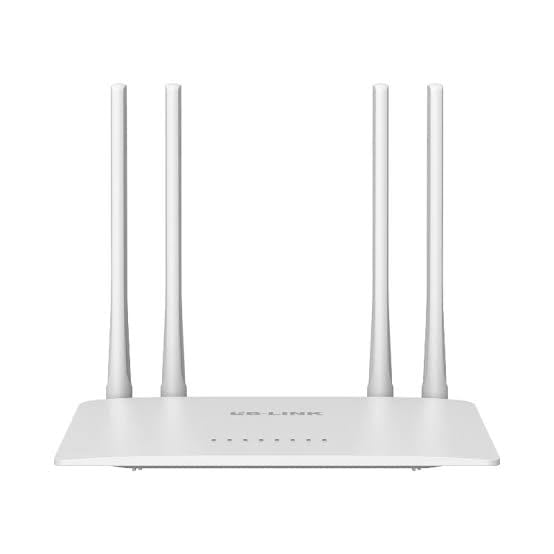
Image: The product packaging for the LB-LINK Archer BL-W1210M AC1200 Dual Band Wireless Router, showing the device and its key features.
Package Contents
Verify that your package contains the following items:
- LB-LINK Archer BL-W1210M AC1200 Dual Band Wireless Router
- Power Adapter
- Ethernet Cable
- Quick Installation Guide (if included)
Setup
1. Hardware Connection
- Power Off: Disconnect the power from your modem and router (if applicable).
- Connect Modem: Connect one end of the provided Ethernet cable to the WAN port (often blue) on your LB-LINK router and the other end to your modem's Ethernet port.
- Connect Power: Plug the power adapter into the router's power jack and then into a wall outlet.
- Power On: Power on your modem first, wait for it to fully boot (usually indicated by stable lights), then power on your LB-LINK router. Wait for the router's indicator lights to stabilize.
- Connect Computer (Optional): For initial setup, you can connect your computer directly to one of the router's LAN ports (yellow) using an Ethernet cable, or connect wirelessly using the default Wi-Fi name (SSID) and password printed on the router's label.
2. Initial Configuration
- Access Web Interface: Open a web browser (e.g., Chrome, Firefox) on a connected computer or mobile device. In the address bar, type the default IP address, typically 192.168.0.1 or 192.168.1.1, and press Enter.
- Login: Enter the default username and password. These are usually admin for both, or found on the router's label.
- Run Quick Setup: Follow the on-screen instructions of the Quick Setup Wizard. This will guide you through setting up your internet connection (WAN settings) and configuring your wireless network (Wi-Fi name and password).
- Change Default Settings: For security, it is highly recommended to change the default login password for the router's management page and customize your Wi-Fi network names (SSIDs) and passwords.
Operating
1. Connecting Devices to Wi-Fi
After initial setup, you can connect your wireless devices (smartphones, tablets, laptops) to your new Wi-Fi network:
- On your device, go to Wi-Fi settings.
- Select the 2.4 GHz or 5 GHz network name (SSID) you configured.
- Enter the Wi-Fi password you set.
2. Dual-Band Operation
The router operates on two frequency bands:
- 2.4 GHz: Offers wider coverage and better penetration through walls, suitable for general browsing and devices further from the router.
- 5 GHz: Provides faster speeds and less interference, ideal for bandwidth-intensive activities like HD streaming and online gaming, especially for devices closer to the router.
3. Guest Network
The router supports creating separate guest networks. This allows guests to access the internet without gaining access to your main network resources. You can enable and configure guest networks through the router's web management interface.
4. Parental Control
Utilize the parental control features to manage internet access for specific devices or users. This can include setting time limits or blocking certain websites. Access these settings via the router's web management interface.
Maintenance
1. Firmware Updates
Periodically check the LB-LINK official website for firmware updates. Updating your router's firmware can improve performance, add new features, and enhance security. Follow the instructions provided with the firmware update carefully.
2. Resetting the Router
If you encounter persistent issues or forget your login credentials, you may need to perform a factory reset. To do this, with the router powered on, press and hold the reset button (usually a small pinhole button on the back) for about 5-10 seconds until the lights flash. The router will restart with factory default settings.
Troubleshooting
- No Internet Access:
- Check all cable connections (modem to router, router to computer).
- Restart your modem and router.
- Verify your WAN settings in the router's web interface.
- Contact your Internet Service Provider (ISP) to ensure there are no service outages.
- Slow Wi-Fi Speed:
- Ensure your device is connected to the appropriate band (5 GHz for faster speeds, if supported).
- Move closer to the router or reduce obstacles.
- Check for interference from other electronic devices.
- Update router firmware.
- Cannot Access Router Management Page:
- Ensure your device is connected to the router (wired or wireless).
- Verify the IP address entered in the browser (e.g., 192.168.0.1).
- Try a different web browser.
- Perform a factory reset if you have forgotten the login credentials (note: this will erase all custom settings).
Specifications
| Feature | Detail |
|---|---|
| Model Name | Archer BL-W1210M |
| Frequency Band Class | Dual-Band (2.4 GHz & 5 GHz) |
| Wireless Communication Standard | 802.11ac |
| Data Transfer Rate | Up to 1200 Mbps (300 Mbps on 2.4 GHz + 867 Mbps on 5 GHz) |
| LAN Port Bandwidth | 100 Mbps |
| Number of Ports | 5 (1 WAN, 4 LAN) |
| Security Protocol | IP/MAC Address Filter, WPA-PSK, WPA2-PSK |
| Special Features | 11ac fast speed, 2 guest networks, Parental Control |
| Compatible Devices | PC, Laptop, Mobile devices |
| Voltage | 12 Volts |
| Item Weight | 500 Grams |
| Item Dimensions (L x W x H) | 26L x 7W x 29H Centimeters |
| Colour | White |
Warranty and Support
Warranty Description: This product comes with a 1-year warranty. Please note that the warranty is void if the original box is not retained or if there is any kind of physical damage to the product.
Importer/Packer Contact Information:
MRJ Electronics
Ahmedabad, Gujarat
Email: electronicsmrj@gmail.com
Contact: 9023265213
For technical support or warranty claims, please contact MRJ Electronics directly.
