
1. Introduction
This manual provides detailed instructions for the Cloudpower GRBL CNC 3-Axis Offline Controller Board. This device enables manual control and offline operation of compatible GRBL CNC engraving machines, including 3018 Pro, 1610, 2418, and 3018 models. Please read this manual thoroughly before use to ensure proper setup and operation.
2. Product Overview
The Cloudpower GRBL CNC Offline Controller Board is designed to enhance the functionality of your CNC engraving machine by providing standalone control. Key features include:
- Offline Control: Operate your engraving machine without a computer connection.
- Manual Positioning: Precisely adjust XYZ axis positions and spindle control.
- File Storage: Functions as a USB mass storage device for direct file transfers and can read up to 600 files.
- Dual Language Interface: Supports both Chinese and English.
- Wide Compatibility: Compatible with all versions of GRBL control boards for 3018 Pro, 1610, 2418, and 3018 engraving machines.

Figure 2.1: Cloudpower GRBL CNC Offline Controller Board and included connection cable.
3. Setup
Follow these steps to set up your GRBL CNC Offline Controller Board:
- Connect to GRBL Motherboard: Use the provided connection cable to link the offline controller board to your GRBL control board. Ensure the connectors are properly aligned and securely inserted.
- Power On: Once connected, power on your CNC engraving machine. The offline controller board display should illuminate.
- File Transfer (Optional): To transfer G-code files from your computer, connect the offline board to your computer via a USB cable (not included). The board will be recognized as a USB mass storage device, allowing you to drag and drop files.
- TF Card Usage: For offline engraving, insert a TF card containing your G-code files into the TF card slot on the controller. Ensure G-code files are placed in the root directory of the TF card for easy access.

Figure 3.1: Detail of the connection port for the GRBL motherboard.
4. Operating Instructions
This section details the functions of the controller buttons and how to perform common operations.
4.1. Language Switch
To switch between Chinese and English languages, press and hold the Z+ button on the homepage of the controller's display.
4.2. Manual Axis Control
Use the following buttons for manual control of the engraving machine's axes:
- Press Z+: Moves the Z-axis upwards.
- Press Z-: Moves the Z-axis downwards.
- Press X+: Moves the X-axis to the right.
- Press X-: Moves the X-axis to the left.
- Press Y+: Moves the Y-axis forward.
- Press Y-: Moves the Y-axis backward.
These controls allow you to precisely set the engraving starting point.
4.3. Spindle Control
To control the spindle:
- Press Spindle button: Turns the spindle ON.
- Press Spindle button again: Turns the spindle OFF.
4.4. Returning to Previous Menu
Press the SMOD button to return to the previous menu or screen.
4.5. Offline Engraving
After loading G-code files onto a TF card and inserting it into the controller, navigate through the controller's menu to select the desired file for engraving. The controller will then send the commands to the GRBL motherboard, allowing the engraving process to proceed without a computer connection.
5. Maintenance
To ensure the longevity and optimal performance of your Cloudpower GRBL CNC Offline Controller Board, follow these general maintenance guidelines:
- Cleaning: Regularly wipe the controller' with a soft, dry cloth to remove dust and debris. Avoid using liquid cleaners directly on the device.
- Storage: Store the controller in a dry, cool environment away from direct sunlight and extreme temperatures.
- Handle with Care: Avoid dropping the device or subjecting it to strong impacts, as this can damage internal components.
- Cable Inspection: Periodically check the connection cable for any signs of wear or damage. Replace if necessary.
6. Troubleshooting
This section addresses common issues you might encounter. If you experience problems not listed here, please refer to the support section.
| Problem | Possible Cause | Solution |
|---|---|---|
| Controller display does not turn on. | No power to the GRBL motherboard or loose connection. | Ensure the GRBL motherboard is powered on. Check that the connection cable between the controller and motherboard is securely attached. |
| Axes do not move with button presses. | Incorrect mode, machine not enabled, or connection issue. | Verify the machine is enabled and not in an alarm state. Check all motor connections to the GRBL motherboard. Ensure the controller is properly connected. |
| Cannot read files from TF card. | Files not in root directory, incompatible file format, or faulty TF card. | Ensure G-code files are directly in the root directory of the TF card. Verify file format is compatible (e.g., .nc, .gcode). Try a different TF card. |
| Language switch not working. | Button not held long enough or not on the homepage. | Return to the main homepage and press and hold the Z+ button for a few seconds. |
7. Specifications
| Feature | Detail |
|---|---|
| Model Number | F04MOYT4LJ45P4P4731JIQJOXW3 |
| Display Size | 1.8-inch |
| Dimensions (L x W x H) | 10 x 4 x 2 cm (3.9 x 1.7 x 0.8 inches) |
| Material | Plastic |
| Compatibility | GRBL control boards for 3018 Pro, 1610, 2418, 3018 engraving machines |
| File Storage | Supports TF card, USB mass storage via PC connection |
| Max Files Read | 600 files |
| Language Support | Chinese, English |
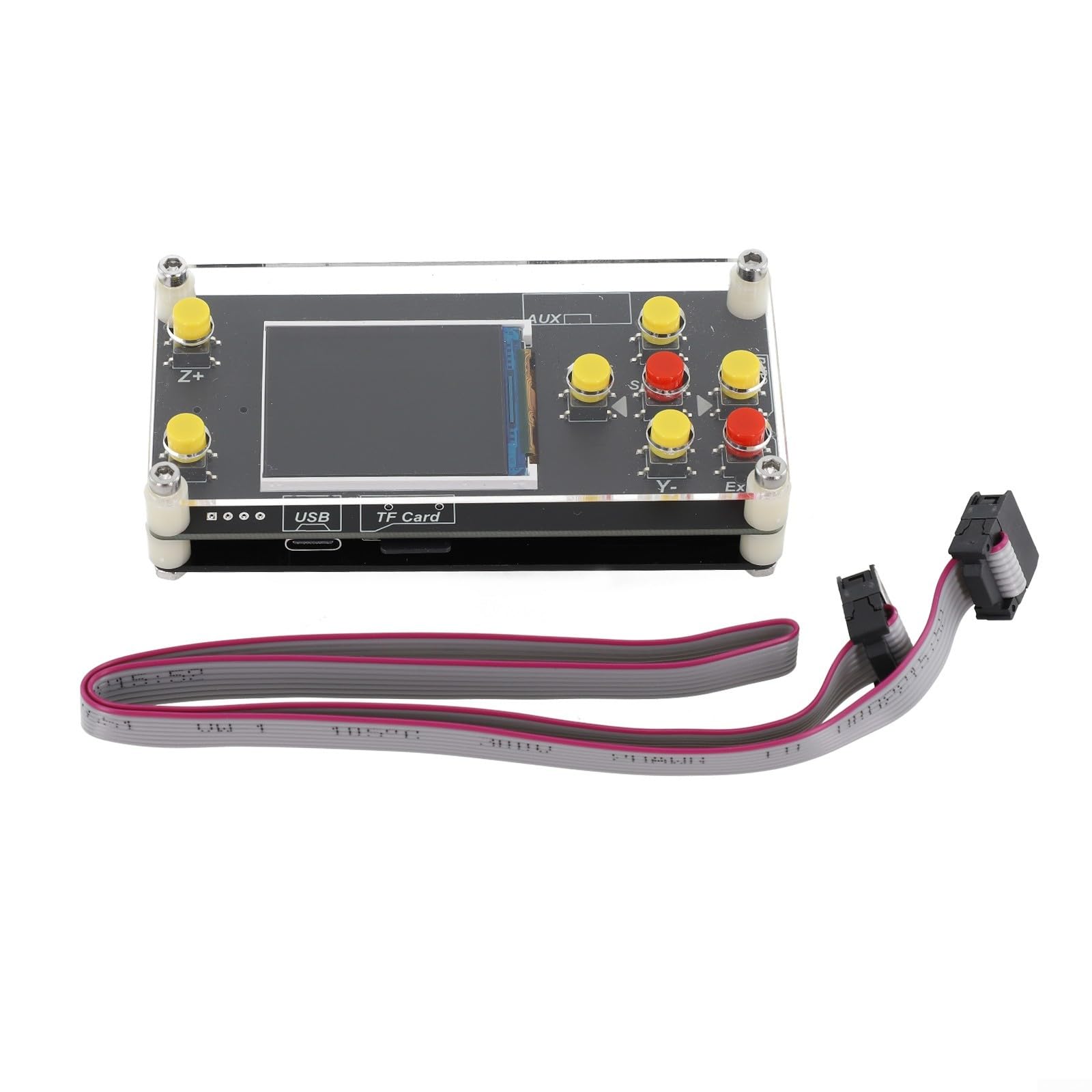
Figure 7.1: Physical dimensions of the controller board.
8. Warranty and Support
For warranty information or technical support, please contact Cloudpower customer service through the retailer where the product was purchased. Keep your purchase receipt as proof of purchase.