
Introduction
The Eureka E6 Plus is an advanced robot vacuum and mop designed to provide efficient and thorough cleaning for your home. Featuring powerful 5000Pa suction, precise LiDAR navigation, and an automatic dust emptying system, it offers a convenient and hands-free cleaning experience. This manual provides detailed instructions for setting up, operating, maintaining, and troubleshooting your device.
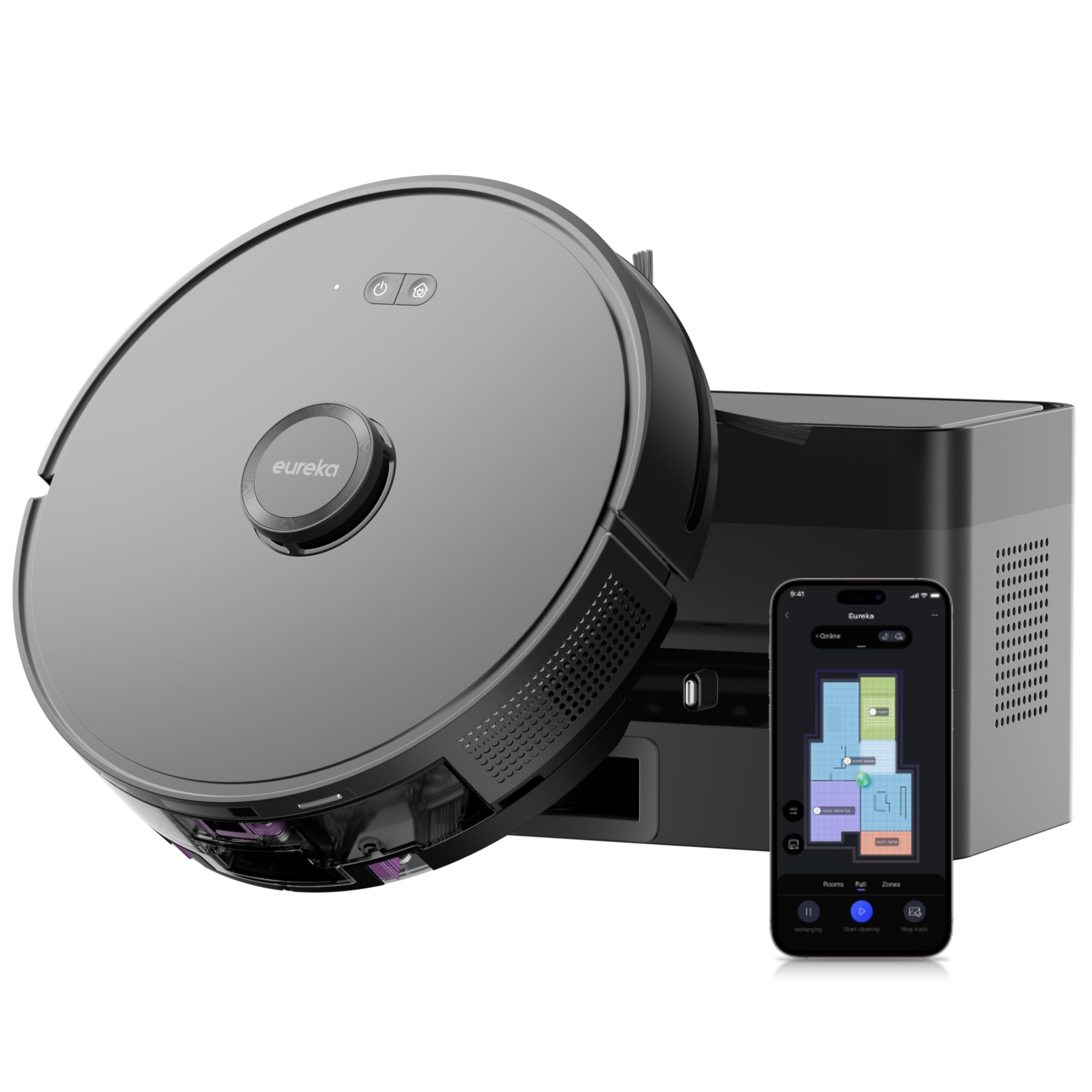
The Eureka E6 Plus Robot Vacuum and Mop with its auto-empty station.
Setup
1. Unboxing and Component Check
Carefully remove all components from the packaging. Ensure all items listed below are present:
- Robot Vacuum
- Auto-Empty Station
- Rolling Brush
- Filter Set
- Dust Bag
- Side Brush
- Cleaning Tool
- 2-in-1 Water Tank
- Mop Pad
- Mop Holder

All components included in the Eureka E6 Plus package.
2. Charging Base Placement
Place the auto-empty station on a hard, level surface against a wall. Ensure there is at least 0.5 meters (1.6 feet) of clear space on both sides and 1.5 meters (4.9 feet) in front of the station for optimal robot navigation. Plug the power cord into the station and a wall outlet.

The compact design of the auto-empty station allows for flexible placement in your home.
3. Initial Charge
Place the robot onto the charging base. Ensure the charging contacts on the robot align with those on the station. The robot will automatically begin charging. For first-time use, fully charge the robot before operation.
4. App Connection
Download the "Eureka Robot" app from your mobile device's app store. Follow the in-app instructions to connect your robot. This typically involves pressing and holding the power and home buttons on the robot simultaneously to activate pairing mode, then adding the device in the app.

Visual guide for connecting the robot to the Eureka Robot application.
Operating Instructions
1. Starting and Stopping Cleaning
Press the power button on the robot or use the mobile app to start a cleaning cycle. Press it again to pause. To send the robot back to its charging station, press the home button on the robot or select the 'Recharge' option in the app.
2. Cleaning Modes
The Eureka E6 Plus supports multiple cleaning modes, including vacuuming, mopping, and simultaneous vacuuming and mopping. You can select and customize these modes via the Eureka Robot app.

The robot vacuum and mop cleans simultaneously, offering 3 adjustable water levels for mopping.
3. Smart Navigation and Mapping
The robot uses LiDAR navigation to create precise maps of your home, allowing for efficient route planning and comprehensive cleaning. Through the app, you can view these maps, set virtual walls, define no-go zones, and schedule cleaning tasks for specific areas or times.

The robot utilizes precise LiDAR navigation for quick mapping and advanced route planning.

The app allows you to schedule cleaning, set virtual boundaries, and adjust water output levels.
4. Edge Cleaning and Obstacle Avoidance
The E6 Plus is equipped with advanced sensors to detect and clean along edges and corners effectively. Its large wheels allow it to overcome obstacles and thresholds up to 18mm, ensuring seamless cleaning across different floor types.

The robot incorporates an advanced PSD sensor for reliable edge and corner cleaning.
Maintenance
1. Auto-Empty Dust Bag Replacement
The auto-empty station features a 2.5L dust bag that can hold debris for up to 60 days. When the bag is full, the app will notify you. Replace the dust bag by opening the station's lid, removing the full bag, and inserting a new one.

The auto-empty station can hold up to 60 days of dust in its 2.5L bag.
2. Cleaning the Rolling Brush
The anti-tangle rolling brush is designed to minimize hair entanglement. Periodically remove the rolling brush cover and clean any accumulated hair or debris using the provided cleaning tool. This ensures optimal suction performance.

The anti-tangle brush design prevents hair from getting tangled, ensuring consistent cleaning.
3. Water Tank and Mop Pad Maintenance
After mopping, remove the 2-in-1 water tank and empty any remaining water. Clean the mop pad thoroughly and allow it to air dry before reattaching. Regularly check the water tank for blockages and clean as needed.
4. Filter Cleaning
The robot's filter should be cleaned regularly to maintain suction efficiency. Remove the dustbin, then remove the filter. Tap the filter gently to dislodge dust, or rinse it with water if it's washable (refer to specific instructions for your filter type). Ensure the filter is completely dry before reinserting.
Troubleshooting
| Problem | Possible Cause | Solution |
|---|---|---|
| Robot does not start | Low battery; Power button not pressed; Robot stuck. | Charge the robot; Press power button firmly; Clear obstacles. |
| Poor suction performance | Full dustbin; Clogged filter; Tangled rolling brush. | Empty dustbin; Clean/replace filter; Clean rolling brush. |
| Robot cannot find charging station | Station obstructed; Robot too far; Station unplugged. | Ensure clear space around station; Manually place robot closer; Check power connection. |
| App connection issues | Incorrect Wi-Fi password; Robot not in pairing mode; Router issues. | Verify Wi-Fi credentials; Re-enter pairing mode; Restart router. |
| Mopping leaves streaks | Dirty mop pad; Insufficient water; Incorrect water level setting. | Clean mop pad; Refill water tank; Adjust water level in app. |
For further assistance, please refer to the Eureka Robot app's help section or contact customer support.
Specifications
| Feature | Detail |
|---|---|
| Model Name | E6 Plus-BK |
| Suction Power | 5000 Pa |
| Auto-Empty Dust Bag Capacity | 2.5 Liters (up to 60 days) |
| Navigation Type | LiDAR |
| Battery Life | 100 Minutes |
| Battery Composition | Lithium Ion |
| Control Methods | App Control, Button Control, Voice Control |
| Compatible Devices | Amazon Echo, Google Home, Smartphones |
| Product Dimensions (L x W x H) | 32.5 x 32 x 10 cm |
| Item Weight | 5.5 Kilograms |
| Noise Level | 65 Decibels |
| Surface Recommendation | Hard floors, parquet, carpets |
| Special Features | App/Voice Control, Simultaneous Vacuuming & Mopping, Mapping, Obstacle Avoidance, Automatic Dust Collection |
Warranty and Support
Your Eureka E6 Plus Robot Vacuum and Mop comes with a standard manufacturer's warranty. Please refer to the warranty card included in your product packaging for specific terms and conditions, including coverage duration and claim procedures.
For technical support, troubleshooting assistance, or to inquire about replacement parts, please visit the official EUREKA website or contact their customer service department. Contact information can typically be found on the product packaging or the official brand website.
Always ensure you are using genuine Eureka replacement parts to maintain product performance and warranty validity.