
DJI Neo
DJI Neo - The Practice Manual
Fly Like a Pro
Introduction to DJI Neo
This manual provides comprehensive guidance for operating the DJI Neo drone. It covers essential features, flight operations, safety protocols, and maintenance procedures to ensure a safe and optimal flying experience.

Image: Front cover of the DJI Neo Practice Manual, featuring the DJI Neo drone in flight over a coastal landscape.
Setup and Preparation
1.1 General Features
The DJI Neo is designed for ease of use and flight stability, making it suitable for both beginners and experienced pilots. It integrates advanced flight control systems and a high-quality camera for aerial photography and videography.
1.2 Drone Preparation and Product Activation
Before the first flight, ensure all components are securely attached. This includes propellers, battery, and gimbal protector. The drone requires activation through the DJI Fly application to unlock full functionality. Follow the on-screen prompts within the app for a guided activation process.
1.3 Product Activation
To activate your DJI Neo, connect the drone to your mobile device via the DJI Fly app. A stable internet connection is required for activation. Once connected, the app will guide you through the registration and activation steps. Ensure the drone's firmware is up to date during this process.
Operating the DJI Neo
2.1 Preliminary Operations
Before each flight, perform a pre-flight checklist: check battery levels of the drone and remote controller, ensure propellers are free from damage, verify GPS signal strength, and confirm no obstacles are in the flight path.
2.2 Control via DJI FLY App (no RC)
The DJI Neo can be controlled directly via the DJI Fly app on your mobile device. This mode is ideal for quick flights or when a remote controller is not available. The app provides virtual joysticks and access to intelligent flight modes.
2.3 DJI RC N3: Features and Specifications
The DJI RC N3 remote controller offers precise control and extended range. It features a foldable design, integrated antennas, and a dedicated slot for your mobile device. Familiarize yourself with the control sticks and customizable buttons for optimal flight control.
2.4 DJI RC-N3: Flight Modes
The DJI Neo supports various flight modes accessible via the RC-N3, including Normal, Sport, and Cine modes. Each mode adjusts the drone's responsiveness and speed for different flying scenarios.
2.5 DJI RC-N3: Controlling the Aircraft
Mastering the control sticks is crucial for smooth flight. The left stick typically controls altitude and yaw, while the right stick controls forward, backward, and sideways movement. Practice in an open area to gain proficiency.
2.6 Signal Transmission
The DJI Neo utilizes advanced signal transmission technology for a stable connection between the drone and the remote controller or mobile device. Maintain line of sight with the drone and avoid areas with strong electromagnetic interference to ensure signal integrity.
3. Advanced Safety Functions
The DJI Neo incorporates several safety features to enhance flight security.
- 3.1 Return To Home (RTH): This feature automatically brings the drone back to its recorded home point when activated manually, or when the battery is low, or signal is lost.
- 3.2 Vision System: The drone's vision system assists with precise hovering and obstacle avoidance in certain environments. Ensure the vision sensors are clean and unobstructed.
4. DJI FLY App Interface and Settings
The DJI Fly app is your primary interface for monitoring flight data, adjusting settings, and accessing intelligent features.
- 4.2 Flight Interface: The app's flight interface displays real-time flight parameters such as altitude, speed, distance, battery level, and GPS signal.
- 4.3 App Settings: Customize drone behavior, camera parameters, and safety settings within the app. Regularly review these settings to match your flying environment and preferences.
5. Camera and Gimbal Operation
The DJI Neo's integrated camera and gimbal system are crucial for capturing high-quality aerial content.
- 5.1 Camera: The camera captures photos and videos. Understand its capabilities regarding resolution, frame rates, and field of view.
- 5.2 IES Stabilization: The Integrated Electronic Stabilization (IES) system works with the mechanical gimbal to ensure smooth and stable footage, even during dynamic flight.
- 5.3 Gimbal: The 3-axis mechanical gimbal stabilizes the camera, compensating for drone movements to keep the footage level and shake-free.
- 5.4 DJI RC-N3: Use the dedicated gimbal dial on the RC-N3 to control the camera's tilt angle during flight.
- 5.5 Camera Settings: Adjust exposure, ISO, shutter speed, white balance, and color profiles within the DJI Fly app to achieve desired photographic results.
- 5.6 Exposure: Proper exposure is key to good image quality. Utilize the app's histogram and exposure warnings to avoid over or underexposure.
6. Advanced Aircraft Control
Unlock the full potential of your DJI Neo with intelligent flight features.
- 6.1 Smart Snaps: Utilize pre-programmed flight paths to capture cinematic shots with ease.
- 6.2 Voice Control and Recording Audio Via App: Control certain drone functions using voice commands and record audio through your mobile device's microphone, which can be synced with video footage.
- 6.3 QuickShots: Automated flight patterns like Dronie, Rocket, Circle, and Helix allow for professional-looking video clips with minimal effort.
- 6.4 FocusTrack: This feature allows the drone to automatically track a selected subject, keeping it in the frame while flying.
- 6.5 Cruise Control: Maintain a constant speed and direction without continuous stick input, ideal for long, smooth shots.
7. Video Editing (via app)
The DJI Fly app includes basic editing tools to enhance your captured footage.
- 7.1 Templates & One-Tap Edit: Use pre-designed templates to quickly create dynamic videos with music and effects.
- 7.2 Edit like a Pro (New Project): For more control, create a new project to manually trim clips, add music, filters, and text overlays.
Maintenance
9.1 Firmware Update
Regularly check for and install firmware updates for both the drone and the remote controller via the DJI Fly app. Updates often include performance improvements, new features, and bug fixes.
9.2 Intelligent Flight Battery
Proper battery care extends its lifespan. Store batteries at approximately 50-60% charge, avoid extreme temperatures, and do not overcharge or over-discharge. Inspect for swelling or damage before each use.
9.3 Calibration and Status LEDs
Periodically calibrate the compass and IMU (Inertial Measurement Unit) as prompted by the app or if flight performance degrades. Understand the meaning of the drone's status LEDs for quick diagnostics.
9.4 Attaching and Detaching the Propellers
Ensure propellers are correctly attached to their respective motor bases (marked for clockwise/counter-clockwise rotation). Always power off the drone before attaching or detaching propellers. Use caution as propeller edges can be sharp.
9.5 DJI Care Refresh
Consider purchasing DJI Care Refresh for comprehensive protection against accidental damage. Refer to the DJI official website for terms and conditions.
Troubleshooting
This section addresses common issues you might encounter with your DJI Neo.
| Problem | Possible Cause | Solution |
|---|---|---|
| Drone does not power on. | Low battery; Battery not inserted correctly. | Charge battery fully; Reinsert battery firmly. |
| Weak or lost signal. | Interference; Drone too far; Obstacles. | Fly in open areas; Stay within range; Avoid obstacles. |
| Unstable flight/Drifting. | IMU/Compass not calibrated; Strong winds. | Calibrate IMU/Compass via app; Fly in calm conditions. |
| Camera footage is shaky. | Gimbal protector still on; Gimbal damaged; Propellers unbalanced. | Remove gimbal protector; Inspect gimbal for damage; Check propellers for bends/cracks. |
For further assistance, refer to the DJI official support resources or contact customer service.
Specifications
Key technical specifications for the DJI Neo drone and related components.
- Model: DJI Neo
- ASIN: B0DJ8FDX12
- ISBN-13 (Manual): 979-8340706539
- Dimensions (Manual): 7 x 0.47 x 10 inches
- Weight (Manual): 1.03 pounds
- Language: English
- Publisher: Independently published
- Publication Date: September 29, 2024
- Print Length: 206 pages
- Series: DJI Practice Manuals (Color Version), Book 5 of 11
Note: Drone specifications are typically found in the product's official documentation. The specifications listed here pertain to the manual itself.
Regulatory Information
8.1 Regulatory Requirements
Operating drones is subject to local aviation regulations. It is the pilot's responsibility to understand and comply with all applicable laws, including registration, airspace restrictions, and operational guidelines.
8.2 Rules (EU, UK & US)
Specific rules apply in different regions. For example, in the EU, UK, and US, regulations cover drone weight, maximum altitude, proximity to airports, and privacy concerns. Always consult official aviation authority websites (e.g., FAA in the US, EASA in the EU, CAA in the UK) for the most current information.
Additional Information
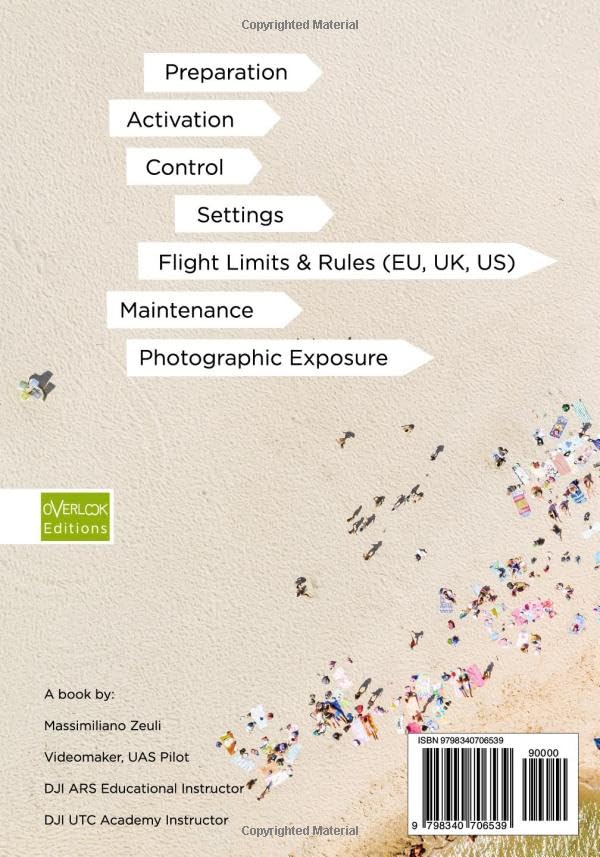
Image: Back cover of the DJI Neo Practice Manual, outlining key topics covered within the book.
This manual is part of the DJI Practice Manuals series, designed to help users master their DJI drones. For more detailed information or specific scenarios, refer to the full publication or official DJI resources.
Ask a question about this manual
Ask about setup, troubleshooting, compatibility, parts, safety, or missing instructions. Manuals+ will review the question and use this page’s manual context to help answer it.