
autoabc I
autoabc Wireless CarbitLink USB Dongle (Model I) User Manual
For CarPlay and Android Auto Functionality
1. Product Overview
The autoabc Wireless CarbitLink USB Dongle (Model I) provides seamless integration of Apple CarPlay and Android Auto into compatible vehicle infotainment systems. This device enables wireless access to your smartphone's navigation, music, communication, and other applications directly on your car's display, enhancing your driving experience with convenience and connectivity.

Image 1.1: Overview of the autoabc Wireless CarbitLink USB Dongle, showing its compact design and how it integrates with a car's display for both Apple CarPlay and Android Auto.
What's in the Box:
- autoabc Wireless CarbitLink USB Dongle
- USB Connection Cable
- User Manual (this document)
2. Compatibility Requirements
Before installation, ensure your vehicle and smartphone meet the following requirements:
- Vehicle Compatibility: The dongle is designed for vehicles with OEM Carbit Link, Smart Link, Phone Link, or Easy Connect functionality, version 6.0 and above. It is primarily compatible with 98% of Chinese brand cars.
- Smartphone Compatibility: Supports both Apple CarPlay (iOS) and Android Auto (Android).
- USB Port: Your vehicle must have a functional USB port for connecting the dongle.
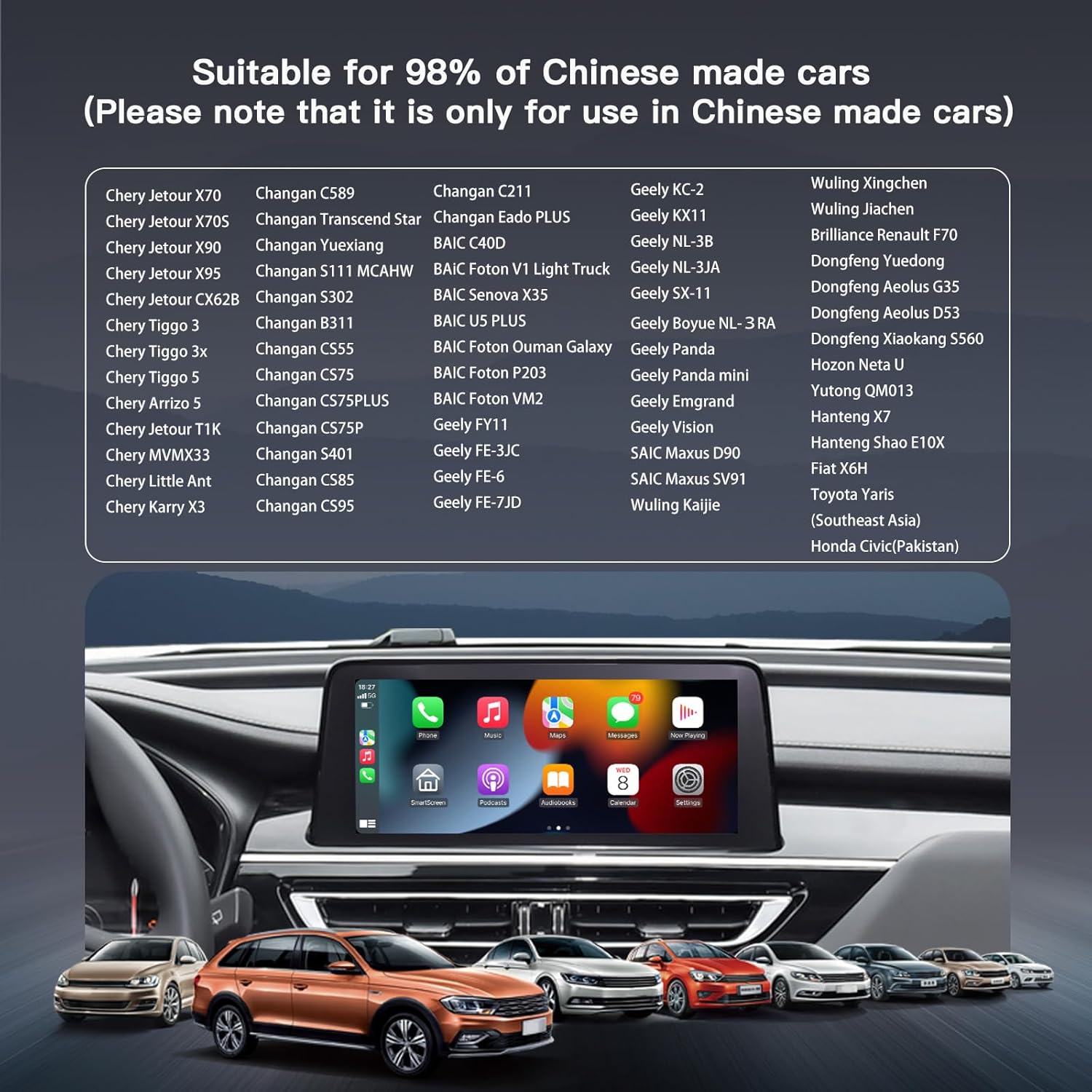
Image 2.1: A visual representation of various compatible Chinese car models, highlighting the dongle's broad compatibility with these vehicles.
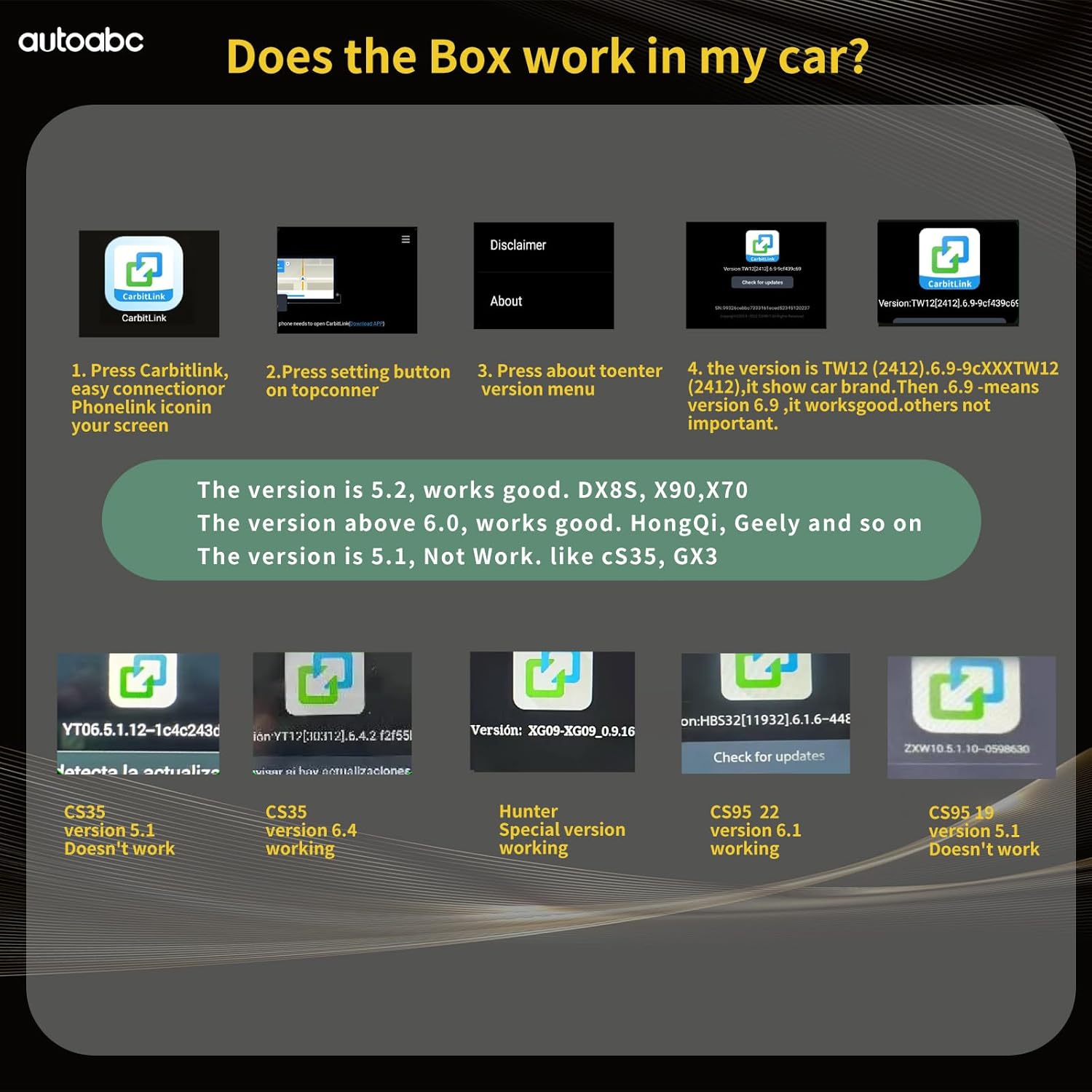
Image 2.2: A chart detailing CarbitLink software versions and their compatibility with the dongle. Versions 5.2, 6.0, and above are generally compatible, while version 5.1 and specific models like CS35 version 5.1 are not.
3. Setup Instructions
Follow these steps to set up your autoabc Wireless CarbitLink USB Dongle:
- Connect the Dongle: Plug the USB dongle into your car's original USB port. Ensure the connection is secure.
- Access Mobile Connect: On your car's infotainment screen, navigate to the 'Mobile Connect' or 'Easy Connection' option. This will display a QR code or a prompt to connect your phone via Bluetooth.
- Pair via Bluetooth: On your smartphone, go to Bluetooth settings and search for available devices. Select the device named "Carplay&Auto_XXXX" (where XXXX is a unique identifier). Confirm the pairing request on both your phone and the car screen.
- Automatic Interface Launch: Once Bluetooth pairing is successful, the CarPlay or Android Auto interface will automatically launch on your car's display.

Image 3.1: Visual guide showing the three main steps for setup: plugging in the dongle, pairing via Wi-Fi and Bluetooth, and using CarPlay.
Video 3.1: This video demonstrates the complete setup process for the autoabc Wireless CarbitLink USB Dongle, including connecting the device, pairing a smartphone via Bluetooth for both Apple CarPlay and Android Auto, and showcasing basic functionalities like navigation and music playback.
4. Operating Instructions
Once connected, you can utilize the features of Apple CarPlay or Android Auto:
4.1. Apple CarPlay Operation
- Navigation: Use online map applications for real-time directions.
- Music & Audio: Stream music, podcasts, and audiobooks through your car's sound system. CarPlay audio is output through the original car's Bluetooth channel with lossless sound quality.
- Phone Calls: Make and receive calls directly from the car's display.
- Voice Control: Activate Siri for hands-free control of various functions.
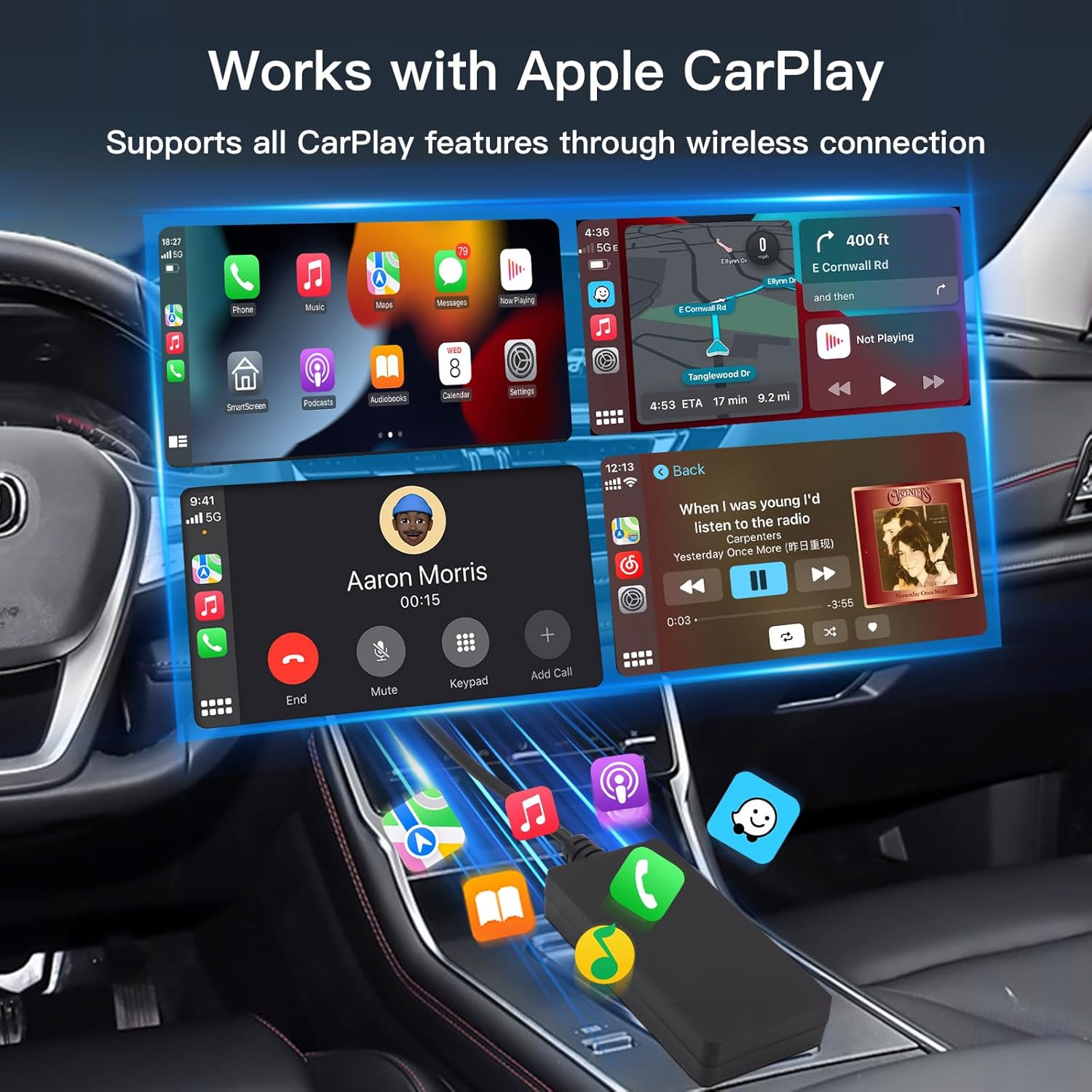
Image 4.1: An example of the Apple CarPlay interface on a car's infotainment screen, showing access to phone, maps, messages, and music applications.
4.2. Android Auto Operation
- Navigation: Access Google Maps or other compatible navigation apps.
- Music & Audio: Play music from Spotify, YouTube Music, or other streaming services. Android Auto audio is output through the original car's Bluetooth channel with lossless sound quality.
- Phone Calls: Manage calls with a clear interface.
- Voice Control: Use Google Assistant for voice commands.
5. Maintenance
The autoabc Wireless CarbitLink USB Dongle is designed for minimal maintenance. Keep the device clean and dry. Avoid exposing it to extreme temperatures or direct sunlight for prolonged periods. Ensure the USB connection port remains free of dust and debris.
6. Troubleshooting
If you encounter issues with your autoabc Wireless CarbitLink USB Dongle, refer to the following troubleshooting steps:
- No Connection/Initial Pairing Issues:
- Ensure the dongle is securely plugged into the car's USB port.
- Verify your car's infotainment system has 'Carbit Link', 'Smart Link', 'Phone Link', or 'Easy Connect' functionality (version 6.0 or above).
- Restart your smartphone and the car's infotainment system.
- Delete any previous Bluetooth pairings for the dongle on your phone and car, then attempt to re-pair.
- Intermittent Connection/Lag:
- Ensure your phone's Wi-Fi and Bluetooth are enabled and not connected to other devices that might interfere.
- Check for any obstructions between your phone and the dongle.
- Update your smartphone's operating system to the latest version.
- Audio Quality Issues:
- Confirm that your car's Bluetooth is selected as the audio output source.
- Adjust volume levels on both your phone and car system.
- CarbitLink Version Incompatibility:
- Refer to Image 2.2 in the Compatibility Requirements section to verify if your car's CarbitLink version is supported. If not, the dongle may not function.
7. Specifications
| Feature | Detail |
|---|---|
| Model Number | I |
| Brand | autoabc |
| Color | Black |
| Connector Type | USB Type C |
| Compatible Devices | Smartphone |
| Item Weight | 2.39 ounces (0.07 Kilograms) |
| Package Dimensions | 6.26 x 3.62 x 1.14 inches |
| Connectivity | 2.4/5GHz Wi-Fi, Bluetooth 5.1 |
| First Available | September 30, 2024 |

Image 7.1: The autoabc Car Smart Box packaging and the dongle itself, with dimensions indicating its compact size.
8. Warranty and Support
For warranty information and technical support, please refer to the contact details provided with your purchase or visit the official autoabc website. Keep your proof of purchase for warranty claims.
Related documentsI

Ask a question about this manual
Ask about setup, troubleshooting, compatibility, parts, safety, or missing instructions. Manuals+ will review the question and use this page’s manual context to help answer it.