
KEEBMONKEY Pro Silver
KEEBMONKEY WOBKEY Crush 80 Reboot Mechanical Keyboard Instruction Manual
Model: Pro Silver
1. Introduction
Welcome to the KEEBMONKEY WOBKEY Crush 80 Reboot Mechanical Keyboard. This premium keyboard is engineered with a CNC 6063 aluminum frame, offering superior acoustics and a robust build. It features a 5-second quick-release design for easy customization, triple-mode connectivity for versatile use, and high-quality Kailh Cocoa switches (Pro version) for an exceptional typing experience. This manual provides detailed instructions for setup, operation, maintenance, and troubleshooting to ensure optimal performance of your new keyboard.
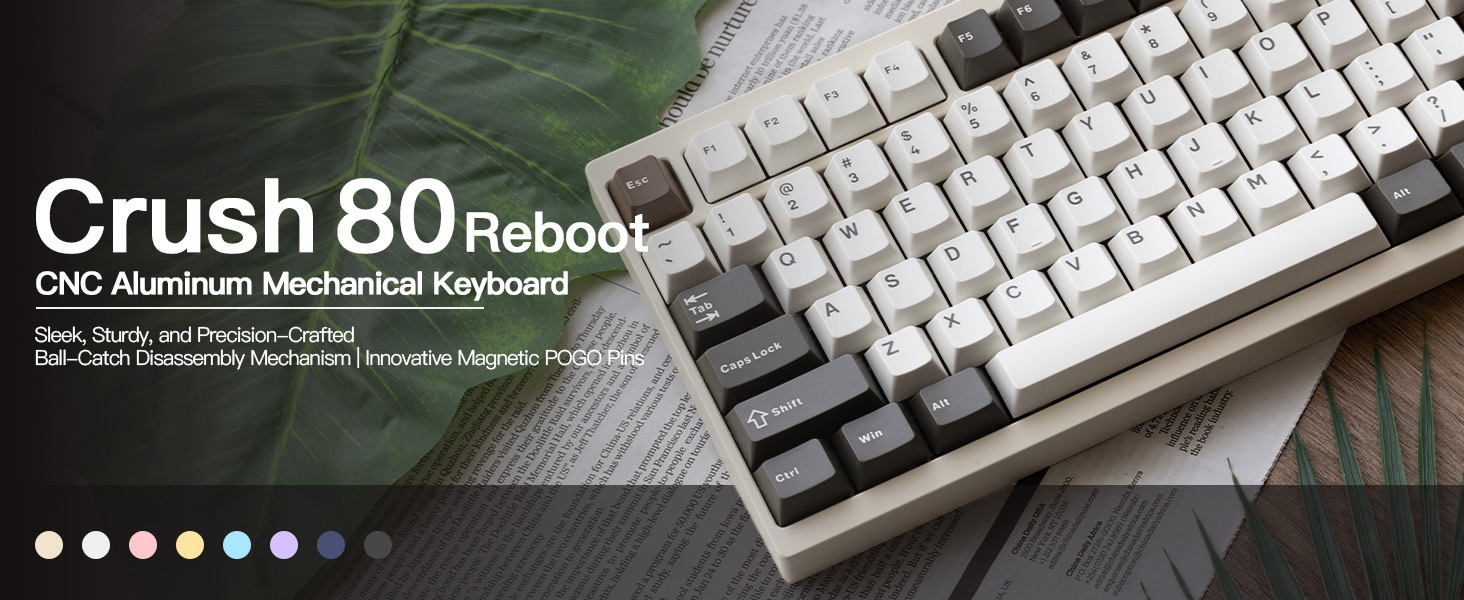
Figure 1.1: Overview of the KEEBMONKEY WOBKEY Crush 80 Reboot Mechanical Keyboard, highlighting its sleek design and robust construction.
2. Package Contents
Please verify that all items listed below are included in your package. If any items are missing or damaged, please contact customer support.
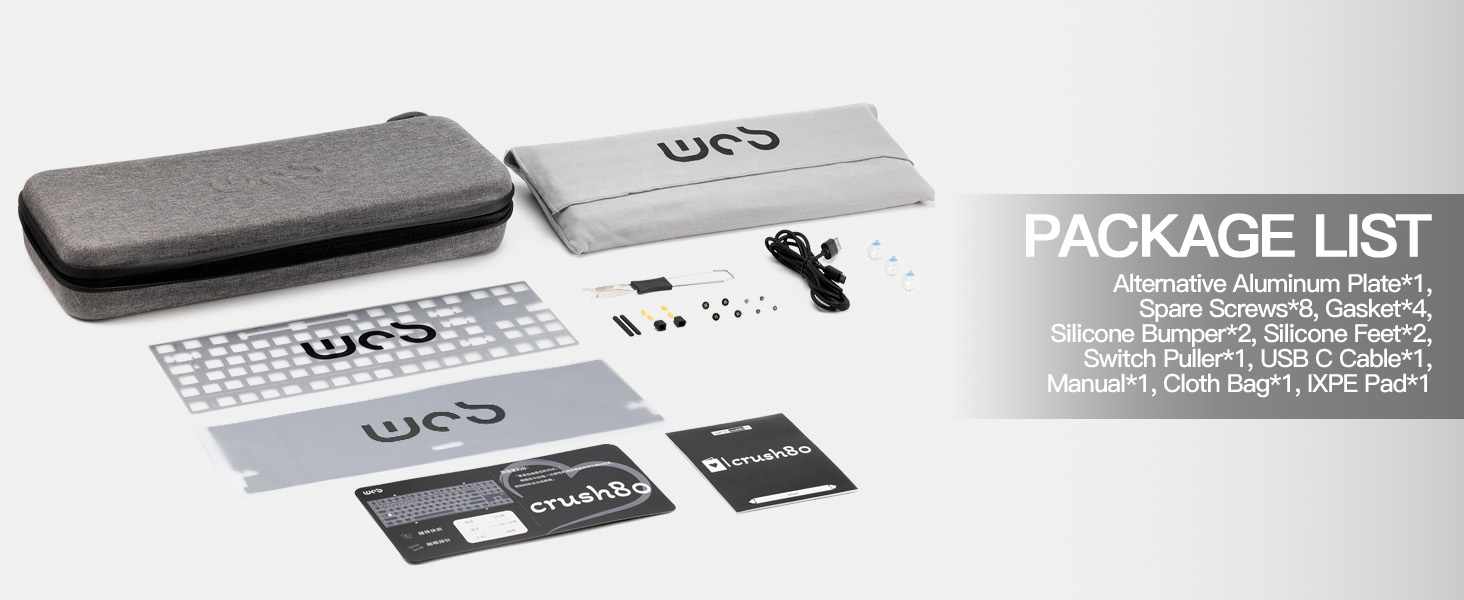
Figure 2.1: Visual representation of the items included in the keyboard package.
- KEEBMONKEY WOBKEY Crush 80 Reboot Mechanical Keyboard (Pro Silver)
- Alternative Aluminum Plate (1)
- Spare Screws (8)
- Gaskets (4)
- Silicone Bumpers (2)
- Silicone Feet (2)
- Switch Puller (1)
- USB-C Cable (1)
- User Manual (1)
- Cloth Bag (1)
- XPE Pad (1)
3. Product Features
The KEEBMONKEY WOBKEY Crush 80 Reboot keyboard is designed with advanced features for enhanced performance and user experience.
- Premium CNC Aluminum Build: Constructed from precision CNC 6063 aluminum, providing a smooth, seamless finish and high durability.

Figure 3.1: Illustration of the keyboard's CNC aluminum frame construction.
- 5-Second Quick-Release / Magnetic Ball-Catch Structure: Enables tool-free, fast disassembly for easy modification and maintenance. Silicone corner padding prevents scratches on the frame.

Figure 3.2: Close-up view of the magnetic ball-catch mechanism for quick disassembly.
- Triple-Mode Connectivity: Seamlessly switch between wired (USB-C), Bluetooth (BT), and 2.4G wireless modes for maximum flexibility across various devices and setups.

Figure 3.3: Diagram illustrating the three connectivity modes: Bluetooth, 2.4G wireless, and USB-C wired.
- Innovative Magnetic POGO Pins: Effortlessly remove the PCB without flex cables. The magnetic POGO pins connect the PCB to a securely hidden battery compartment between dual backplates.

Figure 3.4: Close-up of the magnetic POGO pins facilitating easy PCB removal.
- Long Battery Life: The Pro version is equipped with a 7500mAh battery for extended, uninterrupted use.
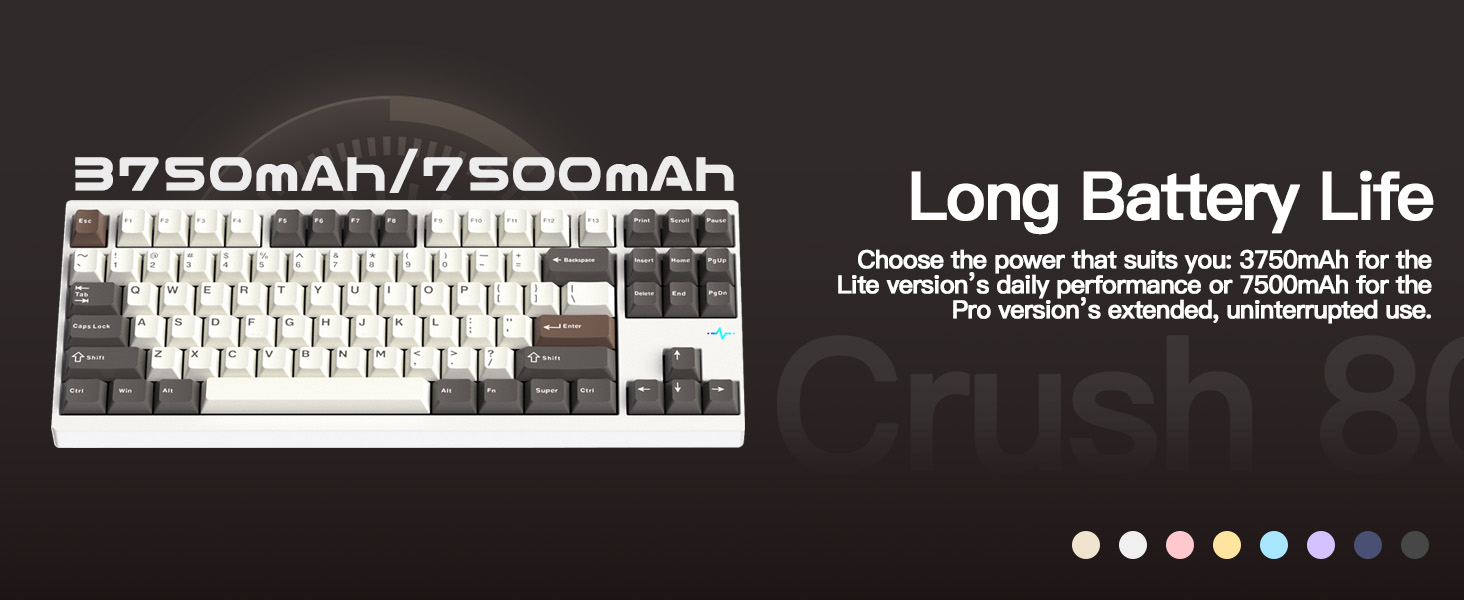
Figure 3.5: Information regarding the battery capacity for both Lite and Pro versions.
- Magnetic 2.4G Receiver Storage: Features a precision CNC stainless steel slot with a hidden magnetic compartment to securely store the 2.4G receiver, preventing loss.

Figure 3.6: Illustration of the integrated magnetic storage for the 2.4G wireless receiver.
- Kailh Cocoa Switches: The Pro version comes with Kailh Cocoa switches, known for their smooth operation and satisfying feel.

Figure 3.7: Detailed specifications and force-travel diagrams for Kailh Cocoa and HMX Frosted Jade switches.
- Upgraded Gasket & Sound Design: Larger, softer silicone gaskets paired with re-optimized poron and layered dampening foam create a firmer, crisper sound profile for a highly refined typing experience.

Figure 3.8: Exploded view demonstrating the various layers of the gasket and sound dampening design.
- South-facing A-RGB Lighting: The Pro version features vibrant south-facing A-RGB lighting and an RGB heartbeat light for customizable aesthetics.
- PBT Keycaps, Double Shot: Durable PBT keycaps with double-shot legends ensure longevity and clear visibility.
- Hot-Swappable: Allows for easy replacement of switches without soldering.
4. Setup
4.1 Initial Charging
Before first use, it is recommended to fully charge your KEEBMONKEY WOBKEY Crush 80 Reboot keyboard.
- Locate the USB-C port on the keyboard.
- Connect the provided USB-C cable to the keyboard and the other end to a powered USB port on your computer or a USB wall adapter.
- The keyboard's indicator lights will show charging status. Allow the keyboard to charge until the indicator shows a full charge.
4.2 Connecting to Your Device
The keyboard supports three connectivity modes: wired (USB-C), Bluetooth, and 2.4G wireless.
4.2.1 Wired Connection (USB-C)
For a direct and stable connection, use the USB-C cable.
- Ensure the power switch (located under the Caps Lock key) is in the "OFF" position if you prefer to use it purely wired without battery drain.
- Connect the USB-C cable from the keyboard to your computer's USB port.
- The keyboard will be automatically recognized by your operating system.
4.2.2 2.4G Wireless Connection
For stable wireless connectivity, use the 2.4G USB receiver.
- Locate the 2.4G USB receiver, typically stored in the magnetic compartment on the keyboard's backplate.
- Plug the 2.4G USB receiver into an available USB port on your computer.
- Toggle the power switch (under the Caps Lock key) to "ON".
- Hold FN + TAB until the indicator light flashes rapidly, indicating pairing mode.
- The keyboard should automatically connect to the receiver. The indicator light will become solid once connected.
4.2.3 Bluetooth Connection
The keyboard supports connecting to up to three Bluetooth devices.
- Toggle the power switch (under the Caps Lock key) to "ON".
- Hold FN + 1, FN + 2, or FN + 3 for approximately 3 seconds to select a Bluetooth channel and enter pairing mode. The indicator light will flash.
- On your device (PC, tablet, smartphone), open Bluetooth settings and search for new devices.
- Select "KEEBMONKEY Crush 80" (or similar name) from the list of available devices.
- Once paired, the indicator light on the keyboard will become solid.
- To switch between paired Bluetooth devices, simply press FN + 1, FN + 2, or FN + 3 briefly.
5. Operating Instructions
5.1 Basic Key Functions
The KEEBMONKEY WOBKEY Crush 80 Reboot keyboard features a standard TKL (Tenkeyless) layout with additional function keys.
- FN Key Combinations: The Function (FN) key is used in combination with other keys to access multimedia controls, lighting effects, and connectivity modes.
- Multimedia Controls: Use FN + F1-F12 for various multimedia functions (e.g., volume control, play/pause, track navigation). Refer to the keycap legends for specific functions.
5.2 RGB Lighting Control
The Pro version of the Crush 80 features customizable A-RGB lighting.
- Changing Lighting Modes: Use specific FN key combinations (e.g., FN + Right Shift, FN + Backspace) to cycle through various RGB lighting effects and turn backlights on/off. Consult the keyboard's quick guide or online resources for exact key combinations.
- Adjusting Brightness/Speed: Use FN + Arrow keys (Up/Down for brightness, Left/Right for speed) to adjust the intensity and animation speed of the RGB effects.
- RGB Heartbeat Light: The keyboard includes an RGB heartbeat light above the arrow keys.
- Side RGB Accents: Two downward-facing RGB lights illuminate the desk surface.
5.3 Customization with VIA Software
The KEEBMONKEY WOBKEY Crush 80 Reboot keyboard is compatible with VIA software, allowing for advanced key remapping and lighting customization.
- Download the VIA software from the official KEEBMONKEY website or VIA's official repository.
- Connect the keyboard to your computer via USB-C cable.
- Launch the VIA software. The keyboard should be automatically detected.
- Use the VIA interface to remap keys, create macros, and customize RGB lighting effects to your preference.
6. Maintenance
6.1 Cleaning Your Keyboard
Regular cleaning helps maintain the keyboard's appearance and functionality.
- General Cleaning: Use a soft, lint-free cloth slightly dampened with water or a mild cleaning solution to wipe down the keycaps and frame. Avoid excessive moisture.
- Dust Removal: Use compressed air to remove dust and debris from between the keycaps and switches.
- Deep Cleaning (Keycaps): For thorough cleaning, use the provided keycap puller to remove keycaps. Wash them gently with mild soap and water, rinse thoroughly, and ensure they are completely dry before reattaching.
6.2 Switch and Keycap Replacement
The hot-swappable design allows for easy replacement of switches.
- Removing Keycaps: Use the keycap puller to gently pull keycaps straight up.
- Removing Switches: Use the switch puller to grasp the clips on the top and bottom of the switch, then gently pull the switch straight up.
- Installing Switches: Align the pins of the new switch with the holes on the PCB. Press down firmly until the switch clicks into place. Ensure pins are not bent.
- Installing Keycaps: Align the keycap with the switch stem and press down firmly until it is seated.
7. Troubleshooting
If you encounter any issues with your KEEBMONKEY WOBKEY Crush 80 Reboot keyboard, please refer to the following common solutions.
| Problem | Possible Cause | Solution |
|---|---|---|
| Keyboard not responding (wired) | Loose USB-C connection; faulty cable; power switch off. | Ensure USB-C cable is securely connected. Try a different USB port or cable. Check if the power switch under Caps Lock is in the correct position for wired mode (can be off). |
| 2.4G wireless not connecting | Receiver not plugged in; keyboard not in pairing mode; interference. | Ensure 2.4G receiver is fully inserted into a USB port. Put keyboard into 2.4G pairing mode (FN + TAB). Move closer to the receiver or away from other wireless devices. |
| Bluetooth not connecting/pairing | Keyboard not in pairing mode; device Bluetooth off; incorrect channel selected. | Ensure keyboard is in Bluetooth pairing mode (FN + 1/2/3). Verify Bluetooth is enabled on your device. Forget the device on your computer and re-pair. |
| RGB lighting not working/changing | Lighting turned off; incorrect key combination; low battery. | Press the correct FN key combinations to cycle through lighting modes or turn it on. Charge the keyboard. |
| Keys not registering or double-typing | Faulty switch; debris under keycap/switch. | Remove the keycap and switch, clean the area, and reinsert. If the problem persists, replace the switch with a spare. |
| Keyboard not charging | Faulty cable/port; power source issue. | Try a different USB-C cable and a different USB port or wall adapter. |
8. Specifications
Detailed technical specifications for the KEEBMONKEY WOBKEY Crush 80 Reboot Mechanical Keyboard (Pro Silver).
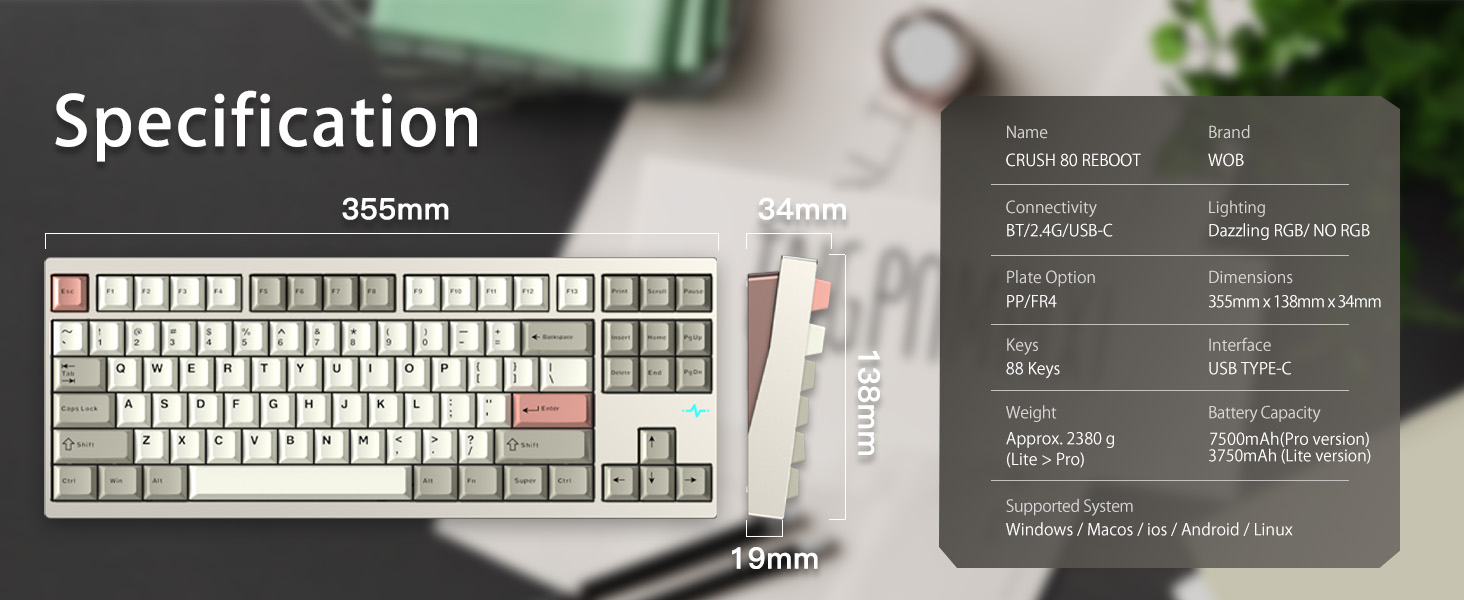
Figure 8.1: Visual summary of the keyboard's key specifications and dimensions.
| Feature | Detail |
|---|---|
| Brand | KEEBMONKEY |
| Model Name | Crush 80 Reboot (Pro Silver) |
| Connectivity | USB-C (Wired), Bluetooth (BT), 2.4G Wireless |
| Keyboard Description | Mechanical |
| Number of Keys | 88 |
| Switches (Pro Version) | Kailh Cocoa switches |
| Keycaps | PBT, Double Shot |
| Frame Material | CNC 6063 Aluminum |
| Battery Capacity (Pro Version) | 7500mAh (2 Lithium Ion batteries included) |
| Lighting | South-facing A-RGB, RGB heartbeat light |
| Special Features | Hot-Swappable, Programmable Keys (VIA compatible), 5-second quick-release design, Magnetic POGO Pins, Magnetic 2.4G receiver storage, Gasket Structure |
| Product Dimensions | 14 x 5.6 x 0.9 inches (355mm x 138mm x 34mm) |
| Item Weight | 5.25 pounds (Approx. 2380g) |
| Compatible Devices | PC (Windows / MacOS / iOS / Android / Linux) |
| First Available Date | September 29, 2024 |
9. Warranty Information
KEEBMONKEY products are manufactured to the highest quality standards. For specific warranty terms and conditions, please refer to the warranty card included in your product packaging or visit the official KEEBMONKEY website. Keep your proof of purchase for warranty claims.
10. Support
For technical assistance, troubleshooting beyond this manual, or general inquiries, please contact KEEBMONKEY customer support.
- Online Support: Visit the official KEEBMONKEY website for FAQs, drivers, and support resources.
- Email Support: Refer to your product packaging or the official website for customer service email addresses.
Related Documents - Pro Silver
 |
Monitor Audio Silver Series 7G Quick Start Guide Quick start guide for Monitor Audio Silver Series 7G speakers, providing specifications, unboxing, setup, and positioning instructions. |
 |
Monitor Audio Silver Series 7G Quick Start Guide and Specifications Comprehensive quick start guide and technical specifications for the Monitor Audio Silver Series 7G speakers, including unboxing, setup, wiring, and speaker placement. |
 |
IQUNIX ZX75 Mechanical Keyboard User Manual User guide for the IQUNIX ZX75 mechanical keyboard. Learn about setup, connectivity (Bluetooth, 2.4G, Wired), indicator lights, key combinations, and product specifications. Includes manufacturer details and official website. |
 |
Redragon Dharma 98 Pro 3-Mode Aluminum Mechanical Keyboard User Manual Comprehensive user manual for the Redragon Dharma 98 Pro mechanical keyboard, detailing connectivity options (USB, 2.4G, Bluetooth), product features like backlighting and knob functions, power management, FAQs, battery safety guidelines, and FCC compliance information. |
 |
DARMOSHARK SK88 PRO Triple-Mode Keyboard Quick Start Guide Quick start guide for the DARMOSHARK SK88 PRO Triple-Mode Keyboard, covering specifications, connectivity modes (USB, Bluetooth, 2.4GHz), pairing, system switching, power management, and warranty information. |
 |
ROSCO DMX Profiles DMG: Technical Specification and Control Guide Detailed technical specifications and control profiles for ROSCO DMX lighting fixtures, covering various modes from White 8b to XY 16b, including gel lists and revision history. |
Ask a question about this manual
Ask about setup, troubleshooting, compatibility, parts, safety, or missing instructions. Manuals+ will review the question and use this page’s manual context to help answer it.