
Introduction
This manual provides detailed instructions for setting up, operating, and maintaining your Wodgreat AC1200 Dual-Band WiFi Extender. Please read this guide thoroughly to ensure optimal performance and a seamless wireless experience.

Image: Illustration of WiFi coverage extension within a home.
Package Contents
Verify that all items are present in your package:
- 1 x Wodgreat AC1200 WiFi Extender Signal Booster
- 1 x Ethernet Cable
- 1 x User Manual

Image: Wodgreat AC1200 WiFi Extender, Ethernet cable, and user manual.
Physical Overview
Familiarize yourself with the components of your WiFi Extender:
- Antennas: Four external antennas for enhanced signal coverage.
- LED Indicators: Lights for LAN, 5G WiFi, 2.4G WiFi, WAN, and Power status.
- LAN Port: For wired connections.
- WAN Port: For wired connections (can function as LAN in Repeater/AP mode).
- WPS/Reset Button: For quick setup or factory reset.

Image: Front view of the Wodgreat AC1200 WiFi Extender with labeled LED indicators and ports.

Image: Back view of the Wodgreat AC1200 WiFi Extender with power plug and product details.
Setup Guide
The Wodgreat AC1200 WiFi Extender offers a straightforward setup process. You can configure it via a web browser on your mobile device or computer.
1. Initial Placement
Plug the WiFi Extender into an electrical outlet in a location roughly halfway between your main router and the area with weak WiFi signal. This ensures optimal signal reception from the router and effective extension to dead zones.

Image: Recommended placement of the WiFi Extender for optimal signal distribution.
2. Connection and Configuration (Web Interface)
- Plug the extender into a power outlet. Wait for the Power LED to turn solid blue.
- On your smartphone, tablet, or computer, connect to the extender's default WiFi network (e.g., "Wireless-AC-2.4G" or "Wireless-AC-5G").
- Open a web browser and navigate to the default IP address (usually 192.168.10.99).
- Enter "admin" for both username and password to log in.
- Follow the on-screen instructions to select your existing WiFi network and enter its password.
- You can choose to rename the extended network or keep the default name (e.g., "YourNetworkName_EXT").
- Once configured, the extender will reboot. After reboot, the WLAN LED should turn solid blue, indicating a successful connection.

Image: Visual guide for web-based setup of the WiFi Extender.
3. WPS Setup (If your router supports it)
- Plug the extender into a power outlet near your router.
- Press the WPS button on your router.
- Within two minutes, press the WPS/Reset button on the Wodgreat AC1200 WiFi Extender.
- The extender will automatically connect to your router. The WLAN LED will indicate a successful connection.
Setup Videos
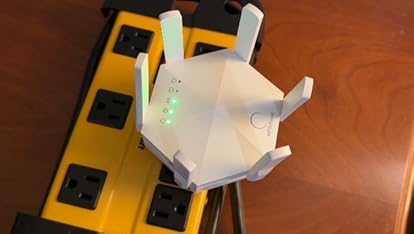
Video: Product Overview and Operation Methods. This video provides a comprehensive guide to the extender's features and how to operate it.
Video: APP Installation Guide. This video demonstrates how to install and use the companion app for setup and management.

Video: Watch before buying extend your WiFi. A user's guide to extending WiFi coverage with this type of device.
Operating Modes
The Wodgreat AC1200 WiFi Extender supports multiple operating modes to suit various networking needs:
- Repeater Mode: Extends your existing WiFi signal to eliminate dead zones. This is the most common mode for boosting coverage.
- AP (Access Point) Mode: Connects to your wired network via an Ethernet cable and broadcasts a new wireless network, converting a wired connection into a high-speed dual-band wireless access point.
- Router Mode: Functions as a standalone router, creating a new private network from a modem connection.

Image: Visual representation of the three operating modes.
Specifications
| Feature | Detail |
|---|---|
| Brand | Wodgreat |
| Model | AC1200 |
| Data Transfer Rate | Up to 1200 Mbps (867Mbps on 5GHz, 300Mbps on 2.4GHz) |
| Wireless Standards | IEEE 802.11a/b/g/n/ac |
| Frequency Bands | Dual-Band (2.4 GHz, 5 GHz) |
| Antennas | 4 x 3dBi Dual-Band Antennas |
| Coverage Area | Up to 3,500 Sq.ft |
| Connected Devices | Up to 45 Devices |
| Ports | Ethernet Ports (LAN/WAN) |
| Security | WEP/WPA/WPA2 protocols, Over-voltage protection |
| Compatible Devices | Gaming Console, Laptop, PC, Security Camera, Smart TV, Smartphone, Tablet |
| Dimensions | 11.6 x 9.3 x 8.7 cm |
| Weight | 80 g |

Image: Dual-band WiFi signal for high-speed activities.

Image: Wide compatibility with multiple devices.
Troubleshooting & FAQs
- Q1: What should I do if I cannot access the Repeater's web management page?
- A1: Make sure your computer is connected to the extender network.
- A2: Make sure your computer is set to obtain an IP address automatically.
- A3: If the Repeater has connected to the router, you should go to your router's IP address.
- Q2: Why does the wireless transmission rate speed down when the wireless signal is stronger after repeated by the Repeater?
- A1: In compliance with the wireless transmission protocol, all the Repeater devices are set to work in half-duplex instead of full-duplex mode. In other words, the Repeater has to process one-way root communication between your root Wireless Router (or AP) and the terminal clients. So the transmission time will be doubled, while the 50% loss will be decreased to eliminate "dead zones".
- Q3: Why the devices connected to the Repeater cannot access the Internet?
- A1: Maybe you enabled wireless MAC filter, wireless access control, or IP filter of the router. To solve the problem, please log in to your router and disable the MAC filter, wireless access control, or IP filter.
- A2: Maybe the IP address of the router is occupied by the router connected to the Repeater. Please reset the Repeater and reconfigure.
Maintenance
To ensure the longevity and optimal performance of your Wodgreat AC1200 WiFi Extender, consider the following maintenance tips:
- Keep the device in a well-ventilated area to prevent overheating.
- Avoid placing the extender near sources of strong electromagnetic interference.
- Clean the device regularly with a soft, dry cloth. Do not use liquid cleaners.
- Periodically check for firmware updates on the manufacturer's website to ensure the latest features and security patches.
Warranty and Support
Your Wodgreat AC1200 WiFi Extender comes with a 2-year warranty. For technical support, troubleshooting assistance, or warranty claims, please contact Wodgreat customer service. Refer to the contact information provided in your package or on the official Wodgreat website.
Dedicated customer support is available to assist you with any questions or issues you may encounter.