
1. Introduction
Thank you for choosing the conree Kids Camera X8. This digital camera is designed for children aged 3-12 years, offering 12MP photo resolution, 1080P video recording, and an 8X digital zoom. It includes a 32GB TF card for ample storage and is rechargeable via USB. This manual provides essential information for safe and effective use of your camera.
2. Safety Information
- Do not expose the camera to water or excessive moisture. This camera is not water-resistant.
- Avoid dropping the camera or subjecting it to strong impacts, as this may damage internal components or the screen.
- Keep the camera away from extreme temperatures.
- Use only the provided USB cable for charging.
- Adult supervision is recommended for young children during use and charging.
- Do not attempt to disassemble or repair the camera yourself. Contact support if issues arise.
3. Package Contents
Please check that all items are present in your package:
- conree Kids Camera X8
- USB Charging Cable
- 32GB TF Card
- Neck Strap
- User Manual (this document)
4. Product Overview
Camera Components
Familiarize yourself with the camera's buttons and ports:

Image: Front and back view of the conree Kids Camera X8, highlighting the 3.5-inch screen and labeled controls such as Photo/Record/Shutter, Power/Back, Up, Down, Lens Shift, and Playback/Delete buttons.
- Photo/Record/Shutter Button: Press to take a photo or start/stop video recording.
- Power/Back Button: Press and hold to power on/off. Press briefly to go back in menus.
- Up Button: Navigate up in menus or zoom in.
- Down Button: Navigate down in menus or zoom out.
- M (Mode/Lens Shift) Button: Switch between photo and video modes. Long press to switch between front and rear lenses.
- Playback/Delete Button: Enter playback mode to view photos/videos. In playback mode, press again to delete.
- USB Port: For charging and data transfer.
- TF Card Slot: Insert the Micro SD (TF) card here.
5. Setup
5.1 Charging the Battery
The camera has a built-in rechargeable Lithium-Ion battery. Before first use, fully charge the camera.
- Connect the small end of the USB charging cable to the camera's USB port.
- Connect the large end of the USB cable to a USB power adapter (not included) or a computer's USB port.
- The charging indicator light will illuminate. It will turn off or change color when charging is complete.
A full charge typically takes approximately 2-3 hours and provides about 2 hours of continuous use.
5.2 Inserting the TF Card
The camera requires a TF (Micro SD) card to save photos and videos. A 32GB TF card is included.

Image: The conree Kids Camera X8 with its side panel open, revealing the USB port and the slot for the 32GB TF card, along with the included USB cable and TF card.
- Locate the TF card slot on the side of the camera.
- Gently insert the TF card into the slot with the metal contacts facing down, until it clicks into place.
- To remove, gently push the card in until it clicks, then release, and it will spring out.
5.3 Powering On/Off
- To Power On: Press and hold the Power/Back button for a few seconds until the screen illuminates.
- To Power Off: Press and hold the Power/Back button for a few seconds until the screen turns off.
6. Operating the Camera
6.1 Taking Photos
- Ensure the camera is in photo mode. If not, press the M (Mode) button to switch.
- Frame your shot using the screen.
- Press the Photo/Record/Shutter button to take a picture.
6.2 Recording Videos
- Press the M (Mode) button to switch to video recording mode.
- Press the Photo/Record/Shutter button once to start recording. A red indicator will typically appear on the screen.
- Press the Photo/Record/Shutter button again to stop recording.
6.3 Using Digital Zoom
The camera features an 8X digital zoom.

Image: A child smiling while holding the conree Kids Camera X8, with an overlay graphic illustrating the 8X digital zoom capability.
- In photo or video mode, press the Up button to zoom in.
- Press the Down button to zoom out.
6.4 Switching Lenses (Front/Rear)
The camera is equipped with both front and rear lenses for versatile shooting.

Image: Two children taking a selfie with the conree Kids Camera X8, illustrating the use of the front lens. An inset shows the camera's front and back views.
- Long press the M (Mode/Lens Shift) button to switch between the front and rear lenses.
6.5 Applying Filters and Frames
Enhance your photos with various built-in filters and fun frames.
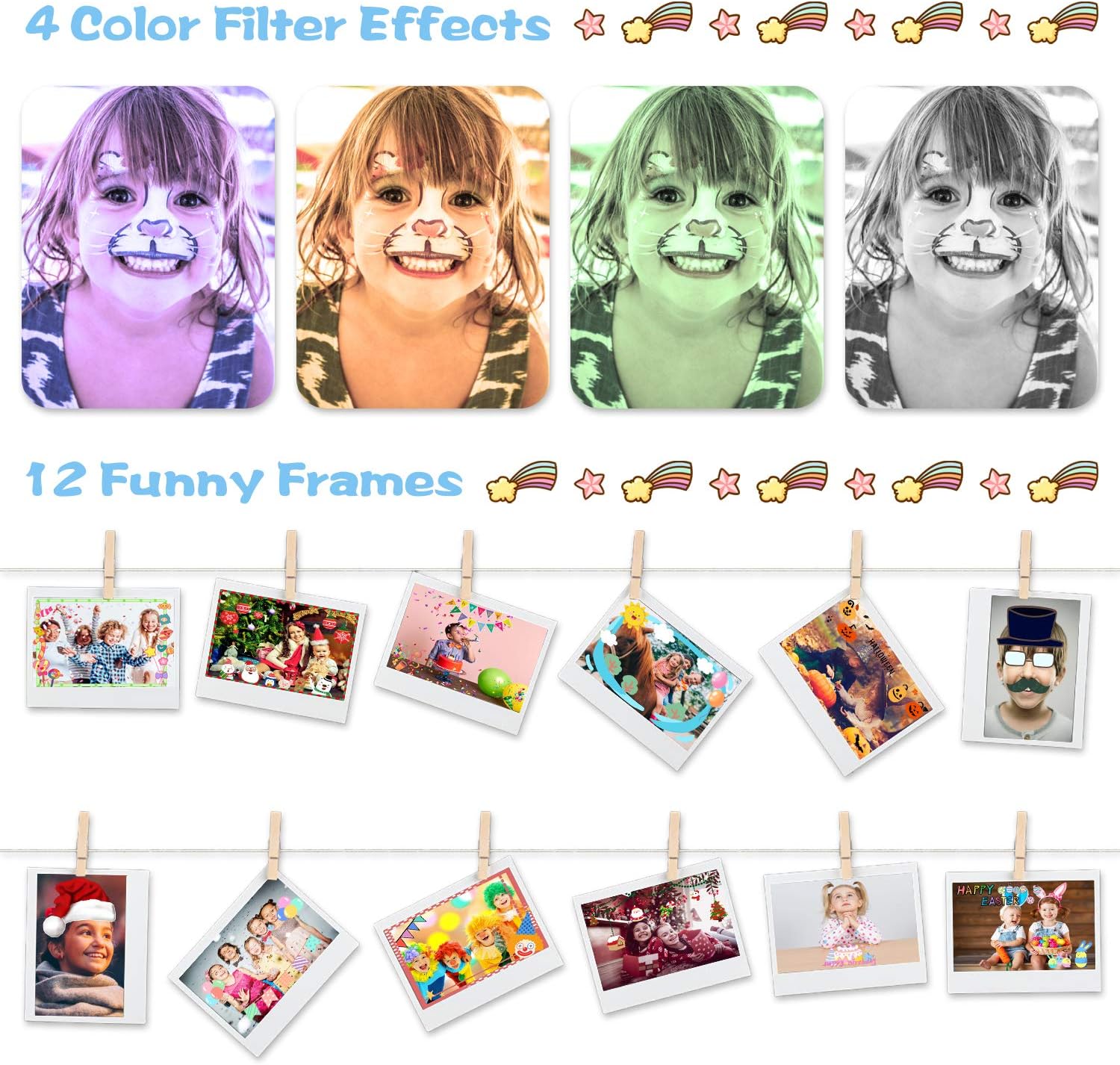
Image: A collage demonstrating four different color filter effects applied to a child's photo, and twelve various decorative frames that can be added to pictures.
- In photo mode, use the Up and Down buttons to cycle through available filters and frames.
- Press the Photo/Record/Shutter button to confirm your selection and take the photo.
6.6 Burst Shooting
Capture a sequence of photos quickly with the burst shooting feature.

Image: A series of five sequential photos of children at a birthday party, demonstrating the camera's burst shooting function, which captures multiple images in quick succession.
- Access the camera settings to enable burst shooting (refer to the on-screen menu).
- Once enabled, press and hold the Photo/Record/Shutter button to take multiple photos continuously.
6.7 Time-Lapse
Set a timer for photos, allowing time to pose or include yourself in the shot.

Image: A group of children posing outdoors, with the conree Kids Camera X8 displaying a 10-second countdown for a time-lapse photo, allowing them to get ready for the shot.
- Navigate to the timer settings in the camera menu.
- Select your desired delay (e.g., 2s, 5s, 10s).
- Press the Photo/Record/Shutter button, and the camera will count down before taking the picture.
6.8 Playback and Deleting
- Press the Playback/Delete button to enter playback mode.
- Use the Up and Down buttons to scroll through your photos and videos.
- To delete a file, select it in playback mode and press the Playback/Delete button again. Confirm deletion when prompted.
- Press the Power/Back button to exit playback mode.
6.9 USB Transfer
Transfer photos and videos to a computer for viewing, editing, or backup.

Image: The conree Kids Camera X8 with its USB port connected to a USB cable, illustrating the process of transferring data to a computer.
- Ensure the camera is powered on.
- Connect the camera to your computer using the provided USB cable.
- The camera should appear as a removable disk or media device on your computer.
- Open the camera's folder to access and transfer your files.
7. Maintenance
7.1 Cleaning the Camera
- Use a soft, dry cloth to clean the camera body.
- For the lens and screen, use a specialized lens cleaning cloth to avoid scratches.
- Do not use liquid cleaners or solvents.
7.2 Battery Care
- Charge the battery regularly, even if the camera is not in frequent use, to maintain battery health.
- Avoid fully discharging the battery frequently.
- If storing the camera for an extended period, charge the battery to about 50% before storage.
7.3 Storage
- Store the camera in a cool, dry place, away from direct sunlight and extreme temperatures.
- Keep it in its original packaging or a protective case to prevent dust and scratches.
8. Troubleshooting
| Problem | Possible Cause | Solution |
|---|---|---|
| Camera does not turn on. | Battery is depleted. | Charge the camera fully. |
| Cannot take photos/videos. | TF card is full or not inserted correctly. | Check TF card insertion. Delete old files or replace TF card. |
| Poor image/video quality. | Insufficient lighting; dirty lens. | Ensure adequate lighting. Clean the camera lens. |
| Camera freezes or is unresponsive. | Software glitch. | Press and hold the Power button for 10 seconds to force a restart. |
| Computer does not recognize camera. | Faulty USB cable; incorrect connection. | Try a different USB port or cable. Ensure camera is powered on when connected. |
9. Specifications
| Feature | Detail |
|---|---|
| Model Name | X8 |
| Brand | conree |
| Photo Resolution | 12 MP (Maximum) |
| Video Resolution | 1080p (30 FPS) |
| Zoom | 8X Digital Zoom |
| Screen Size | 3.5 Inches |
| Photo Sensor Technology | CMOS |
| Image Stabilization | Digital |
| Storage Media | TF Card (32GB included) |
| Battery Type | Lithium Ion (1000 mAh) |
| Battery Average Life | 2 Hours |
| Charging Interface | USB |
| Material | Plastic |
| File Format (Photo) | JPEG |
| File Format (Video) | MP4 |
| Focus Type | Auto Focus (Contrast Detection) |
10. Warranty Information
For detailed warranty information regarding your conree Kids Camera X8, please refer to the warranty card included with your purchase or visit the official conree website. Keep your proof of purchase for any warranty claims.
11. Customer Support
If you encounter any issues or have questions not covered in this manual, please contact conree customer support through the retailer where you purchased the product or visit the official conree website for contact information.