
Introduction
This manual provides detailed instructions for the installation, operation, and maintenance of your MONTECH GF120 ARGB PWM 120mm Fan 3-in-1 pack. Please read this manual thoroughly before installation and use to ensure proper function and longevity of your product.
The MONTECH GF120 ARGB PWM fan is designed to deliver efficient cooling and vibrant ARGB lighting for your computer system. It features a hydraulic bearing for quiet operation and extended durability.
Package Contents
- 3 x MONTECH GF120 ARGB PWM 120mm Fans
- 1 x 6x6 Fan Hub
- Mounting Screws (for case and radiator mounting)
- User Manual (this document)
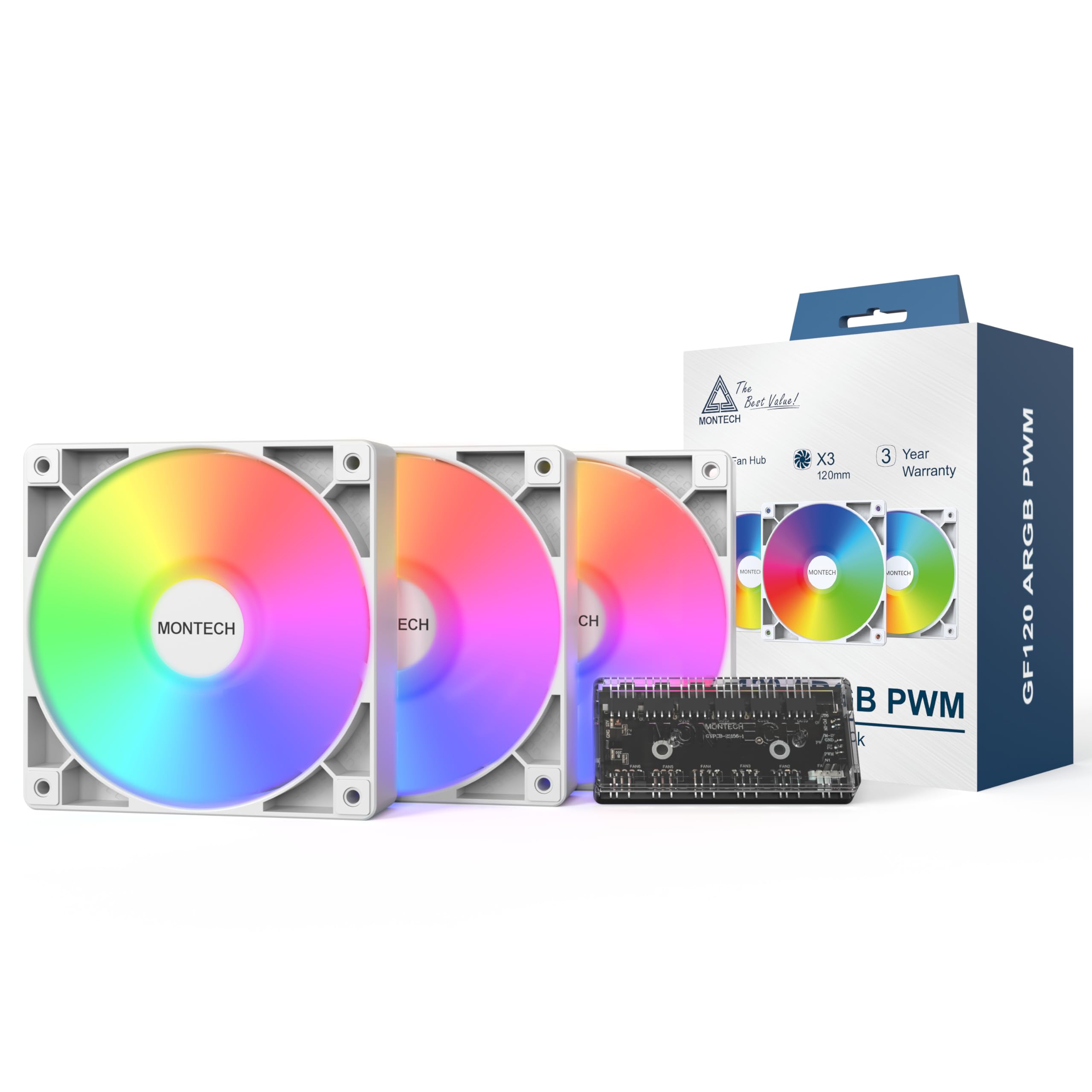
Image: Contents of the MONTECH GF120 ARGB PWM 120mm Fan 3-in-1 pack, showing three fans and the fan hub.
Safety Information
- Ensure your computer system is powered off and unplugged from the wall outlet before installation.
- Handle components with care to avoid damage.
- Refer to your motherboard manual for specific fan header locations and ARGB controller compatibility.
- Do not force connectors. Ensure correct orientation before plugging in.
- Keep out of reach of children.
Setup and Installation
1. Prepare Your System
Before beginning installation, power off your computer and disconnect it from the power source. Open your computer case to access the fan mounting locations.
2. Mount the Fans
Identify the desired mounting locations for your fans (e.g., front, top, rear, bottom of the case, or on a radiator). Use the provided mounting screws to secure each fan. Ensure the fan's airflow direction (indicated by arrows on the fan frame) is appropriate for your system's cooling strategy.

Image: Diagram illustrating the airflow direction of the fan, typically indicated by arrows on the fan frame.

Image: Multiple GF120 fans installed within a computer case, showcasing their ARGB lighting effects.
3. Connect the Fans to the Hub
Connect each GF120 fan's 4-pin PWM cable and 3-pin ARGB cable to the corresponding ports on the included 6x6 Fan Hub. The hub allows for centralized control of fan speed and lighting.
4. Connect the Hub to the Motherboard
- PWM Connection: Connect the 4-pin PWM cable from the fan hub to an available 4-pin fan header on your motherboard (e.g., "CPU_FAN", "SYS_FAN"). This allows your motherboard to control the fan speed.
- ARGB Connection: Connect the 3-pin ARGB cable from the fan hub to an available 5V 3-pin ARGB header on your motherboard (e.g., "D_LED", "ARGB_HEADER"). Do not connect to a 12V 4-pin RGB header, as this will damage the LEDs.
- Power Connection: Connect the SATA power cable from the fan hub to an available SATA power connector from your power supply unit (PSU).
Refer to your motherboard manual for the exact location of these headers.
5. Cable Management
Route all cables neatly to ensure proper airflow within your case and for a clean aesthetic. Close your computer case and reconnect the power.
Operating Instructions
Fan Speed Control (PWM)
The GF120 fans utilize Pulse Width Modulation (PWM) technology, allowing your motherboard to precisely control their rotational speed between 800 and 1600 RPM. This enables dynamic adjustment of cooling performance based on system temperature, optimizing for either maximum airflow or quiet operation.
- Access your motherboard's BIOS/UEFI settings or use compatible software provided by your motherboard manufacturer to configure fan curves.
- Set fan speeds to increase with CPU or GPU temperature for effective cooling during heavy loads, and decrease for quieter operation during light tasks.
Image: Performance specifications including 66.3 CFM airflow, 1.55 mm H2O static pressure, 25.5 dBA noise level, and 800-1600 RPM fan speed.
ARGB Lighting Control
The GF120 fans feature Addressable RGB (ARGB) lighting with 8 vibrant LEDs. The lighting effects are controlled via your motherboard's ARGB software (e.g., ASUS Aura Sync, MSI Mystic Light Sync, GIGABYTE RGB Fusion, ASRock Polychrome Sync) or a dedicated ARGB controller connected to the hub.
- Install the appropriate ARGB control software for your motherboard.
- Use the software to customize lighting colors, patterns, and synchronization with other ARGB components in your system.
Maintenance
Cleaning
Regular cleaning helps maintain optimal performance and extends the lifespan of your fans.
- Frequency: Clean fans every 3-6 months, or more frequently in dusty environments.
- Procedure:
- Power off your computer and unplug it from the wall.
- Open the computer case.
- Use compressed air to blow dust off the fan blades and frame. Hold the fan blades gently to prevent them from spinning rapidly during cleaning, which can damage the bearings.
- For stubborn dust, use a soft, dry cloth or a cotton swab.
- Ensure all dust is removed from the fan and surrounding areas before closing the case.
Hydraulic Bearings
The GF120 fans feature durable hydraulic bearings designed for long-term reliability and quiet operation. These bearings are pre-lubricated and generally do not require user maintenance or re-lubrication.

Image: Exploded view of the fan showing the hydraulic bearing components, highlighting its durable design for quiet operation and extended lifespan.
Troubleshooting
| Problem | Possible Cause | Solution |
|---|---|---|
| Fans not spinning |
|
|
| ARGB lighting not working |
|
|
| Excessive noise |
|
|
Specifications
| Feature | Specification |
|---|---|
| Product Dimensions | 4.73"L x 0.99"W x 4.73"H (120mm x 25mm x 120mm) |
| Brand | Montech |
| Power Connector Type | 4-Pin PWM |
| Voltage | 12 Volts (DC) |
| Cooling Method | Air |
| Compatible Devices | Desktop, Graphic Cards |
| Noise Level | 25.5 Decibels (max) |
| Material | Acrylonitrile Butadiene Styrene, Plastic, Rubber |
| Maximum Rotational Speed | 1600 RPM |
| Air Flow Capacity | 66.3 Cubic Feet Per Minute (CFM) |
| Static Pressure | 1.55 mm H2O |
| Item Model Number | GF120W3IN1 |
| Number of Items | 3 (fans) + 1 (hub) |
Warranty and Support
Warranty Information
The MONTECH GF120 ARGB PWM 120mm Fan 3-in-1 pack is backed by a 3-year warranty from the date of purchase. This warranty covers defects in materials and workmanship under normal use. Please retain your proof of purchase for warranty claims.
For detailed warranty terms and conditions, please refer to the official Montech website or contact customer support.
Customer Support
If you encounter any issues or have questions regarding your MONTECH GF120 ARGB PWM fans, please visit the official Montech website for support resources, FAQs, and contact information.
Montech Official Website: www.montechpc.com


