FRTEC Dragon Ball Kame Wireless Controller User Manual
Model: DB1001
1. Introduction
Thank you for purchasing the FRTEC Dragon Ball Kame Wireless Controller. This controller is designed to provide an immersive gaming experience across multiple platforms, including Nintendo Switch, PC, and Android mobile devices. Featuring a unique Dragon Ball Kame design, RGB LED lighting, and a long-lasting battery, this manual will guide you through its setup, operation, and maintenance to ensure optimal performance.
2. Safety Information
- Keep the controller away from water and other liquids.
- Do not expose the controller to extreme temperatures or direct sunlight.
- Avoid dropping or subjecting the controller to strong impacts.
- Do not attempt to disassemble or modify the controller. This will void the warranty.
- Use only the provided charging cable or a certified equivalent.
- Store the controller in a cool, dry place when not in use.
3. Package Contents
- FRTEC Dragon Ball Kame Wireless Controller
- USB Charging Cable
- User Manual (this document)
4. Product Overview
Familiarize yourself with the various components of your FRTEC Dragon Ball Kame Wireless Controller.
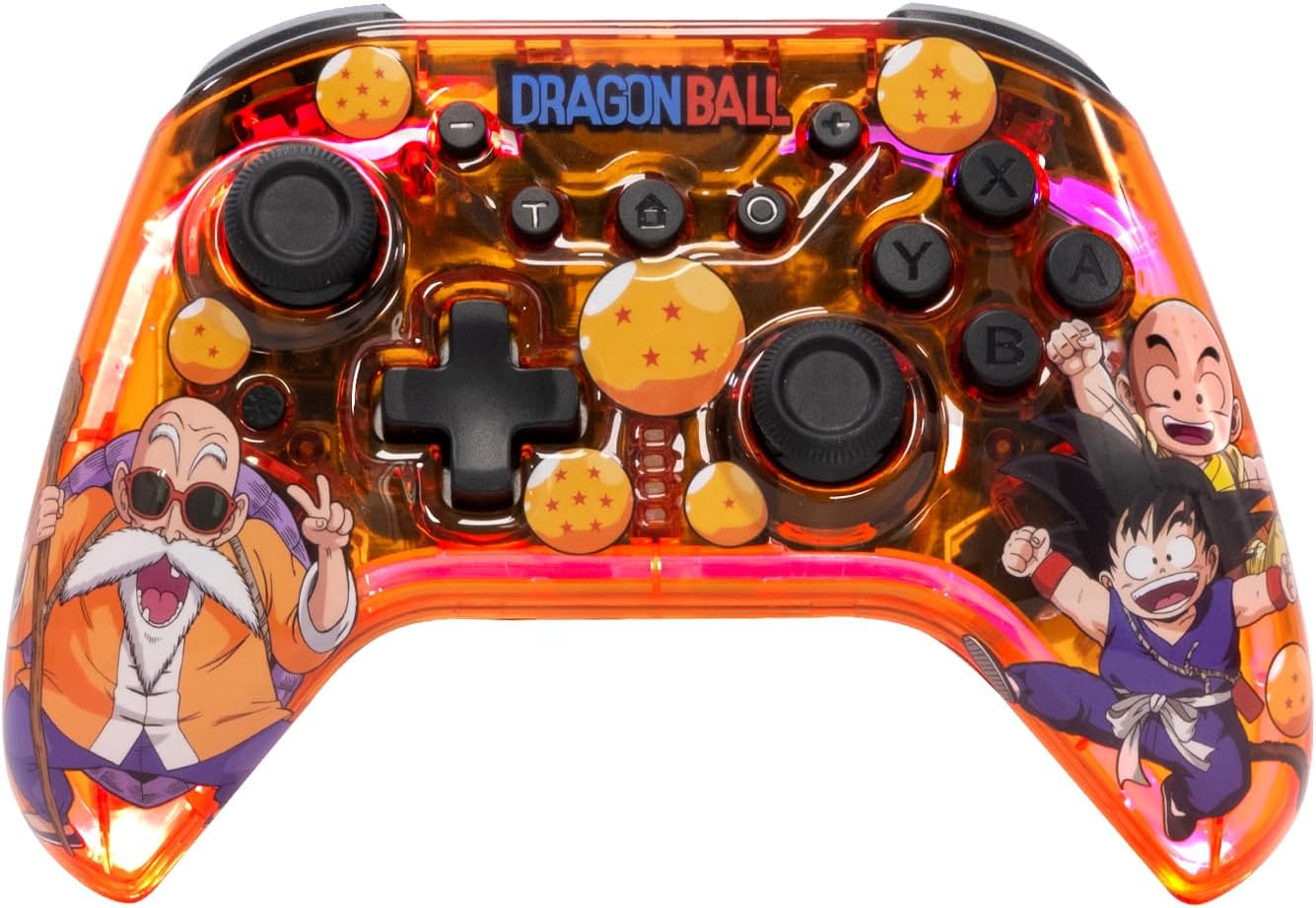
Image: Front view of the FRTEC Dragon Ball Kame Wireless Controller, showcasing its transparent orange casing with Dragon Ball characters and symbols, dual analog sticks, D-pad, and action buttons.

Image: Top view of the FRTEC Dragon Ball Kame Wireless Controller, highlighting the USB-C charging port located between the shoulder buttons.
The controller features standard gamepad buttons, including A, B, X, Y buttons, a D-pad, two analog sticks, shoulder buttons (L, R), and triggers (ZL, ZR). It also includes a Home button, Capture button, and +/- buttons for Nintendo Switch compatibility, along with a Turbo button and LED indicator lights.
5. Setup
5.1 Charging the Controller
Before first use, fully charge the controller. Connect the provided USB charging cable to the USB-C port on the top of the controller and the other end to a USB power source (e.g., computer USB port, USB wall adapter).
- The LED indicator lights will show charging status.
- A full charge typically takes approximately 2-3 hours.
- The controller offers over 10 hours of battery life on a full charge.
5.2 Connecting to Nintendo Switch
- On your Nintendo Switch, go to the HOME Menu.
- Select "Controllers" then "Change Grip/Order".
- Press and hold the Home button on the FRTEC controller for 3-5 seconds until the LED indicators start flashing rapidly.
- Once connected, the corresponding player LED(s) on the controller will light up solid.
5.3 Connecting to PC (Windows)
- Ensure your PC has Bluetooth enabled.
- Go to "Bluetooth & other devices" settings on your PC.
- Select "Add Bluetooth or other device" and then "Bluetooth".
- Press and hold the Home button on the FRTEC controller for 3-5 seconds until the LED indicators start flashing rapidly.
- Select "FRTEC Controller" or similar name from the list of available devices.
- Once paired, the LED indicators will stop flashing and remain solid.
5.4 Connecting to Android Mobile Devices
- Enable Bluetooth on your Android device.
- Go to Bluetooth settings and scan for new devices.
- Press and hold the Home button on the FRTEC controller for 3-5 seconds until the LED indicators start flashing rapidly.
- Select "FRTEC Controller" or similar name from the list of available devices.
- Once paired, the LED indicators will stop flashing and remain solid.
6. Operating Instructions
6.1 Basic Button Functions
| Button | Function |
|---|---|
| Home Button | Power On/Off, Return to Home Menu (Switch), Pairing Mode |
| +/- Buttons | Plus/Minus (Switch) |
| Capture Button | Screenshot (Switch) |
| A/B/X/Y Buttons | Action Buttons |
| L/R Buttons | Shoulder Buttons |
| ZL/ZR Buttons | Trigger Buttons |
| D-Pad | Directional Control |
| Analog Sticks | Movement and Camera Control |
| Turbo Button | Activates/Deactivates Turbo function for assigned buttons. |
6.2 RGB LED Lights
The controller features dynamic RGB LED lighting. The lights automatically activate upon connection. Specific controls for the RGB lighting may vary by firmware version. Refer to the official FRTEC website for any software updates or advanced customization options.
6.3 Battery Status
The LED indicators on the controller will provide information about the battery status:
- Flashing LEDs: Low battery or searching for connection.
- Solid LEDs: Connected and sufficient battery.
- Charging: LEDs will indicate charging progress and turn off when fully charged.
7. Maintenance
- Cleaning: Use a soft, dry cloth to clean the controller. For stubborn dirt, slightly dampen the cloth with water. Do not use harsh chemicals or abrasive cleaners.
- Storage: Store the controller in a clean, dry environment, away from direct sunlight and extreme temperatures.
- Battery Care: To prolong battery life, avoid fully discharging the controller frequently. If storing for a long period, charge it to about 50% every few months.
8. Troubleshooting
| Problem | Possible Solution |
|---|---|
| Controller does not turn on. | Ensure the controller is fully charged. Connect it to a power source and wait a few minutes before attempting to turn it on. |
| Controller does not connect to device. |
|
| Controller disconnects frequently. |
|
| Buttons or sticks are unresponsive. |
|
9. Specifications
| Feature | Detail |
|---|---|
| Model Number | DB1001 |
| Connectivity | Bluetooth Wireless |
| Compatible Devices | Nintendo Switch, PC, Android |
| Battery Type | Lithium-ion |
| Battery Life | Over 10 hours (approx.) |
| Special Features | Ergonomic Design, RGB LED Lights |
| Color | Multicolor (Transparent Orange with Dragon Ball artwork) |
| Number of Buttons | 8 (excluding D-pad and analog sticks) |
| Manufacturer | FR-TEC |
| Country of Origin | China |
10. Warranty and Support
FRTEC products are designed and manufactured to the highest quality standards. For information regarding warranty coverage, technical support, or frequently asked questions, please visit the official FRTEC website or contact their customer service department. Keep your proof of purchase for warranty claims.
Note: Product specifications and features are subject to change without prior notice.