1. Product Overview
The Kidsneed 5-inch Split Baby Monitor system provides a reliable and secure way to monitor your baby with high-definition video and audio. This system includes a 5-inch LCD display unit and two HD 720P cameras, allowing you to view multiple areas simultaneously or switch between them. It operates on a secure 2.4G FHSS signal, ensuring privacy and stability without requiring Wi-Fi or an app.

Image: The Kidsneed 5-inch monitor unit displaying a baby, with two white camera units in the background. This illustrates the complete baby monitor system.
Key Features:
- High-resolution Display with 2 HD Cameras: Provides clear video day and night with infrared night vision.
- 5-inch Large Display with Pan-Tilt-Zoom: Offers a comprehensive view of your baby from various angles with digital zoom capabilities.
- Automatic Night Vision Mode: Effortlessly monitors your baby in low-light conditions.
- Two-Way Talk & Temperature Monitoring: Allows communication with your baby and alerts you to room temperature changes.
- Secure 2.4G FHSS Transmission: Ensures privacy and a stable connection up to 960 feet without Wi-Fi.
- Long Battery Life: The monitor unit features a 4000mAh battery for extended use.
2. Package Contents
Please check the package contents upon unboxing to ensure all components are present:
- 1 x Monitor Unit
- 2 x Camera Units
- 3 x Power Adapters (for monitor and cameras)
- 1 x User Manual (this document)
3. Setup Guide
3.1 Powering On the Units
- Connect the power adapter to each camera unit and plug it into a power outlet. The camera will automatically power on.
- Connect the power adapter to the monitor unit and plug it into a power outlet. Press and hold the power button on the monitor unit to turn it on.
3.2 Camera Placement
Place the camera units in locations that provide a clear and unobstructed view of your baby. Ensure the cameras are out of reach of children and away from any potential hazards. The cameras can be placed on a flat surface or mounted on a wall.

Image: A Kidsneed camera unit shown with arrows indicating its 355-degree pan and 120-degree tilt capabilities, demonstrating its wide field of view for optimal placement.
3.3 Pairing Cameras (Pre-paired from factory)
The camera units are pre-paired with the monitor unit from the factory. If you need to re-pair a camera or add additional cameras (up to four total), follow these steps:
- On the monitor unit, navigate to the "Camera Management" menu.
- Select an empty camera channel or the channel you wish to re-pair.
- Press the "Pair" button on the camera unit (usually located on the back or bottom) within 10 seconds.
- The monitor will display "Pairing Successful" once connected.
4. Operating Instructions
4.1 Monitor Controls
Familiarize yourself with the buttons on the monitor unit for easy operation:
- Power Button: Press and hold to turn on/off. Short press to turn screen on/off.
- Menu Button: Access settings and options.
- Navigation Buttons (Up/Down/Left/Right): Navigate through menus and control camera pan/tilt.
- OK Button: Confirm selections.
- Volume Buttons: Adjust audio volume.
- Talk Button: Press and hold to activate two-way talk.
- Zoom Button: Toggle between 2X and 4X digital zoom.

Image: The Kidsneed monitor demonstrating its one-press digital zoom feature, showing a baby's image at normal view, 2X zoom, and 4X zoom.
4.2 Split-Screen and Camera Switching
With two cameras, you can view both simultaneously or switch between them:
- Split-Screen Mode: Access this mode from the menu to display live feeds from both cameras side-by-side on the 5-inch screen.
- Single Camera View: Use the camera switch button (if available) or navigate through the menu to select a single camera for full-screen viewing.

Image: A hand holding the Kidsneed monitor displaying the split-screen feature, showing two different babies in separate frames simultaneously.
4.3 Pan-Tilt-Zoom (PTZ)
Control the camera's viewing angle directly from the monitor unit:
- Use the navigation buttons (Up/Down/Left/Right) on the monitor to remotely pan (move horizontally) and tilt (move vertically) the camera lens.
- Press the dedicated Zoom button to digitally zoom in (2X or 4X) on the image for a closer look.
4.4 Night Vision
The cameras automatically switch to infrared night vision in low-light conditions, providing clear greyscale images of your baby.

Image: A side-by-side comparison showing the difference in clarity between a standard 480P resolution and the Kidsneed 720P resolution, highlighting the enhanced detail of the Kidsneed monitor.
4.5 Two-Way Talk
To speak to your baby through the camera, press and hold the "Talk" button on the monitor unit. Release the button to hear your baby's response.
4.6 Lullabies and Sounds
The monitor unit includes pre-programmed lullabies and soothing sounds to help your baby sleep. Access these options through the menu and select your desired sound.

Image: A sleeping baby with icons representing lullabies, waves sound, bird song, and white noise, illustrating the soothing sound features of the Kidsneed monitor.
4.7 Temperature Monitoring
The camera unit has a built-in temperature sensor that displays the room temperature on the monitor. You can set temperature alerts in the menu to be notified if the room becomes too hot or too cold.
4.8 VOX Mode (Voice Operated Exchange)
VOX mode conserves battery life by turning off the monitor screen when no sound is detected from the baby's room. The screen will automatically turn on when the camera detects sound above a set sensitivity level.

Image: A visual representation of the Smart Monitoring on VOX feature, showing the monitor screen off when a child is sleeping quietly and turning on when a baby is crying, indicating sound detection.
4.9 Battery Life and Charging
The monitor unit is equipped with a 4000mAh battery. For optimal battery life, ensure the monitor is fully charged before use. The battery indicator on the screen shows the current charge level.
- Approximately 12 hours with display on and voice monitoring.
- Approximately 72 hours with display off and voice monitoring (VOX mode).

Image: A comparison showing the Kidsneed monitor's battery performance: 12 hours with display on and voice on, versus 72 hours with display off and voice on, highlighting the 4000mAh large battery capacity.
The system uses 2.4G FHSS technology for a private and reliable connection, free from Wi-Fi interference and potential hacking risks.
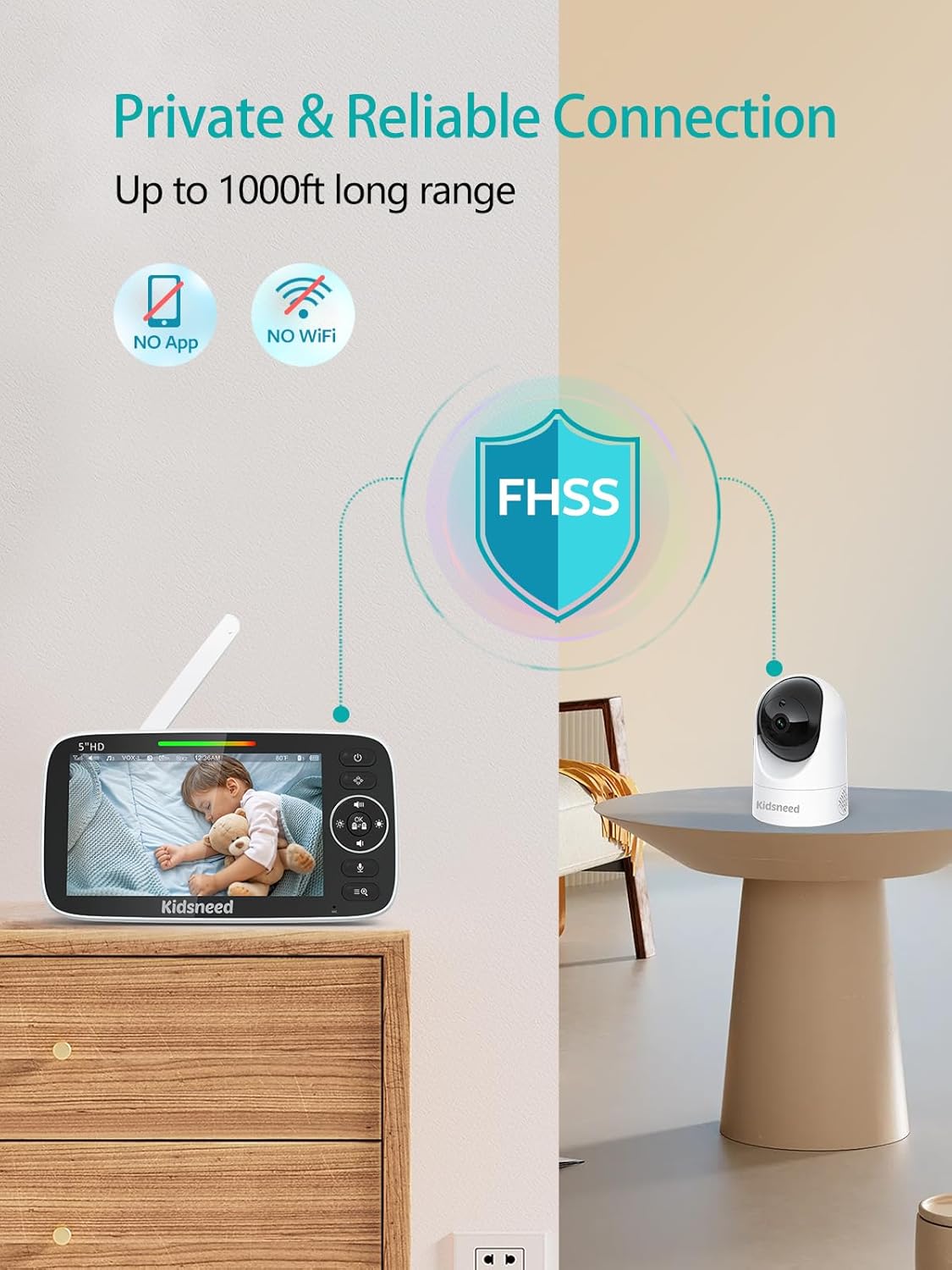
Image: A visual illustrating the private and reliable connection of the Kidsneed monitor, emphasizing "NO App" and "NO WiFi" with a shield icon for FHSS technology, and a long range of up to 1000ft.
5. Maintenance
5.1 Cleaning
- Wipe the monitor and camera units with a soft, dry cloth.
- Do not use abrasive cleaners or solvents.
- Ensure the units are unplugged before cleaning.
5.2 Battery Care
- Avoid fully discharging the monitor's battery frequently.
- Charge the battery regularly, even if not in constant use, to maintain its health.
- Store the unit in a cool, dry place if not used for extended periods.
6. Troubleshooting
| Problem | Possible Cause | Solution |
|---|---|---|
| No image/sound on monitor | Monitor or camera not powered on; out of range; not paired. | Ensure both units are plugged in and powered on. Move monitor closer to camera. Re-pair units if necessary. |
| Poor image quality | Low light (night vision not active); camera lens dirty; interference. | Ensure sufficient light or check night vision activation. Clean camera lens. Move units away from other electronic devices. |
| Static or distorted sound | Out of range; interference. | Move monitor closer to camera. Reduce interference from other 2.4GHz devices. |
| Monitor battery drains quickly | Screen always on; old battery. | Use VOX mode to turn off screen when quiet. Ensure full charge. Contact support if battery life significantly degrades. |
| Cannot pan/tilt camera | Camera not responding; motor issue. | Restart both units. Ensure camera is powered. If issue persists, contact customer support. |
7. Specifications
| Feature | Detail |
|---|---|
| Model Name | SM530F-2 |
| Display Size | 5 inches LCD |
| Video Capture Resolution | 720p HD |
| Connectivity Technology | 2.4GHz FHSS (Wireless) |
| Indoor/Outdoor Usage | Indoor |
| Power Source | Corded Electric |
| Monitor Battery Capacity | 4000mAh |
| Wireless Range | Up to 960 feet (line of sight) |
| Pan Angle | 355 degrees |
| Tilt Angle | 120 degrees |
| Digital Zoom | 2X, 4X |
| Included Components | 1 monitor part, 2 camera parts |
| Product Dimensions | 4.9 x 5 x 7.6 inches |
| Item Weight | 2.35 pounds |
8. Warranty and Support
Kidsneed products are designed for reliability and performance. This product comes with a standard manufacturer's warranty. Please refer to the warranty card included in your package for specific terms and conditions.
For technical support, troubleshooting assistance, or warranty claims, please contact Kidsneed customer service. Contact information can typically be found on the Kidsneed official website or on the product packaging.
We are committed to providing excellent customer service and ensuring your satisfaction with our products.


