
1. Introduction
This manual provides detailed instructions for the installation, operation, and maintenance of your AuroraLink Carplay AI Box 5.0. This device enhances your in-car entertainment and navigation experience by integrating advanced Android functionalities with your vehicle's existing CarPlay system. Please read this manual thoroughly before using the product to ensure proper function and safety.
2. Product Overview
The AuroraLink Carplay AI Box 5.0 is a compact device designed to bring a full Android operating system experience to your car's display. It features a powerful Qualcomm QCM 6125 octa-core processor, 4GB RAM, and 64GB ROM, running on Android 13.0.
Key Features:
- Operating System: Android 13.0
- Processor: Qualcomm QCM 6125 Octa-Core
- Memory: 4GB RAM + 64GB ROM (expandable up to 256GB via TF card)
- Connectivity: Integrated 4G module, Dual-WiFi, Bluetooth
- Navigation: Built-in GPS for precise positioning
- App Access: Google Play Store and ApkPure for various applications (Netflix, YouTube, etc.)
- Compatibility: Designed for BMW models with wireless CarPlay (2017 onwards)

Image: AuroraLink AI CarPlay Box highlighting its 8-Core CPU, GPS, 4+64GB memory, 4G LTE, TF Card support, and Built-in Android 10 (Note: Product description states Android 13.0, image might be older version).
3. Compatibility
The AuroraLink Carplay AI Box 5.0 is specifically designed for BMW models equipped with wireless CarPlay, produced from 2017 onwards. It is compatible with a wide range of BMW models, including:
- BMW 1 Series
- BMW 2 Series
- BMW 3 Series
- BMW 4 Series
- BMW 5 Series
- BMW 6 Series
- BMW 7 Series
- BMW X1
- BMW X2
- BMW X3
- BMW X5
- BMW X6
- BMW X7

Image: Visual representation of BMW models compatible with the Carplay AI Box.
4. Package Contents
Please verify that all items are present in your package:
- AuroraLink Carplay AI Box 5.0
- USB Type-C to Type-C Cable
- USB Type-C to USB-A Cable
- User Manual (this document)
- Packaging Box
- Packaging Envelope

Image: Diagram illustrating the Carplay AI Box, its ports (TF Card, SIM Card, Type-C), and the included accessories: packaging envelope, user manual, packaging box, Type-C to Type-C cable, and USB to Type-C cable.
5. Setup Instructions
Follow these steps to set up your AuroraLink Carplay AI Box 5.0:
- Connect the AI Box: Use the provided USB cable (Type-C to Type-C or Type-C to USB-A, depending on your car's port) to connect the AuroraLink AI Box to your vehicle's USB port. Ensure the connection is secure.
- Power On: Once connected, the AI Box will power on, indicated by a purple indicator light.
- Access Car's Interface: On your car's infotainment screen, navigate to the "Communication" or "Mobile devices" section.
- Add New Device: Select the option to "Add New device" or similar.
- Enable Bluetooth: Ensure your phone's Bluetooth is turned on. Ignore other Bluetooth devices if prompted.
- Find AuroraLink: In the list of nearby devices, locate and select "Aurora-****" (the device name may vary slightly).
- Confirm Connection: Your phone will connect, and you may be prompted to "Use Apple CarPlay" or similar. Confirm this connection.
- System Initialization: The system will boot up and display the AuroraLink interface on your car's screen.

Image: Illustration demonstrating the "Plug & Play" setup, contrasting a phone directly connected to CarPlay with the AuroraLink AI Box providing a richer interface.

Image: Six-step visual guide on how to connect the AuroraLink AI Box CarPlay Adapter, showing screen prompts and selections.
Video: Demonstration of connecting the AuroraLink Carplay AI Box to a car's USB port and the subsequent boot-up sequence on the car's display, showing the transition to the AuroraLink interface and CarPlay functionality.
6. Operating Instructions
6.1. Accessing Applications
The AuroraLink AI Box provides access to a wide range of applications through the Google Play Store and ApkPure. You can download and install popular streaming services, navigation apps, and more directly onto the device.
- Pre-installed/Supported Apps: Netflix, YouTube, TikTok, World TV, Prime Video, Google Maps, Waze, Google Assistant, Hulu, Disney+, Spotify, etc.
- Customization: The main interface allows for customization, enabling you to add or remove app shortcuts for quick access.

Image: Car interior with the infotainment screen displaying a variety of entertainment and navigation applications available through the AuroraLink AI Box.

Image: A person interacting with the car's infotainment screen, which displays various applications like TikTok, YouTube, Netflix, and Google Maps, demonstrating the multi-app functionality of the AI Box.
6.2. Navigation
The integrated GPS module ensures accurate navigation. You can use pre-installed navigation apps like Google Maps or download your preferred navigation software from the Google Play Store.
6.3. Control Methods
The AuroraLink AI Box supports various control methods, allowing you to interact with the system conveniently:
- Steering Wheel Control: Utilize your car's existing steering wheel buttons for media playback and navigation.
- Touch Screen Control: Directly interact with the car's display via touch.
- Knob Control: Use the car's central control knob for menu navigation and selections.
- Voice Assistant: Use Google Assistant ("Hey Google") for hands-free commands, such as opening maps or playing music.
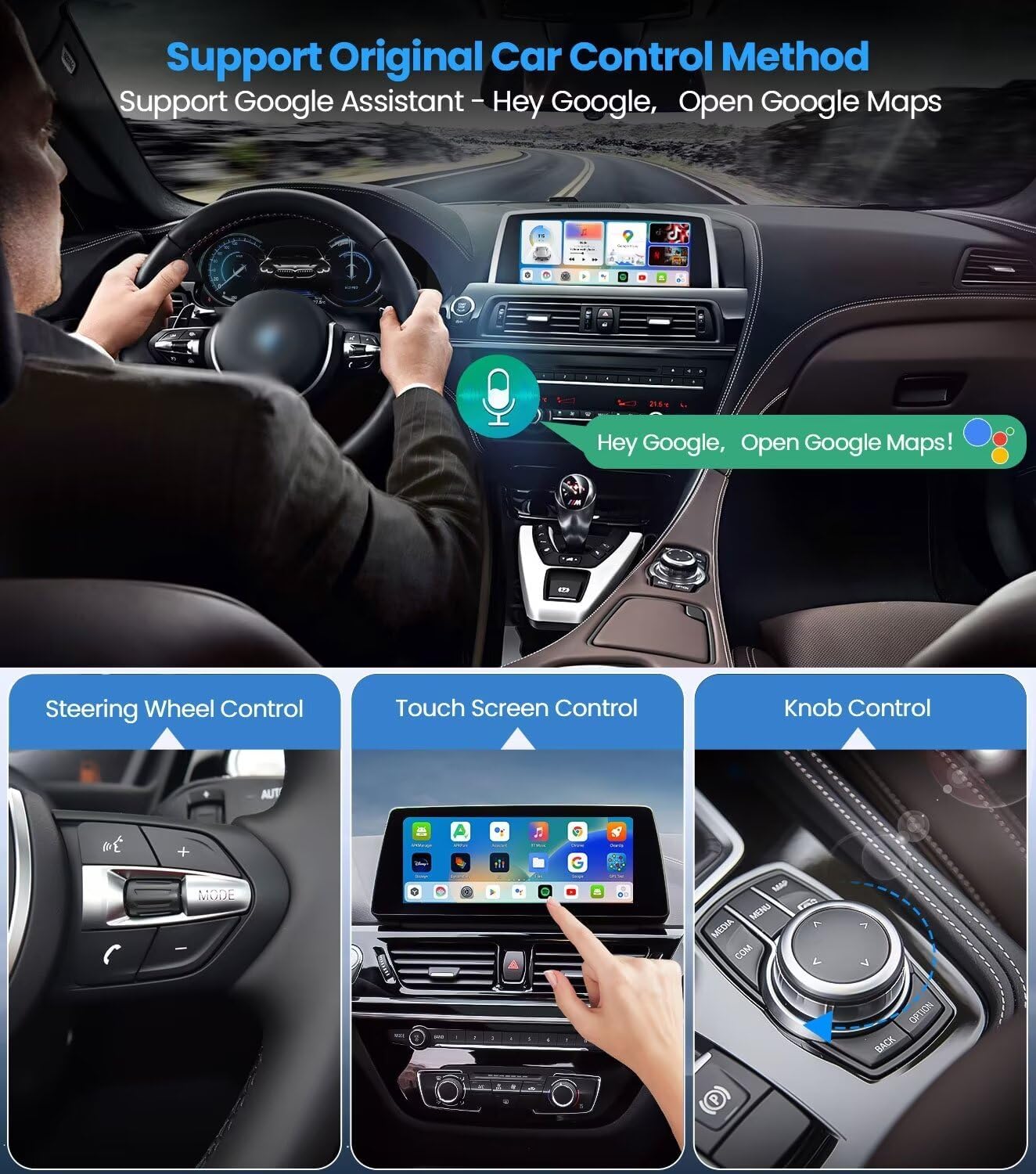
Image: Visual guide demonstrating the supported control methods: Steering Wheel Control, Touch Screen Control, and Knob Control, along with voice commands via Google Assistant.
7. Connectivity
7.1. 4G Connectivity
The integrated 4G module provides reliable high-speed internet access.
- SIM Card: Insert a compatible 4G SIM card into the designated slot on the AI Box.
- Activation: After inserting the SIM card, restart the device if necessary to ensure 4G access.
7.2. Wi-Fi and Bluetooth
The device supports Dual-WiFi and Bluetooth for seamless connection to your phone and other accessories.
- Wi-Fi Hotspot: The AI Box can connect to your phone's Wi-Fi hotspot for internet access.
- Bluetooth Pairing: Pair your phone via Bluetooth for calls and media streaming.
7.3. TF Card Expansion
Expand the storage up to 256GB using a TF (MicroSD) card. This allows for additional space for media files, downloaded apps, and other data.

Image: Front and rear views of the AuroraLink Carplay AI Box, highlighting the TF card slot and SIM card slot on the back, and the Type-C port on the side.
8. Troubleshooting
8.1. Device Not Powering On
- Ensure the USB cable is securely connected to both the AI Box and the car's USB port.
- Verify that the car's USB port is active and providing power.
- Try a different USB port or cable if available.
8.2. No Display on Car Screen
- Confirm your BMW model is compatible and has wireless CarPlay.
- Ensure the AI Box is powered on (purple indicator light).
- Check your car's infotainment system settings to ensure it's attempting to connect to a new device or CarPlay.
- Restart both the AI Box (by unplugging and replugging) and your car's infotainment system.
8.3. 4G/Internet Connection Issues
- Verify the SIM card is correctly inserted into the AI Box.
- Ensure the SIM card has an active data plan.
- Restart the AI Box after inserting the SIM card.
- If using Wi-Fi, ensure your phone's hotspot is active and the AI Box is connected to it.
8.4. CarPlay Connection Problems
- Ensure your phone's Bluetooth and Wi-Fi are enabled.
- In your phone's Bluetooth settings, ensure you are connected to the AuroraLink device.
- Go to your phone's CarPlay settings and select the AuroraLink device.
- If issues persist, try forgetting the device on your phone and reconnecting.
9. Specifications
| Feature | Specification |
|---|---|
| Brand | AuroraLink |
| Model Name | BMW Carplay AI Box 5.0 |
| Item Model Number | 5.0 |
| Processor | Qualcomm QCM 6125 Octa-Core |
| Operating System | Android 13.0 |
| RAM | 4GB |
| ROM | 64GB |
| Expandable Storage | Up to 256GB (TF Card) |
| Connectivity Technology | 4G, Wi-Fi (Dual-WiFi), Bluetooth |
| GPS | Built-in GPS |
| Resolution | 4K (Supported) |
| Supported Internet Services | Netflix, YouTube, TikTok, Prime Video, etc. |
| Controller Type | App Control, Steering Wheel, Touch Screen, Knob, Voice |
| Color | Black |
| Item Weight | 6 ounces |
| Package Dimensions | 4.25 x 4.17 x 2.28 inches |
10. Maintenance
To ensure the longevity and optimal performance of your AuroraLink Carplay AI Box 5.0, follow these maintenance guidelines:
- Cleaning: Use a soft, dry cloth to clean the device. Avoid using liquid cleaners or solvents.
- Software Updates: Periodically check for system updates through the device's settings to ensure you have the latest features and security patches.
- Storage: Store the device in a cool, dry place when not in use. Avoid extreme temperatures.
- Cable Care: Handle USB cables carefully to prevent damage to connectors or wires.
11. Warranty and Support
For warranty information and technical support, please refer to the official AuroraLink website or contact their customer service. Keep your purchase receipt as proof of purchase for warranty claims.