
1. Introduction
This manual provides comprehensive instructions for the installation, operation, and maintenance of your Fortinet FortiGate-50G-DSL Firewall. The FortiGate-50G-DSL is designed to provide robust security and network connectivity for branch and small office environments, featuring multiple Gigabit Ethernet ports and a dedicated DSL port.
Please read this manual thoroughly before setting up and operating the device to ensure proper functionality and security.
2. Product Overview
The FortiGate-50G-DSL is a compact and powerful security appliance. Below are visual representations and descriptions of the device's key features and physical characteristics.

Figure 2.1: Front View of FortiGate 50G-DSL. This image displays the front panel of the FortiGate 50G-DSL, showing the Fortinet branding, model name, status indicator LEDs for power, status, HA, ADSL, and WiFi, along with port activity LEDs for WAN, LAN, and Speed. A BLE/Reset button is also visible.

Figure 2.2: Rear View and Key Features. This image highlights the rear panel of the FortiGate 50G-DSL, illustrating the various ports including DC+12V power input, USB, Console, DSL, WAN, and multiple LAN ports. It also points out the small form factor, the presence of a Security Processing Unit (SPU) for unparalleled performance, and Universal ZTNA capabilities.

Figure 2.3: FortiGate 50G Series Variants. This image shows a stack of three FortiGate 50G devices, illustrating the different versions available: DSL, SFP, and SFP-PoE. This manual specifically covers the DSL version.
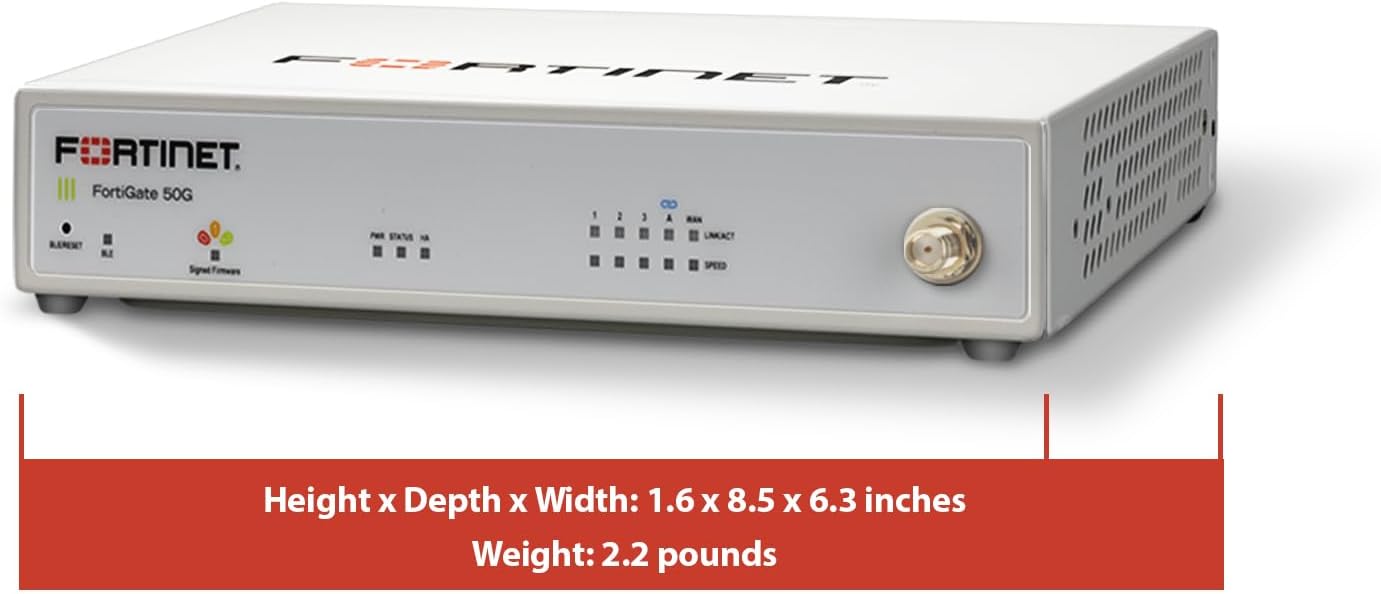
Figure 2.4: Physical Dimensions. This image provides the physical dimensions and weight of the FortiGate 50G-DSL unit. The device measures 1.6 x 8.5 x 6.3 inches (Height x Depth x Width) and weighs 2.2 pounds.
3. Setup and Installation
This section guides you through the initial setup and connection of your FortiGate-50G-DSL firewall.
3.1 Device Interfaces

Figure 3.1: FortiGate 50G-DSL Interfaces. This diagram illustrates the various ports and interfaces on the FortiGate 50G-DSL, numbered for easy identification.
- USB Port: For connecting USB devices such as external storage or 3G/4G modems.
- Console Port: RJ45 serial port for direct command-line interface (CLI) access for initial configuration or troubleshooting.
- DSL RJ11 Port: Dedicated port for connecting to a DSL internet service provider.
- GE RJ45 WAN Port: Gigabit Ethernet port for connecting to an external network or another internet service provider (ISP).
- GE RJ45 FortiLink Port: Gigabit Ethernet port for connecting to FortiSwitch devices for unified management.
- 3 x GE RJ45 Ethernet Ports: Three Gigabit Ethernet ports for connecting internal network devices (LAN).
3.2 Initial Connection Steps
- Power Connection: Connect the provided power adapter to the DC+12V port on the device and then to a power outlet.
- DSL Connection: Connect your DSL line to the DSL RJ11 port.
- WAN Connection (Optional): If using an additional WAN connection, connect your internet source to the GE RJ45 WAN port.
- LAN Connection: Connect your internal network devices (e.g., switches, computers) to the GE RJ45 Ethernet ports.
- Console Connection (for initial configuration): For advanced setup, connect a computer to the Console port using an RJ45-to-serial cable and a terminal emulator.
- Power On: Once all connections are secure, power on the device. Observe the front panel LEDs for status indications.
Refer to the Fortinet documentation for detailed configuration steps via the web-based manager or CLI.
4. Operating the FortiGate-50G-DSL
The FortiGate-50G-DSL operates on FortiOS, Fortinet's proprietary operating system, providing a comprehensive suite of security and networking features.
4.1 Accessing the Device
- Web-based Manager: Access the device's graphical user interface (GUI) via a web browser by entering the default IP address (e.g., 192.168.1.99) into the address bar.
- Command Line Interface (CLI): For advanced configurations and scripting, connect via the Console port or SSH/Telnet to the device's IP address.
4.2 Key Features and Functions
- Firewall: Stateful inspection firewall for network traffic control.
- VPN: Secure remote access and site-to-site connectivity using IPsec and SSL VPN.
- Intrusion Prevention System (IPS): Protects against known and unknown threats.
- Antivirus/Anti-malware: Scans traffic for malicious content.
- Web Filtering: Controls access to inappropriate or malicious websites.
- Application Control: Manages and monitors application usage on the network.
- SD-WAN: Optimizes WAN performance and reliability.
Detailed configuration and operational procedures for these features are available in the FortiOS documentation on the Fortinet support website.
5. Maintenance
Regular maintenance ensures the optimal performance and security of your FortiGate-50G-DSL firewall.
- Firmware Updates: Regularly check for and apply the latest FortiOS firmware updates to benefit from new features, security patches, and performance improvements.
- Configuration Backups: Periodically back up your device configuration to a secure location. This allows for quick restoration in case of unexpected issues.
- Monitoring: Monitor system logs, resource utilization, and security alerts through the FortiGate GUI or FortiAnalyzer for proactive issue detection.
- Physical Inspection: Ensure the device is in a well-ventilated area, free from dust and obstructions. Check cable connections periodically.
- Security Policy Review: Regularly review and optimize your security policies to adapt to changing network requirements and threat landscapes.
6. Troubleshooting
This section provides general guidance for common issues. For detailed troubleshooting, refer to the Fortinet support documentation.
6.1 Common Issues and Solutions
- No Power:
- Ensure the power adapter is securely connected to the device and a working power outlet.
- Verify the power outlet is functional.
- No Internet Connectivity:
- Check DSL and WAN cable connections.
- Verify ISP service status.
- Confirm correct WAN interface configuration (IP address, gateway, DNS).
- Check firewall policies to ensure traffic is allowed.
- Cannot Access Web-based Manager:
- Ensure your computer is connected to a LAN port and has an IP address in the same subnet as the FortiGate.
- Try accessing via the default IP address (e.g., 192.168.1.99).
- Clear browser cache or try a different browser.
- If necessary, use the Console port for CLI access to check network settings.
- Slow Network Performance:
- Check for high CPU or memory utilization on the FortiGate.
- Review security policies for potential bottlenecks.
- Ensure network cables are in good condition and correctly connected.
- Verify ISP bandwidth.
7. Specifications
The following table details the technical specifications for the Fortinet FortiGate-50G-DSL Firewall.

Figure 7.1: FortiGate 50G-DSL Performance Specifications. This image provides a summary of key performance metrics for the FortiGate 50G-DSL, including throughputs and supported devices.
| Feature | Specification |
|---|---|
| Model Name | FG-50G-DSL |
| Brand | FORTINET |
| Connectivity Technology | Ethernet, DSL |
| Operating System | FortiOS |
| Number of Ports | 6 (5x GE RJ45, 1x DSL RJ11) |
| LAN Port Bandwidth | 1000 Mbps (Gigabit Ethernet) |
| Data Transfer Rate | 5000 Megabits Per Second |
| NGFW Throughput | 56 Gbps |
| IPS Throughput | 83 Mpps |
| Threat Protection Throughput | 256 MB DDR3 |
| IPsec VPN Throughput | 1 |
| Max. # of FortiSwitches Supported | 8 |
| Max. # of FortiAPs Supported (Total/Tunnel Mode) | 16/8 |
| Compatible Devices | Laptop, Personal Computer, Smartphone, Tablet |
| Recommended Uses For Product | Business |
| Dimensions (H x D x W) | 1.6 x 8.5 x 6.3 inches |
| Weight | 2.2 pounds |
8. Warranty and Support
Fortinet provides comprehensive support and warranty services for its products. For specific details regarding your FortiGate-50G-DSL, please refer to the official Fortinet website or your purchase agreement.
- Product Registration: Register your device on the Fortinet support portal to activate your warranty and access support resources.
- Technical Support: Contact Fortinet technical support for assistance with installation, configuration, and troubleshooting. Support options may vary based on your service contract.
- Documentation: Access the latest documentation, including administration guides, release notes, and knowledge base articles, on the Fortinet support website.
- Community Forums: Engage with other Fortinet users and experts on the official Fortinet community forums for peer-to-peer support and discussions.
For the most up-to-date information, visit the official Fortinet support portal: support.fortinet.com


