
DJI 6941565992543
DJI Flip (RC-N3) Drone User Manual
Comprehensive Guide for Operation and Maintenance
1. Introduction
The DJI Flip combines a compact design with exceptional imaging capabilities. It supports palm takeoff without a remote controller and features intelligent subject tracking. Its foldable propeller guards enhance portability and safety, making it an ideal drone for various users.
This manual provides detailed instructions for setting up, operating, maintaining, and troubleshooting your DJI Flip drone. Please read it thoroughly before first use to ensure safe and optimal performance.
2. What's in the Box
Upon unboxing your DJI Flip, verify that all components are present:
- DJI Flip Drone x 1
- DJI RC-N3 Remote Controller x 1
- DJI RC-N3 RC Cable (USB-C Connector) x 1
- DJI RC-N3 RC Cable (Lightning Connector) x 1
- DJI Flip Intelligent Flight Battery x 1
- DJI Flip Spare Propellers (Pair) (Screws Included) x 1
- Screwdriver x 1
- DJI Flip Gimbal Protector x 1
- Type-C to Type-C PD Cable x 1
Note: Battery charger is sold separately. It is recommended to purchase the DJI 30W USB-C Charger or DJI 65W Portable Charger.

Image: Components included in the DJI Flip package, showing the drone, RC-N3 remote controller, and intelligent flight battery.
3. Setup Guide
3.1 Unfolding the Drone
Carefully unfold the drone arms until they click into place. Ensure all propeller guards are securely positioned.

Image: The DJI Flip drone in its unfolded state, ready for flight, alongside its remote controller.
3.2 Battery Installation and Charging
Insert the Intelligent Flight Battery into the drone until it clicks. Before first use, fully charge the battery using a compatible DJI charger (sold separately).
3.3 App Installation and Activation
The DJI Fly app is required for operation. Due to platform compatibility issues, the DJI Fly app has been removed from Google Play. Visit the official DJI website to download the user manual and the latest DJI Fly app for a better experience.
To activate your DJI Flip:
- Connect your mobile device (connected to the internet) with the remote controller (DJI RC-N3 or RC 2).
- Open the DJI Fly app and follow the on-screen instructions to connect and activate your drone.
- If using DJI RC 2 for the first time, connect to the internet via Wi-Fi or a smartphone hotspot to activate the device.
4. Operating Instructions
4.1 Pre-Flight Checklist
- Ensure drone and remote controller batteries are fully charged.
- Check propellers for any damage or obstructions.
- Verify GPS signal strength in the DJI Fly app.
- Ensure sufficient storage space on the microSD card (if installed).
- Check local regulations for drone operation in your area.
4.2 Takeoff and Landing
Palm Takeoff: The DJI Flip supports palm takeoff for easy capture. Hold the sides of the aircraft body from below with the camera facing the subject. Ensure your hand does not block the camera and there are no obstacles obstructing the takeoff. Simply press the mode button on the side to select your desired shooting mode, and the Flip will automatically take off.

Image: A person initiating a palm takeoff with the DJI Flip drone, demonstrating its ease of use.
Remote Controller Takeoff/Landing: In the DJI Fly app, tap the takeoff/landing icon and confirm. The drone will automatically ascend/descend.
4.3 Flight Modes and Features
The DJI Flip offers various intelligent flight modes:
- Subject Tracking: Keeps your subject in focus, acting as a personal cinematographer. This feature is ideal for capturing dynamic footage while hiking or during events.
- QuickShots: Provides six dynamic shooting modes (Dronie, Circle, Rocket, Spotlight, Helix, Boomerang) for quick, simplified cinematic footage.
- Return to Home (RTH): Automatically brings the drone back to its takeoff point. This includes Smart RTH, Low Battery RTH, and Failsafe RTH.
- Automatic Braking: Equipped with a 3D Infrared Sensing System, enabling automatic braking for enhanced safety, even at night.
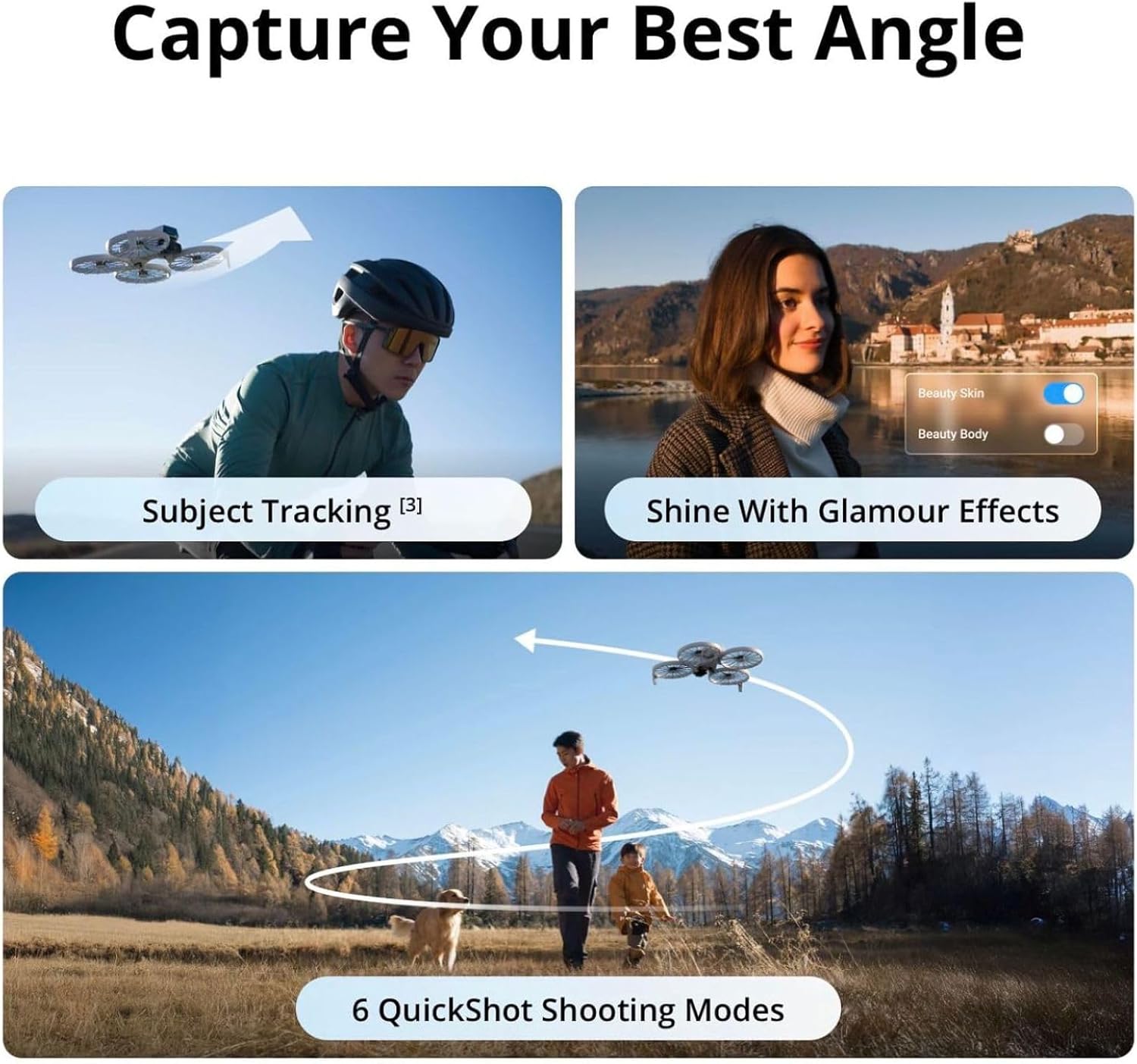
Image: Visual representation of the DJI Flip's subject tracking and various QuickShot modes in action.
4.4 Camera Operation
The DJI Flip features a 1/1.3-inch CMOS sensor capable of recording 4K/60fps HDR video and 48MP photos. It also supports 100fps slow-motion video in 4K resolution and 10-bit D-Log M color profile for flexible editing.
Use the DJI Fly app to control camera settings, capture photos, and record videos. The app also supports automatic beautification when exporting footage.

Image: Details of the DJI Flip's 1/1.3-inch CMOS sensor and its ability to capture stunning 4K/60fps HDR video.
4.5 Video Transmission and QuickTransfer
With O4 video transmission, the DJI Flip supports up to 44000ft/13km of 1080p/60fps video transmission. Connect DJI Flip to your phone via Wi-Fi to transfer footage at up to 30MB/s to the DJI Fly app for easy editing.

Image: Illustration of the drone's video transmission range and the QuickTransfer function for fast media transfer to a mobile device.
5. Maintenance
5.1 Cleaning
- Regularly clean the drone body, propellers, and camera lens with a soft, dry cloth.
- Avoid using liquid cleaners or solvents.
5.2 Propeller Replacement
If propellers are damaged, replace them using the spare propellers and screwdriver provided. Ensure propellers are installed correctly according to the markings (e.g., A and B type propellers).
5.3 Battery Care
- Store batteries in a cool, dry place.
- Do not overcharge or over-discharge batteries.
- If not used for extended periods, charge batteries to approximately 50-60% every three months.
6. Troubleshooting
| Problem | Possible Cause | Solution |
|---|---|---|
| Drone does not power on. | Low battery or incorrect battery installation. | Charge the Intelligent Flight Battery. Ensure the battery is inserted correctly until it clicks. |
| Loss of video transmission. | Interference or exceeding transmission range. | Fly in an open area away from strong interference sources. Return the drone closer to the remote controller. |
| Drone drifts during flight. | Weak GPS signal or compass interference. | Fly in an open area with clear sky. Perform compass calibration if prompted by the app. |
| DJI Fly app not connecting. | Incorrect cable connection or app version. | Ensure the RC cable is securely connected. Download the latest DJI Fly app from the official DJI website. |
Is DJI Flip waterproof?
No. Avoid contact with water during use, as it may damage the device. If it rains during the flight, return and land as soon as possible, and wait until the aircraft is fully dry inside and out before using it again.
7. Specifications
| Feature | Detail |
|---|---|
| Brand | DJI |
| Model Name | DJI Flip |
| Weight | Under 249 g (0.64 Kilograms / 1.41 pounds) |
| Dimensions | 11"L x 9.2"W x 3.1"H |
| Max Flight Time | 31 Minutes |
| Video Capture Resolution | 4K/60fps HDR |
| Effective Still Resolution | 48 MP |
| Sensor | 1/1.3-inch CMOS |
| Video Transmission Range | Up to 44000ft/13km (O4 Transmission) |
| Gimbal | 3-Axis Mechanical Gimbal |
| Propeller Guards | Built-In Full-Coverage, Carbon Fiber |
| Battery Capacity | 3110 Milliamp Hours (Lithium Ion) |
| Connectivity | Bluetooth, Wi-Fi |
| Skill Level | Intermediate |
8. Warranty Information
DJI products come with an official warranty. For detailed warranty terms and conditions, please refer to the official DJI website or contact DJI customer support. Keep your proof of purchase for warranty claims.
Protection plans are also available for purchase:
- 2-Year Protection Plan: $43.99
- 3-Year Protection Plan: $57.99
- Complete Protect: $16.99/month (covers all eligible past and future purchases)
9. Support and Contact
For further assistance, technical support, or service inquiries, please visit the official DJI support channels:
- Official DJI Website: www.dji.com
- DJI Store: Visit the DJI Store on Amazon
- Customer Service: Refer to the contact information provided on the DJI website for your region.
10. Official Product Videos
Watch these official videos for more insights into the DJI Flip drone:
DJI Flip Intro Video
Video: An introductory video showcasing the DJI Flip drone's key features and design. This video is provided by the seller, DJI Service LLC.
Related documents6941565992543


Ask a question about this manual
Ask about setup, troubleshooting, compatibility, parts, safety, or missing instructions. Manuals+ will review the question and use this page’s manual context to help answer it.