
1. Introduction
The MAONO MaonoCaster E2 Gen2 is an integrated audio production studio designed for podcasting, streaming, and studio recording. This device offers dual XLR inputs, high-quality preamps, and a range of features to enhance your audio content. It is compatible with computers, smartphones, and tablets, supporting both Mac and Windows operating systems.
2. Package Contents
Verify that all items listed below are included in your package:
- 1 x MAONO MaonoCaster E2 Gen2 Audio Interface Mixer
- 1 x USB-A/USB-C to USB-C Cable
- 1 x 3.5mm Audio Cable
- 1 x User Manual

3. Product Overview
The MaonoCaster E2 Gen2 features an intuitive layout with various controls and ports for comprehensive audio management.
3.1 Front Panel Controls
- Microphone Gain Knobs: Adjust input sensitivity for connected microphones.
- 48V Phantom Power Buttons: Activate 48V phantom power for condenser microphones.
- Mute Buttons: Instantly mute microphone inputs.
- Soundpads: 8 customizable pads for triggering sound effects.
- Bluetooth Button: Initiate Bluetooth pairing for wireless audio input.
- Monitor Button: Enable or disable self-monitoring of your voice.
- Noise Reducer Button: Activate 2-level intelligent noise reduction.
- Reverb Presets: Select from six preset reverb effects.
- Pitch Changer: Adjust vocal pitch for creative effects.
- SingAlong Mode: Allows monitoring of singing without audience hearing it.
- Loopback Button: Enables simultaneous recording of computer audio and microphone input for live streaming.
- Output Volume Knob: Controls the overall output volume.
3.2 Rear Panel Ports
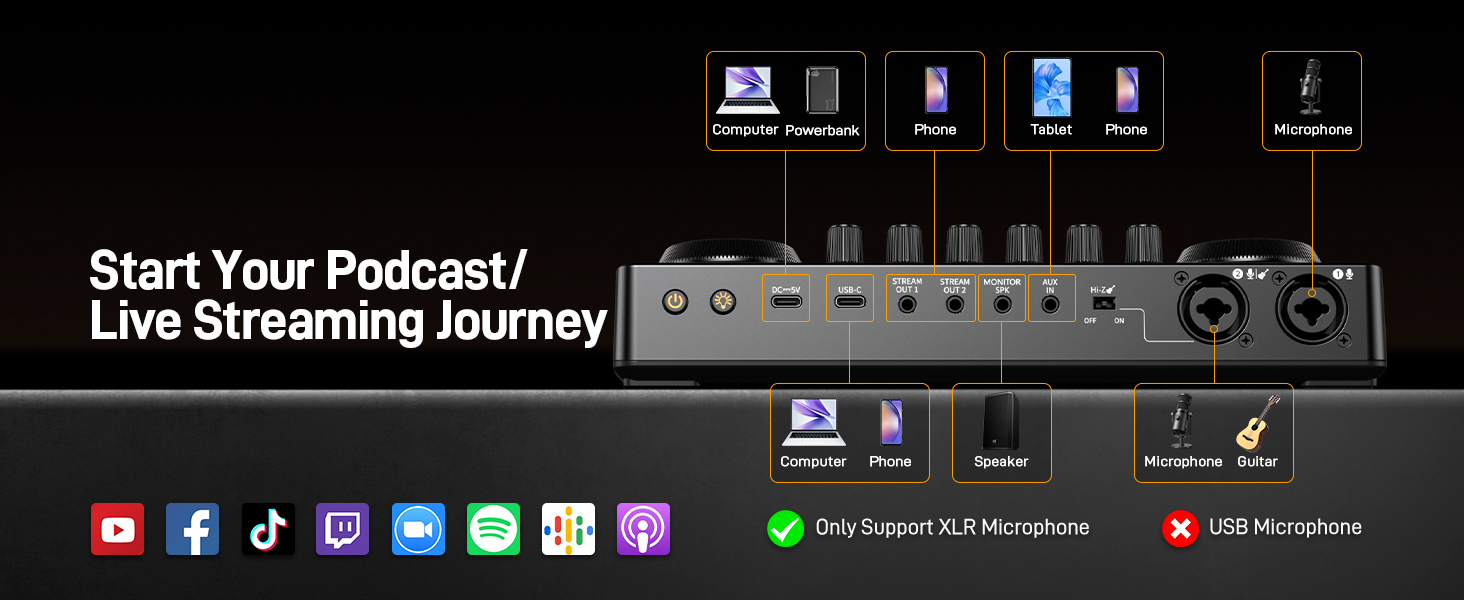
- DC-5V: Power input port.
- USB-C: Connects to computers, smartphones, or tablets for audio and power.
- STREAM OUT 1/2: 3.5mm output jacks for connecting to streaming devices.
- MONITOR SPK: 3.5mm output for connecting monitor speakers.
- AUX IN: 3.5mm input for external audio sources.
- Hi-Z Switch: For high-impedance instrument input.
- XLR Combo Inputs (1 & 2): Connects XLR microphones or 1/4-inch instrument cables.

4. Setup Guide
Follow these steps to set up your MaonoCaster E2 Gen2 for optimal performance.
4.1 Power Connection
- Connect the provided USB-C cable to the DC-5V port on the rear panel of the MaonoCaster E2 Gen2.
- Connect the other end of the USB-C cable to a power adapter (not included) or a powered USB port.
- The device has a built-in 1500mA battery, offering up to 8 hours of use. Ensure it is charged for portable operation.
4.2 Microphone Connection
- Connect your XLR microphones to the XLR Combo Inputs (1 or 2) on the rear panel.
- If using condenser microphones, press the corresponding 48V button on the front panel to supply phantom power.
- Adjust the Gain knob for each microphone to achieve an appropriate input level.


4.3 Instrument Connection
- Connect your instrument (e.g., guitar) to one of the XLR Combo Inputs using a 1/4-inch cable.
- Ensure the Hi-Z switch on the rear panel is set to 'ON' for high-impedance instruments.
4.4 Computer/Smartphone/Tablet Connection
- For digital audio connection, use the USB-C port to connect the MaonoCaster E2 Gen2 to your computer, smartphone, or tablet. The device is plug-and-play for Mac and Windows systems.
- For analog audio input from a phone, use the 3.5mm audio cable to connect your phone to the AUX IN port.
- For streaming output to a phone, connect your phone to the STREAM OUT 1 or STREAM OUT 2 ports using a 3.5mm audio cable.
4.5 Bluetooth Pairing
- Press the BT button on the front panel to activate Bluetooth pairing mode. The indicator light will flash.
- On your device (e.g., smartphone), search for available Bluetooth devices and select 'MAONO E2 Gen2'.
- Once paired, the BT indicator light will remain solid. You can now stream background music or audio wirelessly.

5. Operating Instructions
This section details the functions of the MaonoCaster E2 Gen2's controls and features.
5.1 Audio Input Control
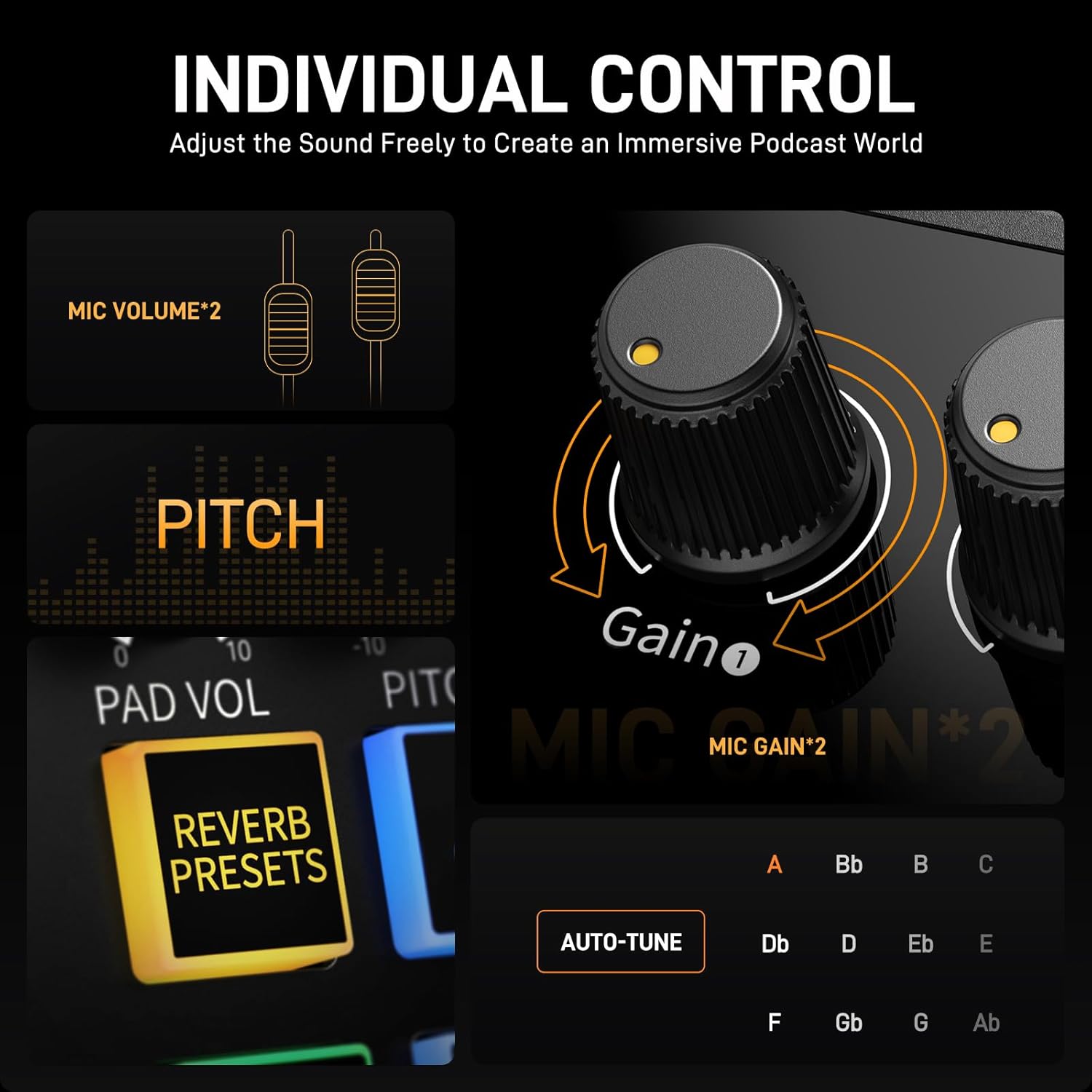
- Gain Knobs: Rotate clockwise to increase microphone input sensitivity, counter-clockwise to decrease. Aim for levels that are strong but do not peak into the red.
- Volume Faders: Adjust the individual volume levels for each microphone input.
- Music Volume Knob: Controls the volume of background music from Bluetooth or AUX IN.

5.2 Sound Effects and Vocal Enhancements
- Custom Soundpads: The 8 soundpads can be customized with your own audio clips (up to 20 seconds each). To record, press and hold a soundpad button, speak into the microphone, and release to save. To upload pre-recorded sounds, connect your device via Bluetooth or AUX-IN and play the sound while recording to a soundpad. Adjust the volume of each soundpad as needed.
- Pitch Changer: Use the pitch control to modify your vocal tone for various effects or privacy.
- Reverb Presets: Select from six different reverb settings to add depth and atmosphere to your voice.

5.3 Special Functions
- Mute Button: Press the microphone mute button to instantly silence your microphone input. This is useful for handling unexpected interruptions during live sessions.
- Monitor Button: Press the MONITOR button to hear your own voice through connected headphones. This provides zero-latency monitoring, essential for accurate performance.
- Loopback Function: Activate the LOOPBACK button when live streaming from a computer. This function mixes the audio from your computer with your microphone input, sending the combined signal back to the computer for streaming.
- Noise Reduction: Press the NOISE REDUCER button to activate the 2-level intelligent noise reduction feature. This helps to minimize unwanted background sounds like fan noise.

6. Maintenance
Proper care ensures the longevity and performance of your MaonoCaster E2 Gen2.
- Cleaning: Use a soft, dry cloth to clean the exterior of the device. Avoid using liquid cleaners or solvents, as they may damage the finish or internal components.
- Storage: Store the device in a cool, dry place away from direct sunlight and extreme temperatures.
- Handling: Avoid dropping or subjecting the device to strong impacts.
- Battery Care: For optimal battery life, avoid fully discharging the battery frequently. If storing for extended periods, charge the battery to approximately 50%.
7. Troubleshooting
If you encounter issues with your MaonoCaster E2 Gen2, refer to the following common solutions.
7.1 No Sound or Low Volume
- Check Connections: Ensure all cables (microphones, headphones, USB-C, AUX) are securely connected.
- Adjust Volume: Verify that microphone gain knobs, individual volume faders, and the main output volume knob are set to appropriate levels.
- Phantom Power: If using a condenser microphone, ensure the 48V phantom power button is activated.
- Computer Settings: On your computer, check that the MaonoCaster E2 Gen2 is selected as the input and output audio device in your sound settings and recording software.
7.2 Poor Audio Quality (Noise, Distortion)
- Gain Staging: Reduce microphone gain if the audio is distorting. Increase gain if the audio is too quiet and noisy.
- Noise Reduction: Activate the 2-level noise reduction feature to minimize background noise.
- Cable Quality: Ensure you are using high-quality, shielded cables to prevent interference.
- Environment: Record in a quiet environment to reduce ambient noise.
7.3 Connectivity Issues
- USB-C Connection: Try a different USB-C port on your computer or a different USB-C cable. Ensure the cable supports data transfer.
- Bluetooth Pairing: If Bluetooth fails to connect, try unpairing and re-pairing the device. Ensure no other devices are actively connected to the MaonoCaster E2 Gen2 via Bluetooth.
- Driver Issues: While plug-and-play, ensure your operating system is up to date.
7.4 Soundpad Issues
- Recording Sounds: To record directly to a soundpad, press and hold the desired pad, speak into your microphone, and release.
- Uploading Pre-recorded Sounds: To upload existing audio files, connect your phone or computer via Bluetooth or the AUX-IN port. Play the desired audio file and simultaneously record it to a soundpad by pressing and holding the pad button.
7.5 Battery Life
- Charging: Ensure the device is fully charged before portable use.
- Power Consumption: Features like 48V phantom power and high output levels can consume more battery.
8. Specifications
| Feature | Detail |
|---|---|
| Model Number | E2 Gen 2 |
| Item Weight | 1.98 pounds |
| Product Dimensions | 9.64 x 6.18 x 2.16 inches |
| Connectivity Technology | Auxiliary, Bluetooth, USB |
| Number of Channels | 10 |
| Power Source | Battery Powered |
| Battery Type | Lithium Ion (included) |
| Operating System | Windows, macOS |
| Compatible Devices | Personal Computer, Smartphone, Tablet |
| Supported Software | OBS/Discord/Zoom/Audacity/Youtube/Facebook/TikTok/Twitch |
| Microphone Preamps | 2 (60dB gain) |
9. Warranty and Support
For warranty information and technical support, please refer to the official MAONO website or contact their customer service directly. Details are typically provided on the product packaging or within the included documentation.


