
1. Introduction
Thank you for choosing the AMHVMU M2S Car HUD Speedometer. This device projects essential driving information onto your windshield, allowing you to monitor your speed and other data without diverting your eyes from the road. The M2S features an upgraded color display with larger fonts for improved visibility and includes a cooler display design. This manual provides detailed instructions for installation, operation, and maintenance to ensure optimal performance and safety.
The M2S is designed to enhance driving safety by providing real-time vehicle speed and compass information directly in your line of sight. It includes features like automatic brightness adjustment and speed violation alarms. This device is compatible with all cars, offering a simple plug-and-play USB connection.
2. Package Contents
Please check the package for the following items:
- AMHVMU M2S HUD Unit
- USB Power Cable
- Anti-slip Mat
- Instruction Manual
3. Product Features
- Upgraded Color Display: Enhanced visual clarity with a four-color effect.
- Large Fonts: Increased font size for easier reading of vehicle speed.
- Automatic Brightness Adjustment: Built-in photosensitive holes automatically adjust display brightness based on ambient light.
- Real-time Display: Shows current vehicle speed and compass.
- Multiple Display Combinations: Customize the display to show speed only, speed + compass, speed + unit, or speed + compass + unit.
- Speed Violation Alarms: Set up to three different speed alarms.
- Plug and Play: Easy installation via USB connection, no wiring or drilling required.
- Universal Compatibility: Suitable for all cars.
- Compact Design: Small body for flexible placement without obstructing driver's view.
4. Installation
4.1 Device Placement
- Place the anti-slip mat on a flat surface of your dashboard, typically near the windshield.
- Position the AMHVMU M2S HUD unit on the anti-slip mat. Ensure it is stable and does not obstruct your view of the road. The compact design allows for placement in various corners of the dashboard.

Figure 1: The compact design of the HUD allows for flexible placement on the dashboard without obstructing the driver's view.
4.2 Power Connection
- Connect the provided USB power cable to the Type-C port on the HUD unit.
- Plug the other end of the USB cable into your car's USB port (5V) or a cigarette lighter adapter.
- The device will power on automatically when the vehicle starts and power off when the vehicle is turned off, preventing battery drain.

Figure 2: The HUD is powered via a secure Type-C USB connection, using the car's USB port (5V) or a cigarette lighter adapter. It automatically powers off with the vehicle.
4.3 Applying the Reflective Film (Optional)
For optimal display clarity and to eliminate double images, especially on certain windshield types, you may use the included reflective plastic film.
- Clean Glass: Thoroughly clean the projection area on your windshield where the HUD display will appear.
- Paste Film: Carefully paste the plastic film vertically onto the cleaned glass surface.
- Remove Protective Film: Once the film is in place, gently remove any remaining protective layers.

Figure 3: Instructions for applying the plastic film to the windshield: 1. Clean the projection area on the glass. 2. Paste the film vertically onto the glass. 3. Remove the protective film.
5. Basic Operation
5.1 Automatic Brightness
The M2S HUD features an automatic light sensor. It will adaptively adjust the display brightness to ensure it is clear enough during the day and not dazzling at night.

Figure 4: The HUD automatically adjusts brightness based on ambient light for clear visibility day and night.
5.2 Display Modes
The device offers various display combinations. You can switch between these modes to suit your preference. Refer to the device's physical buttons or the full manual for specific button functions to cycle through modes.
- Separate display of vehicle speed
- Vehicle speed + compass
- Vehicle speed + speed unit (MPH/KMH)
- Vehicle speed + compass + speed unit (MPH/KMH)

Figure 5: The device offers multiple display modes, allowing users to switch between various combinations of speed, unit, and compass with a single click.
5.3 Speed Unit Switching
The M2S allows you to switch freely between MPH (miles per hour) and KMH (kilometers per hour) to meet the speed unit requirements of different countries. Consult the device's manual or control buttons for instructions on how to change the speed unit.

Figure 6: The display uses a four-color visual effect for enhanced readability and a three-dimensional appearance, showing both speed and compass.
5.4 High-Definition Display
The front side of the HUD adopts metal nanotechnology to eliminate unnecessary reflections and ensure the picture display is clearer, providing a high-definition experience with large, easy-to-read fonts.
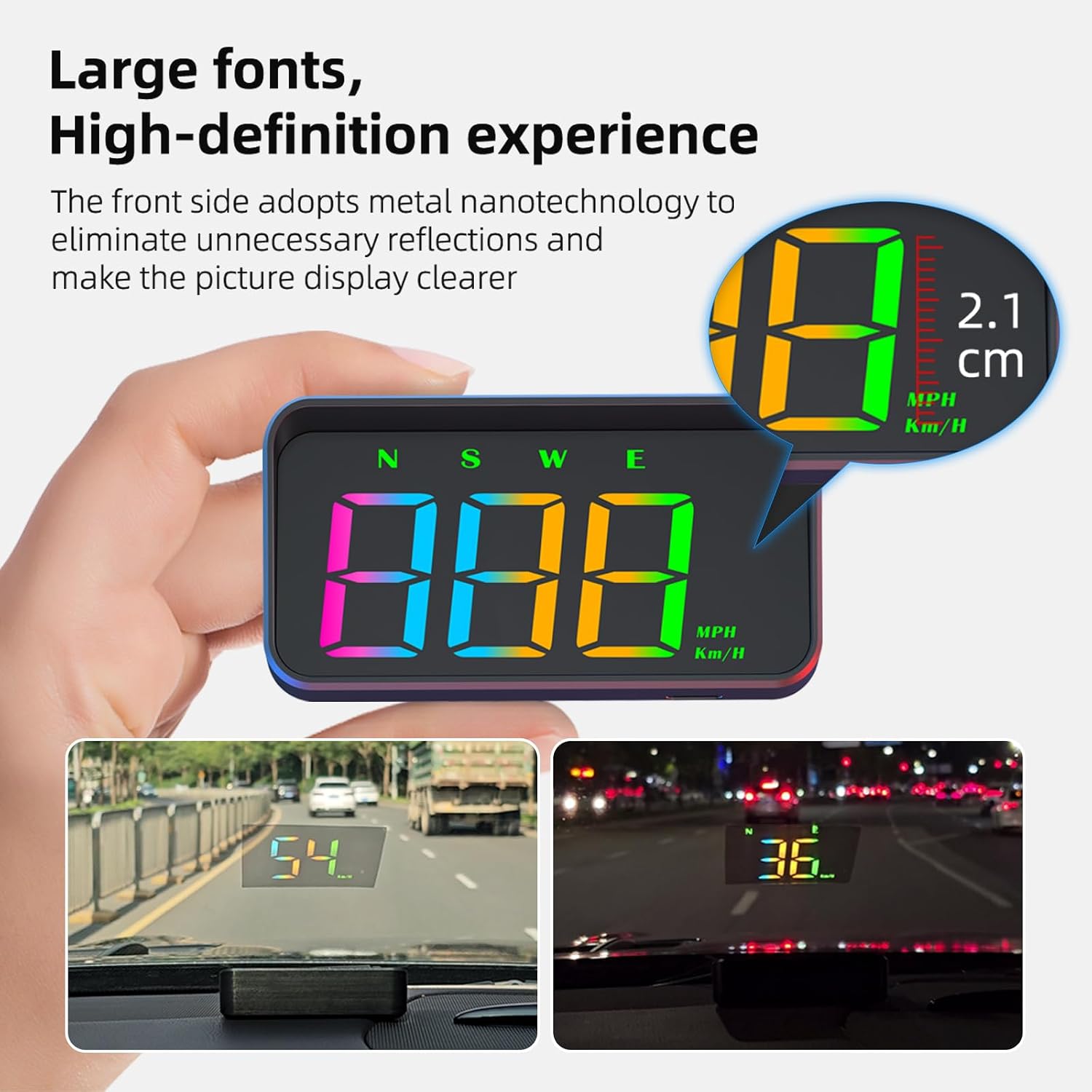
Figure 7: The HUD features large, high-definition fonts for easy reading. Its front surface uses metal nanotechnology to reduce reflections, ensuring a clearer image.
6. Alarm Settings
The M2S HUD allows you to set up to three different speed violation alarms. The standard alarm values are 120, 150, and 180 (MPH or KMH, depending on your unit setting). You can also customize these alarm speed values according to your preference.
Refer to the device's control buttons and the full manual for detailed instructions on how to access and modify the alarm settings.
7. Care and Maintenance
- Cleaning: Use a soft, dry cloth to clean the HUD unit. Do not use abrasive cleaners or solvents, as they may damage the surface.
- Storage: When not in use for extended periods, store the device in a cool, dry place away from direct sunlight and extreme temperatures.
- Avoid Water: The device is not waterproof. Avoid exposure to water or excessive moisture.
8. Troubleshooting
If you encounter any issues with your AMHVMU M2S HUD Speedometer, please refer to the following common solutions:
- No Display: Ensure the USB power cable is securely connected to both the HUD unit and a working USB port or cigarette lighter adapter in your car. Check if the vehicle's ignition is on.
- Inaccurate Speed Reading: The HUD uses GPS for speed detection. Ensure the device has a clear view of the sky for optimal GPS signal reception. Minor discrepancies (e.g., 1 MPH) between the HUD and your car's speedometer are normal due to different measurement methods.
- Double Image on Windshield: If you experience a double image, ensure the reflective plastic film is correctly applied to your windshield. If not using the film, some windshields may naturally cause this effect.
- Display Too Dim/Bright: The HUD features automatic brightness adjustment. If the brightness is not suitable, ensure the light sensor on the device is not obstructed.
- Device Not Turning Off: The device should automatically power off with the vehicle. If it remains on, ensure your car's USB port or cigarette lighter socket powers down when the ignition is off.
For further assistance, please contact customer support.
9. Specifications
| Feature | Detail |
|---|---|
| Brand | AMHVMU |
| Model | M2S |
| Power Supply | Type-C USB (5V) |
| Display Type | Color LED Projection |
| Speed Units | MPH / KMH (Switchable) |
| Dimensions (L x W x H) | 4.92 x 3.34 x 1.73 inches (12.5 x 8.5 x 4.4 cm) |
| Weight | 130 Grams |
| Included Components | HUD unit, USB cable, manual, slip-mat |
10. Warranty and Support
AMHVMU is committed to providing excellent after-sales service. If you have any questions, concerns, or require assistance with your M2S Car HUD Speedometer, please do not hesitate to contact us.
Our customer support team is available to answer your questions and help resolve any issues you may encounter. Thank you for choosing our head-up display.
For support, please refer to the contact information provided with your purchase or visit the official AMHVMU website.