
Darawf Double lock K9
Darawf Fingerprint Door Lock User Manual
Model: Double lock K9 | Brand: Darawf
1. Introduction
This manual provides essential information for the installation, setup, operation, and maintenance of your Darawf Fingerprint Door Lock. Please read these instructions carefully before installation and use to ensure proper function and safety. This smart deadbolt offers multiple entry methods including fingerprint, digital code, Bluetooth app control, and traditional physical keys, enhancing the security and convenience of your home or office.

Image: The Darawf Fingerprint Door Lock, featuring a sleek black design with a keypad and fingerprint sensor, installed on a white interior door. A matching lever handle is positioned below the main lock unit.
2. Package Contents
Verify that all components are present before beginning installation:
- Deadbolt door lock unit
- 2 Standard Keys
- Latch mechanism
- Strike Plate
- Installation Instructions (this manual)
- Programming Instructions
3. Product Specifications
| Feature | Detail |
|---|---|
| Brand | Darawf |
| Model Name | Double lock K9 |
| Special Feature | Fingerprint recognition |
| Lock Type | Biometric |
| Material | Zinc |
| Color | Double black Fingerprint |
| Item Dimensions (L x W x H) | 12.71 x 8 x 3.62 inches |
| Item Weight | 3.78 pounds |
| Recommended Use | Residential/Commercial Entry Doors |
| Connectivity Protocol | Bluetooth |
| Power Source | 4 AA Batteries (not included) |
| Weatherproof Rating | IP54 |
| Operating Temperature | -31 °F to 158 °F |
4. Installation Guide
The Darawf Fingerprint Door Lock is designed for easy installation, typically requiring only a screwdriver. It is compatible with all American standard left and right-handed doors.
4.1 Door Compatibility and Dimensions

Image: A detailed diagram illustrating the required door thickness (1-3/8" to 1-3/4"), backset (2-3/8" or 2-3/4"), and bore hole diameters (2-1/8" for lock body, 1" for latch). It also shows compatible keyhole and lock body types, including long contours, circular contours, and single-hole lock bodies.
- Door Thickness: 1-3/8" to 1-3/4" (35mm to 51mm)
- Backset: 2-3/8" or 2-3/4" (60mm or 70mm)
- Bore Hole Diameter: 2-1/8" (54mm) for the lock body, 1" (25mm) for the latch.
- Ensure your door's existing holes and dimensions match the specifications for proper fit.
4.2 Step-by-Step Installation Overview
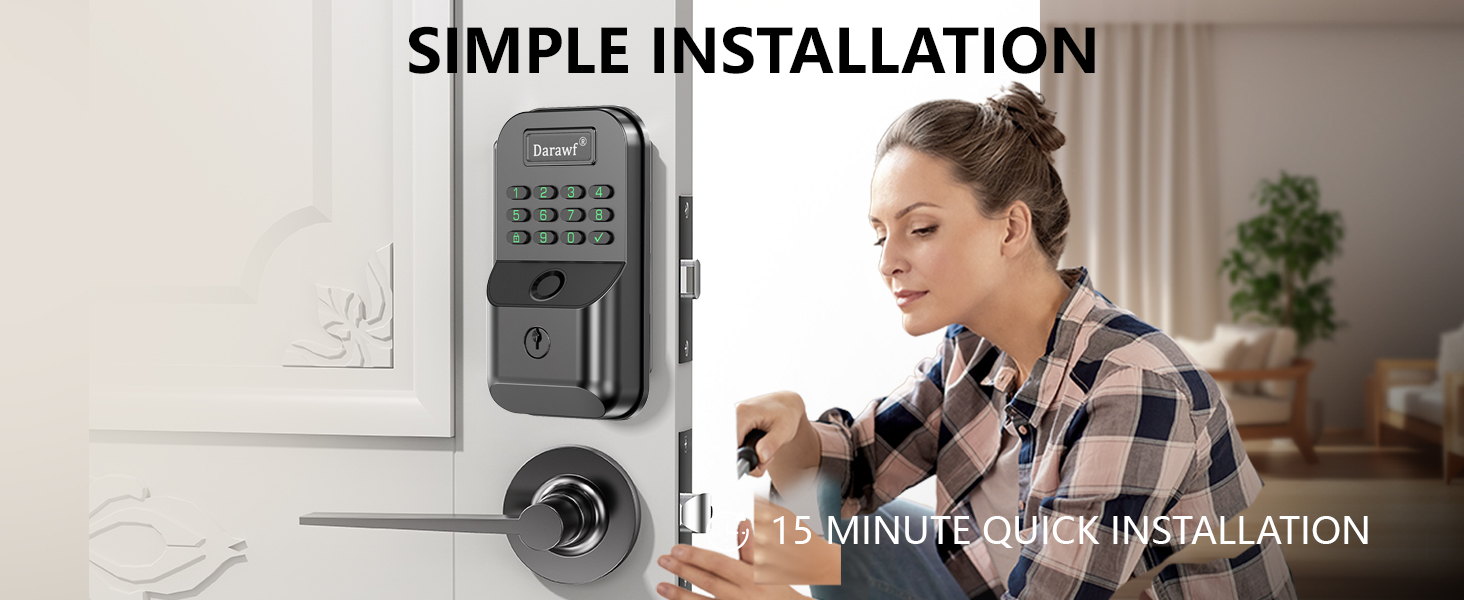
Image: A woman easily installing the Darawf Fingerprint Door Lock on a door, demonstrating the product's claim of simple and quick installation, often achievable within 15 minutes.
- Prepare the Door: Ensure your door meets the compatibility requirements. Remove any existing lock hardware.
- Install the Latch: Insert the latch into the door edge and secure it with screws. Ensure the latch bolt faces the correct direction for your door swing.
- Install the Exterior Assembly: Place the exterior keypad assembly onto the door, aligning the spindle with the latch mechanism.
- Install the Interior Mounting Plate: Secure the interior mounting plate to the exterior assembly using the provided screws.
- Connect Cables and Install Interior Assembly: Connect the cable from the exterior assembly to the interior assembly. Mount the interior assembly onto the mounting plate and secure it.
- Install Batteries: Insert four AA batteries into the battery compartment of the interior assembly.
- Test Operation: After installation, test the lock's basic functionality with a physical key before proceeding to programming.
For detailed visual instructions, refer to the separate "Installation Instructions" included in your package.
5. Initial Setup and Programming
After physical installation, you will need to program your lock for smart features.
5.1 App Download and Bluetooth Pairing
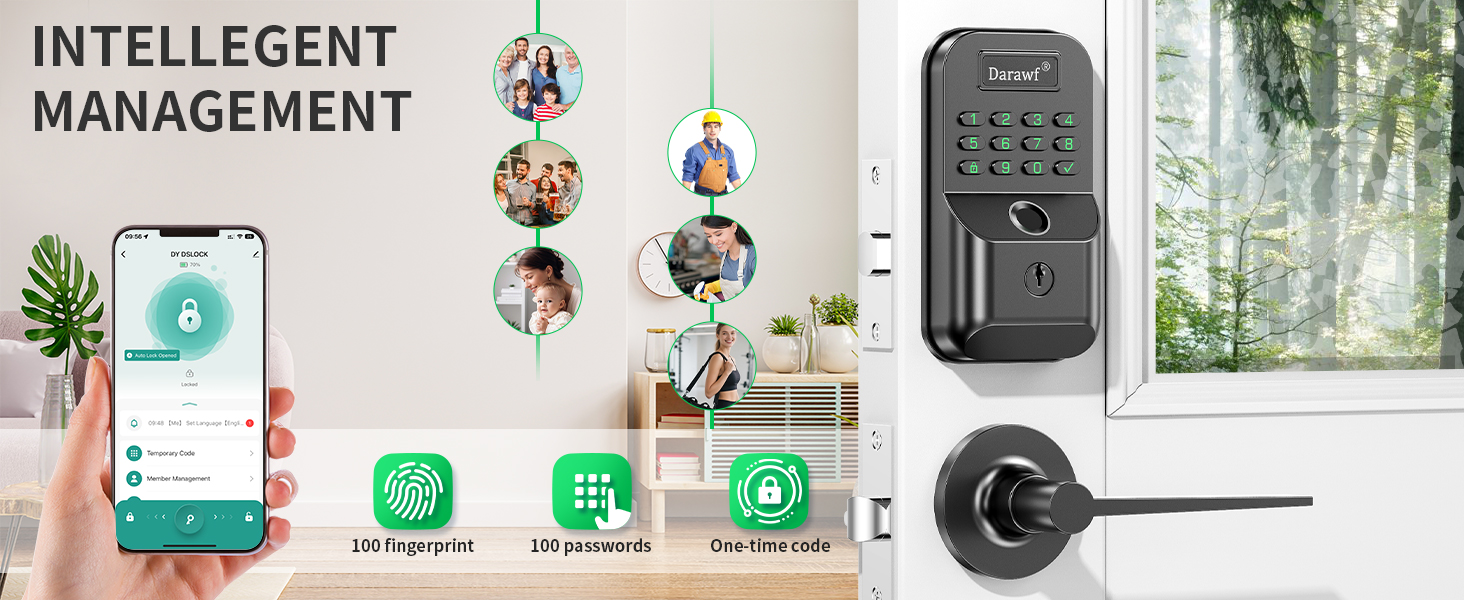
Image: An illustration showing the Darawf smart lock and a smartphone displaying the control app, highlighting intelligent management features such as adding fingerprints, passwords, and one-time codes for various users.
- Download the App: Search for the "Darawf Smart Lock" app (or specified app name in programming instructions) on your smartphone's app store (iOS or Android).
- Create an Account: Follow the in-app instructions to create a user account.
- Pair the Lock: Enable Bluetooth on your smartphone. Open the app and select "Add Device." The app will scan for nearby Darawf locks. Select your lock from the list to pair.
- Administrator Setup: The first user to pair with the lock will be designated as the administrator.
5.2 Registering Fingerprints
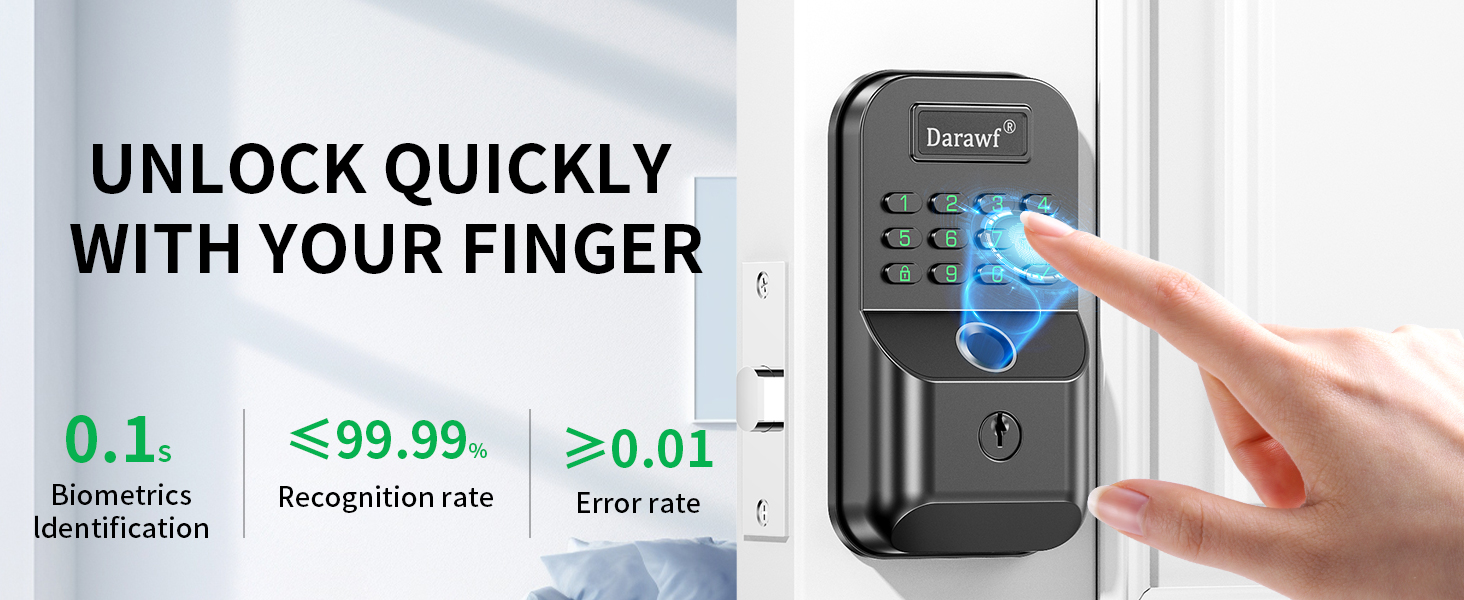
Image: A close-up of a finger interacting with the fingerprint sensor on the Darawf smart lock, emphasizing quick unlocking with high recognition rate and low error rate.
- Open the Darawf app and navigate to the "Fingerprint Management" section.
- Select "Add Fingerprint" and follow the on-screen prompts. You will typically be asked to place your finger on the sensor multiple times from different angles for accurate registration.
- The lock can store up to 100 fingerprints.
5.3 Setting Up Passcodes
- In the Darawf app, go to "Password Management."
- You can create various types of passcodes:
- Permanent Passcodes: For regular users.
- Timed Passcodes: Valid for a specific duration.
- One-Time Passcodes: For single use (e.g., for visitors or deliveries).
- Follow the app's instructions to set the desired passcode type and digits. The lock supports up to 100 passwords and 300 user codes.
6. Operating the Lock
Your Darawf Fingerprint Door Lock offers multiple convenient ways to unlock and lock your door.
6.1 Multiple Door Opening Methods

Image: A visual representation of the various unlocking methods: via the mobile app, fingerprint, physical key, and manual keypad entry.
6.2 Unlocking the Door
- Fingerprint Unlock: Place your registered finger on the fingerprint sensor. The lock will identify your fingerprint within 0.3 seconds and unlock.
- Digital Code Unlock: Enter your registered passcode on the keypad and press the checkmark (✓) button.
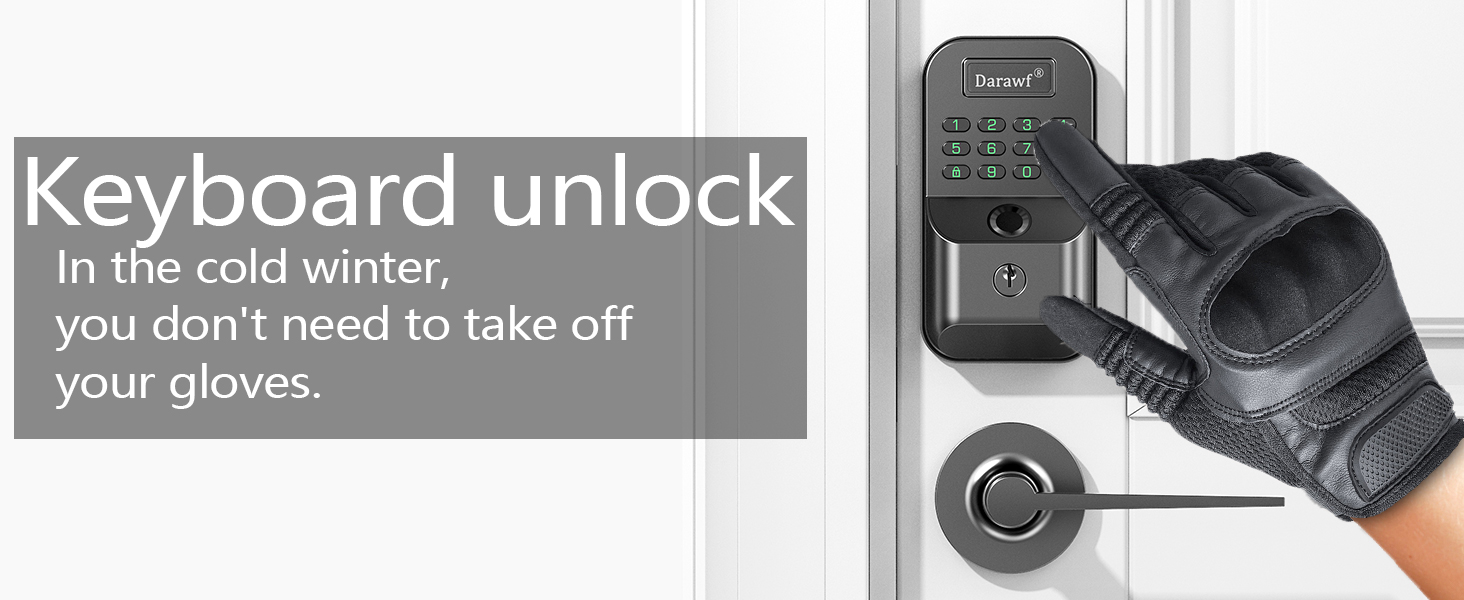
Image: A hand wearing a glove entering a code on the Darawf smart lock keypad, illustrating the convenience of keypad entry even in cold weather without removing gloves.
- App Unlock: Open the Darawf app on your smartphone and tap the unlock icon when within Bluetooth range.
- Physical Key Unlock: In case of battery depletion or electronic malfunction, use one of the provided physical keys to manually unlock the door.
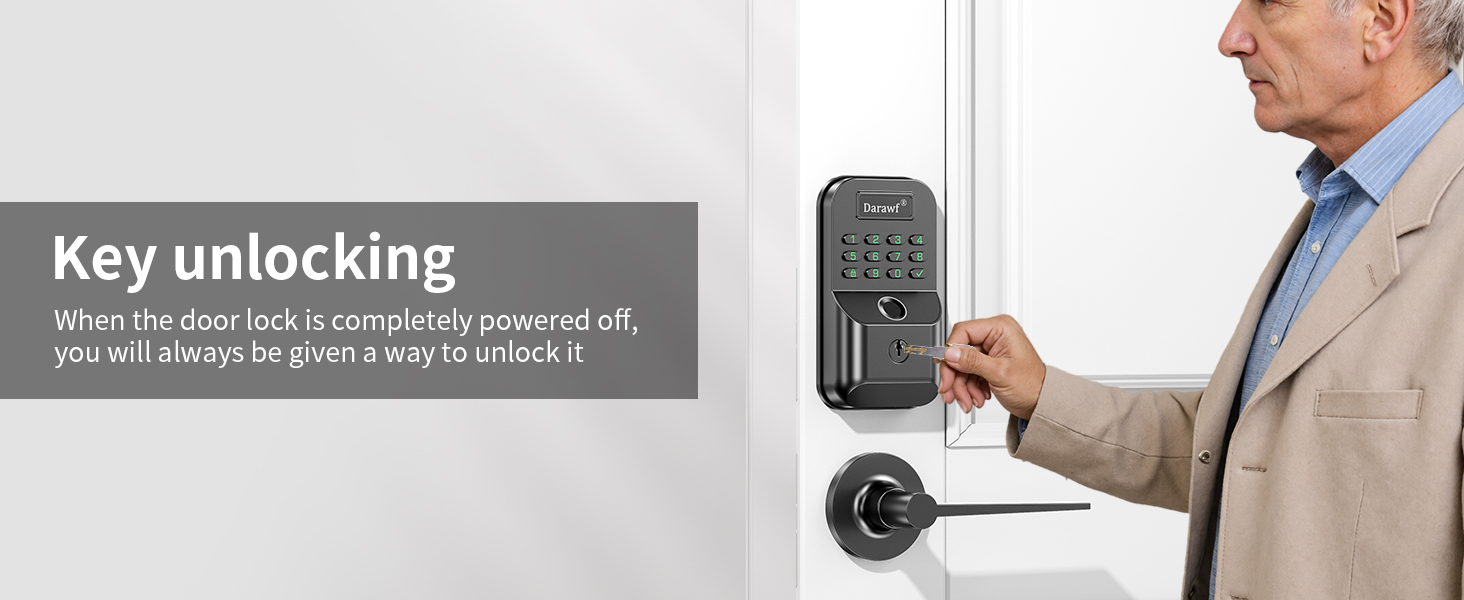
Image: A person using a physical key to unlock the Darawf smart lock, demonstrating the backup unlocking method when the lock is powered off or in an emergency.
6.3 Locking the Door
- Auto-Lock: The lock can be set to automatically lock after a delay of 10-99 seconds. This feature is configured via the Darawf app.

Image: A diagram illustrating the auto-lock feature, showing the lock automatically engaging after a set time (10-99 seconds) and the one-touch lock option.
- One-Touch Lock: From the outside, press and hold any key on the keypad for 2 seconds to instantly lock the door.
- Manual Lock (Interior): Rotate the knob on the interior side of the lock to engage the deadbolt.
- App Lock: Open the Darawf app on your smartphone and tap the lock icon when within Bluetooth range.
6.4 Advanced Features
- Anti-Peeping PIN Code: To prevent others from guessing your code, you can enter random digits before or after your actual passcode. The lock will still recognize the correct sequence within the longer string.
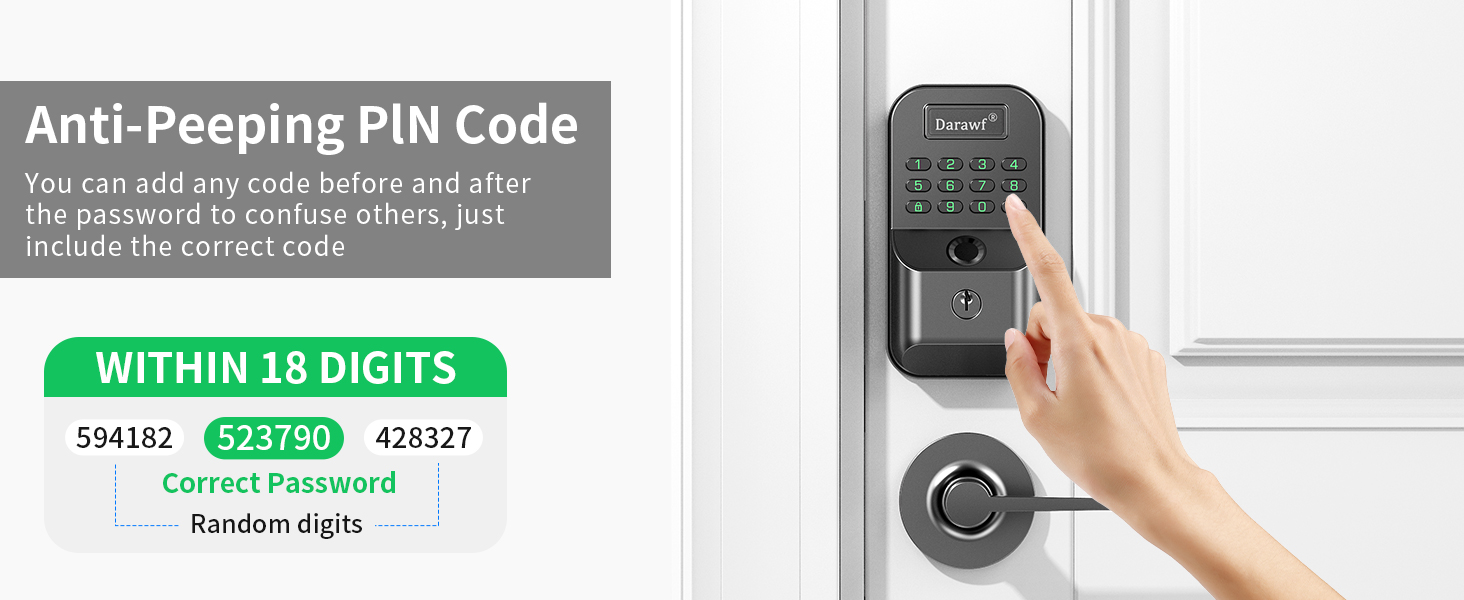
Image: An illustration depicting the anti-peeping PIN code feature, where random digits can be added before and after the correct password to obscure it from onlookers.
- One-Time Passwords: Generate temporary codes through the app for guests or service providers, which expire after a single use or a set time.
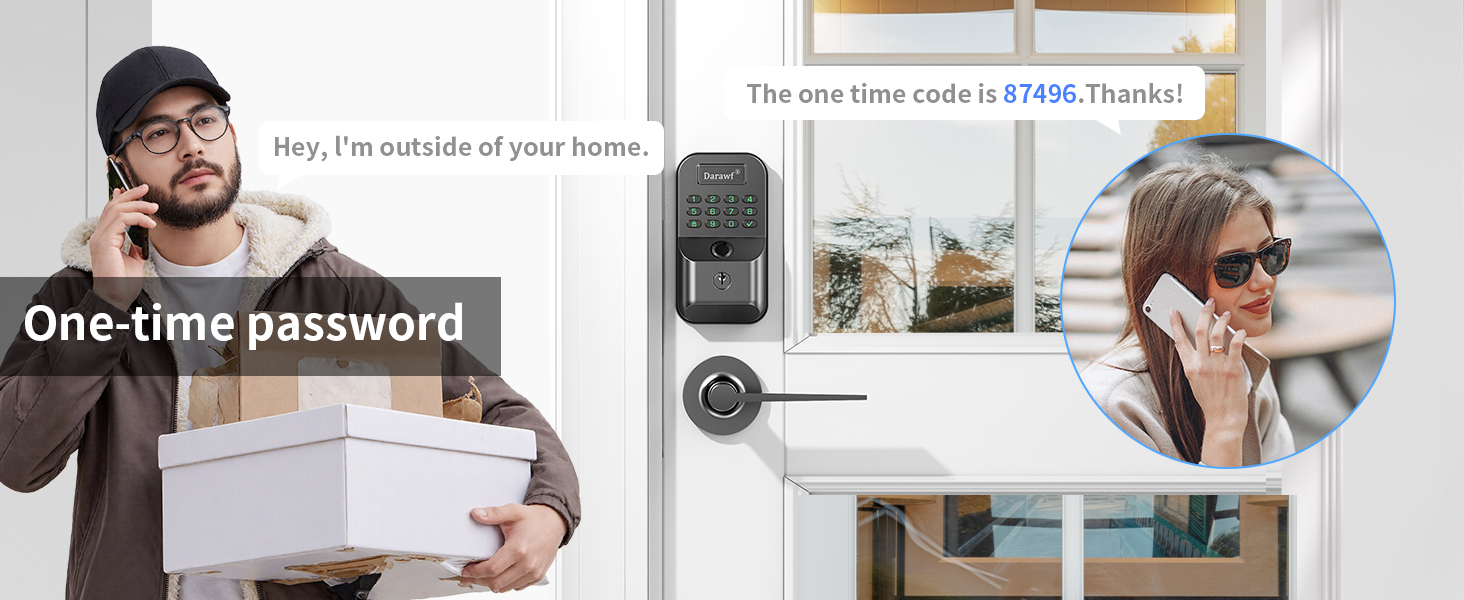
Image: A scenario showing a person outside a door receiving a one-time password via phone, highlighting the convenience of granting temporary access.
- Remote Control (with Gateway): For remote access and control outside of Bluetooth range, an additional gateway (sold separately) is required. This allows integration with smart home systems like Alexa.

Image: A woman using a smartphone and an Alexa device to remotely control the Darawf smart lock via a gateway, demonstrating smart home integration.
7. Maintenance
7.1 Battery Replacement
- The lock is powered by four AA batteries, which typically last for more than one year.
- The lock will provide low battery warnings through the app and/or audible alerts.
- To replace batteries, remove the battery cover on the interior assembly, replace all four AA batteries, and reattach the cover.
- Always use new, high-quality alkaline AA batteries for optimal performance.
7.2 Cleaning
- Clean the lock's exterior with a soft, damp cloth. Avoid abrasive cleaners or solvents that could damage the finish or electronic components.
- Keep the fingerprint sensor and keypad clean for optimal recognition.
7.3 Weather Resistance
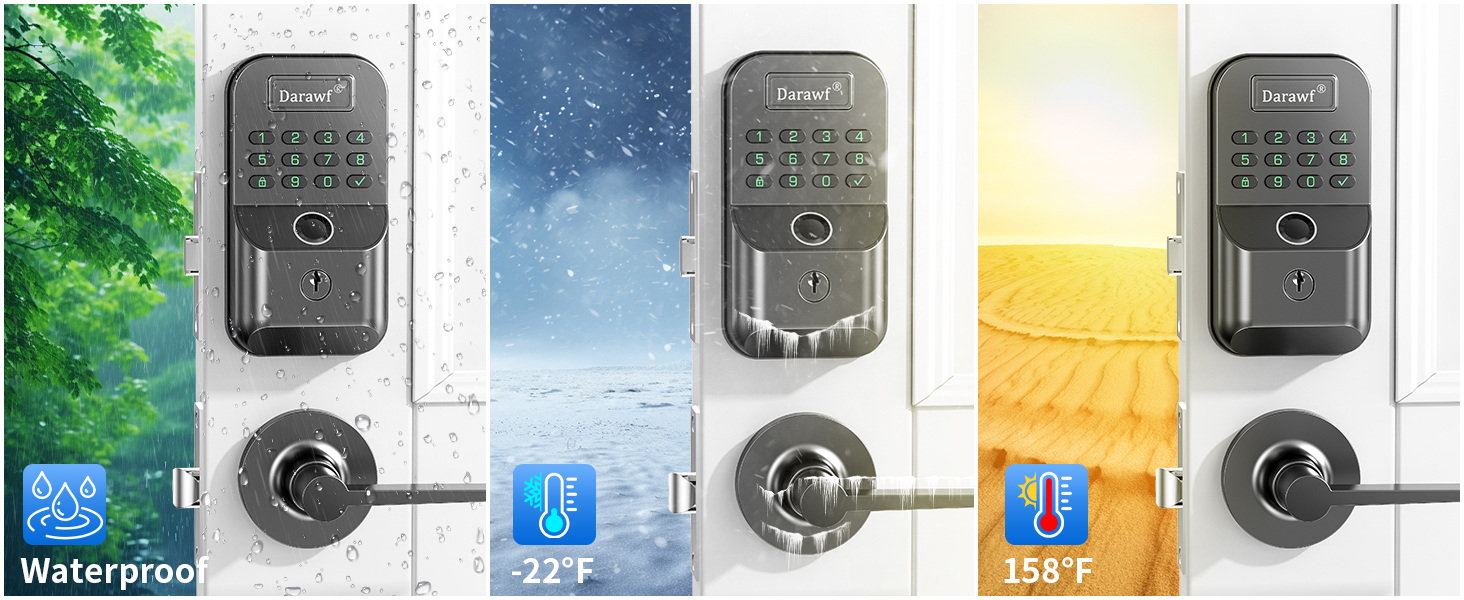
Image: A series of images depicting the Darawf smart lock's durability against various weather conditions, including rain (waterproof), snow (-22°F), and extreme heat (158°F).
The lock is IP54 weatherproof and designed to withstand temperatures from -31 °F to 158 °F, ensuring reliable operation in various environmental conditions.
8. Troubleshooting
Here are solutions to common issues you might encounter:
- Lock is not responding:
- Check battery levels and replace if necessary.
- Ensure the lock is properly installed and all cables are connected.
- Fingerprint not recognized:
- Ensure your finger and the sensor are clean and dry.
- Try re-registering your fingerprint, ensuring multiple angles are captured.
- Use a different registered finger or an alternative unlocking method.
- Keypad not responding or code not working:
- Ensure you are entering the correct code followed by the checkmark (✓) button.
- If the keypad is unresponsive, check batteries.
- If you enter the wrong password 10 times, the door will sound an alarm and lock for 3 minutes as a security measure.
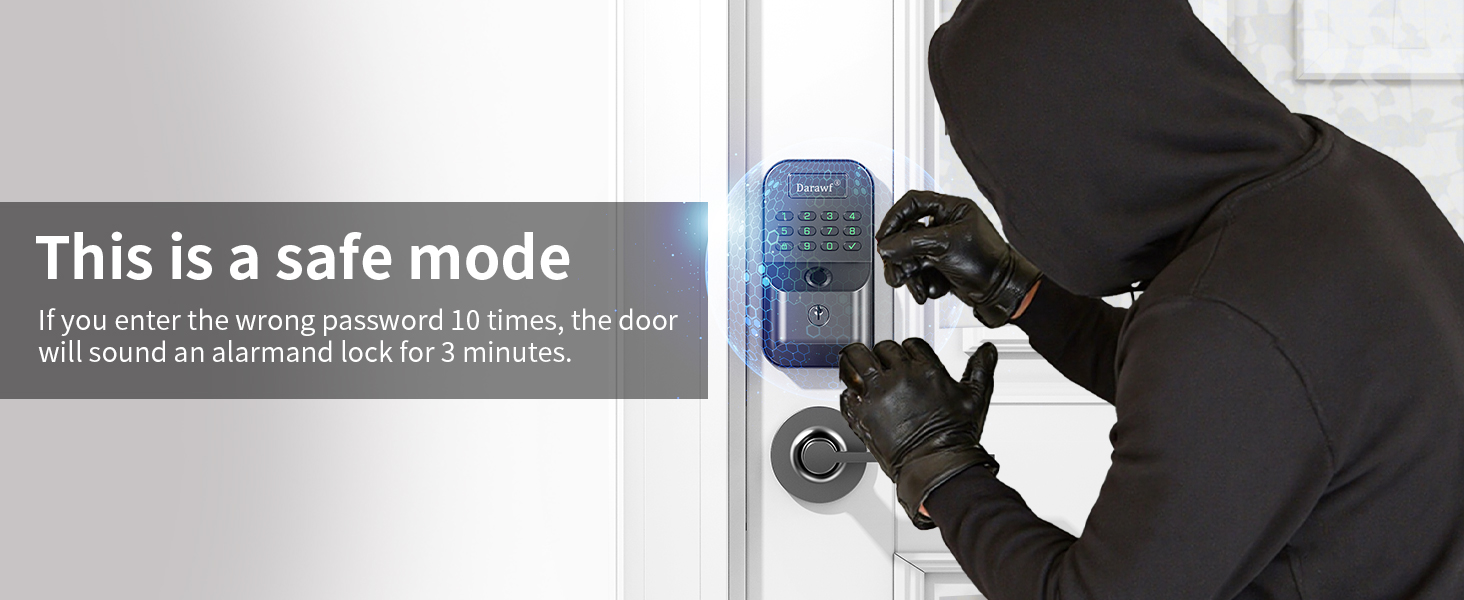
Image: An illustration depicting a person attempting to enter an incorrect password multiple times on the Darawf smart lock, triggering a safe mode with an alarm and a 3-minute lockout.
- Bluetooth connectivity issues:
- Ensure Bluetooth is enabled on your phone and you are within range of the lock.
- Restart the app or your phone.
- Try re-pairing the lock through the app settings.
- Lock does not auto-lock:
- Verify that the auto-lock feature is enabled and configured with the desired delay in the Darawf app.
- Ensure the door is fully closed and the latch is not obstructed.
9. Warranty and Support
For warranty information, technical support, or further assistance, please refer to the contact details provided in your product packaging or visit the official Darawf website. Keep your purchase receipt as proof of purchase for any warranty claims.
Ask a question about this manual
Ask about setup, troubleshooting, compatibility, parts, safety, or missing instructions. Manuals+ will review the question and use this page’s manual context to help answer it.