
1. Introduction
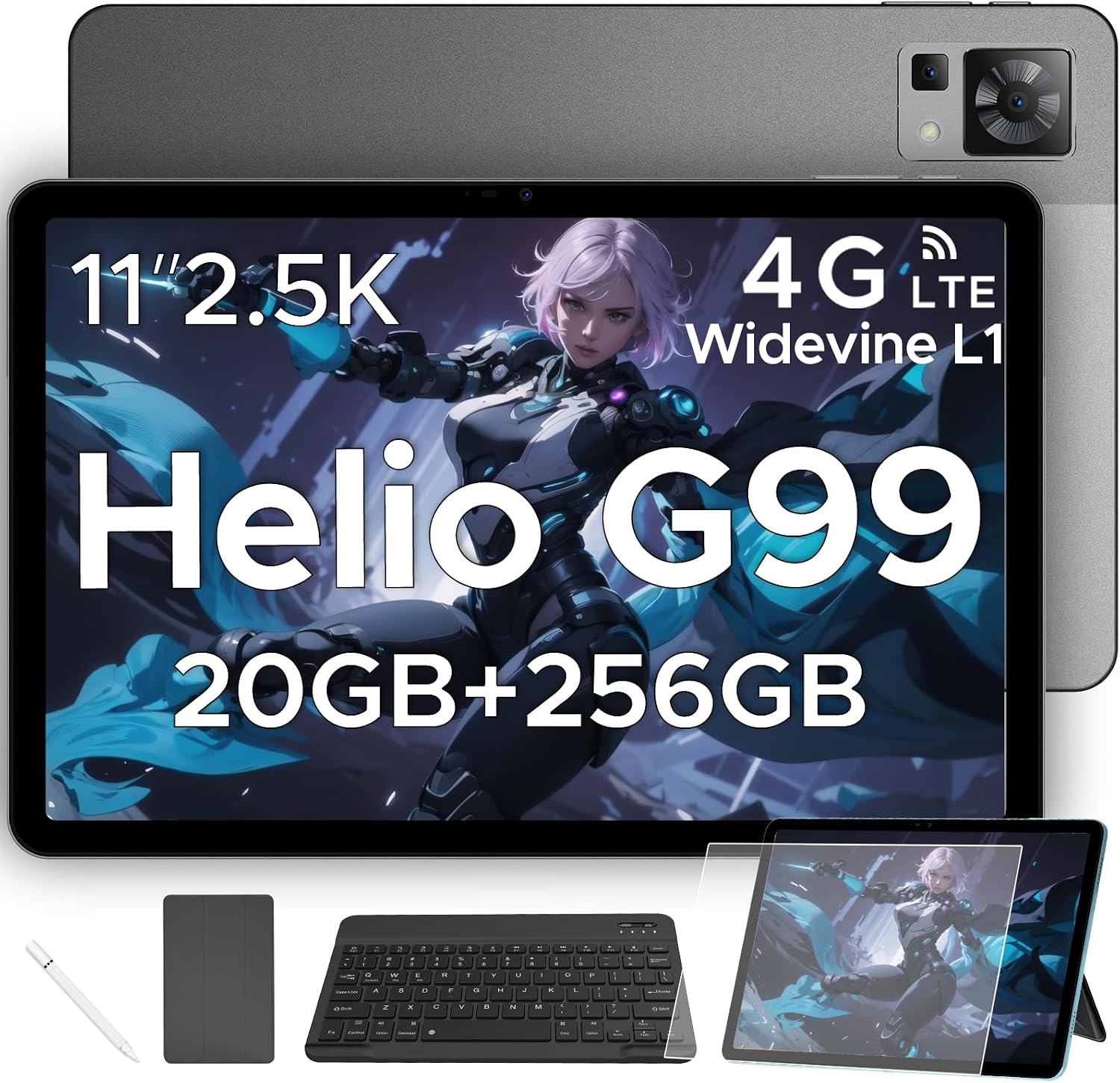
Welcome to the user manual for your new DOOGEE T35 11-inch Tablet. This device is designed to provide a powerful and versatile experience, whether for work, entertainment, or communication. Equipped with a high-performance Helio G99 Octa-core processor and running on the latest Android 14 operating system, the T35 offers seamless multitasking and a user-friendly interface. Its stunning 2.5K FHD+ display ensures vibrant visuals, while the large 8580mAh battery provides extended usage times. With ample storage, 4G LTE connectivity, and a suite of included accessories, the DOOGEE T35 is ready to meet your diverse needs.
2. What's in the Box
Upon opening your DOOGEE T35 package, please verify that all the following items are included:
- DOOGEE T35 Tablet
- Charger / Type-C USB Cable
- Tool for SIM Card Ejection
- User Manual
- Bluetooth Keypad
- Protective Film (Screen Protector)
- Touching Pen (Stylus)
- Business Leather Case
For a visual guide to the unboxing process and included components, please refer to the official unboxing video below:
3. Setup
Follow these steps for the initial setup of your DOOGEE T35 tablet:
- Charge the Tablet: Before first use, fully charge the tablet using the provided Type-C USB cable and charger.
- Power On: Press and hold the power button located on the side of the tablet until the DOOGEE logo appears.
- Initial Configuration: Follow the on-screen prompts to select your language, connect to a Wi-Fi network, and set up your Google account.
- Install Screen Protector: Carefully apply the included protective film to the tablet screen to prevent scratches.
- Attach Case: Place the tablet into the business leather case for protection.
- Connect Bluetooth Keyboard: Turn on the Bluetooth keyboard and pair it with your tablet via the Bluetooth settings.
- Insert SIM Card (Optional): If you plan to use 4G LTE calling or mobile data, insert your SIM card using the provided tool into the designated slot.

4. Operating Instructions
4.1 Display and Visuals
The DOOGEE T35 features an 11-inch 2.5K Ultra-Clear Display (2560 x 1600 pixels) with Widevine L1 support, ensuring a high-quality viewing experience for streaming and multimedia content. The display offers vivid colors and sharp details.

4.2 Performance and Storage
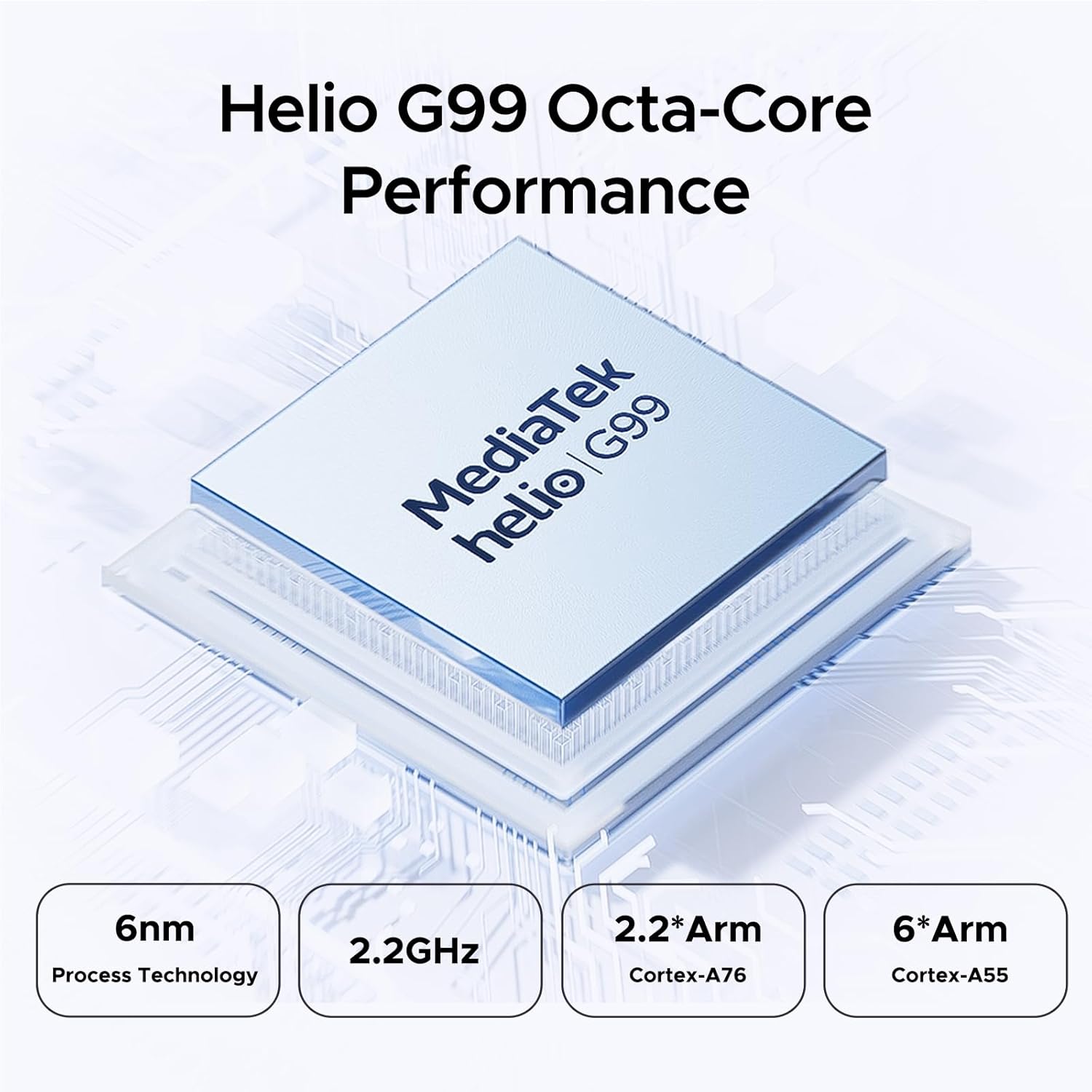
Powered by the Helio G99 Octa-core processor (6nm process technology, 2.2GHz), the T35 delivers smooth performance for various applications. It comes with 8GB of base RAM, expandable up to 20GB, and 256GB of internal ROM, expandable up to 2TB via TF card, providing ample space for all your files and applications.

4.3 Connectivity
The tablet supports 4G LTE calling, allowing you to make calls and send texts directly from the device. It also features 5G Wi-Fi (802.11g) for fast and stable internet connections.
4.4 Battery Life and Charging
Equipped with an 8580mAh battery, the DOOGEE T35 offers extended usage. It supports 33W fast charging for quick power-ups and also features reverse charging, allowing it to act as a power bank for other devices.

4.5 Android 14 System
The DOOGEE T35 runs on Android 14, offering an enhanced user experience with new features and improvements, including optimized performance and privacy controls.

For a comprehensive overview of the tablet's features and capabilities, including its display, speakers, processor, battery, and accessories, please watch the official product video:
5. Maintenance
To ensure the longevity and optimal performance of your DOOGEE T35 tablet, please follow these maintenance guidelines:
- Cleaning: Use a soft, lint-free cloth to clean the screen and body of the tablet. Avoid using harsh chemicals or abrasive materials.
- Temperature: Do not expose the tablet to extreme temperatures (hot or cold) or direct sunlight for prolonged periods.
- Water Exposure: Keep the tablet away from water and high humidity. While durable, it is not waterproof.
- Software Updates: Regularly check for and install system updates to ensure your tablet has the latest features, security patches, and performance improvements.
- Battery Care: Avoid fully discharging the battery frequently. For optimal battery health, try to keep the charge between 20% and 80%.
- Storage: When not in use for extended periods, store the tablet in a cool, dry place.
6. Troubleshooting
This section addresses common issues you might encounter with your DOOGEE T35 tablet. If you experience a problem not listed here, please contact customer support.
- Tablet will not power on:
- Ensure the battery is charged. Connect the tablet to the charger and wait a few minutes before attempting to power on again.
- Press and hold the power button for at least 10-15 seconds to perform a forced restart.
- Tablet is slow or unresponsive:
- Close unnecessary background applications.
- Clear cache data for frequently used apps.
- Restart the tablet.
- Ensure sufficient storage space is available. Delete unused files or apps.
- Wi-Fi or 4G LTE connectivity issues:
- Toggle Wi-Fi/Mobile Data off and on in settings.
- Restart your Wi-Fi router or check your mobile network signal.
- Forget the Wi-Fi network and reconnect.
- Ensure your SIM card is properly inserted and activated with your carrier.
- Cannot connect to Google Server or sign in to account:
- Check your internet connection.
- Verify your Google account credentials.
- Ensure the date and time settings on your tablet are correct.
- Clear the cache and data for Google Play Services and Google Play Store apps.
- If the issue persists, a factory reset might be necessary (Note: This will erase all data on the tablet. Back up important information first.)
- Bluetooth keyboard not pairing:
- Ensure the keyboard is charged and in pairing mode.
- Make sure Bluetooth is enabled on the tablet.
- Remove any previously paired keyboards from the tablet's Bluetooth settings and try pairing again.
7. Specifications
Detailed technical specifications for the DOOGEE T35 tablet:
| Feature | Specification |
|---|---|
| Brand | DOOGEE |
| Model Name | T35 |
| Operating System | Android 14 |
| Standing Screen Display Size | 10.95 Inches |
| Screen Resolution | 2560 x 1600 pixels |
| Max Screen Resolution | 1600*2560 Pixels |
| Processor Brand | MediaTek (Helio G99 Octa-core) |
| Flash Memory Size | 8 GB (Base RAM) |
| Memory Storage Capacity | 256 GB (ROM, expandable to 2TB) |
| Wireless Type | 802.11g (5G Wi-Fi) |
| Average Battery Life (in hours) | 2 years (estimated lifespan) |
| Item Weight | 1.42 pounds |
| Product Dimensions | 10.12 x 6.64 x 0.3 inches |
| Color | Gray |
| Batteries | 1 Lithium Polymer battery required (included) |
8. Warranty and Support
DOOGEE is committed to providing high-quality products and excellent customer service. Your DOOGEE T35 tablet comes with a 2-Year Limited Warranty. Please retain your proof of purchase for warranty claims.
For any inquiries, technical assistance, or warranty support, please contact DOOGEE customer service. You can typically find contact information on the official DOOGEE website or through the seller's support channels. Many issues can be resolved with 24/7 One-on-One Online Support.
Additionally, DOOGEE offers a 30-Days Money Back Guarantee and Free Return policy, ensuring your satisfaction with the product.


